Employee Clock In/Out
A step-by-step guide to setting up and using the employee clock in/out system in MeeD POS, covering everything from adding a user to clocking in and out with a PIN.
How to Set It Up and Use It
Step 1 — Set Up an Employee User Account
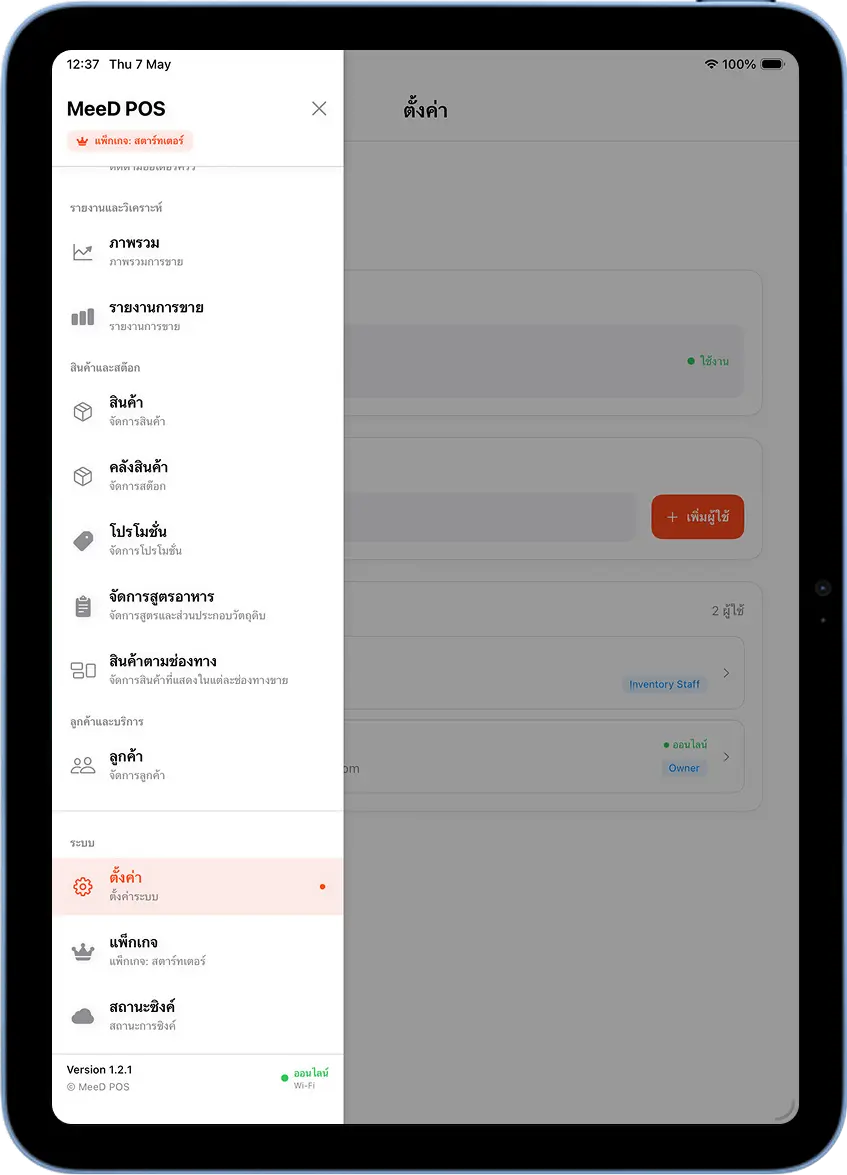
Open the Sidebar and Select Settings
Tap the menu icon (☰) in the top-left corner, or tap the shop name, to open the sidebar. Scroll down to the System section and tap Settings.
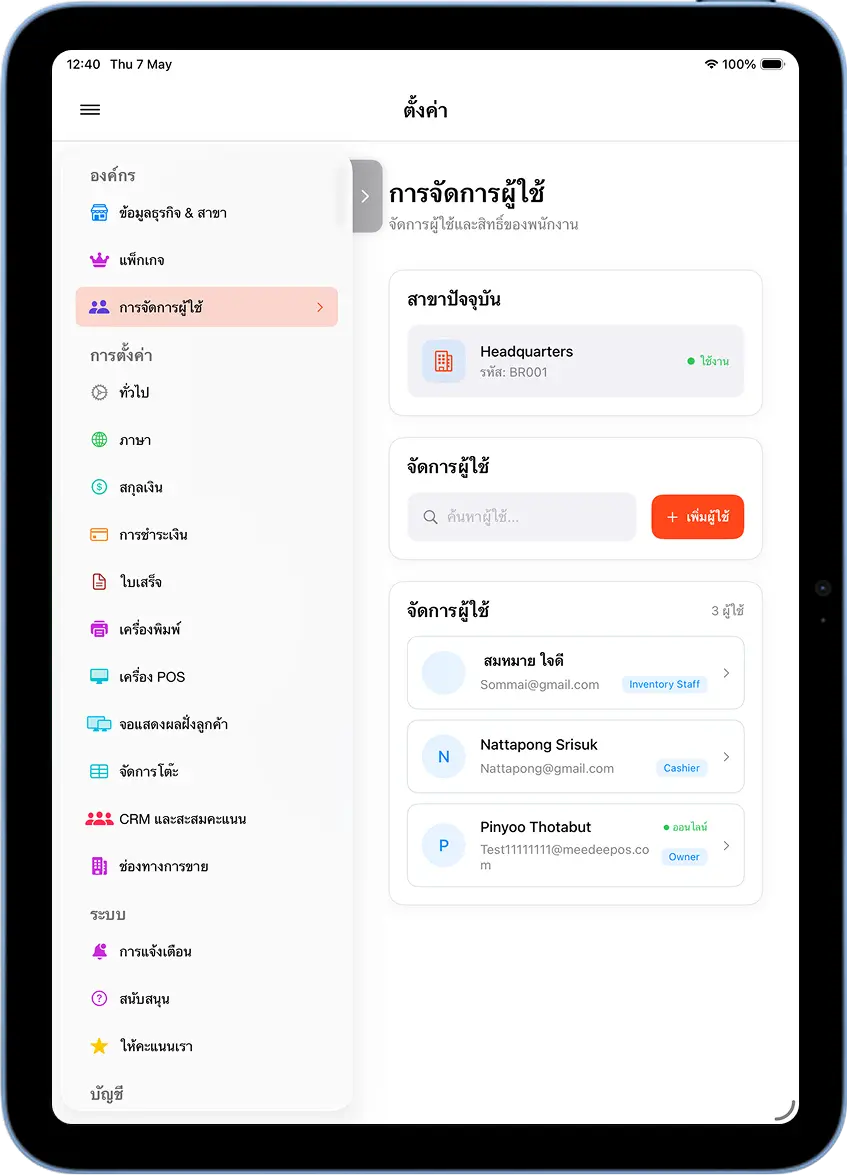
Select User Management
On the settings screen, tap User Management in the left-side menu panel. You'll see a list of all employees in the system, with a "+ Add User" button in the top right.
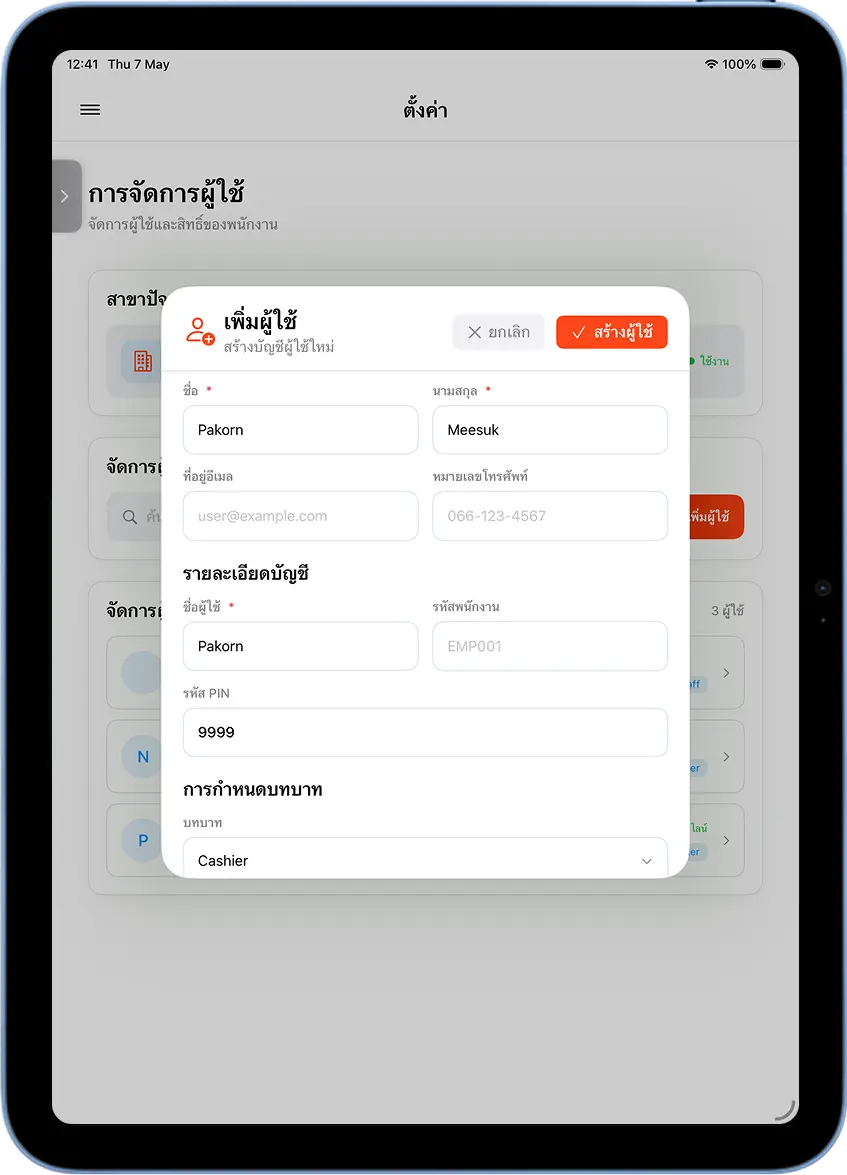
Fill In the Details and Set a PIN
Tap "+ Add User" and a form appears. Fill in: the employee's first and last name, a username for login, a 4-digit PIN (the employee will use this PIN to clock in/out), and a role, e.g. Cashier, Owner, Inventory Staff.
Once complete, tap "Create User" in the top-right corner of the form.
Step 2 — Clocking In
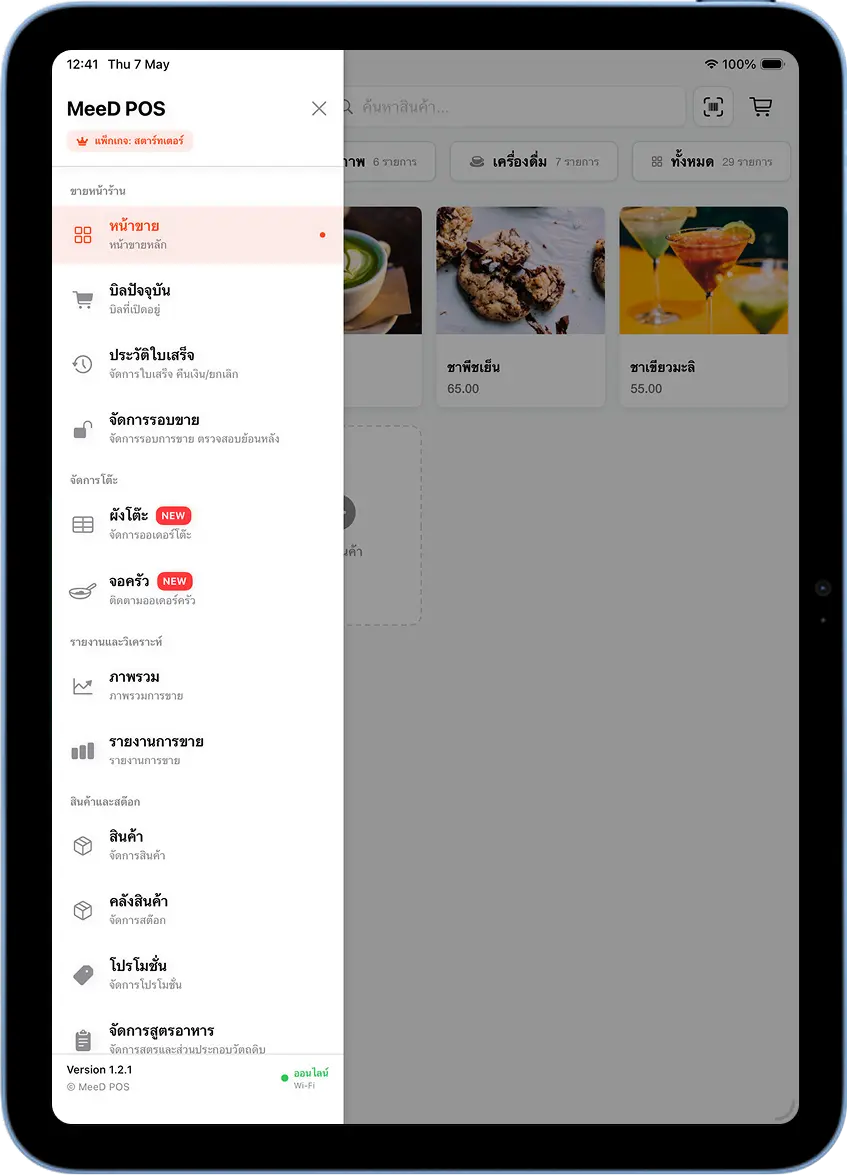
Open the Sidebar and Return to the Sales Screen
Open the sidebar and tap Sales (the storefront sales section) to return to the main sales screen.
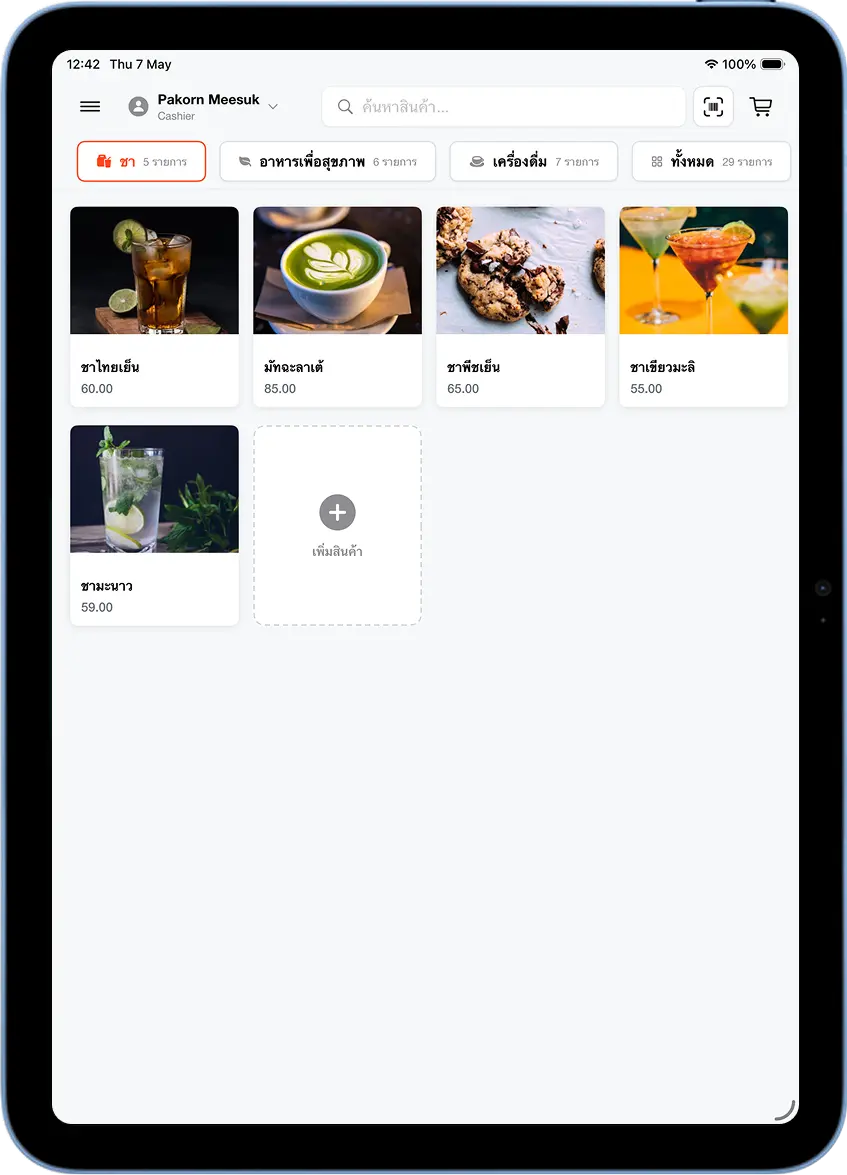
Tap the Employee Name in the Top-Left Corner
On the sales screen, you'll see the name of the currently logged-in employee (e.g. Pakorn Meesuk — Cashier) in the top-left corner. Tap that name to open the PIN screen.
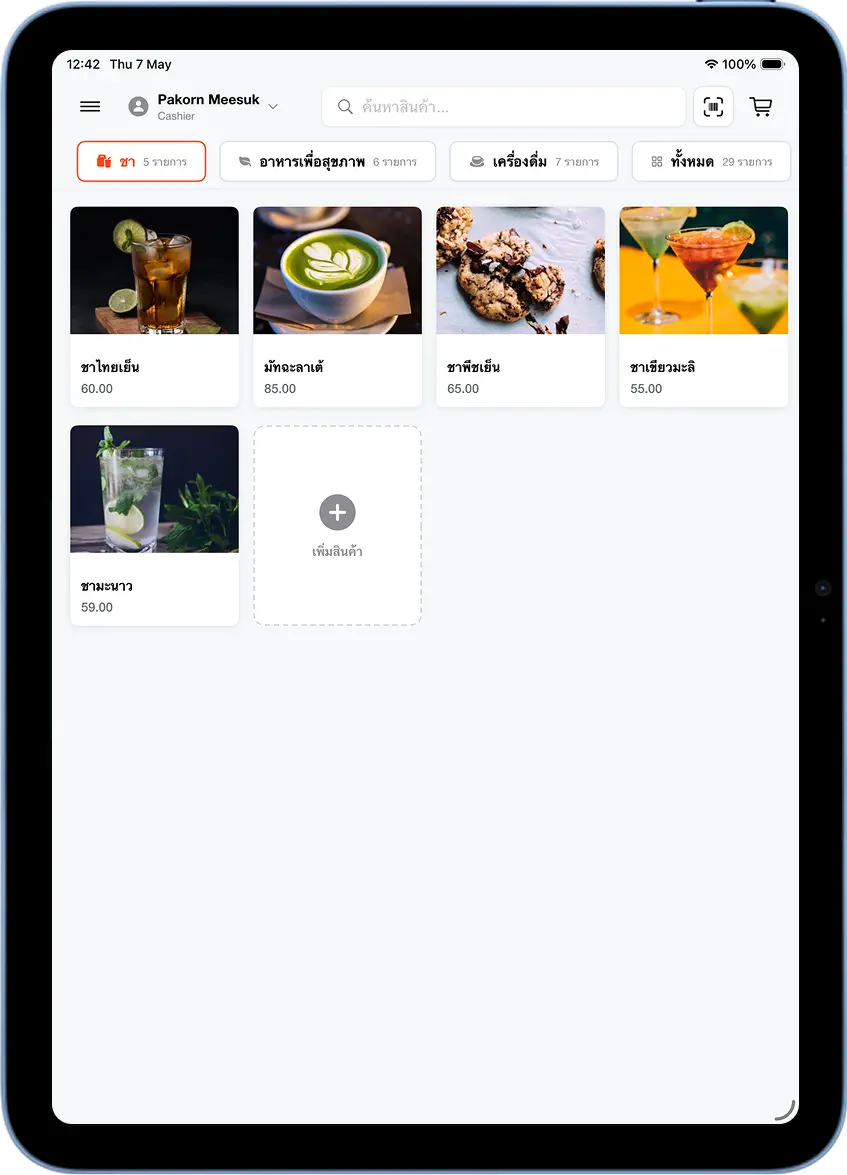
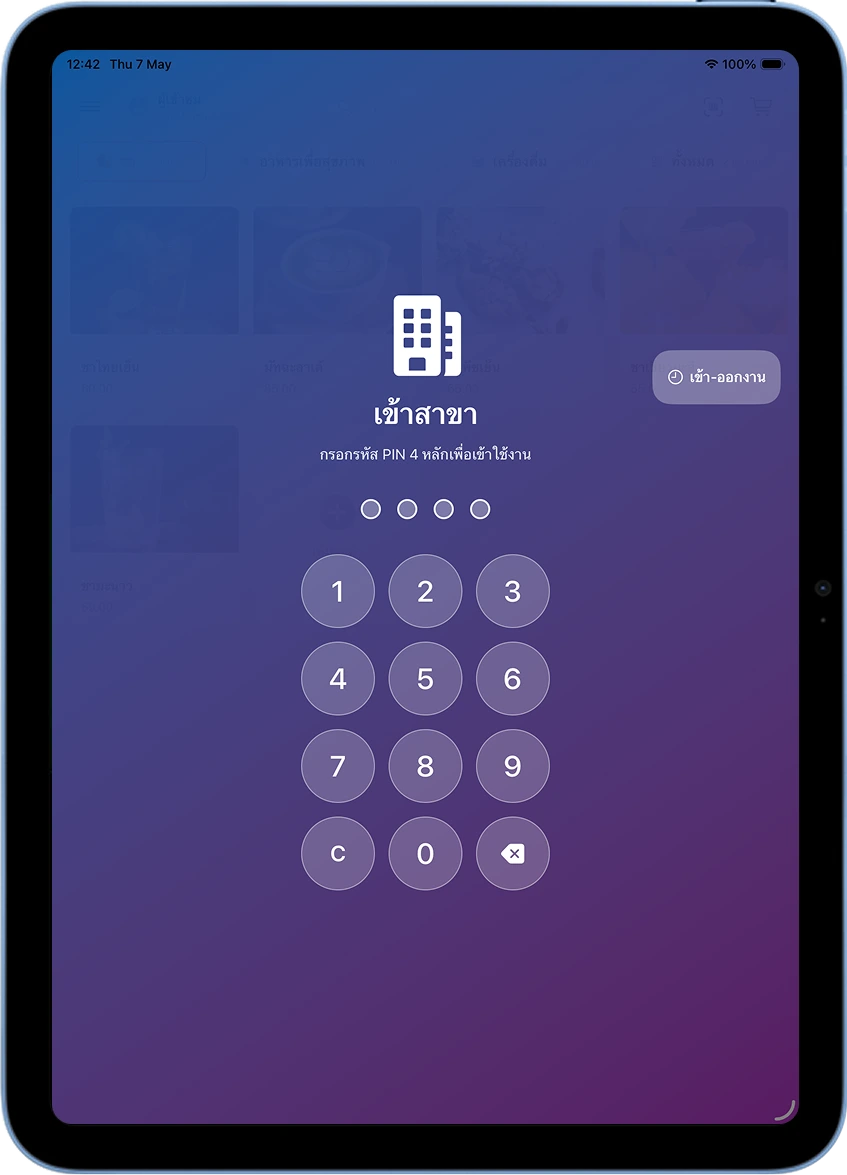
Tap the "Clock In/Out" Button in the Top-Right Corner
The system shows the Branch Login screen (a PIN screen with a purple background). Tap the Clock In/Out button in the top-right corner — no need to enter a PIN to open the app first.
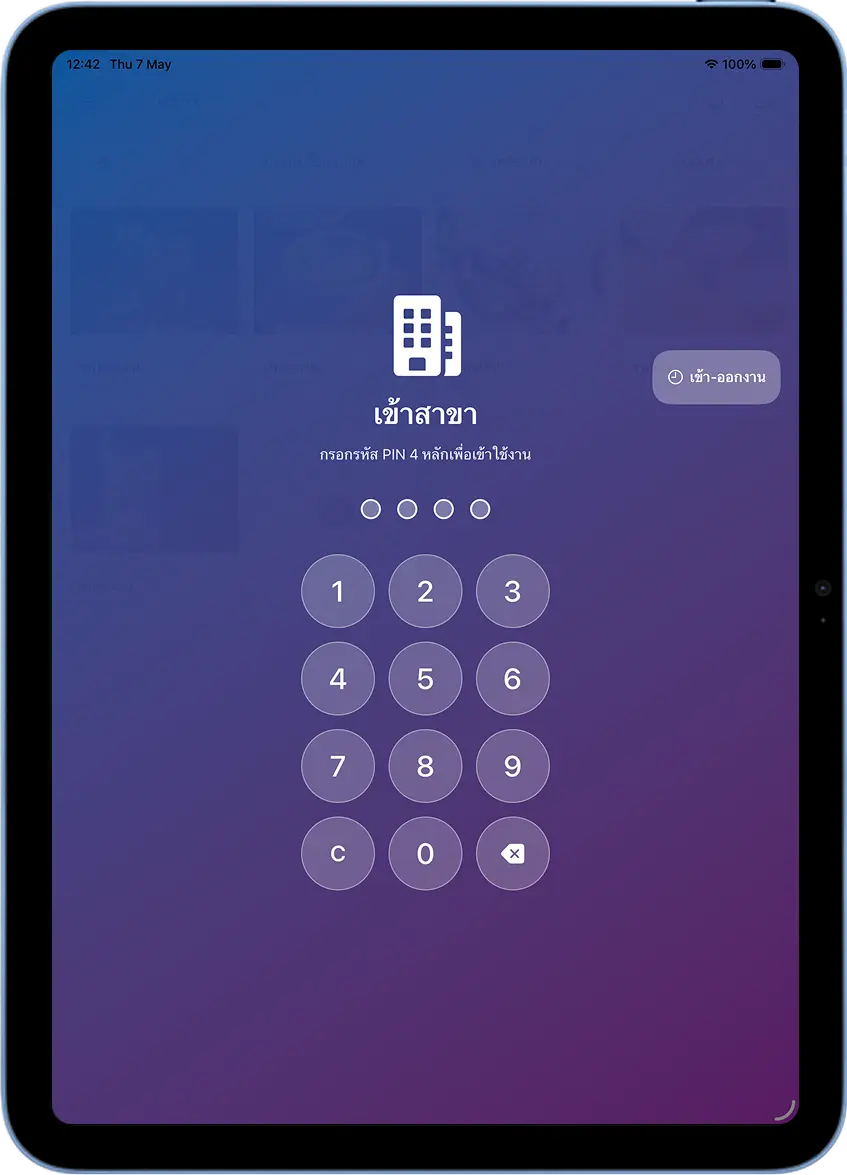
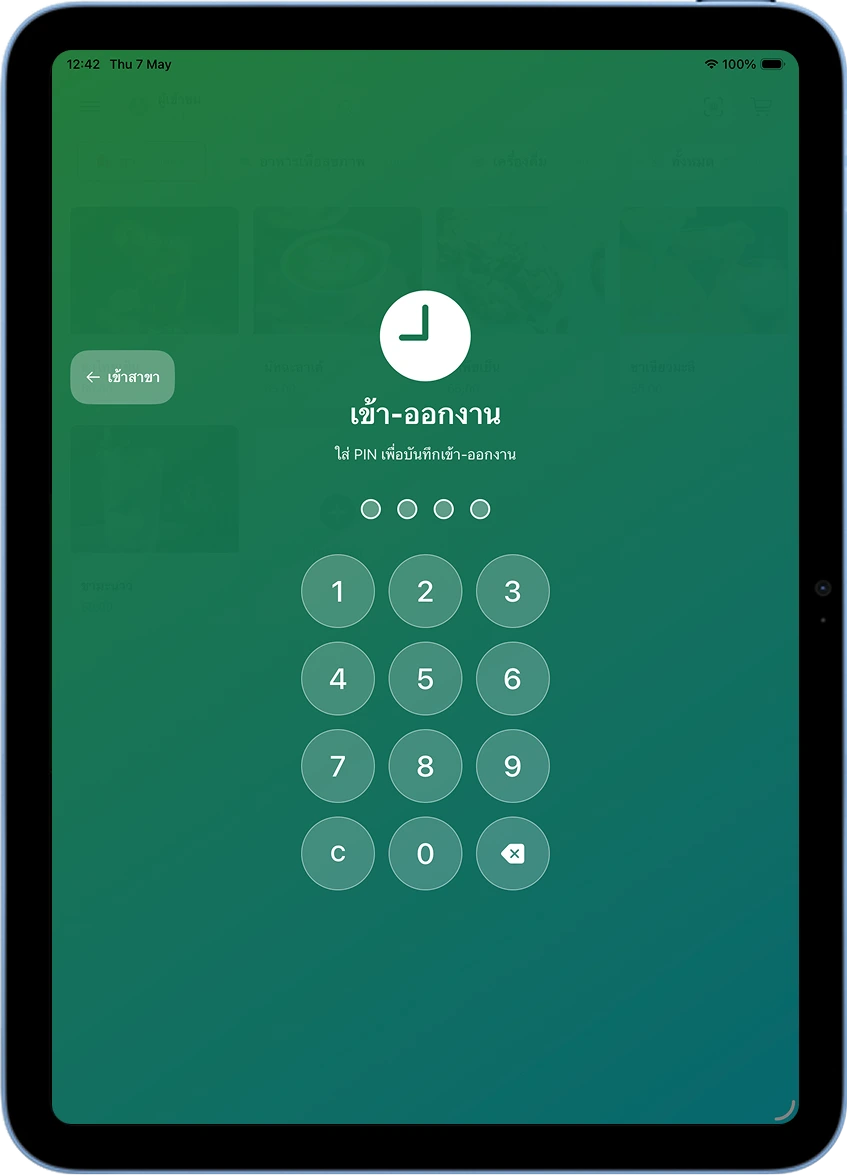
Enter the 4-Digit PIN on the Clock In/Out Screen
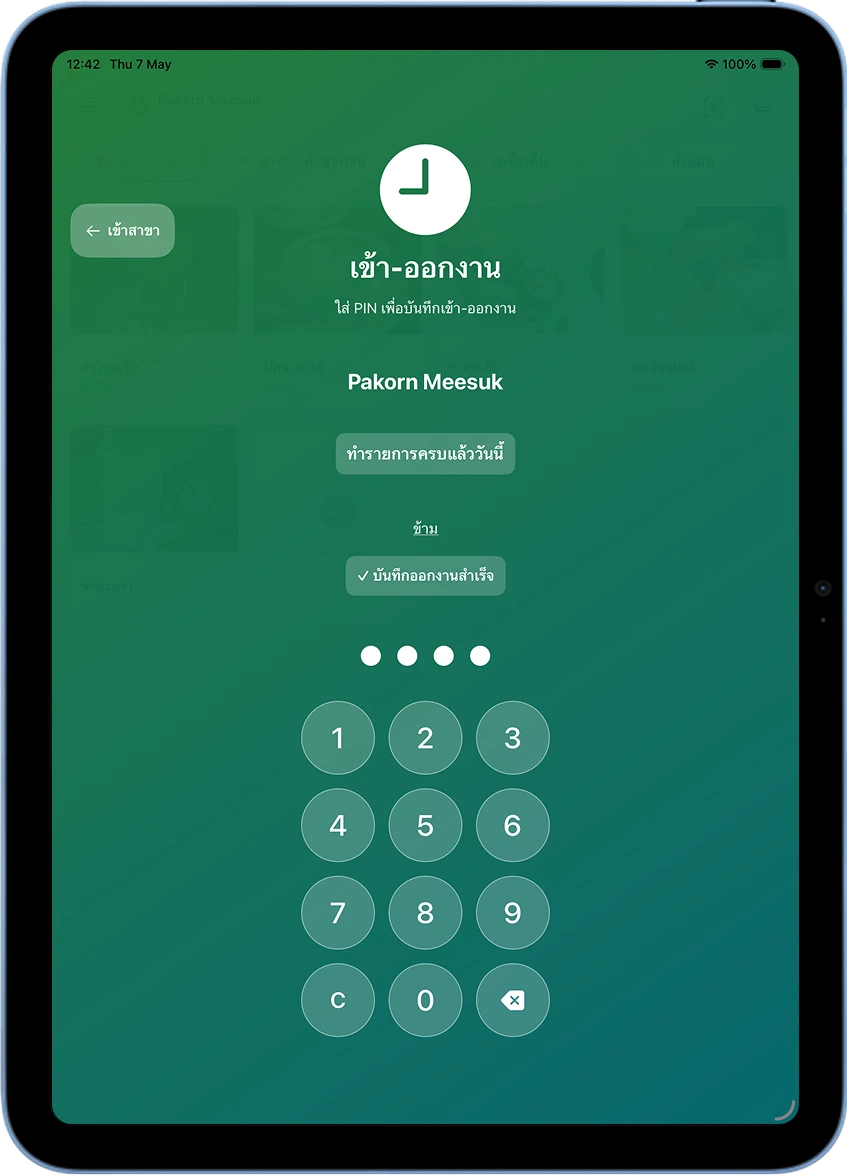
The system switches to the Clock In/Out screen with a green background and a number pad. Have the employee enter their own 4-digit PIN.
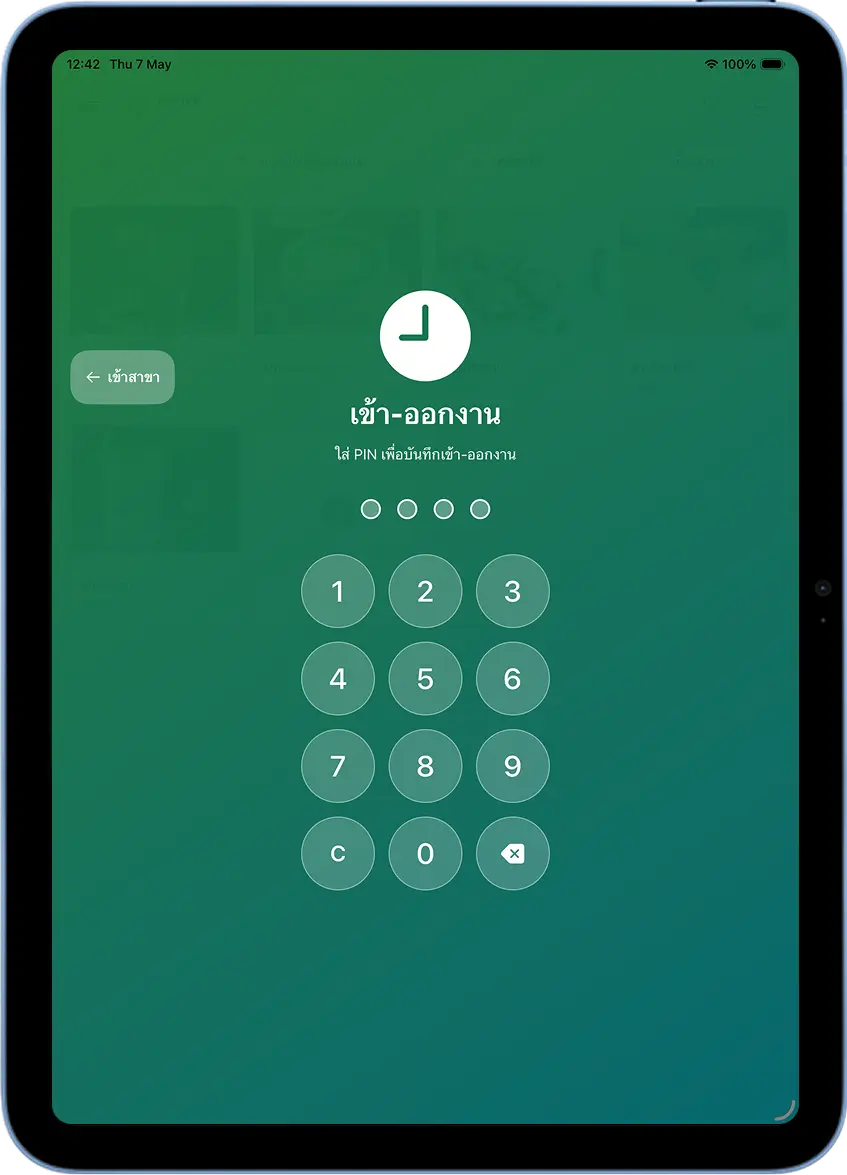
Confirm Clocking In
Once the 4-digit PIN is entered, the system shows the employee's name with a "Not Clocked In" status and a green "Clock In" button. Tap it to confirm.
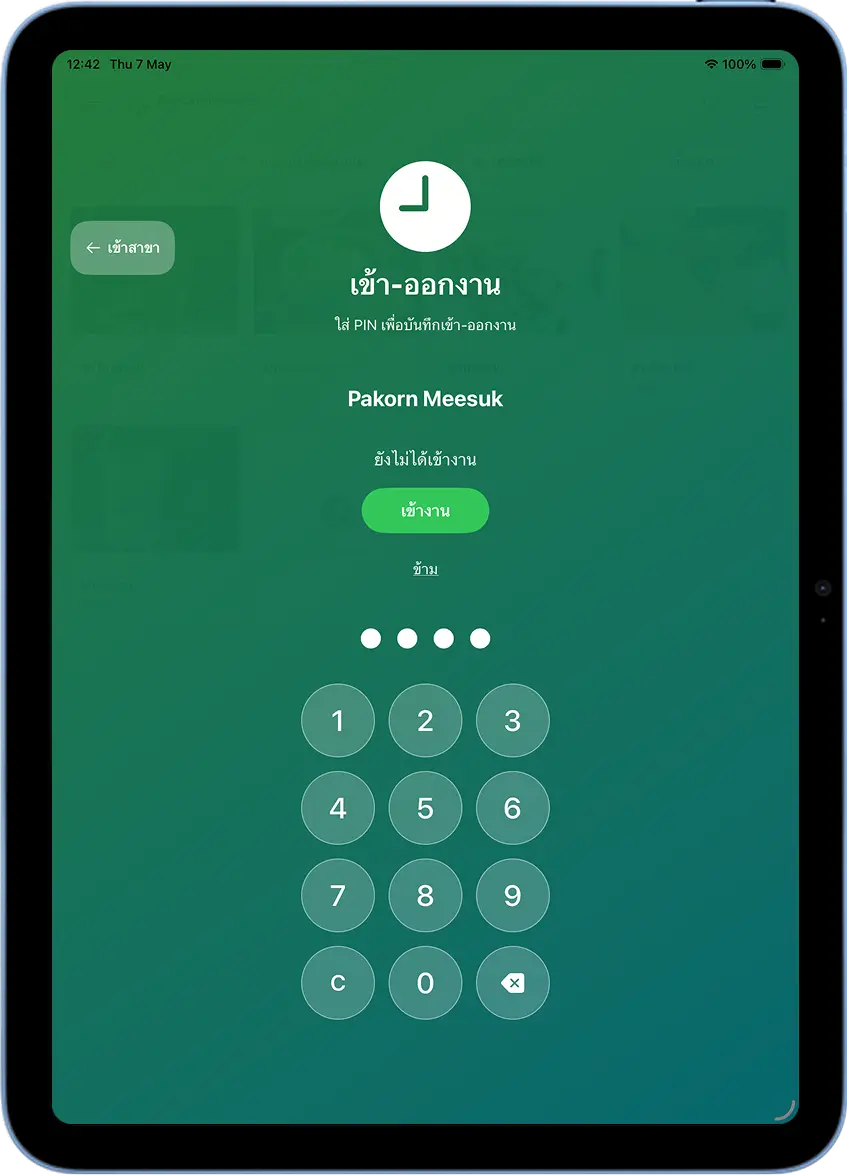
Clocked In Successfully — Ready to Sell
The system records the clock-in time and automatically takes the employee to the sales screen. They can start taking orders right away.
Step 3 — Clocking Out
Tap the Employee Name in the Top-Left Corner Again
At the end of the shift, tap the employee name in the top-left corner of the sales screen the same way, to open the PIN screen.
Tap the "Clock In/Out" Button in the Top-Right Corner Again
On the Branch Login screen, tap the Clock In/Out button in the top-right corner, the same as before.
Enter the PIN — the System Shows the Clocked-In Status
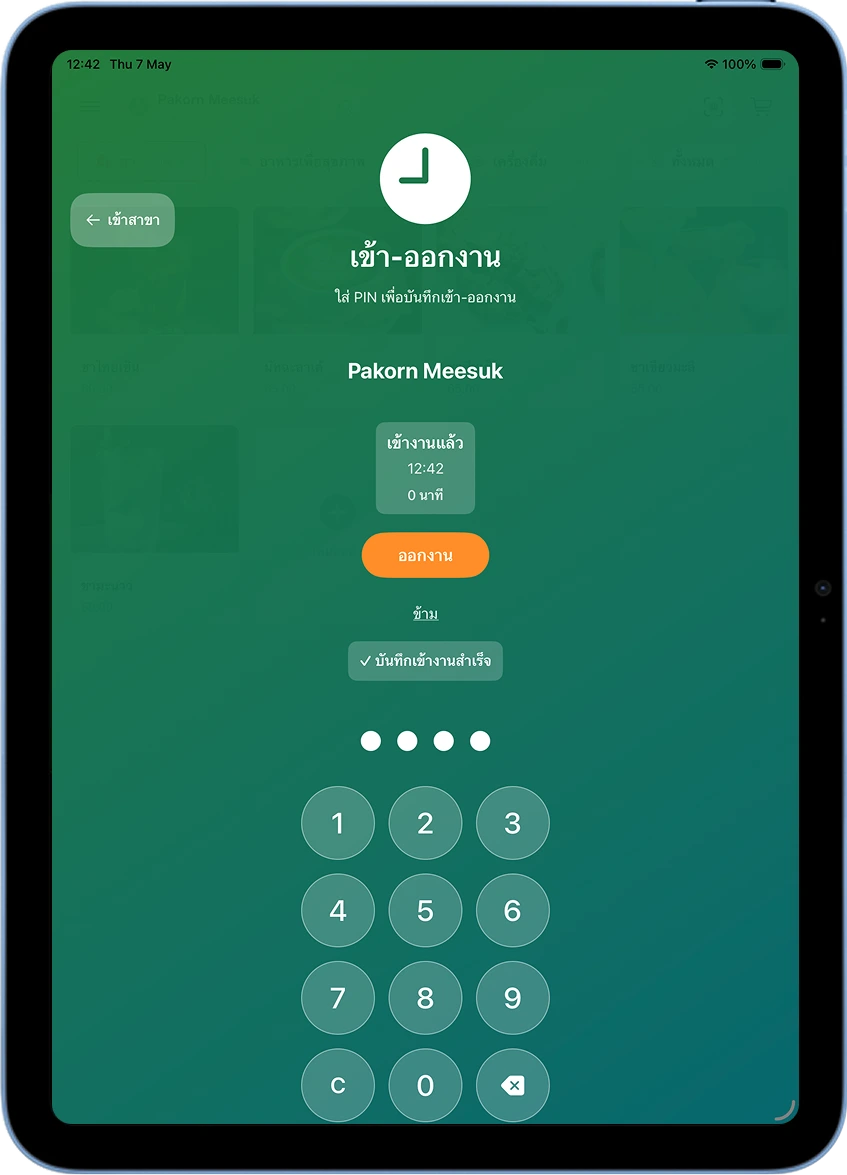
Enter the employee's 4-digit PIN. The system checks the status and shows the employee's name with: a "Clocked In" status with the clock-in time, the number of hours worked so far, and an orange "Clock Out" button.
Tap the Clock Out button to confirm.
Clocked Out Successfully
The system shows the message "All Done for Today" with a ✓, confirming the clock-out time has been recorded successfully.
Frequently Asked Questions
An employee forgot their PIN — what do I do?
The shop owner or admin can edit the PIN via Settings → User Management → select the employee's name → edit details.
An employee enters their PIN and gets 'Incorrect PIN'
Double-check the PIN was entered correctly. If it still fails, the shop owner should reset the PIN in User Management.
Where can I view a clock in/out report?
Go to the Reports menu → Employee Shift Report — it shows clock in/out times and hours worked for each employee.
An employee clocked in or out incorrectly — can it be fixed?
Currently, correcting past clock in/out records requires contacting the MeeD POS team for assistance.
Need More Help?
Still having trouble after setup, or want the team to walk you through it? Get in touch.