Setting Up PromptPay QR Codes on Receipts
Enable PromptPay in MeeD POS so the system automatically prints a QR code on every receipt, letting customers scan and pay instantly, with no need to wait for staff to generate a separate QR code. Setup takes no more than 5 minutes.
What You'll Need
- An iPad with the MeeD POS app installed
- A phone number linked to a PromptPay account
- The account name to show on the receipt
- Admin access to reach the settings
How to Set It Up
Step 1 — Open the Payment Settings Menu
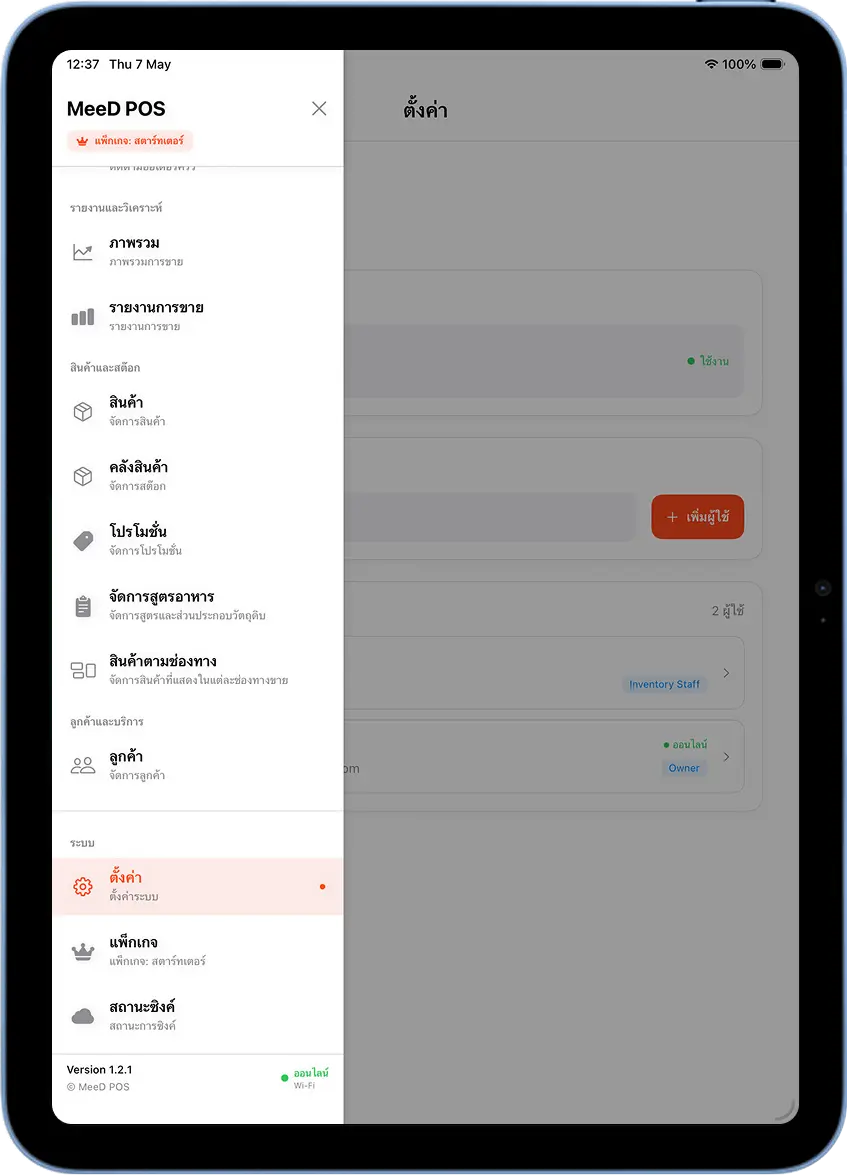
Open the Left Menu, Tap 'Settings'
Open the MeeD POS app on iPad, tap the ☰ icon in the top-left corner, scroll down to "System", and select "Settings".
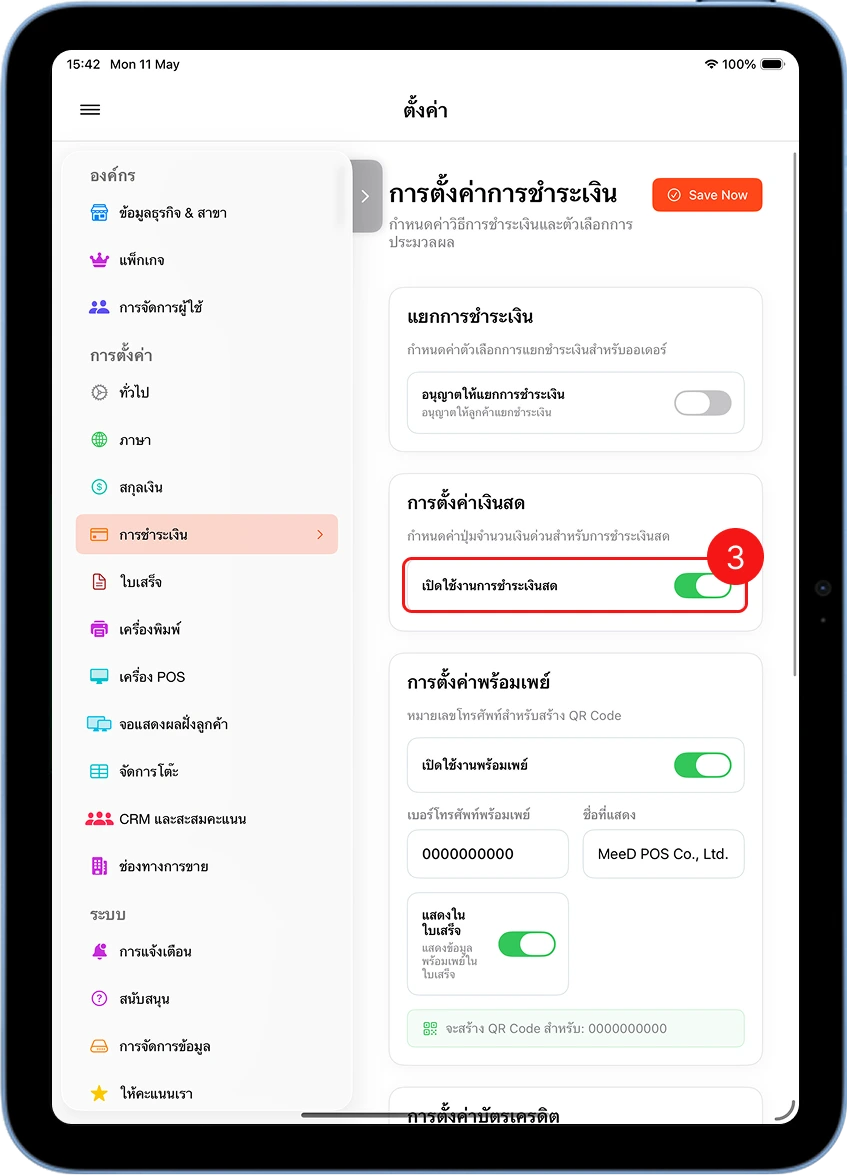
Select the 'Payments' Section
On the settings screen, tap "Payments" in the left menu bar to open all payment settings.
Step 2 — Enable PromptPay
Turn On the 'Enable PromptPay' Toggle
Under "PromptPay Settings", tap the "Enable PromptPay" toggle so it turns green.
Enter the Phone Number and Account Name
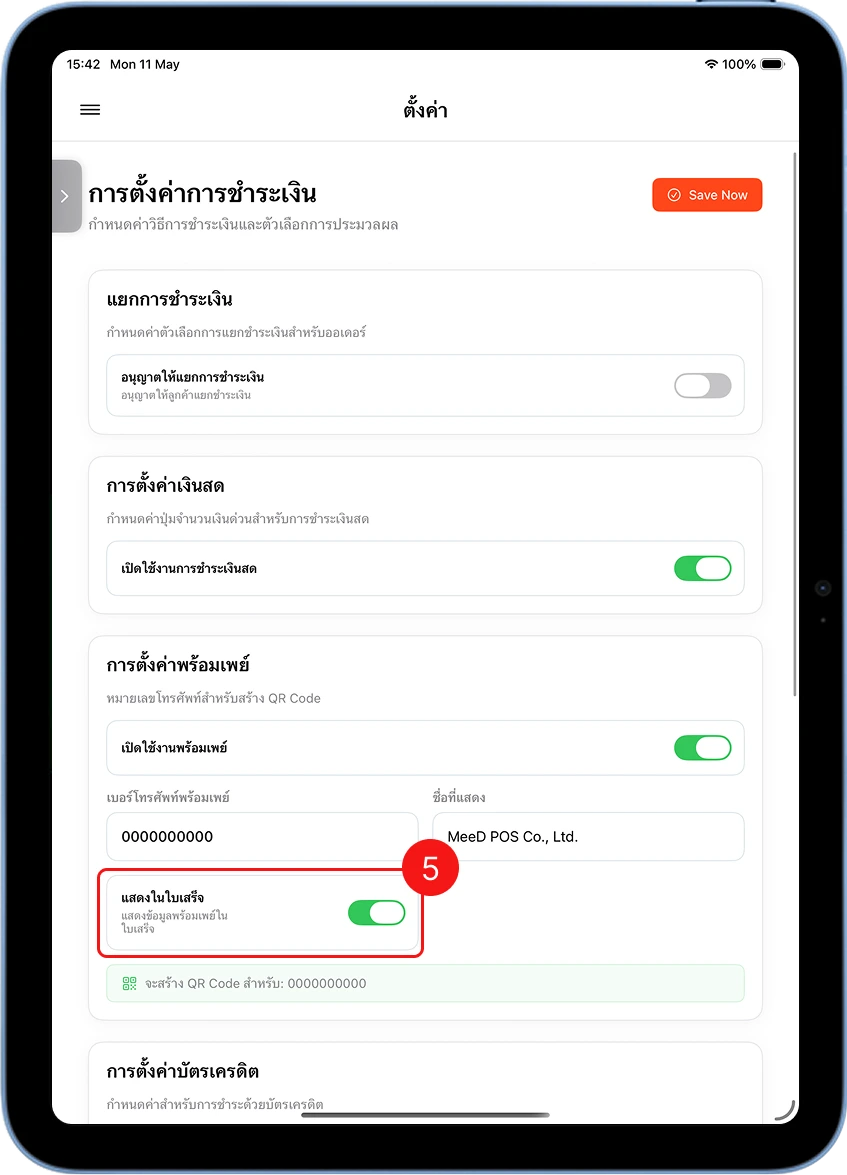
Enter the PromptPay phone number in the "PromptPay Phone Number" field, and the name to display in the "Display Name" field, e.g. your shop or company name.
Turn On the 'Show on Receipt' Toggle
Turn on the "Show on Receipt" toggle so the system automatically prints a QR code on receipts every time a customer pays via PromptPay.
Tap 'Save Now' to Save
Tap the orange "Save Now" button in the top-right corner to save all settings.
Step 3 — Test Accepting a PromptPay Payment
Select Items and Tap 'Pay'
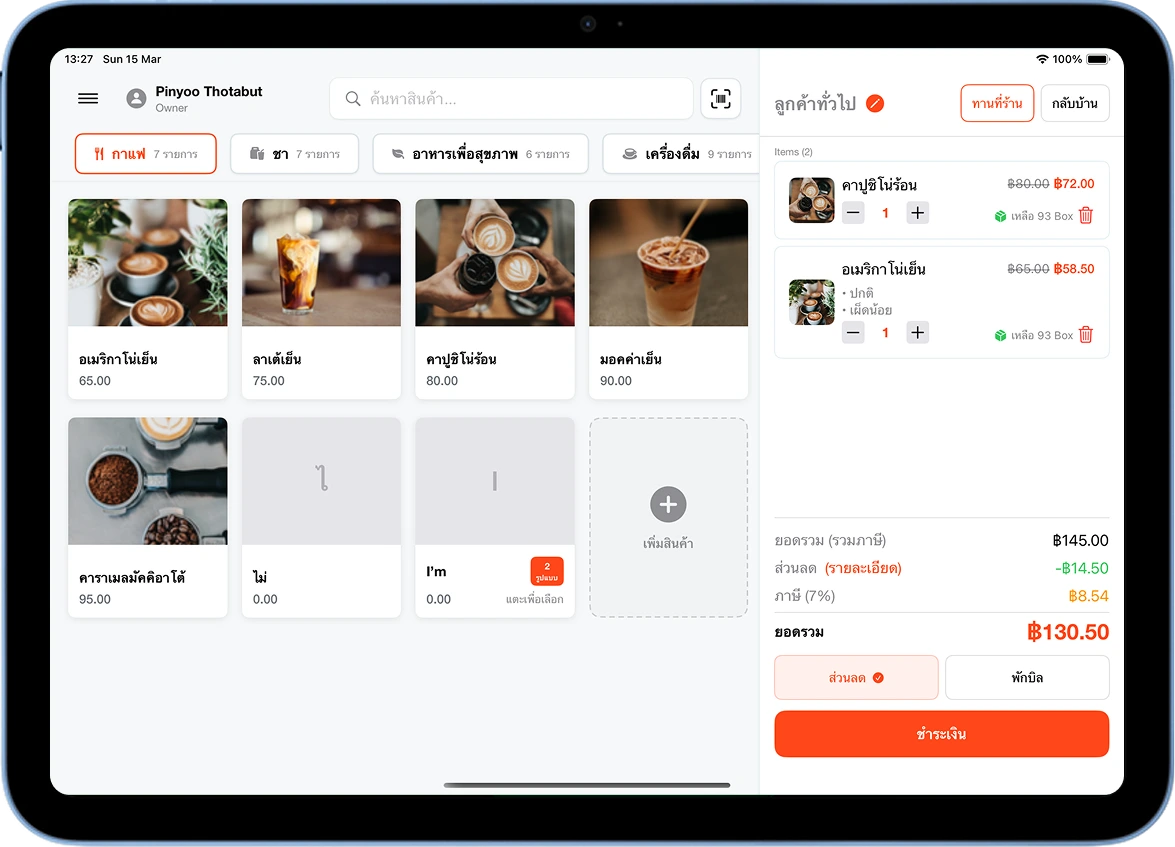
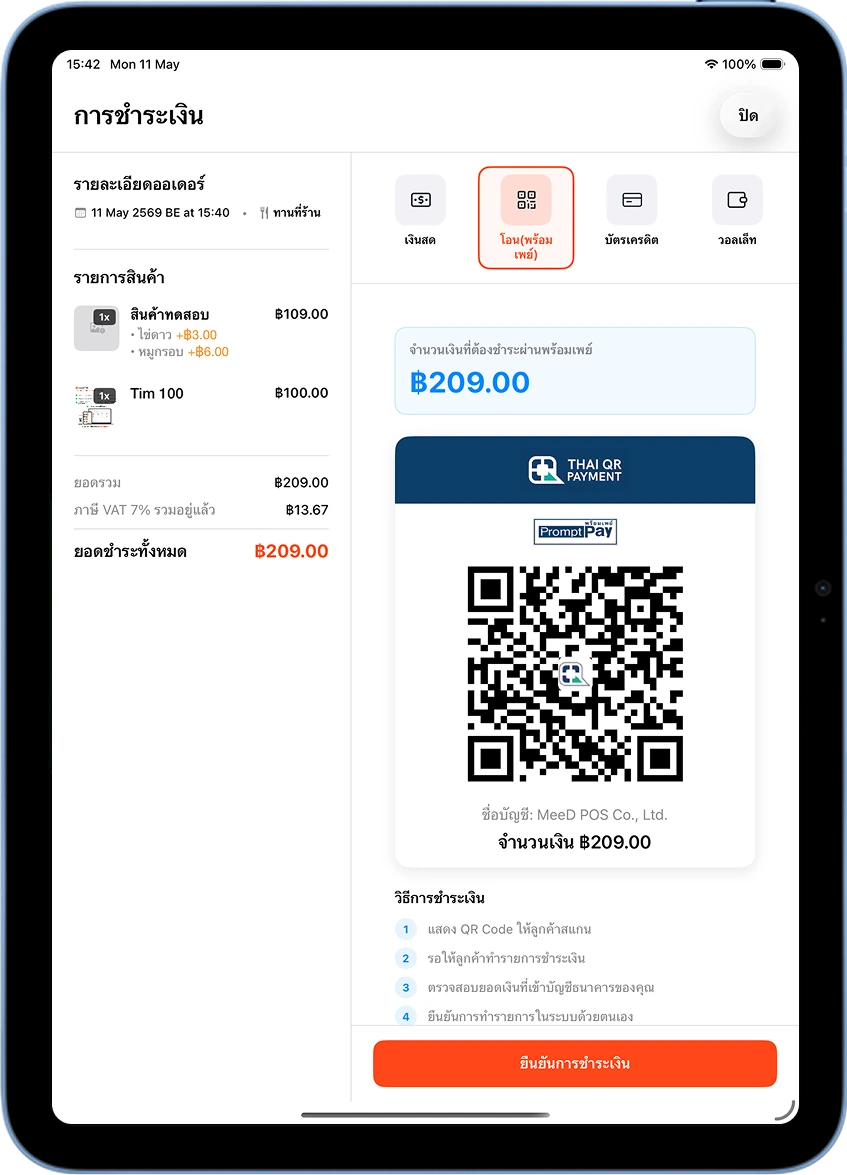
Go back to the sales screen, select the items you want, then tap the orange "Pay" button at the bottom.
Select 'Transfer (PromptPay)' — the QR Code Appears Instantly
On the payment screen, select "Transfer (PromptPay)" — the system generates a Thai QR Payment code with the correct amount instantly. Have the customer scan it with their banking app and confirm the transfer.
Step 4 — Confirm the QR Code Appears on the Receipt
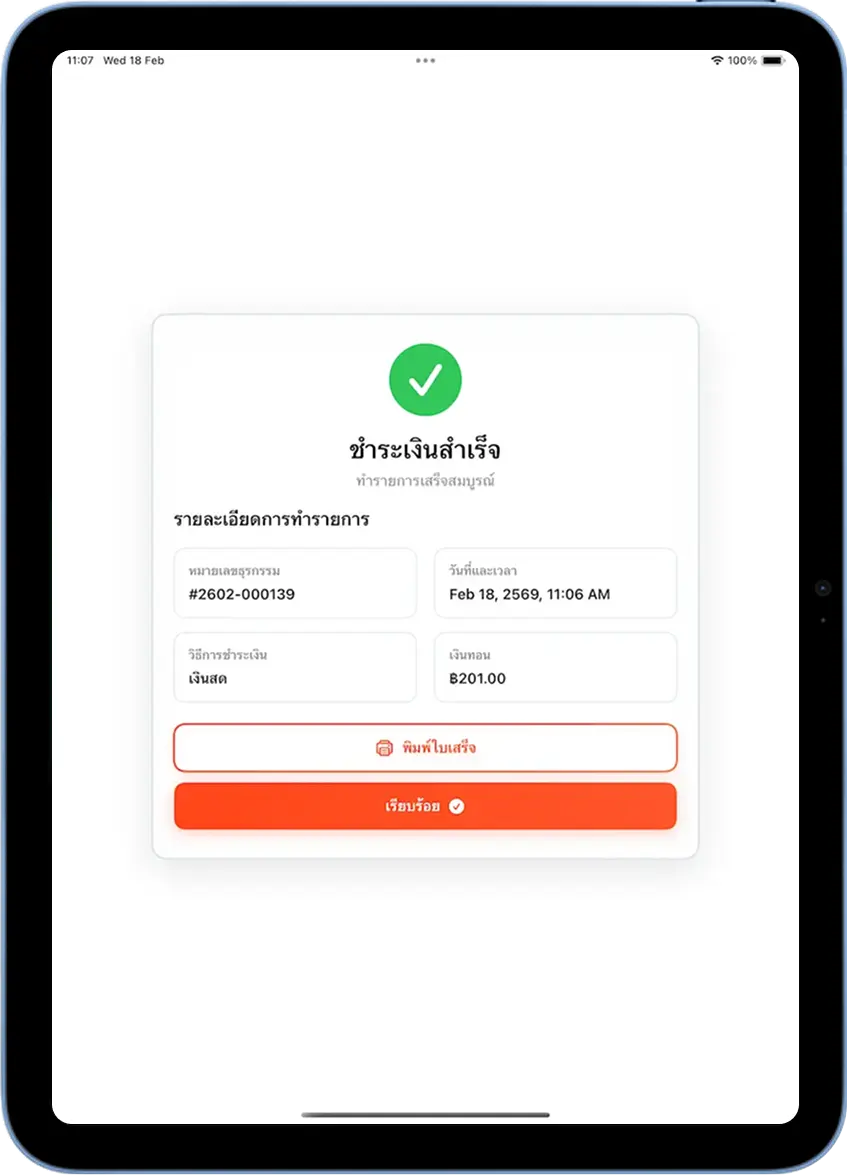
Tap 'Confirm Payment' and Print the Receipt
Once the customer has transferred the money, tap the orange "Confirm Payment" button. The system shows a "Payment Successful" screen with a transaction number, then tap "Print Receipt".
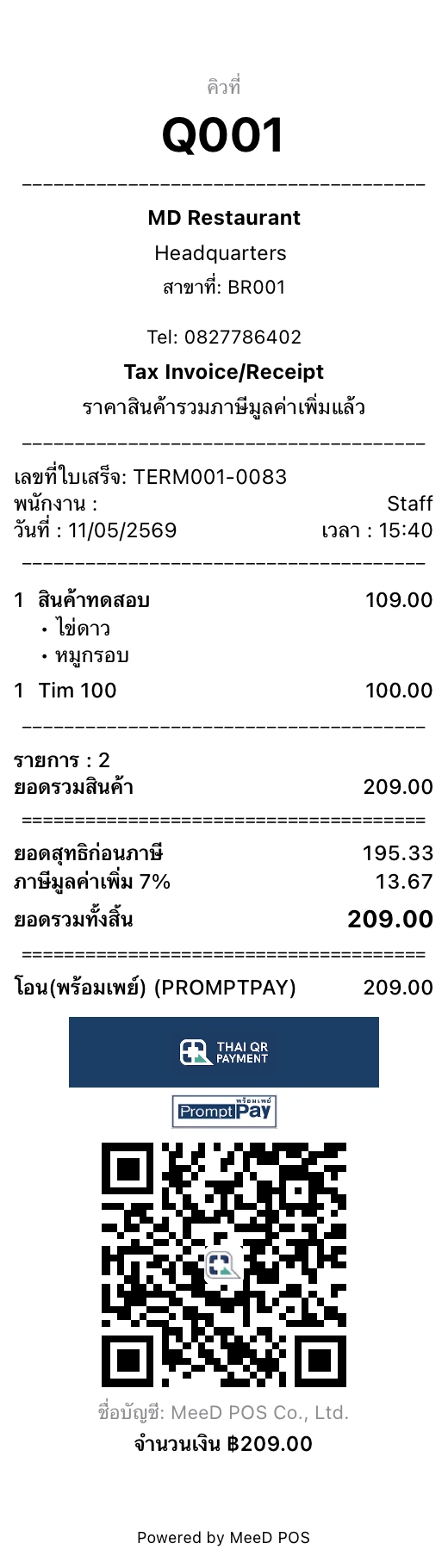
Check the QR Code on the Receipt
The printed receipt shows a Thai QR Payment and PromptPay QR code, with the account name and amount at the bottom. Customers can scan it again to pay, or keep it as a record.
Common Issues
I don't see a QR code on the receipt even though it's enabled
Check that the "Show on Receipt" toggle is on, not just "Enable PromptPay", and that you tapped Save Now. The QR code only shows when the customer pays via PromptPay.
The QR code scans, but the amount doesn't match
Check that the amount wasn't edited during checkout, and that the customer scanned the QR code directly from the POS screen, not from a photo.
I entered a phone number, but no QR preview shows
Check that the phone number is correct and linked to a PromptPay account. Try tapping Save Now and reopening the settings screen.
The customer transferred the money, but the system doesn't confirm automatically
MeeD POS doesn't receive automatic transfer confirmation from banks. Staff need to verify the amount received themselves and tap "Confirm Payment" manually.
Need More Help?
Set it up but the QR code still isn't showing, or want the team to help remotely? Get in touch.