How to Connect a Star TSP143IIIU via USB
A step-by-step guide to connecting a Star TSP143IIIU to MeeD POS on iPhone or iPad via a Lightning to USB-A cable. Setup takes about 5–10 minutes.
What You'll Need
- A Star TSP143IIIU
- A power cable
- A Lightning to USB-A cable
- 80mm thermal paper
- An iPhone or iPad with the MeeD POS app installed
How to Set It Up
Step 1 — Connect the Power Cable
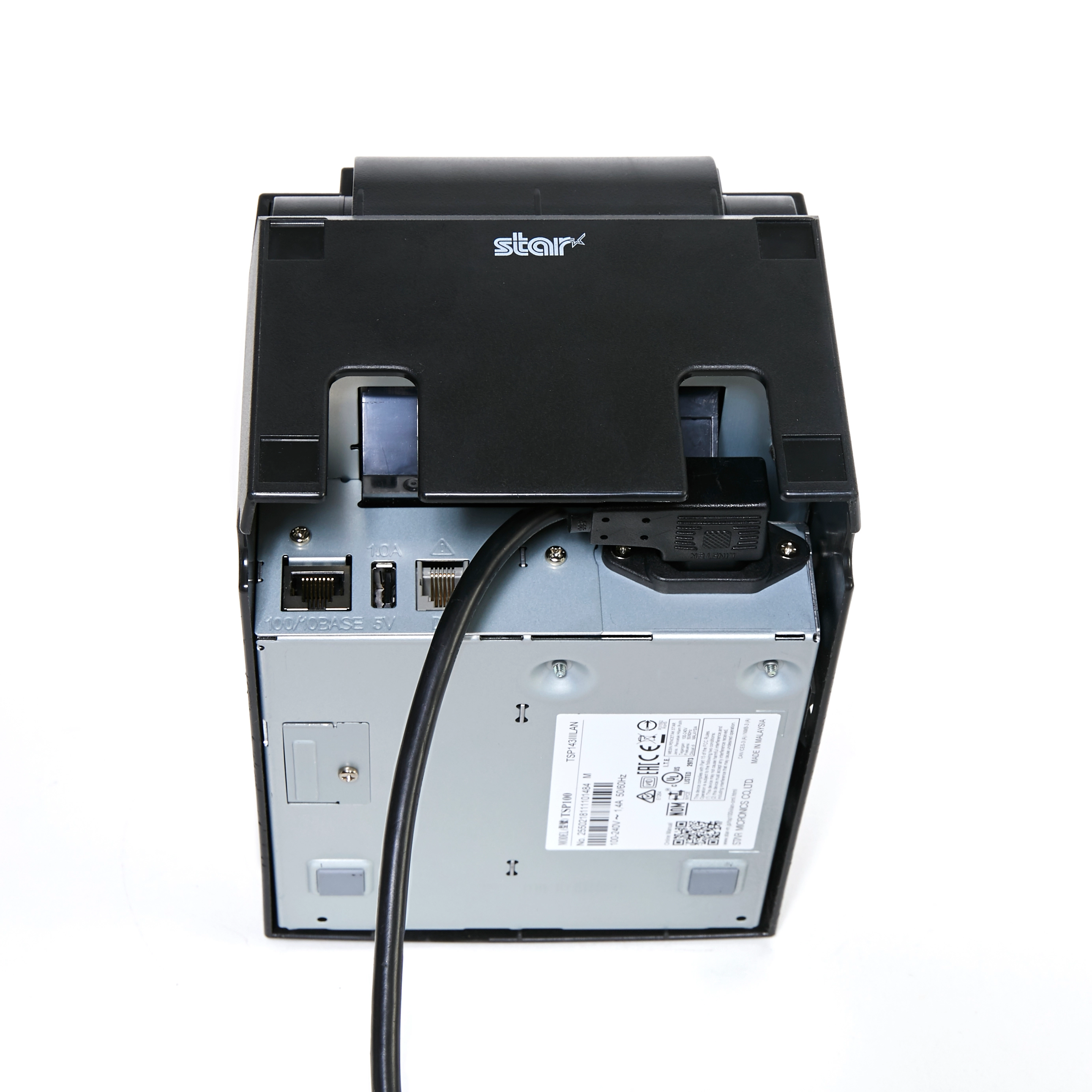
Plug the Power Cable into the Printer and Outlet
Plug the power cable into the port on the back of the Star TSP143IIIU, then plug the other end into a power outlet — no need to turn it on yet.
Step 2 — Connect the USB Lightning Cable
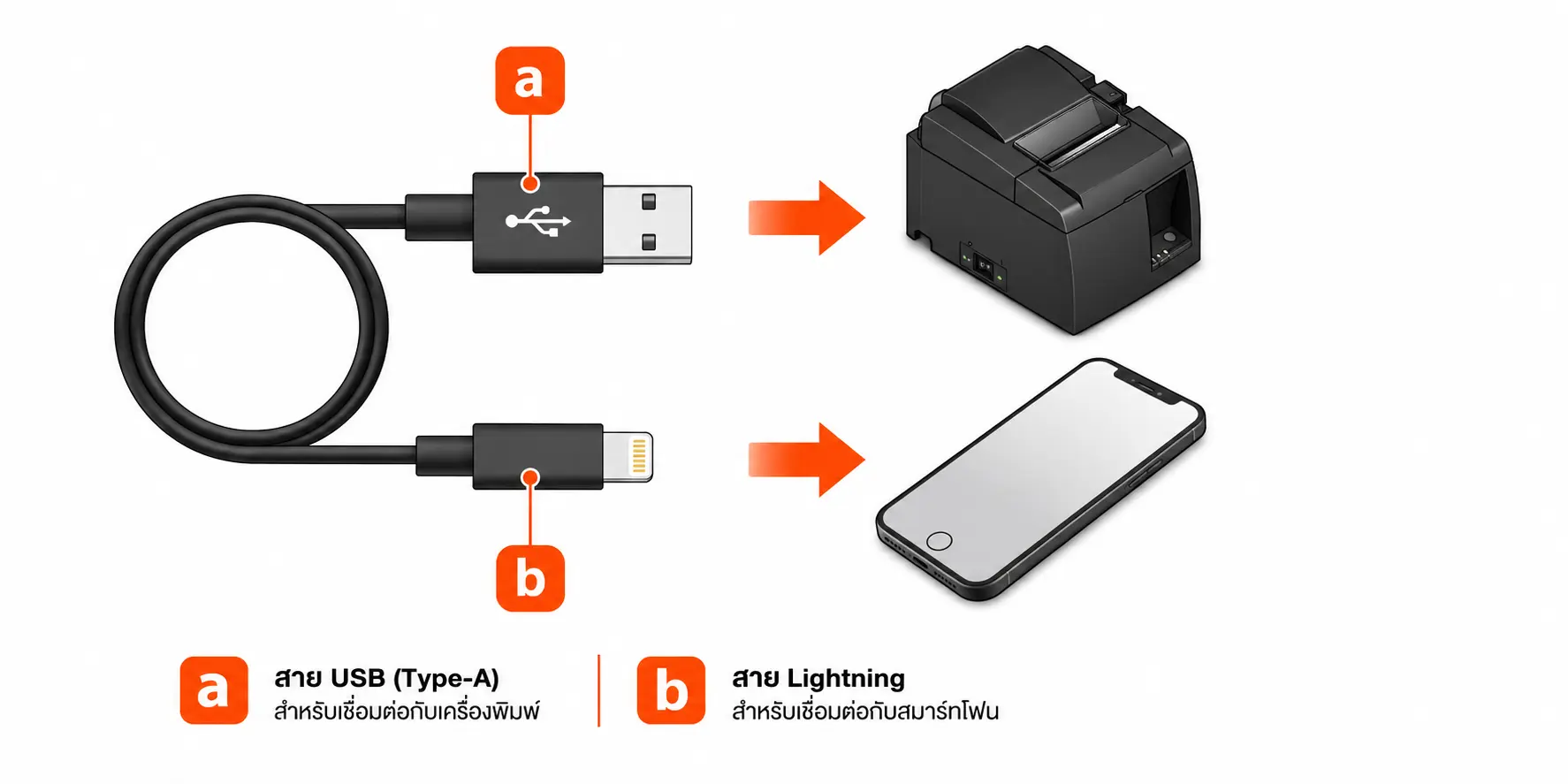
Plug the USB-A End into the Printer, and Lightning into Your iPhone/iPad
Plug the USB-A end into the printer's USB port, then plug the Lightning end into your iPhone or iPad.
Step 3 — Turn On the Printer
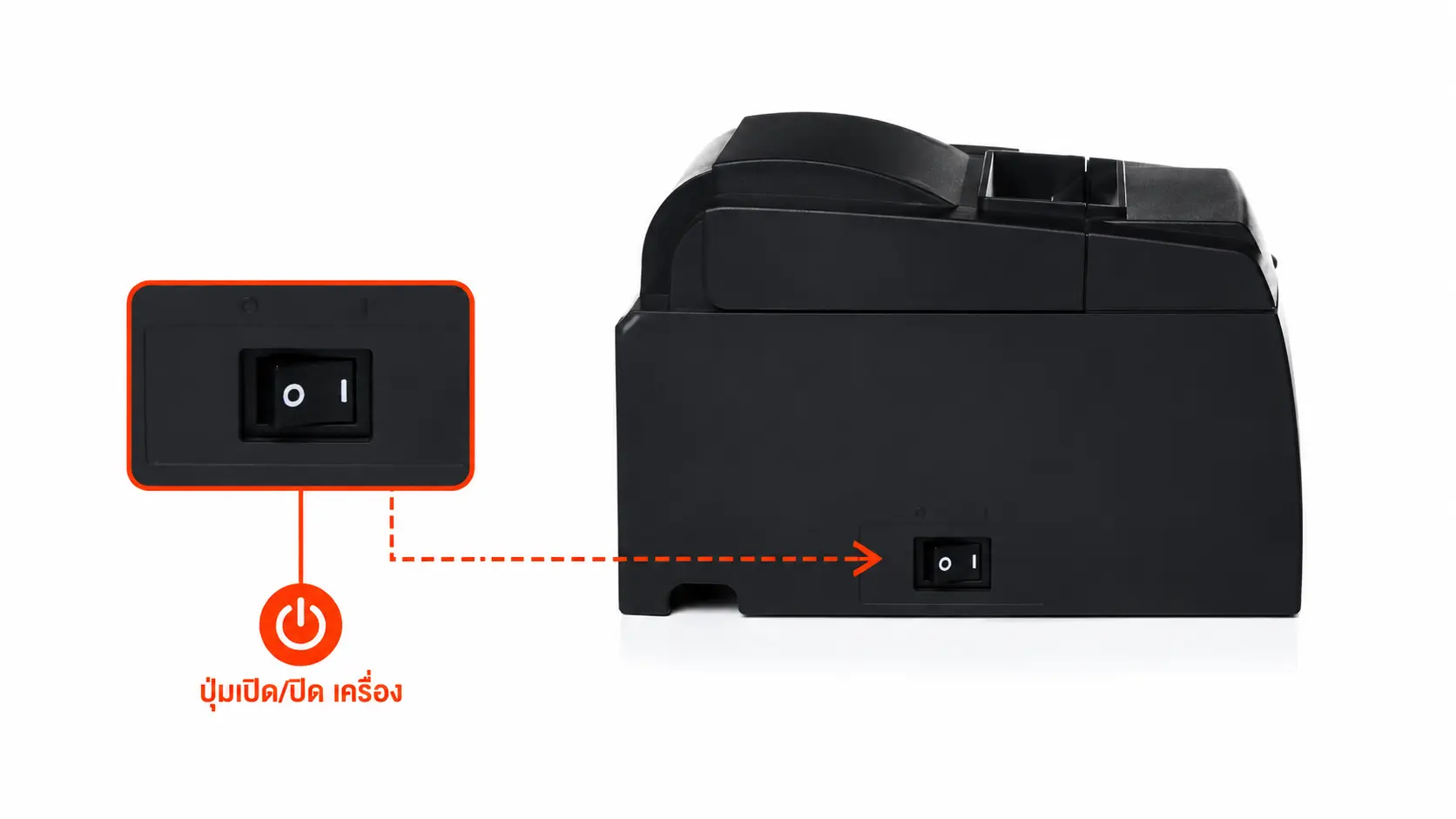
Press the Power Button and Wait for the Indicator Light
Press the Power button on the printer to turn it on, then wait until the Power light turns solid (not flashing) — this means the printer is ready.
Step 4 — Load the Thermal Paper
Open the Printer's Cover
Push the lever on the right side of the printer outward, then lift the cover open.
Insert the Paper Roll
Place the thermal paper roll into the paper compartment, with the paper feeding out from the bottom of the roll as shown below. Pull it snug so it isn't loose while loading.
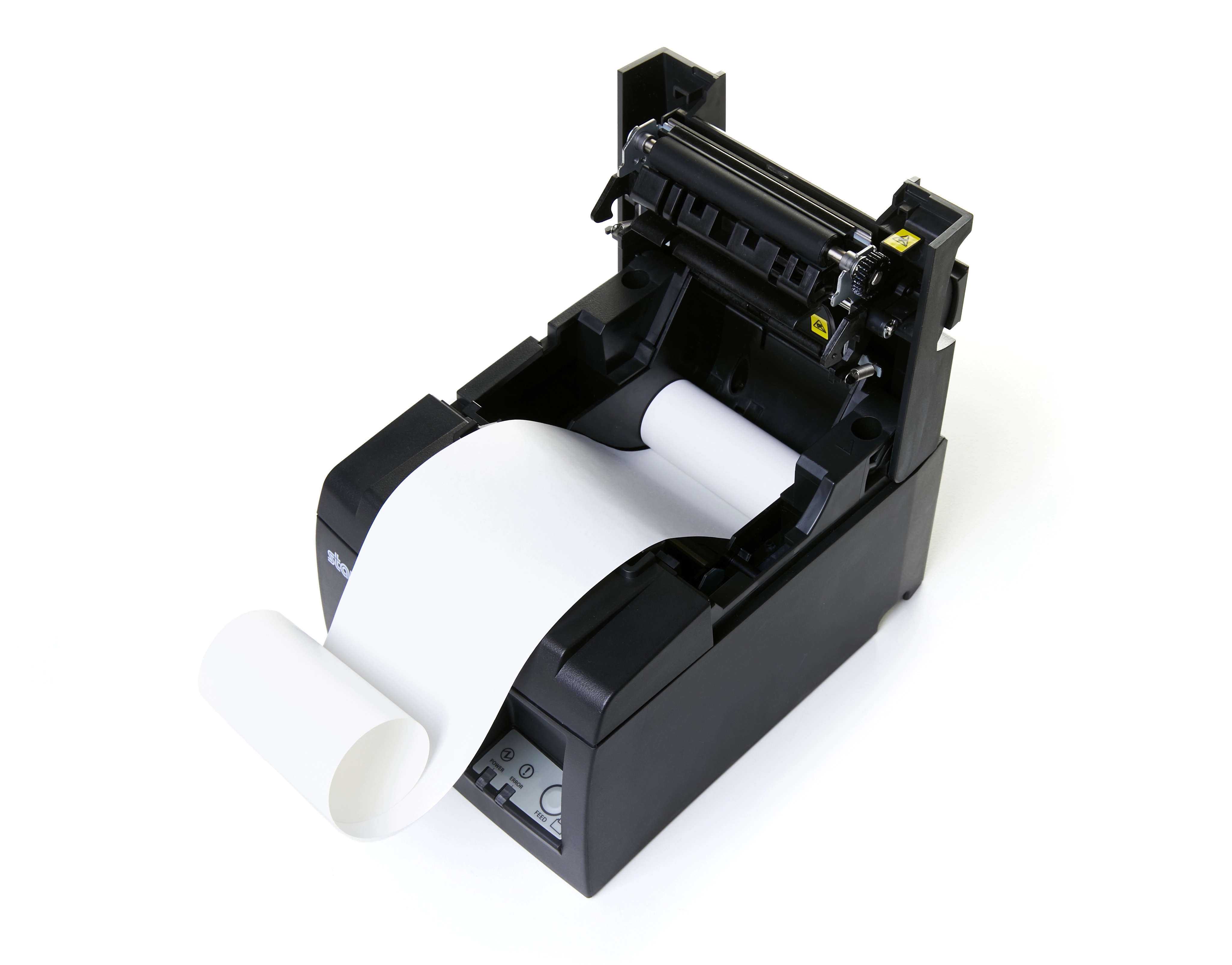
Pull Out the Paper and Close the Cover
Pull the paper out past the cutting blade at the front of the printer, then press the cover down until it clicks shut.
Step 5 — Connect It in the MeeD POS App
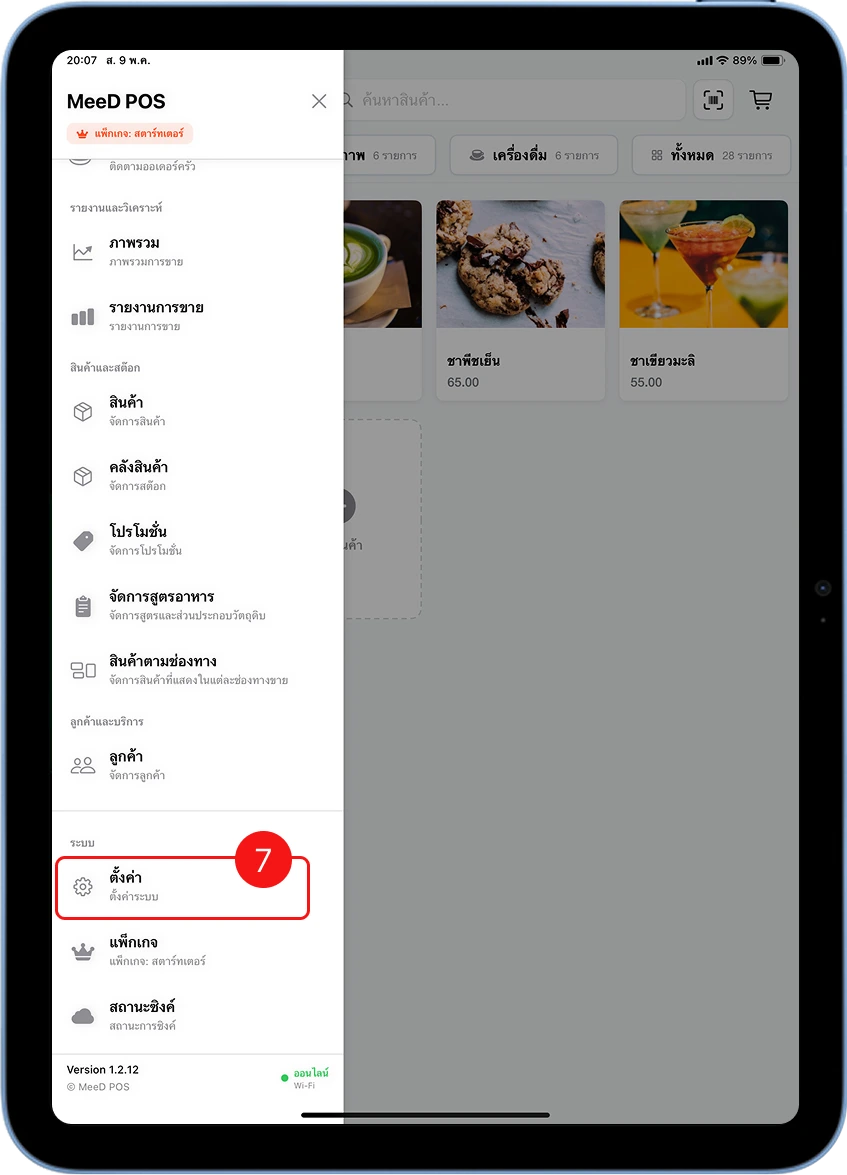
Open the Settings Menu
Open the MeeD POS app on your iPhone or iPad, then tap Settings in the bottom menu.
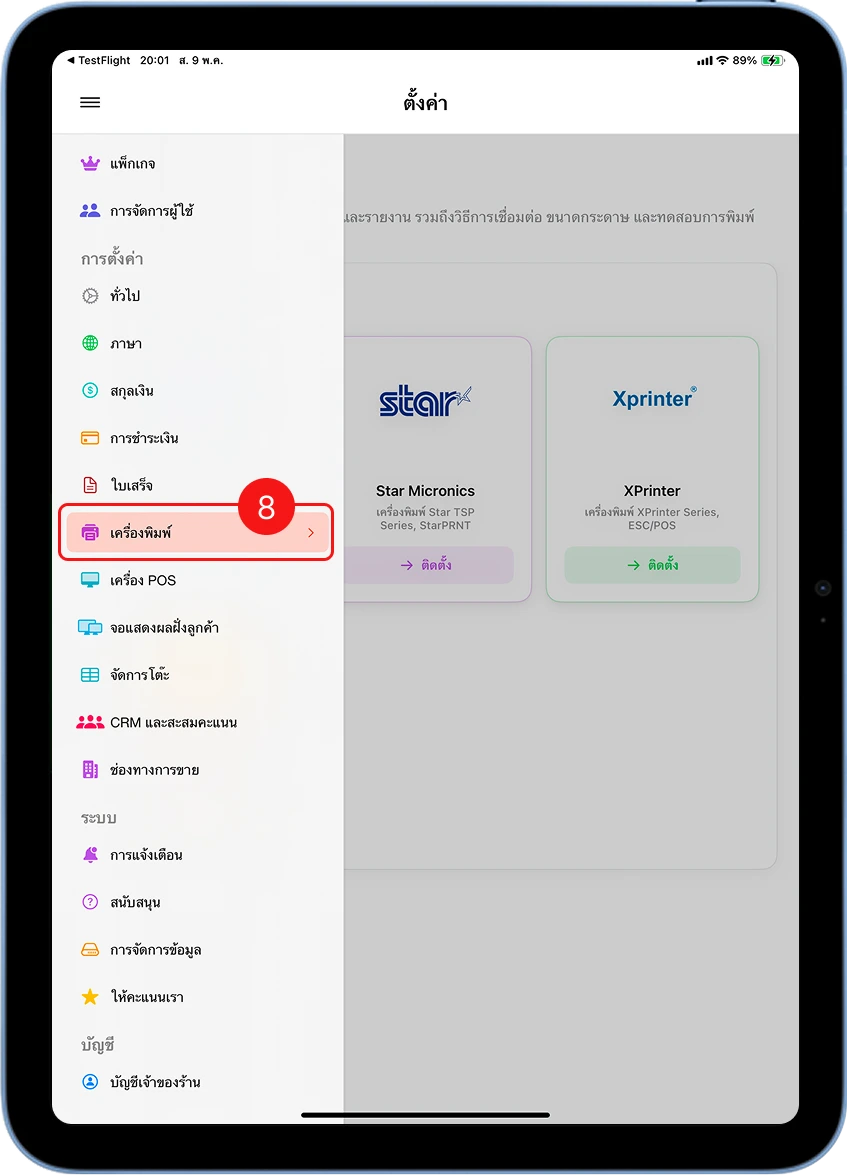
Select the Receipt Printer Menu
On the settings screen, tap Receipt Printer to open the printer settings screen.
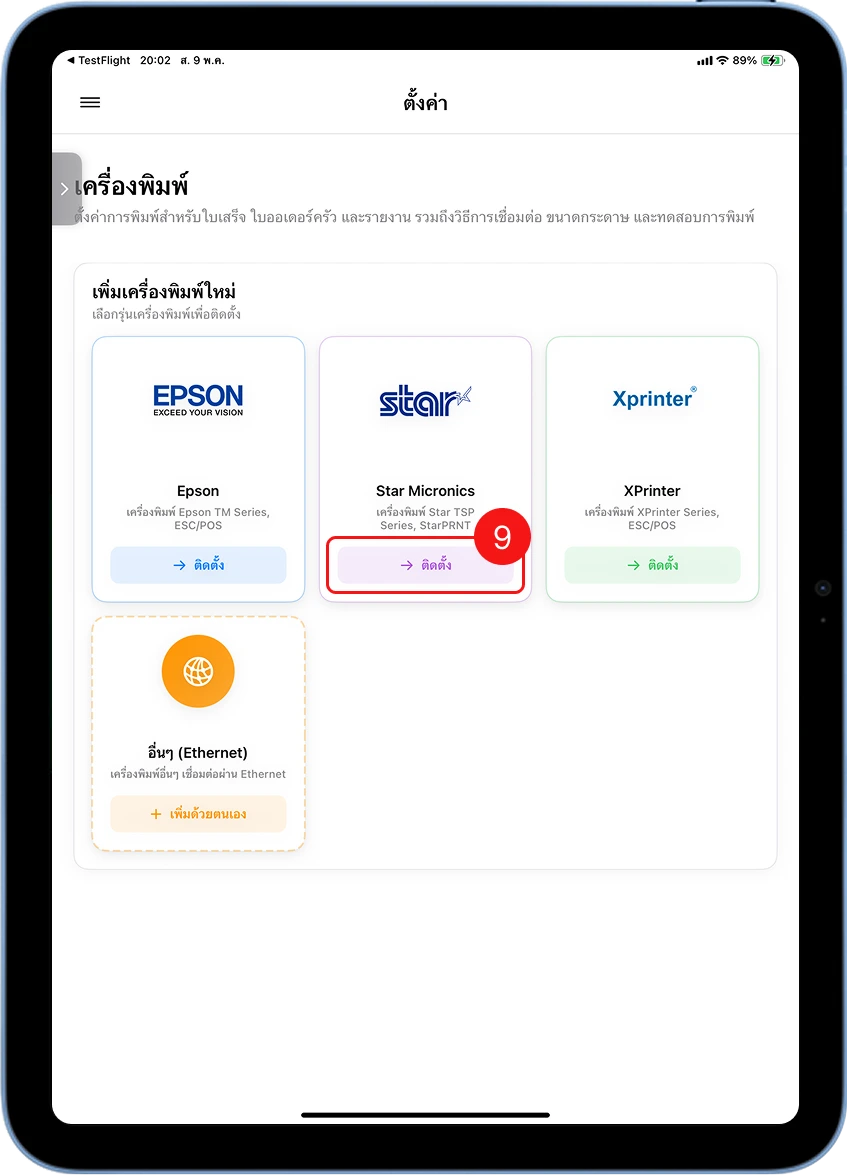
Add the Star TSP143IIIU Printer
Tap Add Printer, select Star TSP143IIIU from the list, then choose USB as the connection type.
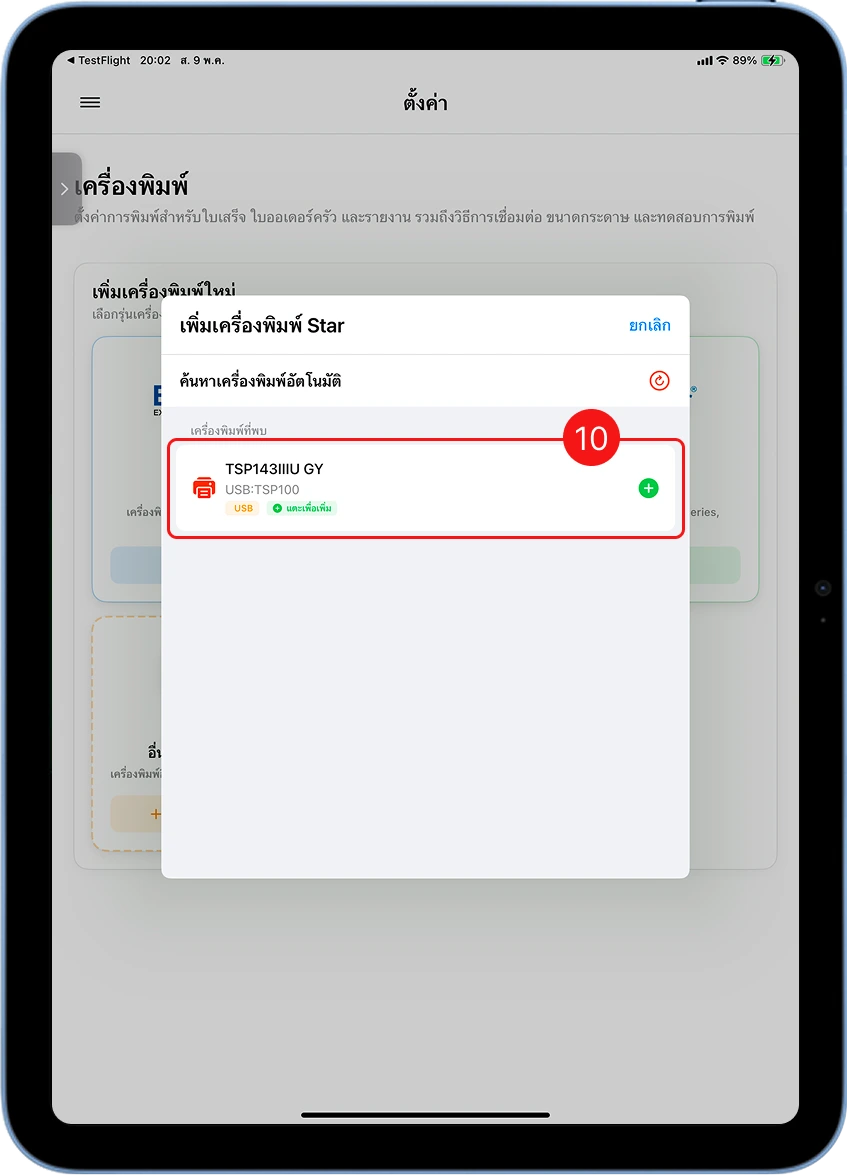
Confirm the Printer Was Found
The app automatically searches for the printer — once found, it shows "Star TSP143IIIU" in the list. Tap to select it.
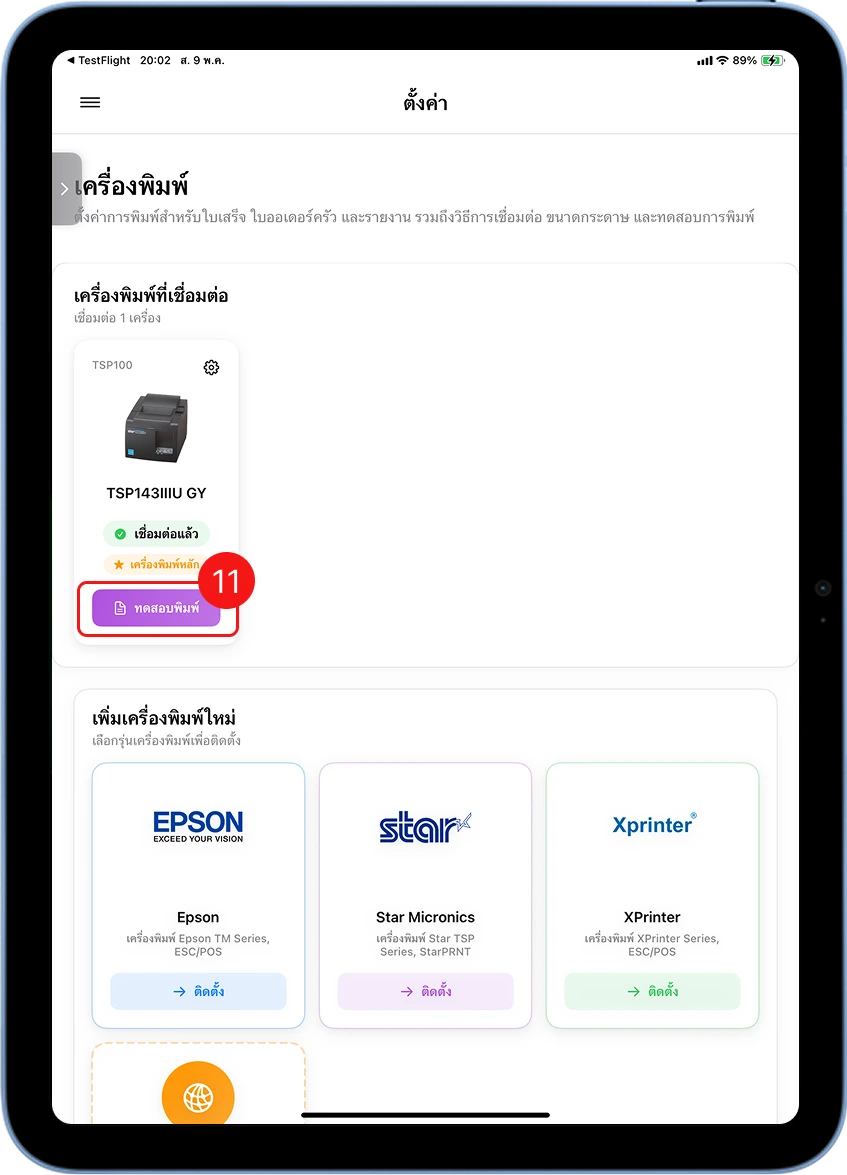
Print a Test Page
Tap Print Test — if the printer outputs paper, the connection was successful.
Basic Troubleshooting
My iPhone/iPad doesn't find the printer in the MeeD POS app
Try unplugging and reconnecting the Lightning cable, then close and reopen the app. Check that the cable isn't damaged and is plugged in firmly on both ends.
The printer doesn't respond after powering on
Check that the power cable is plugged in firmly on both the printer and the outlet. Try turning it off and on again, and wait until the indicator light turns solid.
No paper comes out, or it won't print
Open the cover and check the paper roll is loaded facing the right direction (feeding from the bottom of the roll), and close the cover until it locks securely.
The text on the receipt shows as boxes or is unreadable
Check in the MeeD POS app that the printer model is set to Star TSP143IIIU, and that you're using standard 80mm thermal paper.
Need More Help?
Set it up but still can't connect, or want the team to help remotely? Get in touch.