Multi-Channel Selling
Multi-Channels lets you manage orders from multiple platforms in one app — whether that's your storefront, delivery, or third-party channels — with everything logged and reported separately per channel automatically. This guide covers setting up and using multi-channel selling in MeeD POS: enabling GrabFood, Robinhood, and LINE MAN, managing per-channel products and pricing, taking orders and payments, and viewing revenue reports broken down by channel.
What You'll Be Able to Do After This Guide
- Enable and configure sales channels — GrabFood, Robinhood, LINE MAN
- Set commission rates — and visibility for each channel
- Manage products and pricing — specific to each channel
- Take orders and payments — separately per channel
- View revenue reports — broken down by sales channel
Part 1 — Enable Sales Channels
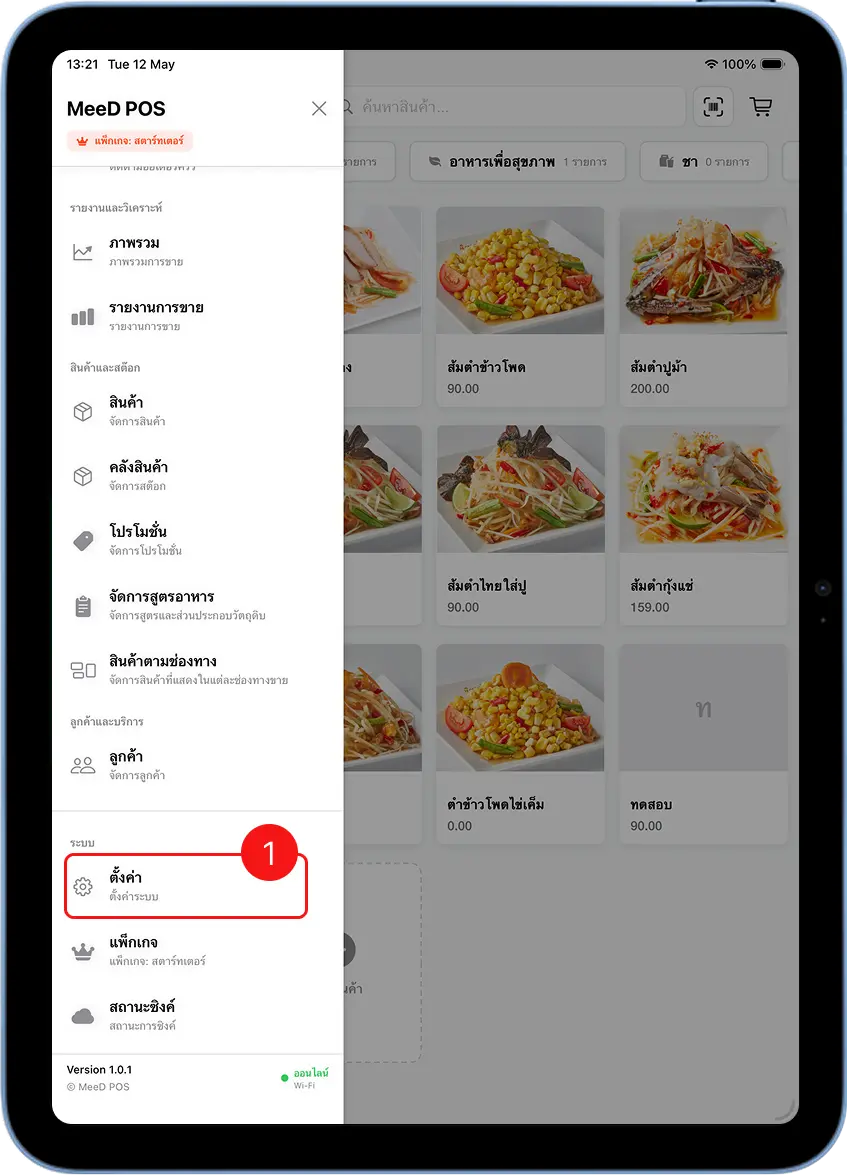
Tap the ☰ menu in the top-left, then go to Settings
Open the MeeD POS app on your iPad, tap the ☰ menu in the top-left corner, scroll to the "System" section, then select "Settings".
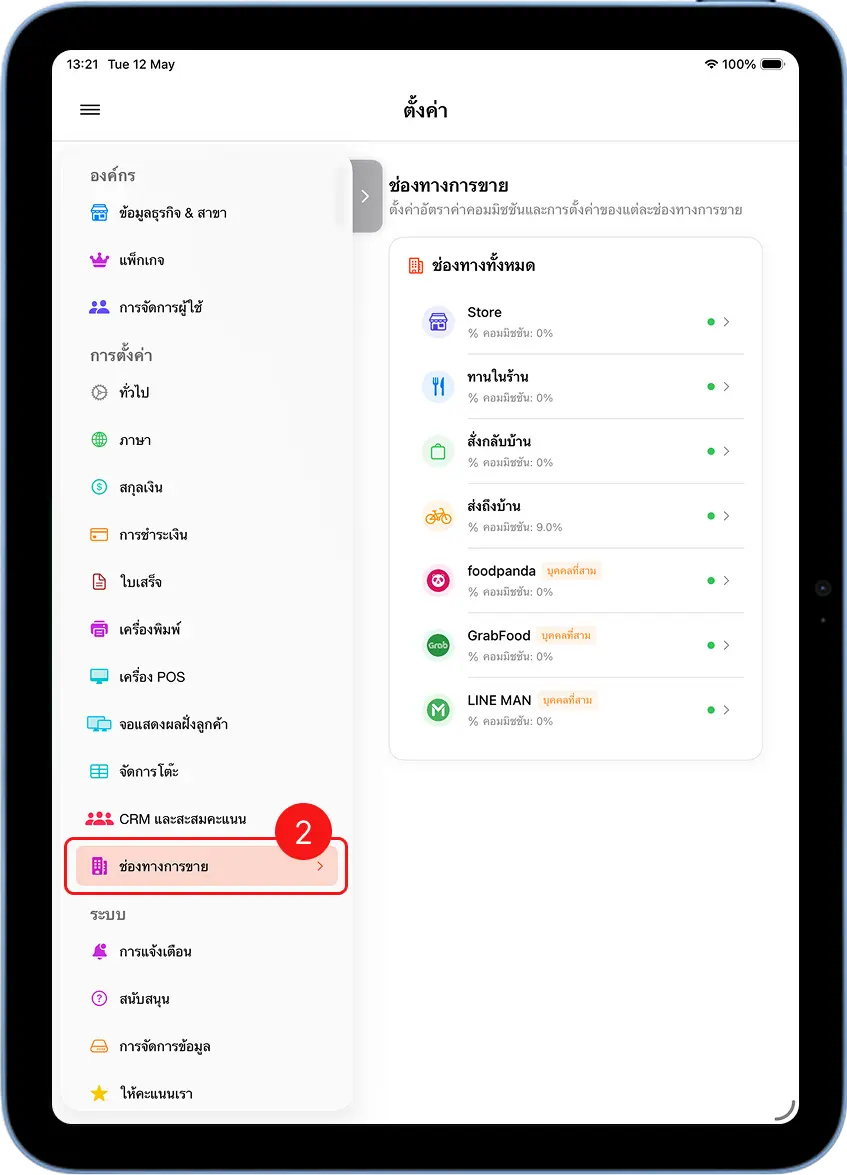
Select Sales Channels in the settings menu
On the settings page, select "Sales Channels" from the left menu. The system shows every supported channel: Store, Dine-in, Takeaway, Delivery, Robinhood, GrabFood, and LINE MAN.
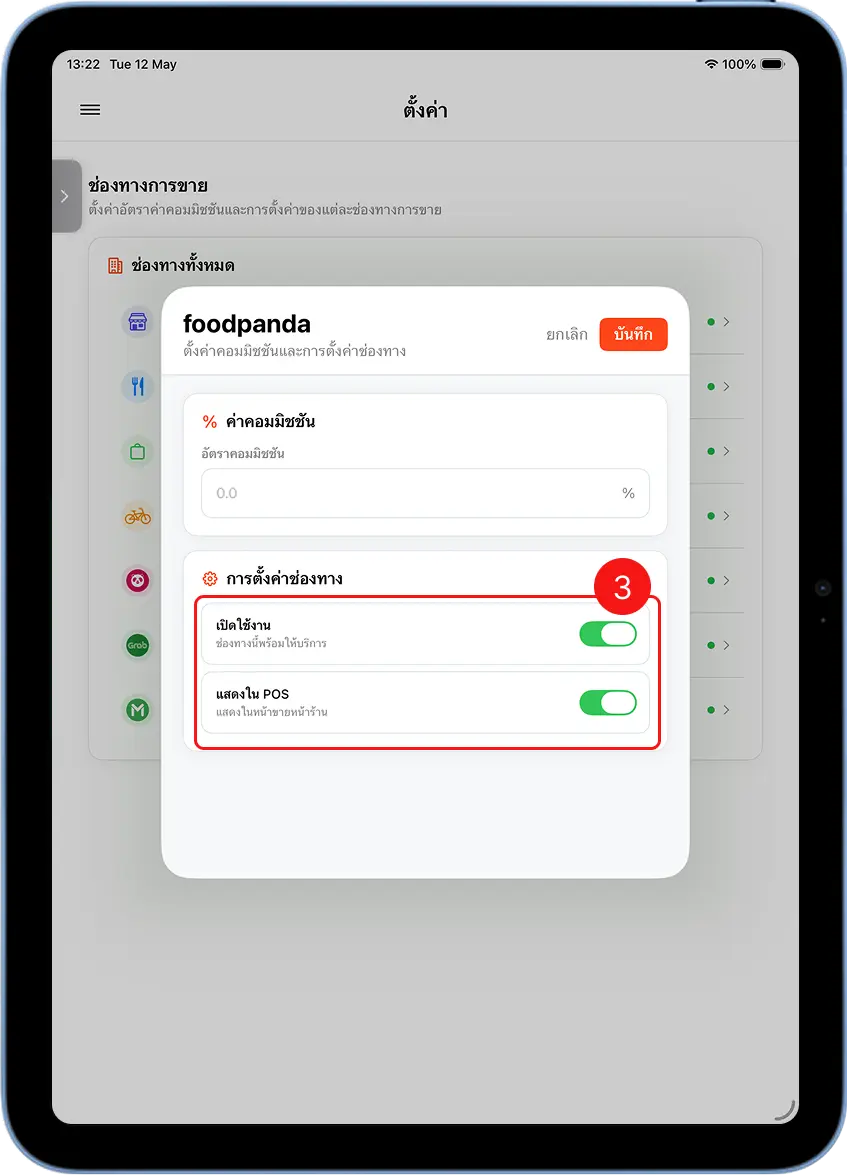
Tap a channel, e.g. Robinhood, to configure it
Tap a channel name, e.g. Robinhood — a pop-up appears with these settings: Commission % (enter the percentage the platform deducts from sales, e.g. 30%), Enabled (toggle to make this channel ready to receive orders), Show in POS (toggle to make this channel appear when choosing a sales channel).
Part 2 — Manage Products by Channel
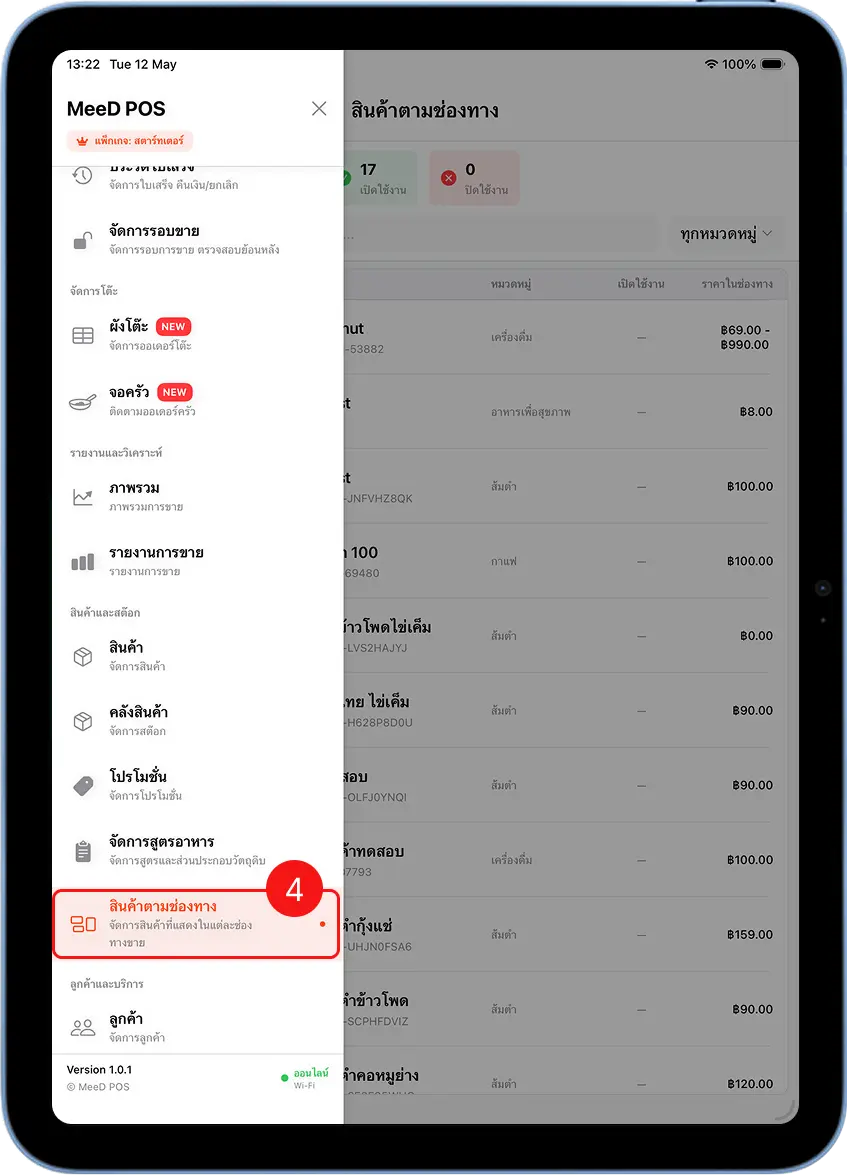
Go to the Channel Products menu
Tap ☰, then select "Channel Products" under the "Products & Inventory" section.
Choose the channel you want to manage
At the top you'll see a summary, e.g. 17 total / 17 enabled / 0 disabled. The left panel lists every channel — tap one, e.g. GrabFood, to see its products.
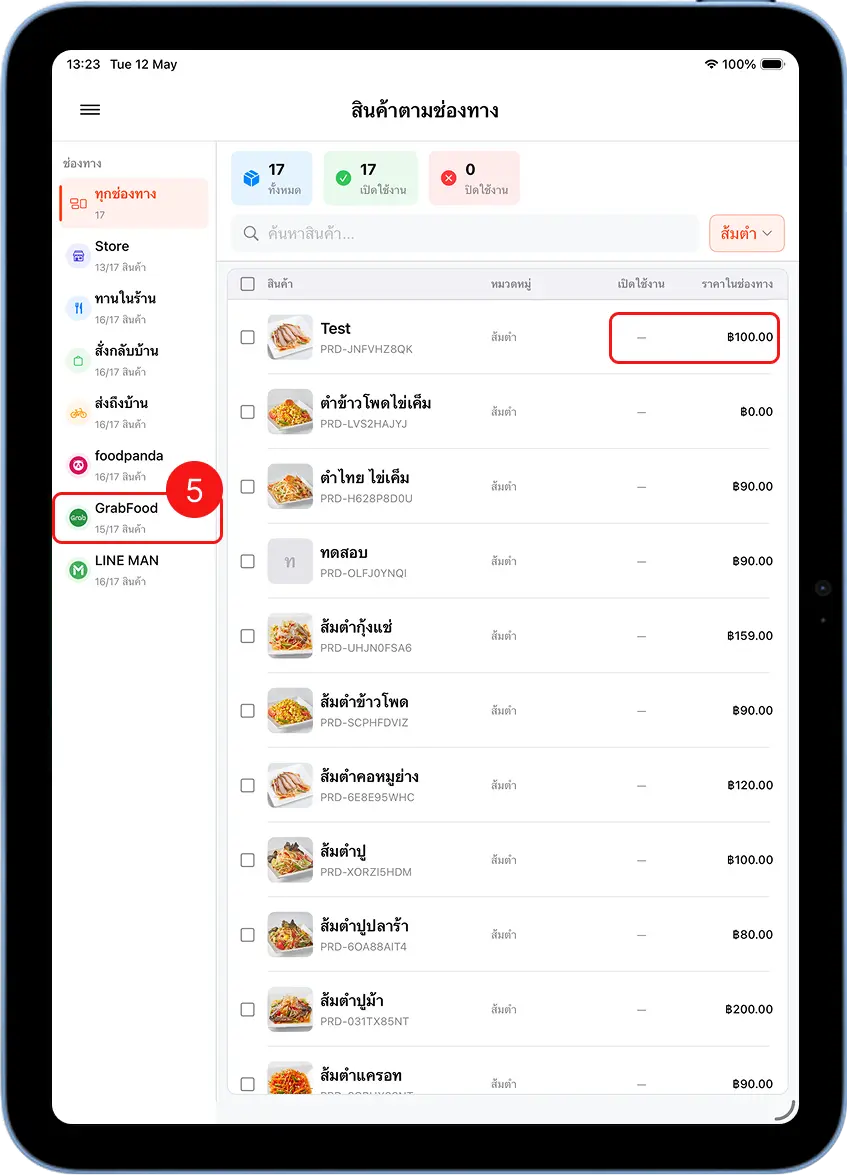
Tap a product to configure channel-specific settings
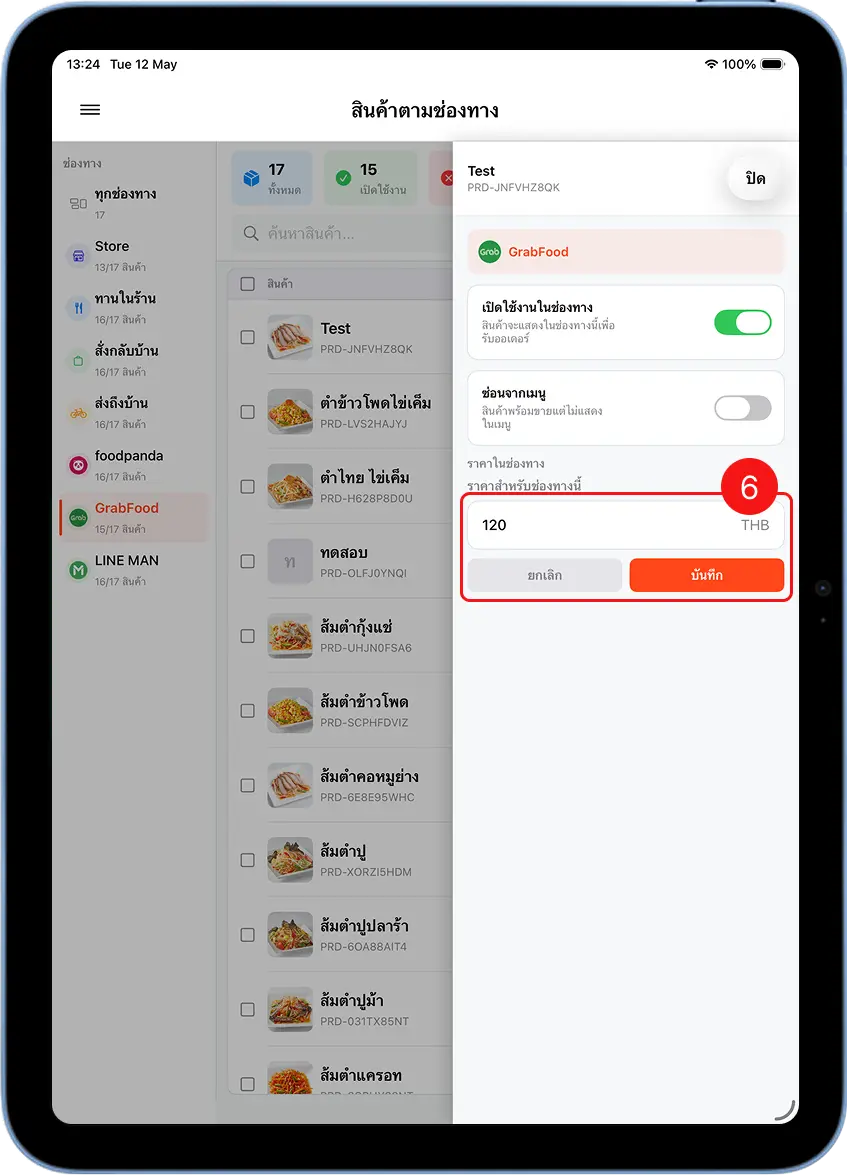
Tap the product you want — a pop-up appears with options: Enabled in Channel (toggle to make it appear on the platform), Hide from Menu (temporarily hide it without disabling the channel), Channel Price (enter a price different from your storefront price, if needed).
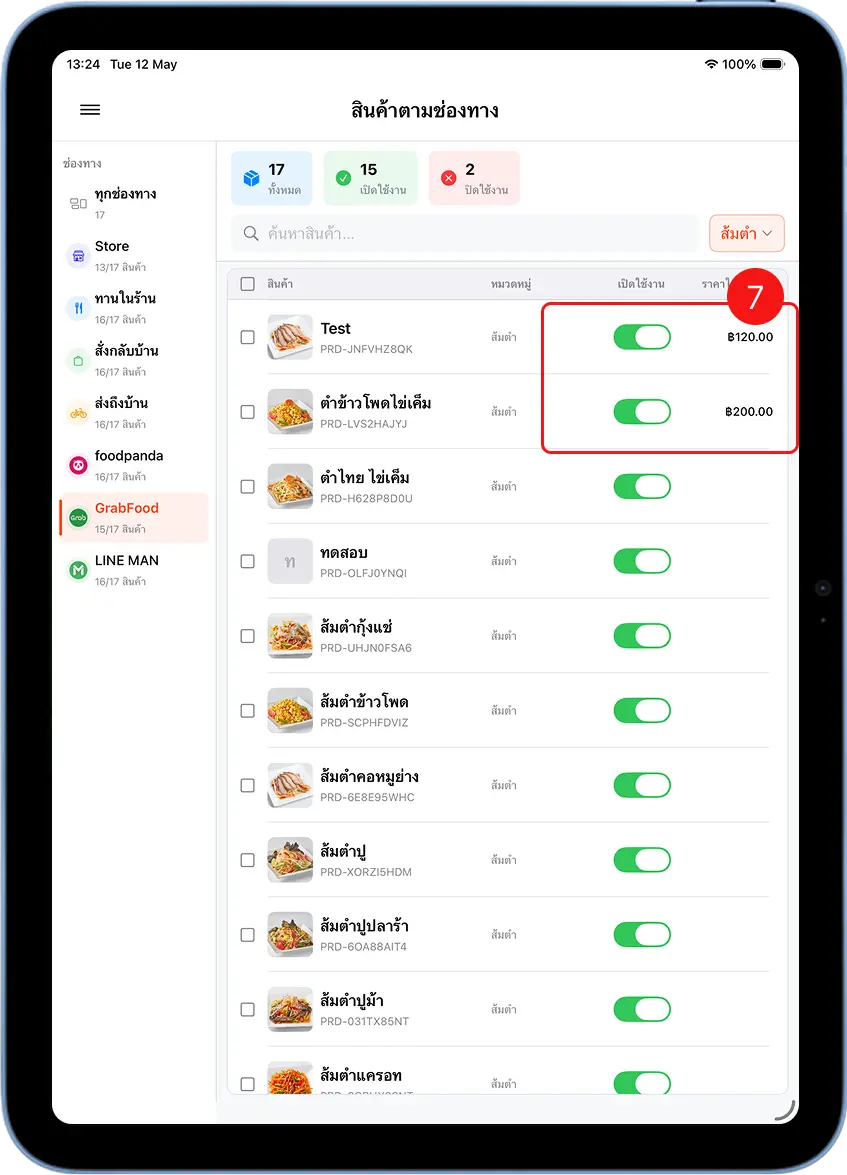
Confirm the product status after saving
After tapping "Save", every enabled product shows a green toggle along with its channel-specific price.
Part 3 — Take Orders and Payments by Channel
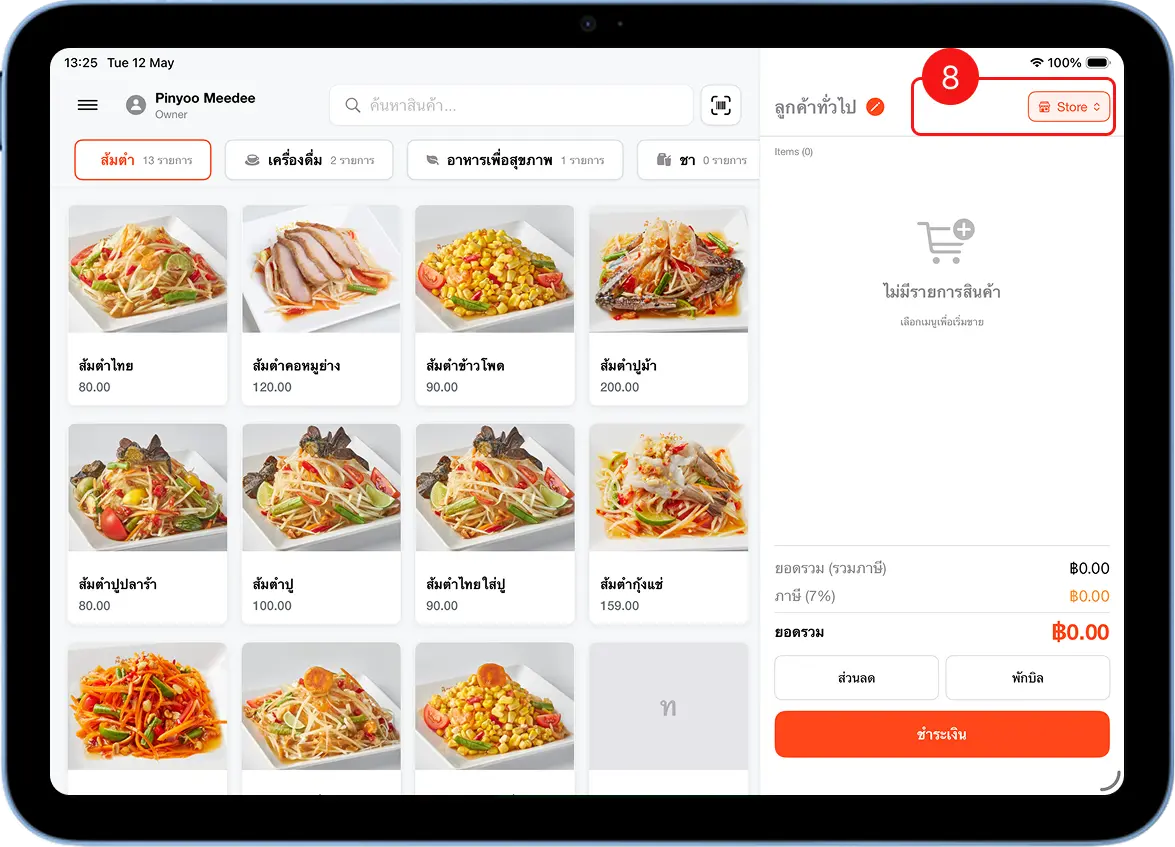
Tap the channel button in the top-right of the sales screen
The sales screen shows the current channel in the top-right corner, e.g. "Store" — tap it to switch channels.
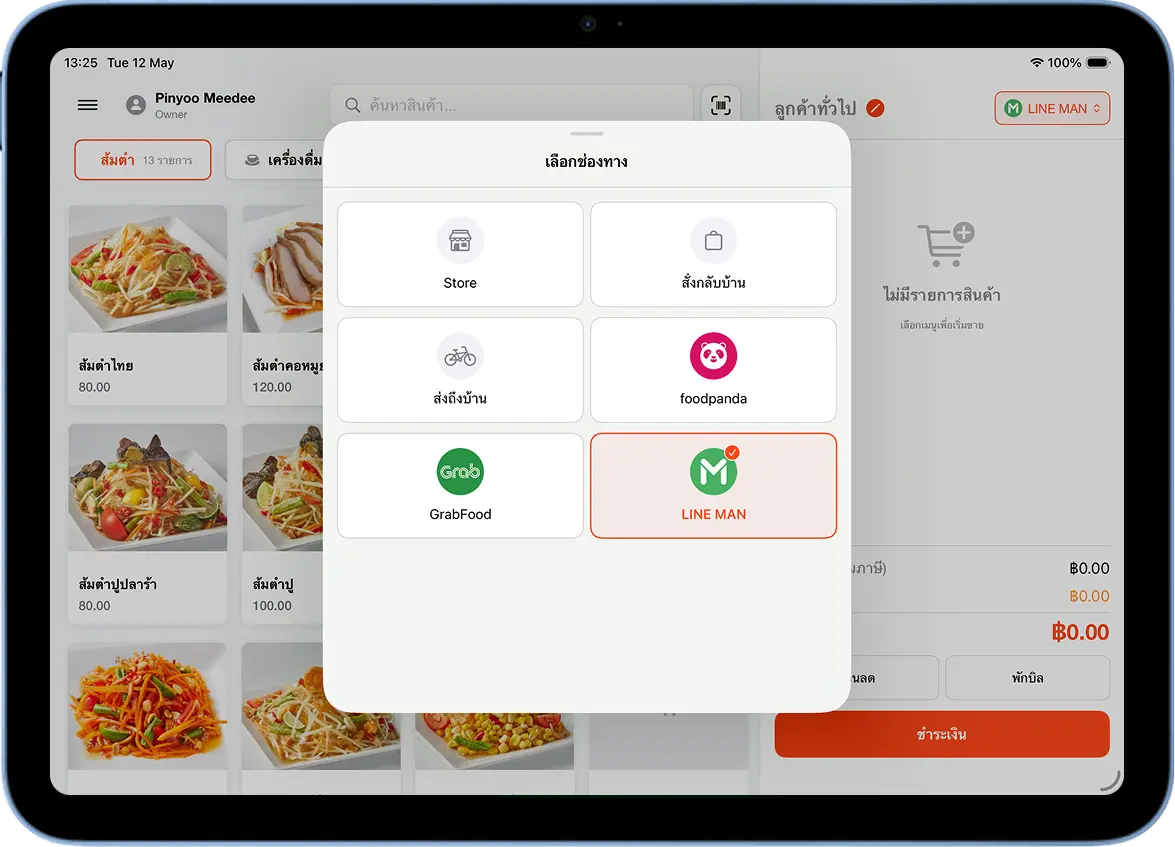
Select the channel you want, e.g. GrabFood or LINE MAN
A "Select Channel" pop-up appears with each platform's logo — tap the channel you want, e.g. GrabFood or LINE MAN.
Add products to the cart and check the total
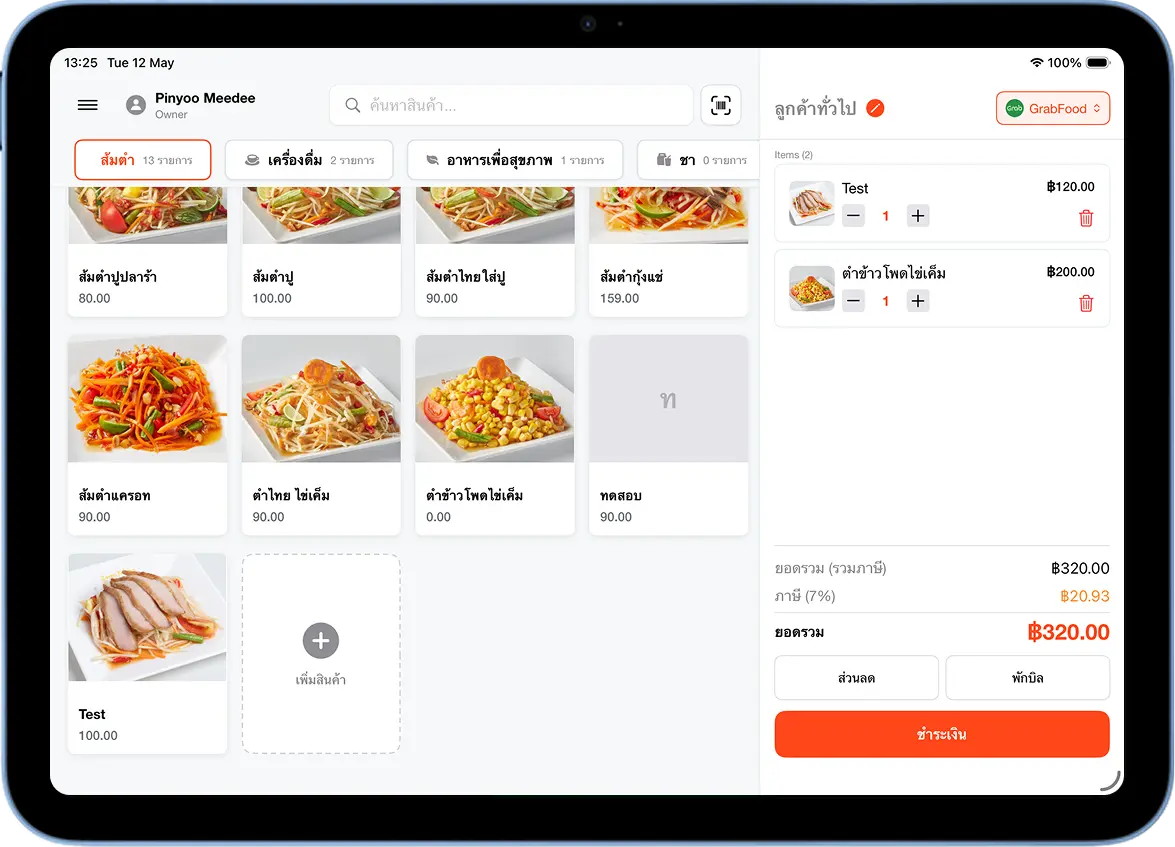
After selecting a channel, the sales screen shows only the products enabled for it. Tap a product to add it to the cart — the system applies the channel-specific price automatically.
Tap Checkout and choose the payment method for the channel
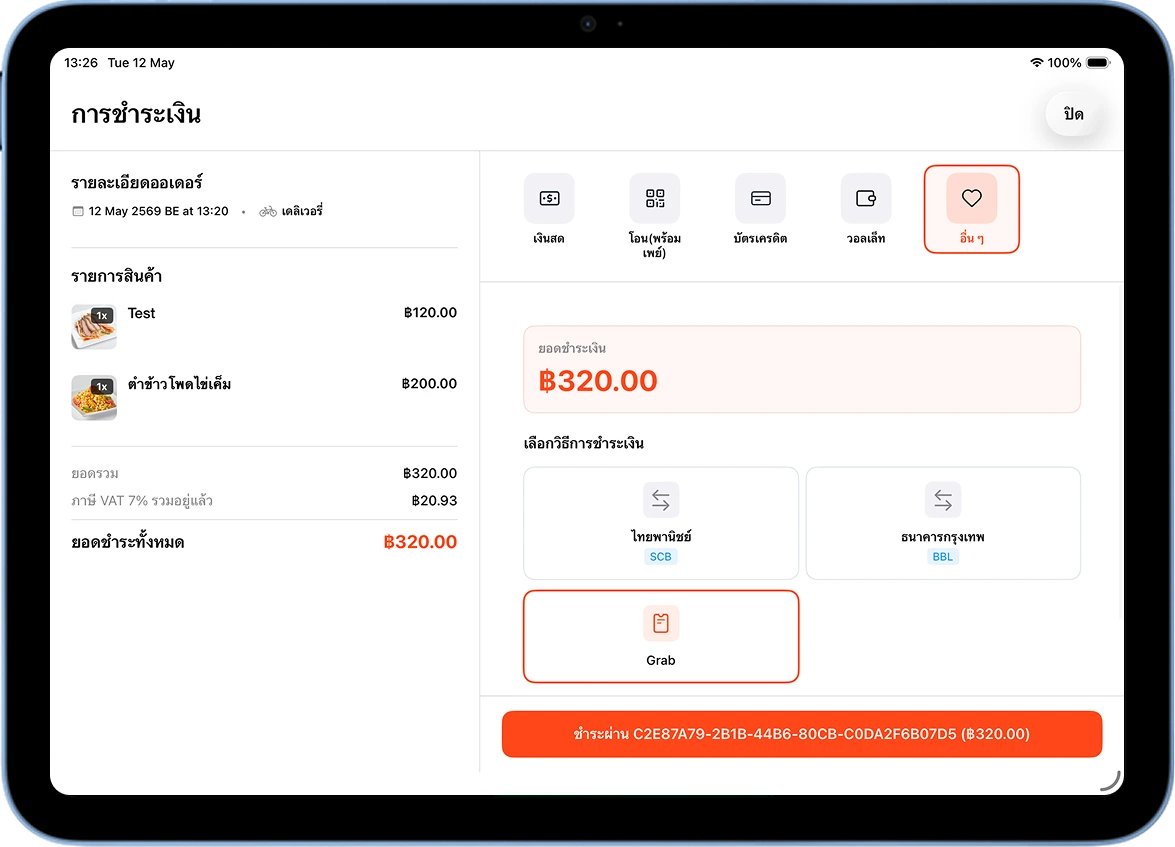
Tap "Checkout" — the payment screen appears with options. For orders from a delivery platform, e.g. Grab, choose the "Grab" payment method, meaning the customer already paid through the Grab app directly.
Confirm the payment is successful
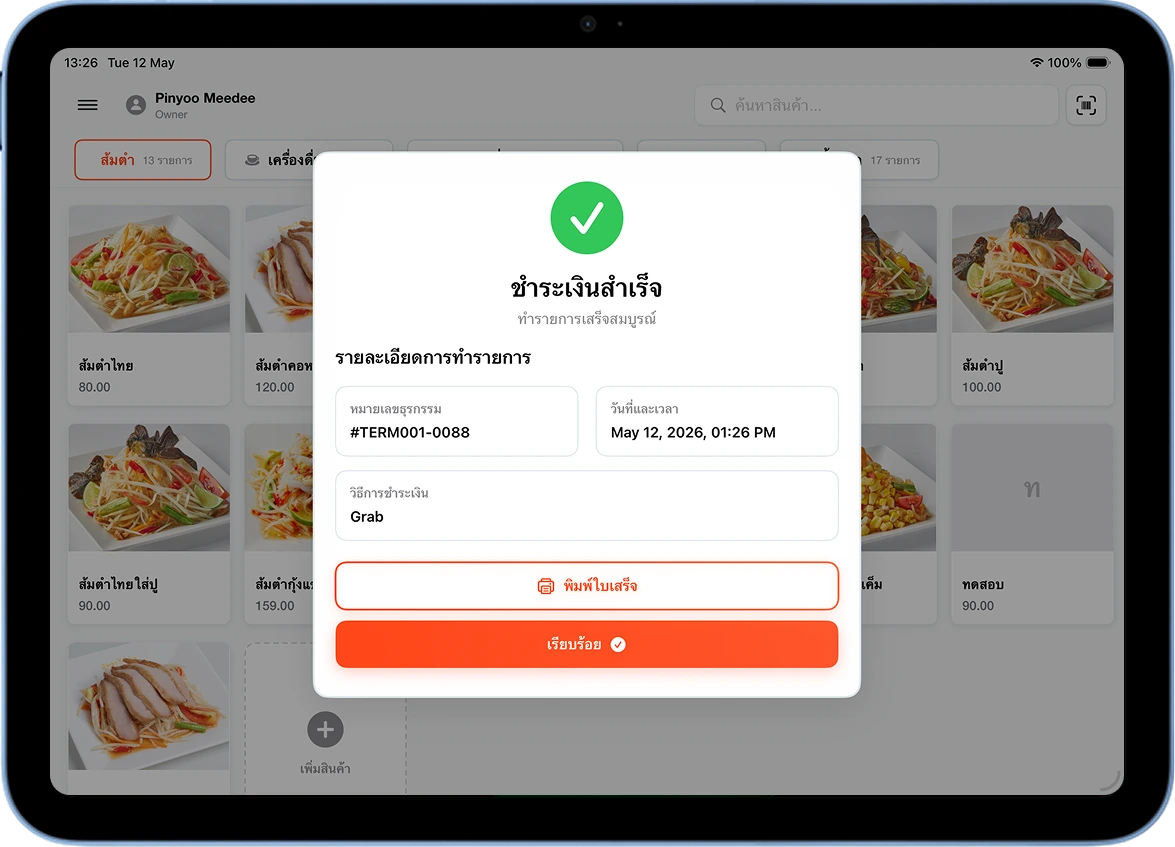
After confirming, the system shows a "Payment Successful" screen with the transaction number, date/time, and payment channel, e.g. Grab. Tap "Print Receipt" or "Done" to return to the sales screen.
Part 4 — View Revenue Reports by Channel
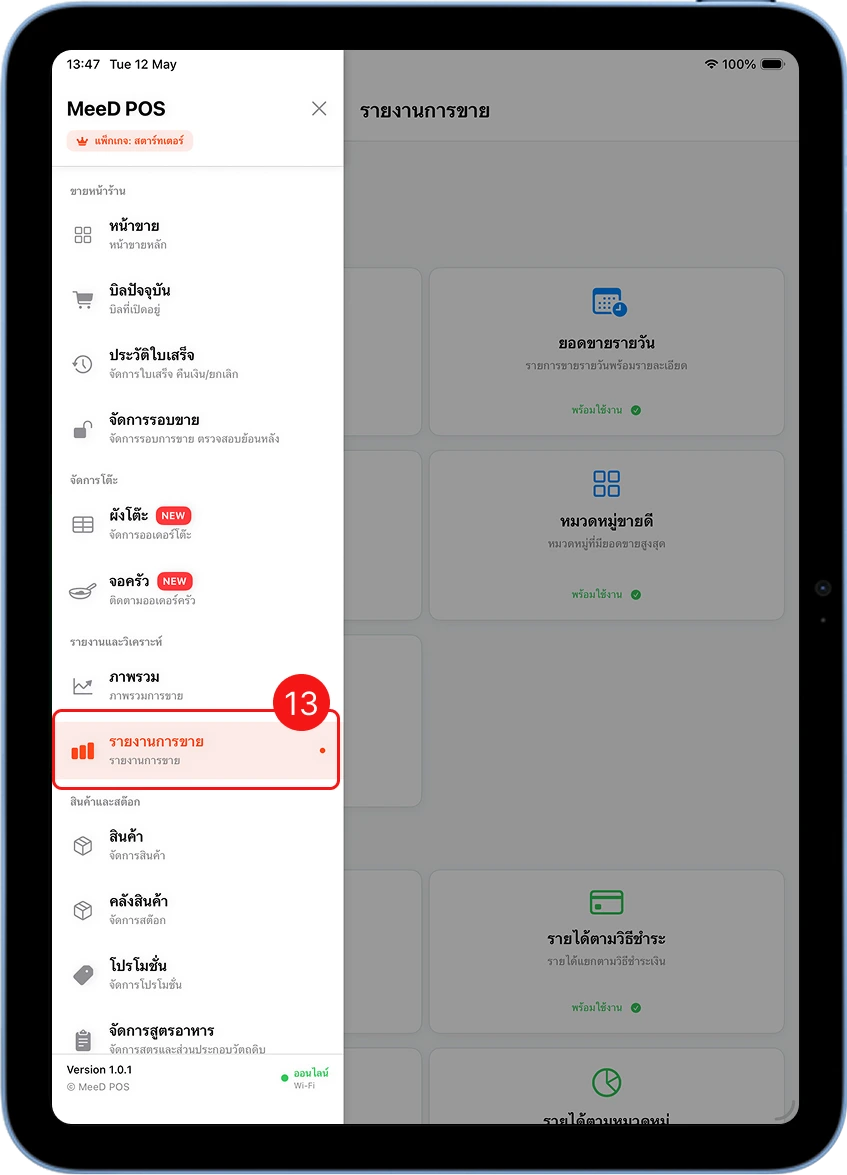
Go to the Sales Reports menu
Tap ☰, then select "Sales Reports" under "Reports & Analytics".
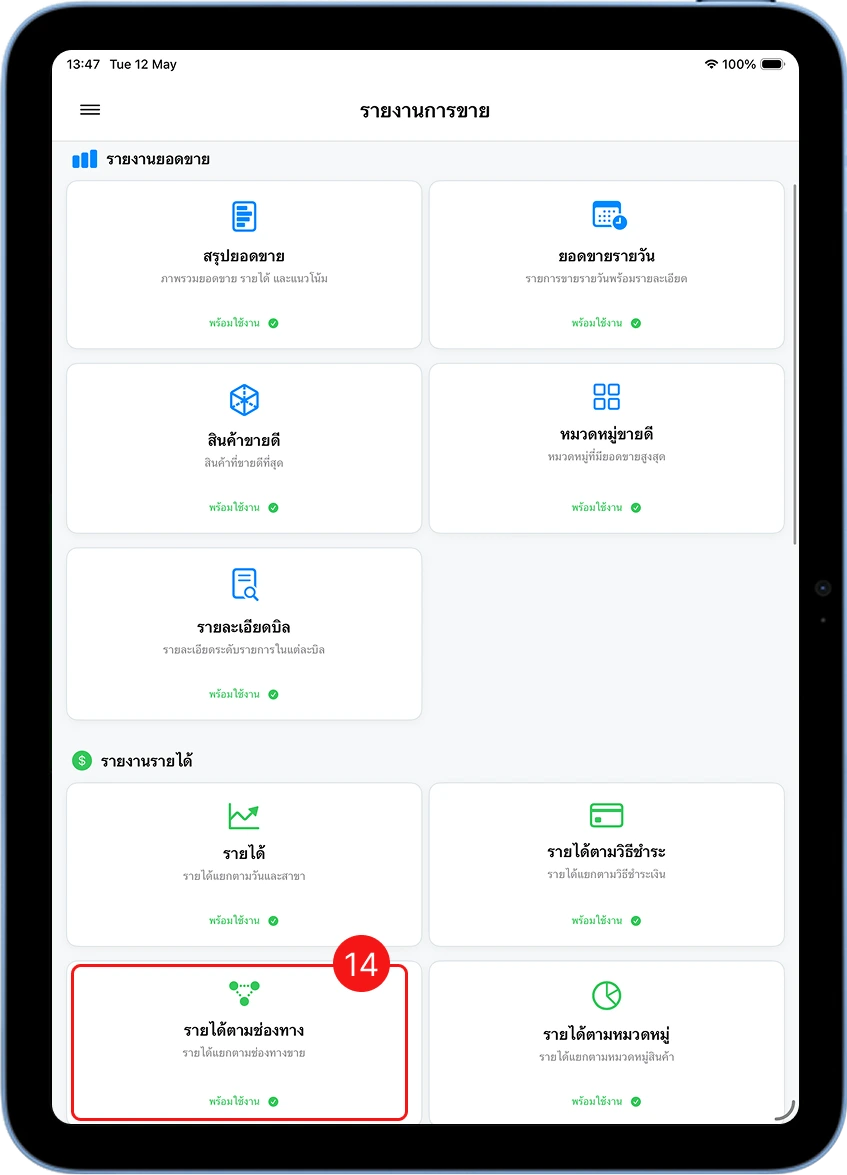
Open the revenue-by-channel report
The sales reports page shows several report types — Sales Summary, Daily Sales, Best Sellers, Bill Details, and "Revenue by Channel". Tap the "Revenue by Channel" card.
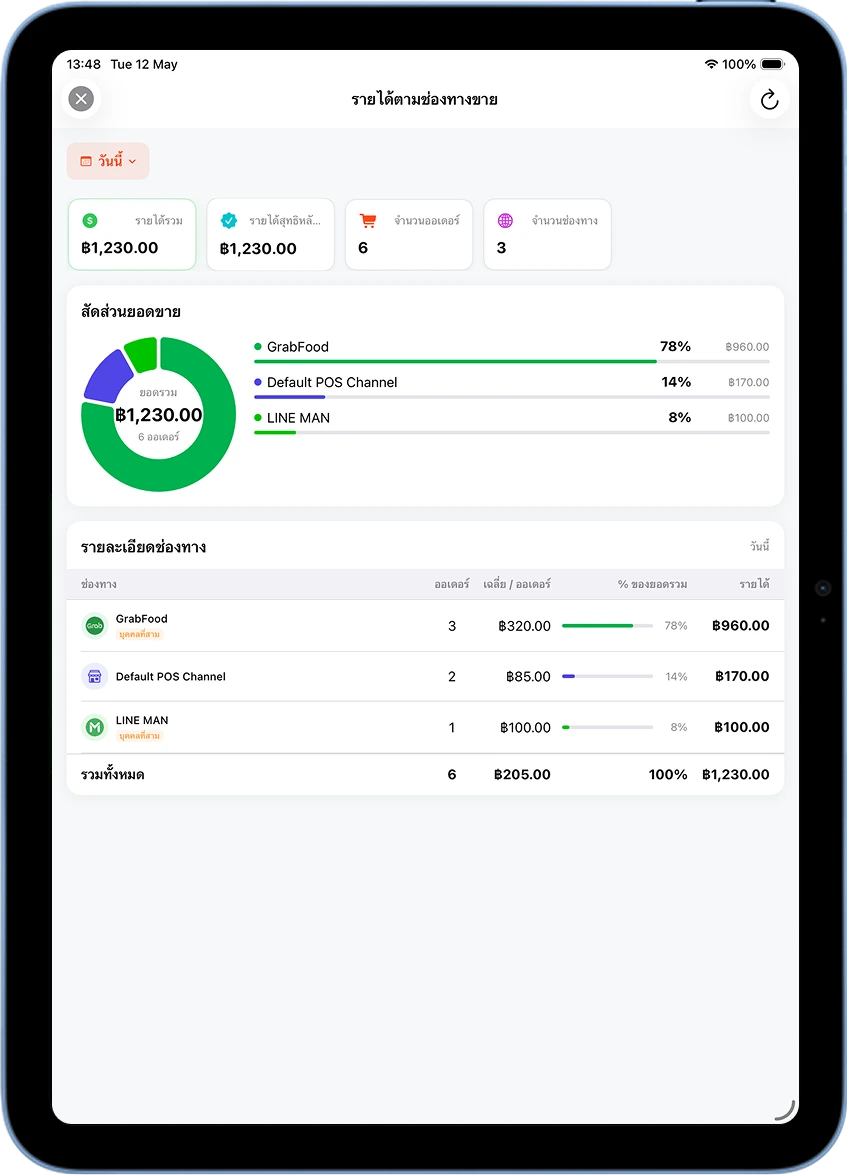
Analyze revenue split by channel
The "Revenue by Sales Channel" report shows: Total revenue (across all channels), a Pie Chart (percentage share per channel), and a Detail Table (order count, revenue per order, % of total, and total revenue per channel).
Delivery Platform Comparison
Commission rates are rough estimates — confirm actual figures from each platform's dashboard
| Platform | Commission (approx.) | Highlights | Merchant Sign-Up Link |
|---|---|---|---|
| GrabFood | ~30% | Large user base, supports GrabPay | GrabMerchant |
| Robinhood | ~25–30% | Thai platform, no sign-up fee, supports SCB Easy | Robinhood Partner |
| LINE MAN | ~25–30% | High LINE user adoption in Thailand, connects to LINE OA | LINE MAN Merchant |
| Delivery / Takeaway | No commission | Your own channel, not routed through a platform | — |
Frequently Asked Questions
Is there an extra cost to use Multi-Channels?
The built-in sales channels (Store, Dine-in, Takeaway, Delivery) are free. GrabFood, Robinhood, and LINE MAN depend on your plan — contact our team for details.
Can I price delivery orders higher than in-store?
Yes. In the Channel Products step, enter a value in the 'Channel Price' field — the system uses it instead of the storefront price for sales through that channel.
Can I exclude specific products from delivery channels?
Yes. Go to Channel Products, select the channel, then toggle that product off — or use 'Hide from Menu' to hide it temporarily.
Do reports show revenue including or before VAT?
The revenue-by-channel report shows totals including VAT (what the customer actually paid). You can see VAT broken out separately in the 'Revenue' report section.
What does the commission rate actually affect?
The commission rate is used only to calculate net figures in reports — the system doesn't deduct real money. You still settle commission payments with each platform directly.
Need More Help?
Still having trouble after setup, or want our team to help configure your delivery channels? Get in touch anytime.