How to Create a Purchase Order
A Purchase Order (PO) in MeeD POS is a document for ordering stock or ingredients from a supplier, specifying the items, quantities, and agreed prices — used as a reference when receiving goods and cross-checking bills before payment.The main flow is: choose a supplier → add items and the quantities to order → Save Draft → Submit for Approval. Once approved, the status instantly changes to "Approved" — you can download it as a PDF to send to the supplier, and receive stock into inventory immediately by referencing this PO, with no extra steps needed.
MeeD POS Team · Tested on Web Dashboard ·
Why Order Through a Purchase Order Every Time
- Check deliveries instantly — When goods arrive, compare them against the PO to confirm quantity and price match — no relying on memory or digging through chat history.
- Requires approval before ordering for real — Staff can draft a PO, but it needs approval from someone with the right permissions before it becomes a real order, preventing unnecessary purchases.
- Prevents double or overpayment — Every bill can be checked against the purchase order and goods receipt, making it clear which ones have been paid.
- Track price history per supplier — Use it as leverage when negotiating prices for recurring orders.
- Delegate ordering to staff — Every PO records who created it and when, so the owner can always review it later.
The 5 Purchase Order Statuses
| Status | Meaning |
|---|---|
Draft | Saved but not yet submitted — items can still be edited freely. |
Pending | Submitted to someone with approval rights, awaiting review. |
Approved | Approved. Download PDF and receive stock immediately. |
Partial | Some items or quantities have been received, but not the full order yet. |
Fully Received | Every item has been received as ordered — the PO is closed. |
How to Create a Purchase Order
Log In to the MeeD POS Dashboard
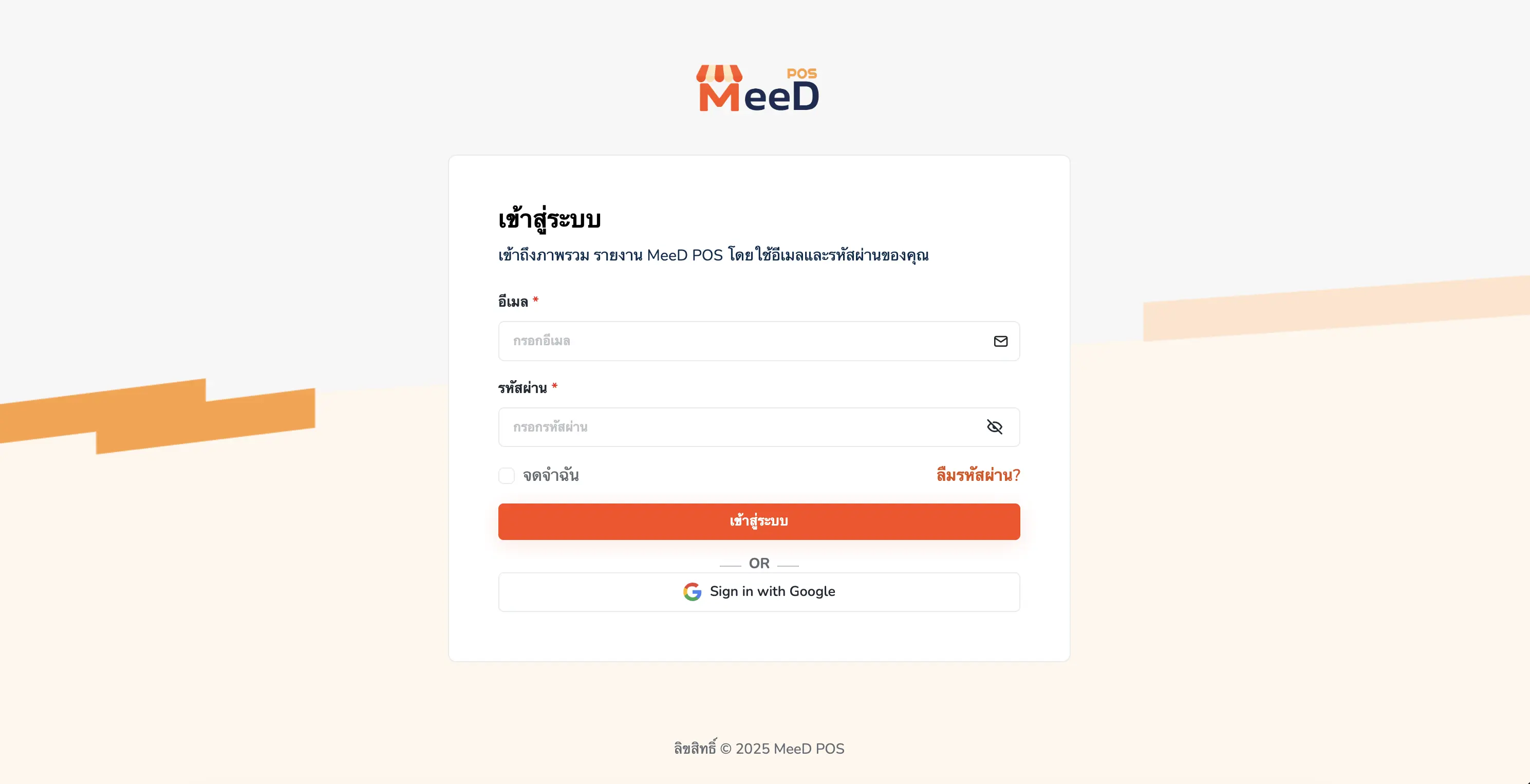
Open a browser and go to the MeeD POS Dashboard. Enter your email and password, then tap "Log In", or choose "Sign in with Google".
Go to 'Purchasing > Purchase Orders' and Tap 'Create Purchase Order'
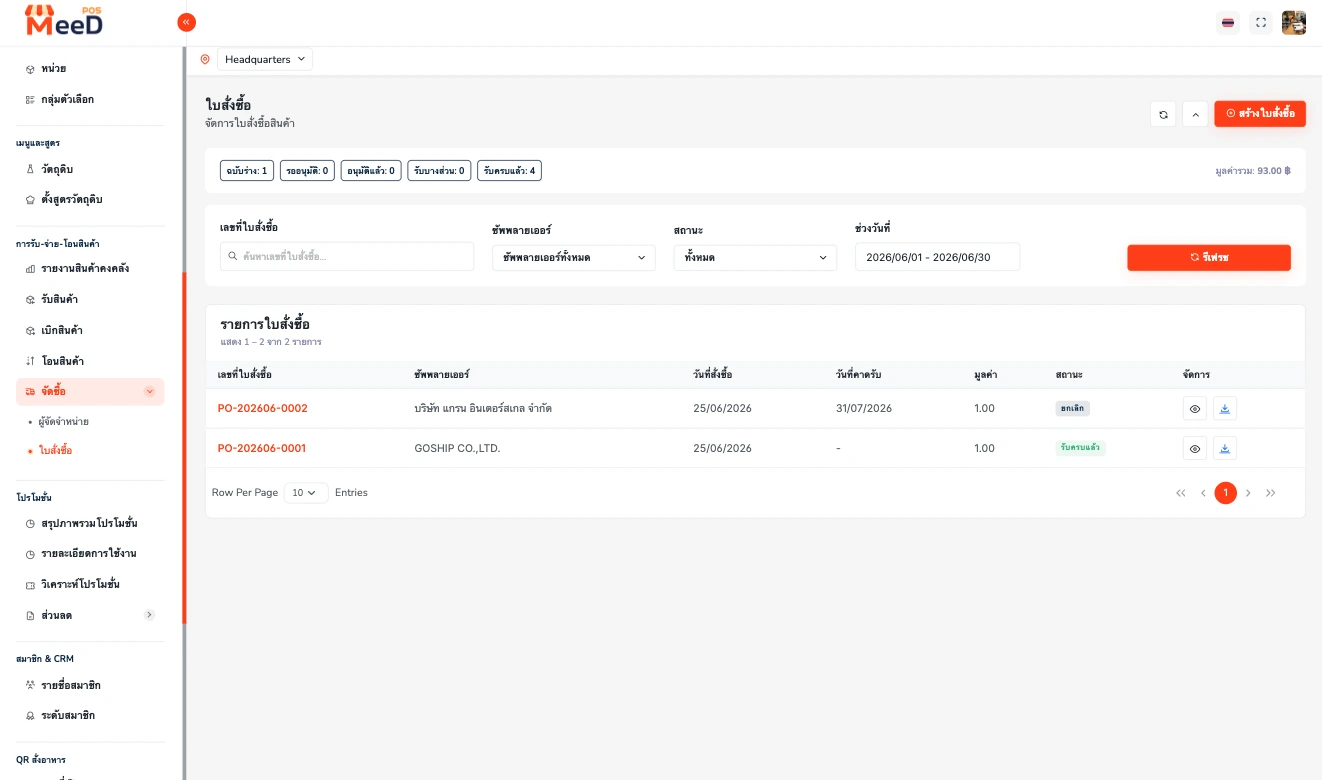
Select the branch (Headquarters) from the selector at the top, then go to the left menu: "Receiving/Issuing/Transfers" → "Purchasing" → "Purchase Orders". This page shows summary cards for each status count (Draft, Pending, Approved, Partial, Fully Received) with total value, and filters for searching by PO number, supplier, status, and date range.
The table below lists every purchase order, with the document number (e.g. PO-202606-0001), supplier, order date, expected delivery date, value, status, and view/download PDF buttons at the end of each row. Tap the orange "Create Purchase Order" button in the top-right corner to start a new one.
Fill In the Header Info and Choose a Supplier
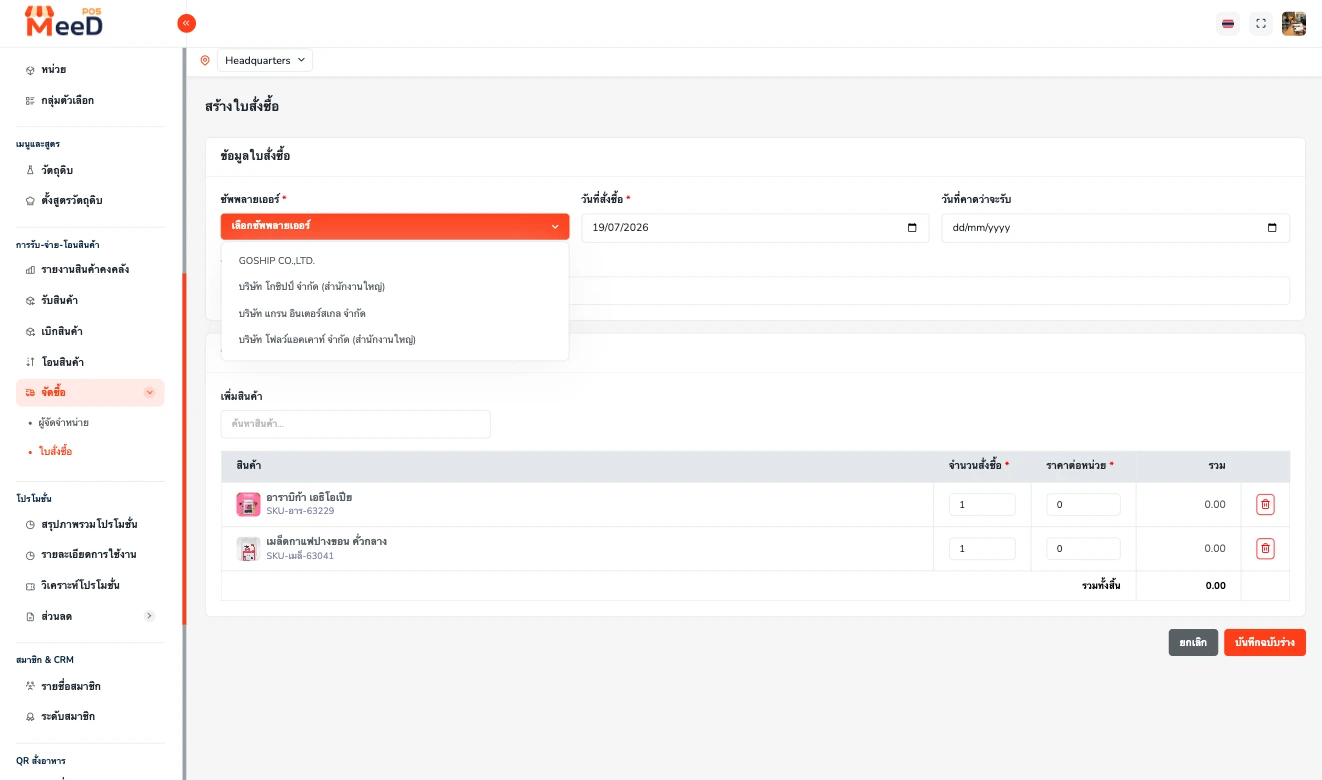
The system opens the "Create Purchase Order" screen. In the "Order Info" section, fill in: Supplier — required, chosen from the list saved in the system (if you haven't added one yet, see the supplier management guide), Order Date (required, defaults to today's date), Expected Delivery Date (optional, the delivery date agreed with the supplier), and Note (optional extra details).
Add Items, Quantities, and Unit Prices
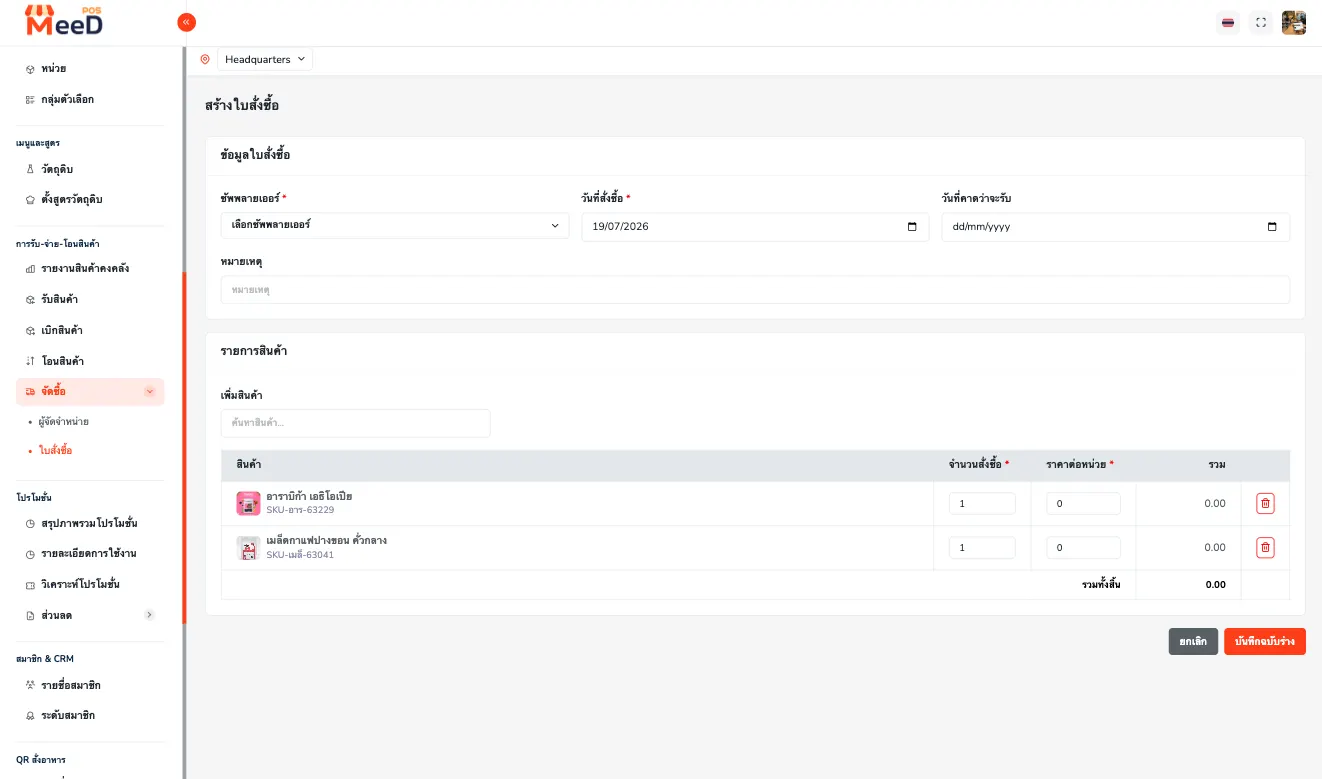
In the "Add Product" field under "Items", search for and add products or ingredients. Each row has columns for Product (with SKU), Order Qty (required), Unit Price (required), and Total (auto-calculated as quantity × price). Add as many items as needed to one PO, and remove any with the red trash icon at the end of the row.
Save as Draft, Then Submit for Approval
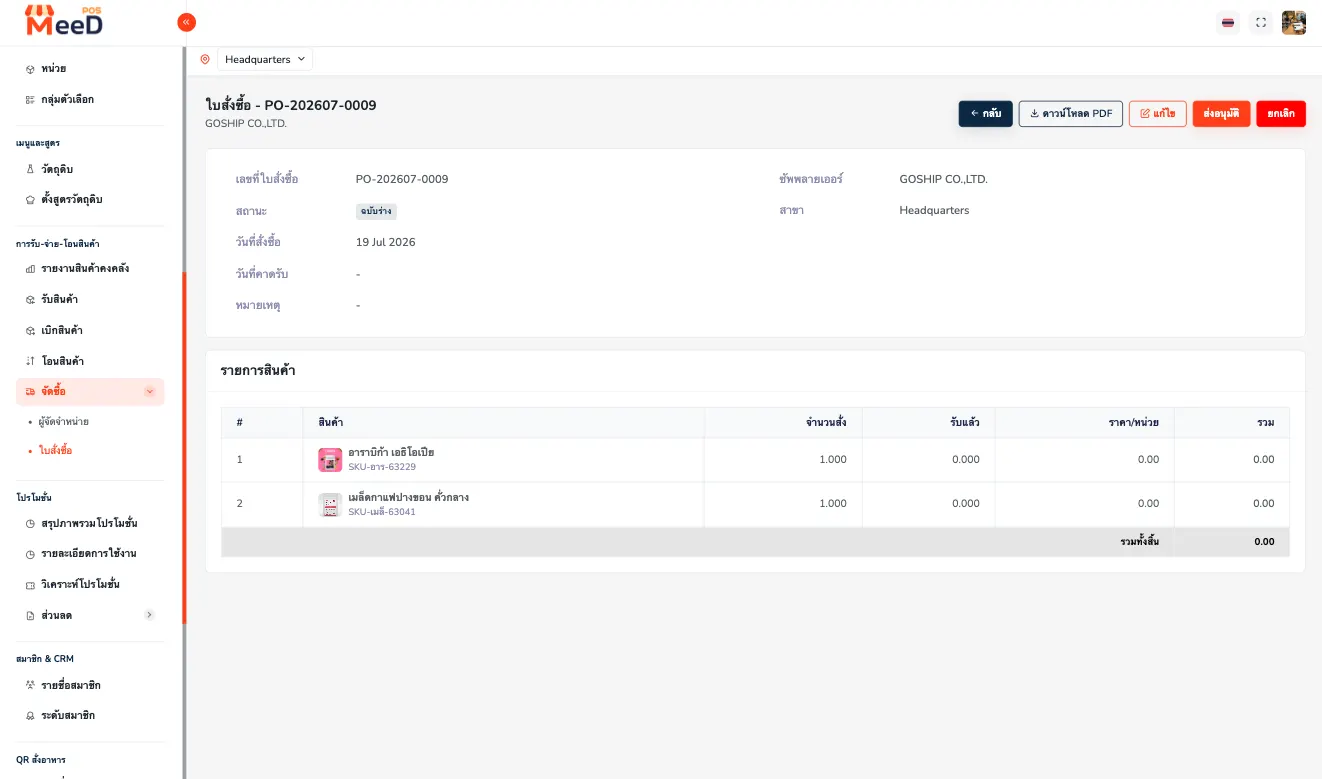
Verify the items and total are correct, then tap "Save Draft" in the bottom-right corner. The system generates a PO number automatically (e.g. PO-202607-0009) and sets the status to "Draft" — you can still edit the items freely at this stage.
When ready, go to the PO detail page and tap "Submit for Approval" to send it to someone with approval rights. The status changes to "Pending".
Once Approved, Download the PDF and Receive Stock Immediately
Once someone with approval rights approves it, the PO's status instantly changes to "Approved". From here, tap "Download PDF" to get an official-looking PO document you can send to the supplier via LINE or email.
Importantly, an "Approved" purchase order is immediately ready for receiving stock by referencing it — no extra steps needed. When goods arrive, receive them into inventory, comparing the actual delivered quantity against what was ordered. The status updates to "Partial" if not everything arrived, or "Fully Received" once every item is in. See the detailed receiving steps at the Goods Receipt guide.
Good to Know About Purchase Orders
A PO doesn't affect stock until it's approved and received
Draft and Pending POs don't touch stock — stock increases only when goods are received into inventory referencing an approved PO.
Only editable before approval
Draft or Pending POs can still be edited. For an approved PO, void it and create a new one if something was entered wrong.
Incomplete deliveries
When receiving, enter the actual quantity received — the status shows "Partial" until everything on the PO has arrived.
Keep every PDF
Use it to cross-check against the supplier's bill before paying, and as evidence if there's a dispute over price or quantity.
Frequently Asked Questions
Does a draft purchase order need approval first?
Yes — after saving a draft, tap "Submit for Approval" to change its status to "Pending". Once someone with approval rights approves it, the status changes to "Approved" and stock can be received immediately.
Can I receive stock right after approval, or is there another step?
Yes, immediately. Once a purchase order is "Approved", you can receive stock referencing that PO directly — no additional approval needed.
How do I send a purchase order to a supplier?
Download the PO as a PDF from its detail page (available once approved), then send the file to the supplier via LINE, email, or whatever channel you normally use.
The supplier delivered less than what was ordered — what do I do?
When receiving stock, enter the actual quantity received. The PO's status changes to "Partial", and the outstanding amount stays tracked on the same PO — you can follow up with the supplier by referencing the PO number. Once everything arrives, the status changes to "Fully Received".
Related Articles
Need More Help?
Running into trouble creating a purchase order, or want the team to help set up your ordering system? Get in touch.