How to Manage Supplier Information
Suppliers in MeeD POS form a database of your shop's ingredient/product vendors, found under Purchasing > Suppliers. It stores company info, address, payment terms, credit limit, and order history in one place — linked directly to purchase orders and goods receipts, so every purchase has a clear reference to who it was bought from, at what price, and how often.
MeeD POS Team · Tested on Web Dashboard ·
How to Manage Suppliers
Log In to the MeeD POS Dashboard
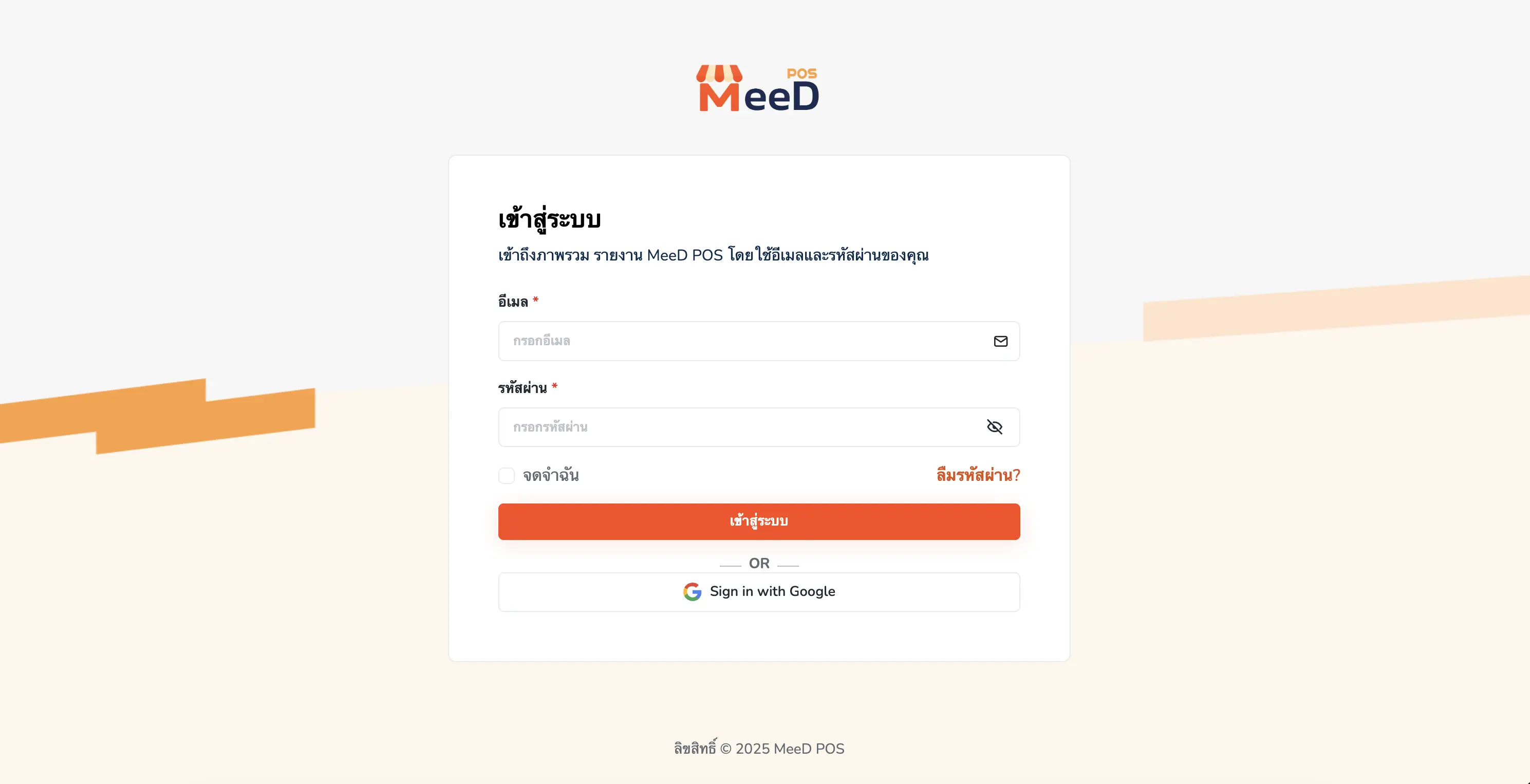
Open a browser and go to the MeeD POS Dashboard. Enter your email and password, then tap "Log In", or choose "Sign in with Google".
Go to 'Purchasing > Suppliers' and Tap 'Add Supplier'
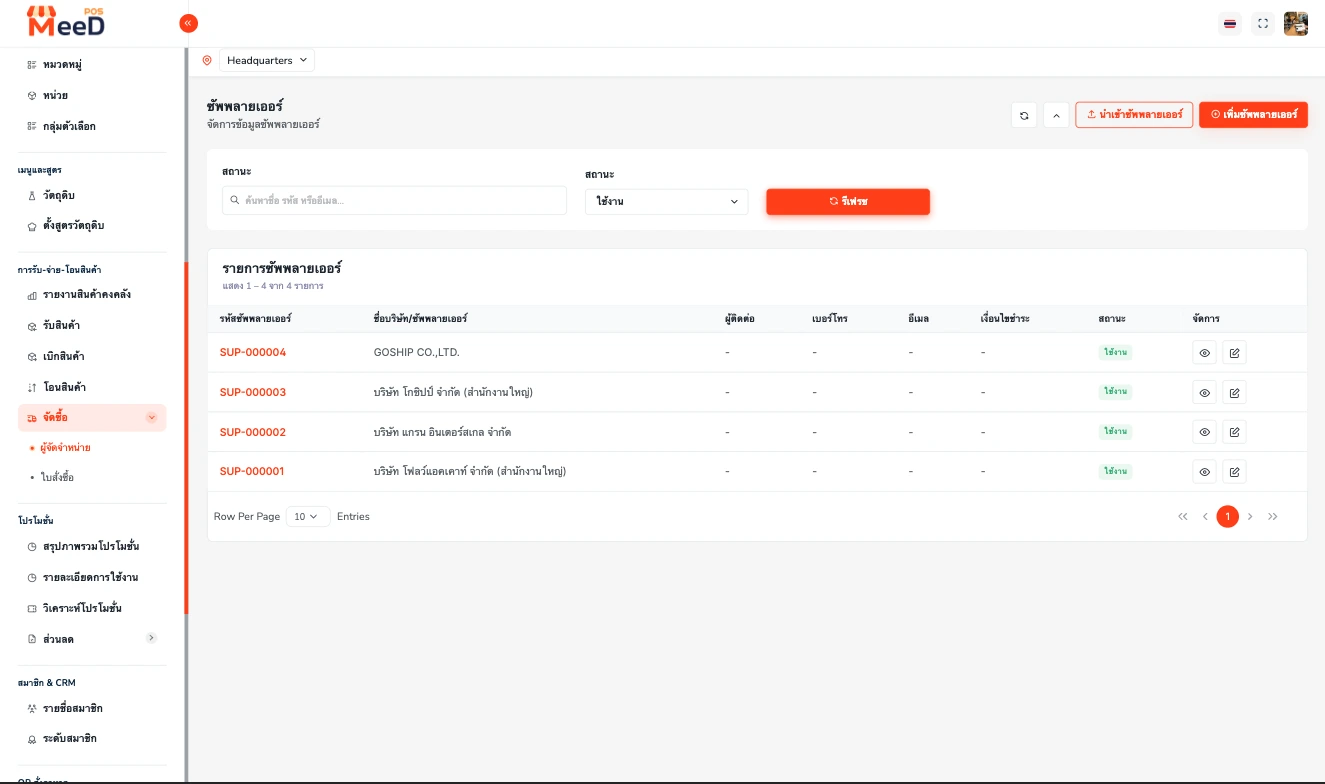
Select the branch (Headquarters) from the selector at the top, then go to the left menu: "Receiving/Issuing/Transfers" → "Purchasing" → "Suppliers". This page lists every supplier for your shop, with a search field for name/code/email and a Status filter (Active/Inactive).
The table shows columns for Supplier Code (e.g. SUP-000001), Company/Supplier Name, Contact, Phone, Email, Payment Terms, Status, and view/edit buttons at the end of each row. Tap the orange "Add Supplier" button in the top-right corner to add a new one.
Fill In Supplier Details
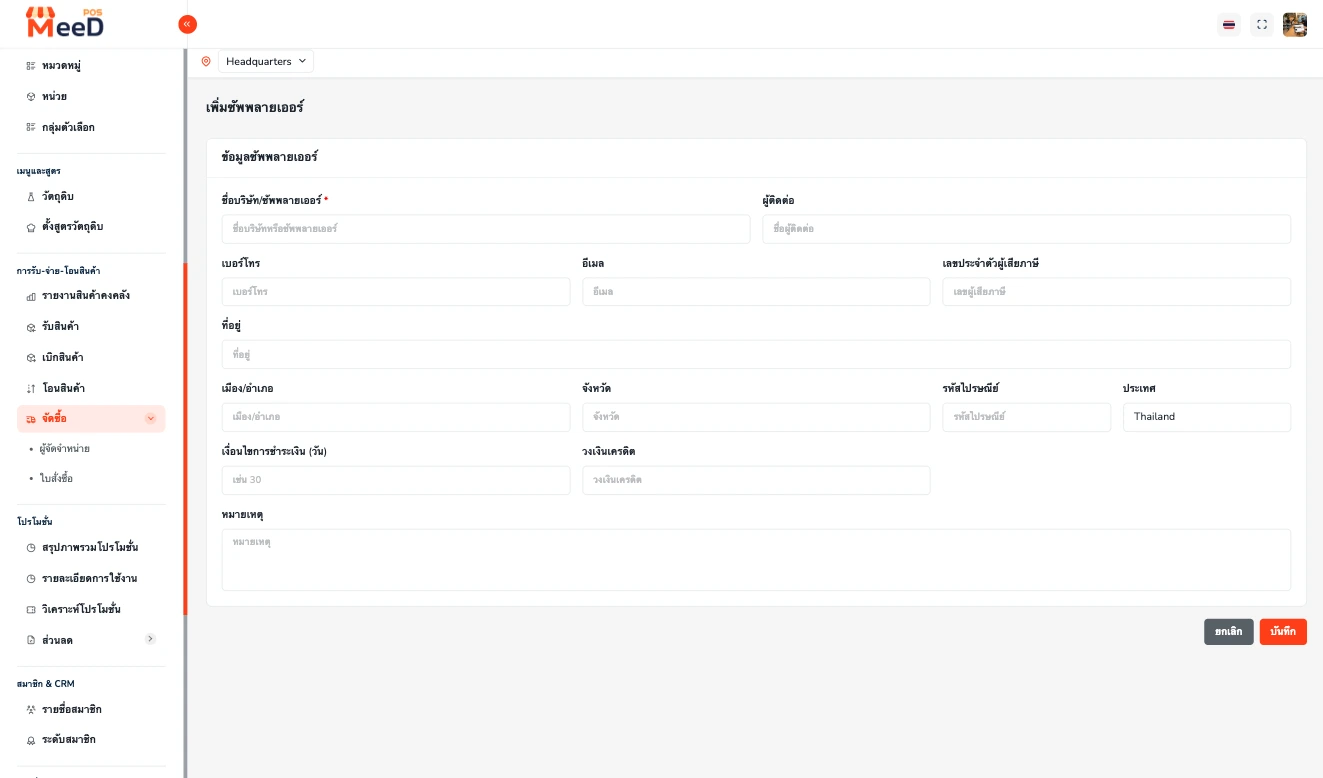
The "Add Supplier" form has these fields: Company/Supplier Name — required, the name shown on purchase orders and receipts; Contact — the regular point of contact's name; Phone/Email — the main contact methods; Tax ID — for accounting documents; Address — split into Address, City/District, Province, Postal Code, and Country (defaults to Thailand); Payment Terms (Days) — the credit period, e.g. "30" means 30-day credit; Credit Limit — the maximum outstanding balance allowed with this supplier; and Note — other terms, e.g. delivery hours or minimum order amount.
Once complete, tap the orange "Save" button in the bottom-right corner. The system automatically generates a supplier code (e.g. SUP-000005) and sets the status to "Active" instantly.
Use the Supplier on Purchase Orders and Receipts
When creating a Purchase Order or receiving stock, select a supplier from the saved list — the system automatically links every document to that supplier, building a complete purchase history.
View Order History and Compare Prices
Tap the view (eye) icon at the end of each supplier's row to see their full purchase order and receiving history — order frequency, monthly totals, and per-unit prices for each purchase. Use this data to compare prices across vendors and negotiate with real numbers.
Recommended Practices
Keep at least 2 vendors for key ingredients
Record both a primary and backup supplier in the system, so you have an option the day your main one runs short.
Update details when terms change
Price increases, changed credit terms, a new point of contact — update the system right away.
Always order through a purchase order
History is only complete when every purchase goes through the system — not verbal orders keyed in later, sometimes.
Related Articles
Need More Help?
Want the team to help set up your supplier database and ordering system? Get in touch.