How to Set Up Recipes and Ingredients (BOM) with Unit Conversion
A Recipe, or BOM (Bill of Materials), is the list of ingredients used to make a menu item, along with the quantity used — e.g. an "Americano" uses 100 grams of coffee beans. Setting up a recipe in MeeD POS lets the system deduct ingredient stock automatically every time that item sells, and calculate per-item cost instantly.The main flow is: add ingredients to the system → check the product you want to build a recipe for → go to "Set Recipe" → search for and add ingredients to the recipe. A standout feature of MeeD POS is converting ingredient units within a recipe — e.g. set an ingredient's main unit to kilograms, but use grams in the recipe, and the system automatically calculates the per-unit cost to match.
MeeD POS Team · Tested on Web Dashboard ·
Why Restaurants and Coffee Shops Need Recipes
Many shops sell menu items without linking a recipe in the system, meaning ingredient stock has to be deducted manually item by item, and the real cost of each menu item stays unknown. Setting up a recipe (BOM) in advance provides:
- Automatic ingredient stock deduction — Every time an item sells, the system deducts ingredients per the recipe instantly — no manual calculation.
- The true cost per menu item — The system sums the cost of every ingredient in the recipe and compares it to the selling price to show an estimated margin.
- Fewer manual-deduction errors — No need to log or calculate ingredient usage by hand every time.
- Unit conversion support — Set an ingredient's main unit to a large purchasing unit, but use a smaller real-world unit in the recipe.
How to Set Up a Recipe (BOM)
Log In to the MeeD POS Dashboard
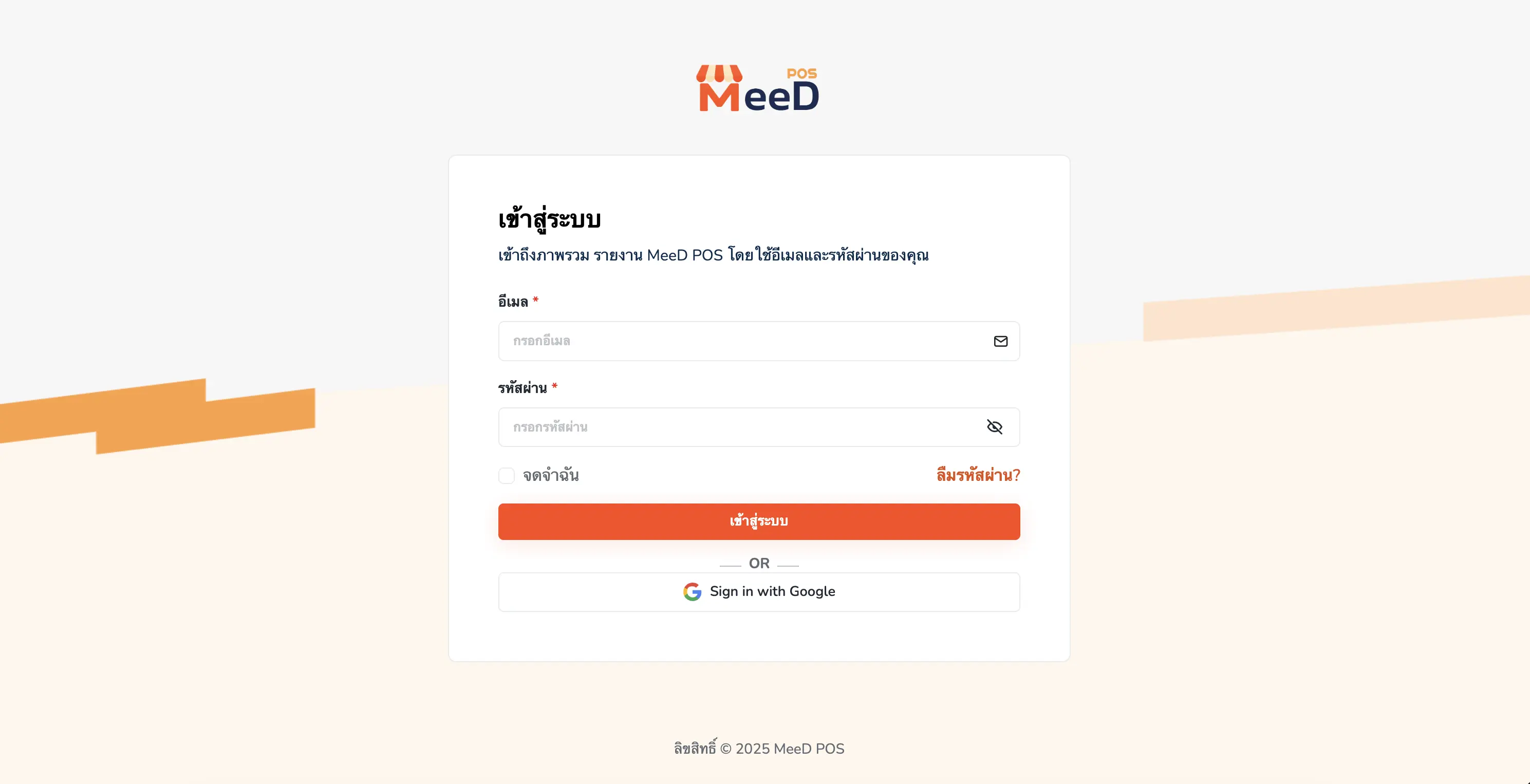
Open a browser and go to the MeeD POS Dashboard. Enter your email and password, then tap "Log In", or choose "Sign in with Google". To stay logged in next time, check "Remember me" before logging in.
Add an Ingredient and Set Its Main Unit
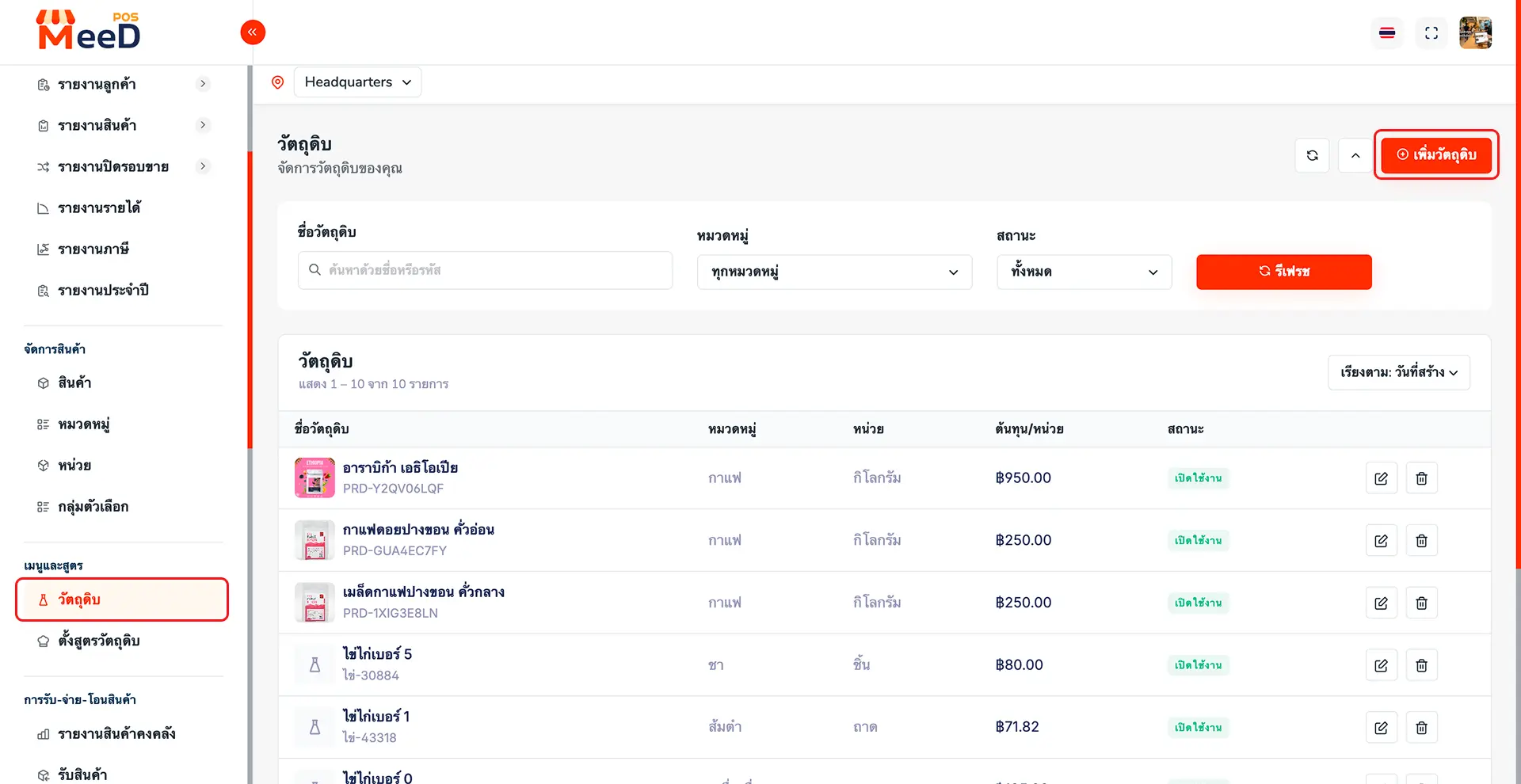
Go to "Menu & Recipes" > "Ingredients". This page lists every existing ingredient, with columns for name, category, unit, cost/unit, and status. Tap the orange "Add Ingredient" button in the top-right corner to add a new one.
In the Add Ingredient form, fill in: Ingredient Name — e.g. "Arabica Coffee Beans, Pang Khon, Light Roast" (required), Ingredient Code — a reference code, auto-generated if left blank, Category — e.g. Coffee, Tea, Beverages, and Unit — that ingredient's main unit, e.g. kilogram, liter, or piece.
Below that is a "SKU" section for cost details: SKU Code — a code for this unit, SKU Name — usually matching the ingredient name, Barcode (optional), and Cost/Unit — the cost per main unit of this ingredient.
Check for or Create the Product to Build a Recipe For
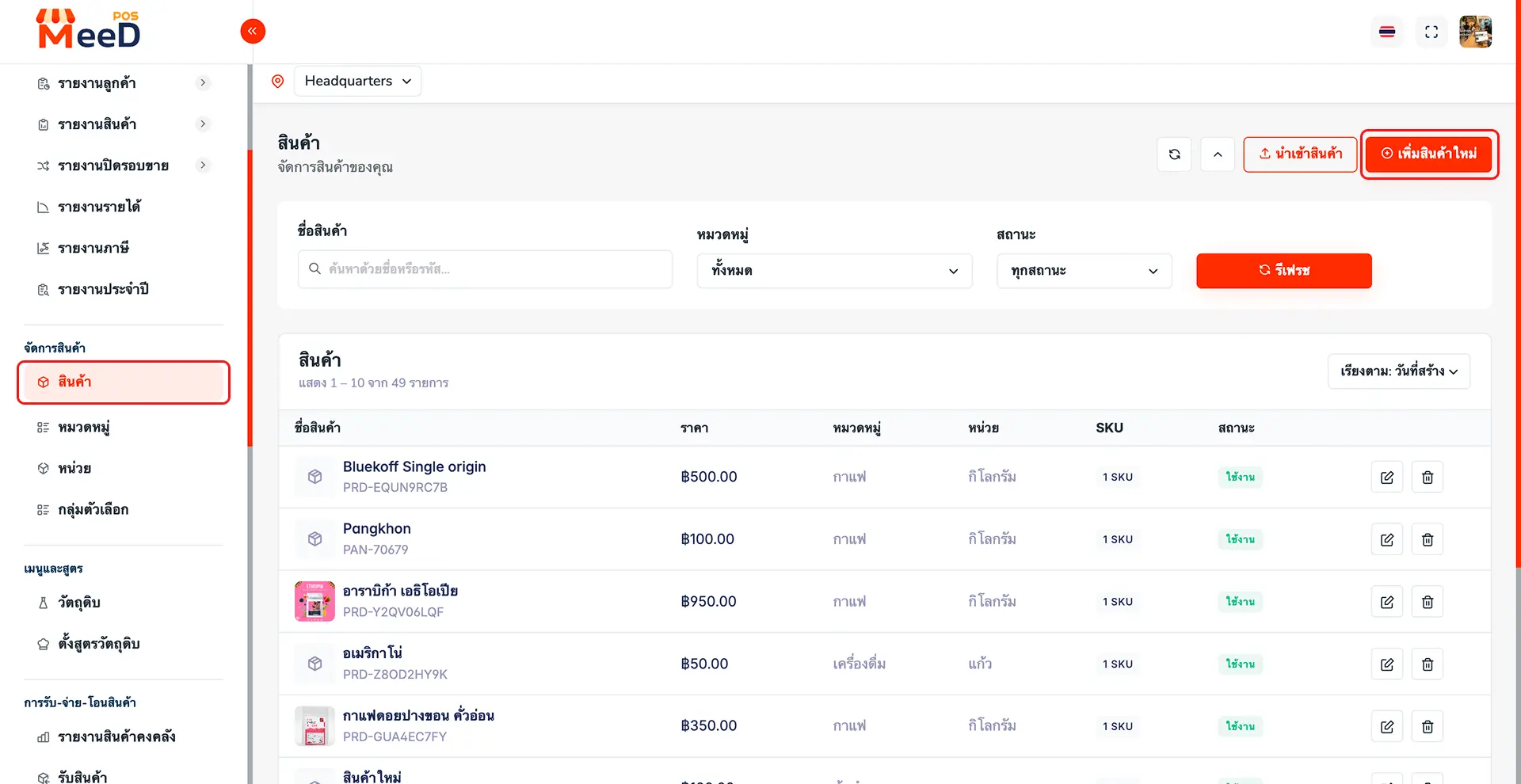
Go to "Manage Products" > "Products" to check whether the item you want to build a recipe for, e.g. "Americano", already exists. This page shows every product with its price, category, and sales unit (e.g. "cup"), which is the product's selling unit — separate from an ingredient's main unit in step 1.
If the product doesn't exist yet, tap "Add New Product" and fill in the basics: Product Name — e.g. "Americano" (required), Product Code — leave blank to auto-generate, Category — e.g. Beverages, and Unit — the product's selling unit, e.g. cup, piece (separate from an ingredient's main unit).
Additional settings include: Service Charge (toggle whether this product carries a service charge), Tax Included (whether the set price already includes VAT), Shared Product (use the same product data across all branches), and Allow Branch Customization (let each branch edit this product's details independently).
Adjust these to fit your shop — they don't affect the recipe setup in the next step. In the "SKU" section below, enter the Regular Price (the selling price, e.g. ฿60) and Stock Deduction (Unit) (the quantity deducted per sale, e.g. 1), then save.
Open 'Set Recipe' and Search for an Ingredient
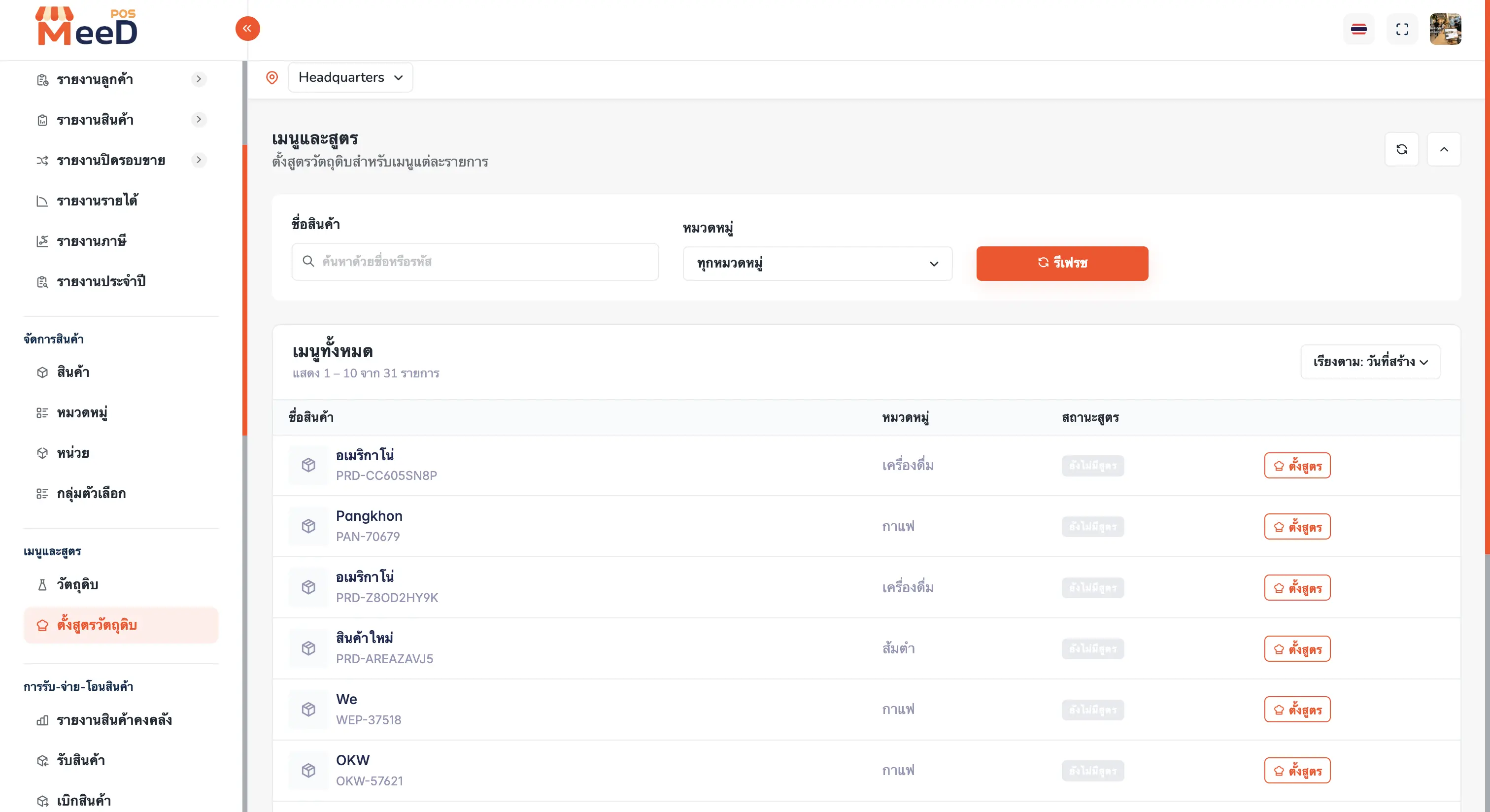
Go to "Menu & Recipes" > "Set Recipe". This page lists every product with a "Recipe Status" column (e.g. "No Recipe Yet" for products without one) and a "Set Recipe" button at the end of each row. Tap it for the product you want, e.g. "Americano".
The system opens that product's recipe screen, with an ingredient search field above the table. Type the ingredient name you want — a dropdown shows matching ingredients with their name and SKU code, ready to select.
On the right side of the page is a "Cost Summary" panel that updates automatically as ingredients are added, showing: Total Ingredient Cost (the sum of every ingredient in the recipe), Packaging (packaging cost, if any), Total Cost (ingredient cost plus packaging), Selling Price (that product's current price), and Estimated Margin (calculated from total cost against selling price).
Enter the Quantity, Convert Units, and Save the Recipe
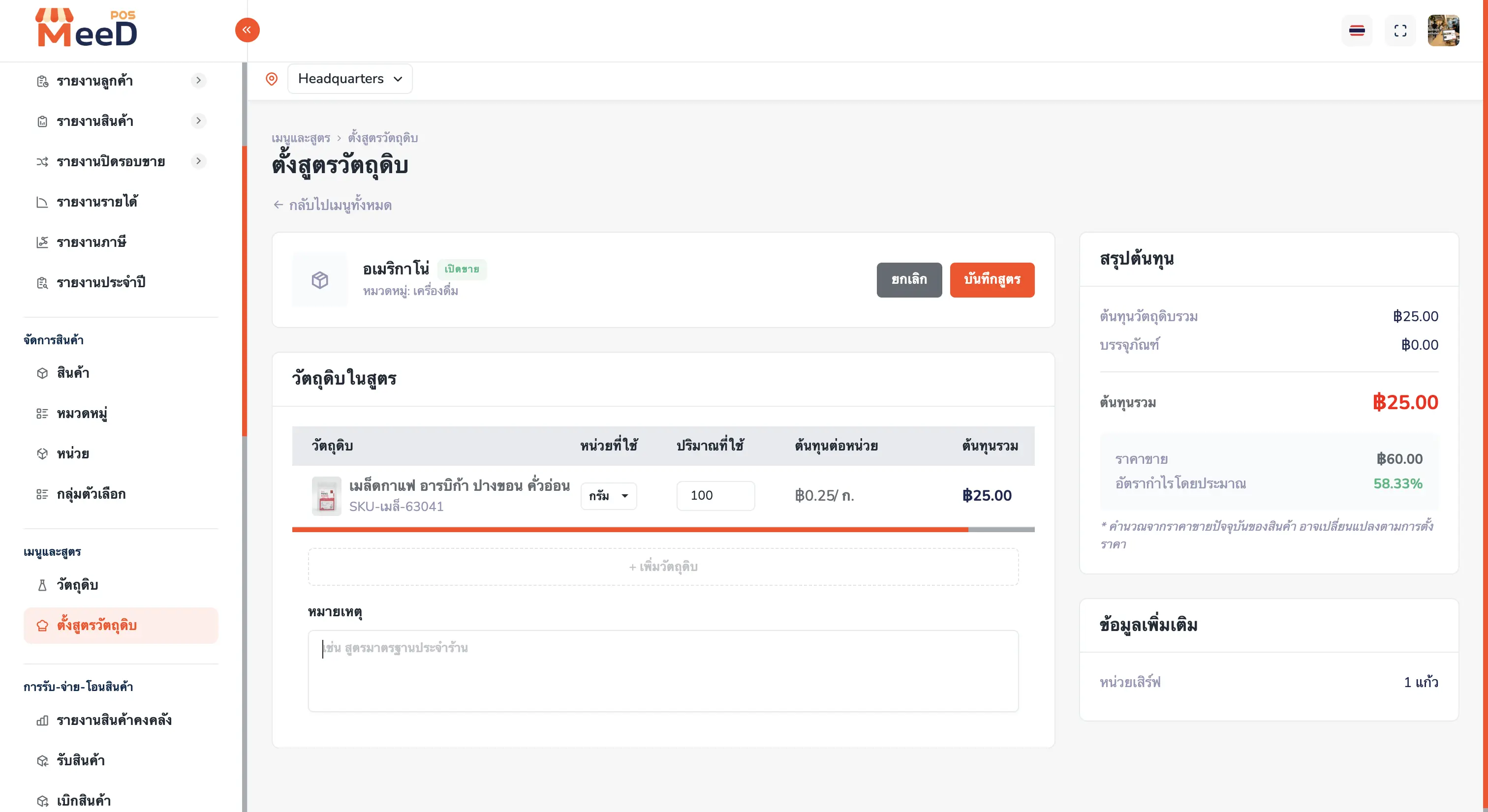
Once an ingredient is selected, e.g. "Arabica Coffee Beans, Pang Khon, Light Roast", that row has these columns: Ingredient (name and SKU of the selected ingredient), Unit Used (a dropdown to choose any unit freely, not necessarily the main unit set when adding the ingredient), Quantity Used (the amount used per serving of that menu item), Cost per Unit (auto-calculated based on the chosen unit), and Total Cost (calculated as quantity used × cost per unit).
In the example shown, this ingredient's main unit is set to kilograms, but the Americano recipe uses "grams" instead. Entering a quantity of 100, the system automatically calculates the cost per unit to match the chosen unit — ฿0.25/gram — and this ingredient line's total cost comes to ฿25.00, with no manual unit conversion needed.
The "Cost Summary" panel on the right updates instantly, showing a total cost of ฿25.00 against the Americano's selling price of ฿60.00, for an estimated margin of 58.33%. If there's more than one ingredient, tap "+ Add Ingredient" to add as many rows as needed, and add a note in the field below. Once done, tap "Save Recipe" in the top-right corner.
Good to Know Before Setting Up Recipes
Any ingredient's unit can be changed
An ingredient's main unit and the unit used in a recipe don't need to match — choose whatever unit is actually used in the recipe, and the system calculates the per-unit cost automatically.
Margin is an estimate
It's calculated from the product's current selling price — if the price or ingredient cost changes later, the margin shown on the recipe page updates too.
Ingredients and products must exist first
You can only build a recipe from ingredients and products already added to the system.
Automatic stock deduction on sale
Once a recipe is saved, every sale of that item deducts ingredients per the recipe instantly — no manual stock deduction needed.
Frequently Asked Questions
Can I change an ingredient's unit after setting up a recipe?
Yes — on the recipe screen, each ingredient's "Unit Used" field is a dropdown that can be set freely, independent of the main unit set when adding that ingredient. For example, set the main unit to kilograms but use grams in the recipe — the system automatically calculates the per-unit cost to match.
How does the system deduct ingredient stock based on a recipe?
Once an item has a recipe, every sale automatically deducts each ingredient by the quantity set in the recipe — no manual per-item deduction needed, cutting down on manual-calculation errors.
What does the system's per-item cost calculation use?
Per-item cost is calculated from each ingredient's per-unit cost multiplied by the quantity used in the recipe, summed across every ingredient for that item's total cost. The system compares it against the product's current selling price to show an estimated margin instantly, though this number can change if the selling price or ingredient cost is updated later.
Do I need to create ingredients and products before setting up a recipe?
Yes, both need to exist in the system first — ingredients (e.g. coffee beans, milk) added via the Ingredients menu, and products or menu items (e.g. Americano) added via the Products menu. Once both exist, go to the recipe screen to link ingredients to that product.
How many ingredients can one product's recipe have?
As many as needed — tap "Add Ingredient" to keep adding rows to the table, ideal for items with multiple ingredients, like a drink with coffee, milk, and syrup. The system automatically sums the cost of every ingredient into that recipe's total cost.
Related Articles
Need More Help?
Running into an issue setting up a recipe or a cost mismatch? Want the team to take a look? Get in touch.