How to Bulk Import Products With an Excel File
Bulk Import in MeeD POS lets you add dozens or hundreds of products to your POS system at once, using an Excel file (.xlsx), instead of entering each item one by one. It's ideal for a newly opened store, migrating data from a previous system, or a menu with more than 20 items.The MeeD POS template file has 6 sheets covering everything: product categories (1_categories), main products (2_products), pricing and variants (3_skus), modifier groups such as sweetness level or toppings (4_modifier_groups), modifier options (5_modifier_options), and linking products to modifiers (6_product_modifiers). The system runs a Preview check before confirming the import to catch errors early. It supports .xlsx files up to 5 MB, and the template can be downloaded directly from the import page.
MeeD POS Team · Tested on Web Dashboard ·
Excel Template Requirements
The file must be .xlsx and include all 6 sheets with the exact names below (don't delete or rename any sheet). We recommend downloading the template from the system to make sure the structure is correct.
| Sheet | What to Fill In | Notes |
|---|---|---|
| 1_categories | All product categories | Always fill in first |
| 2_products | Main products, referencing category_id from sheet 1 | Required |
| 3_skus | Variants and pricing — if there's no variant, use the same name as the product | Required |
| 4_modifier_groups | Modifier groups, e.g. sweetness level, toppings | If applicable |
| 5_modifier_options | Options for each modifier_group | If applicable |
| 6_product_modifiers | Links products to modifier_groups | If applicable |
Import Steps
Log in to the MeeD POS Dashboard
Open your browser and go to the MeeD POS Dashboard. Enter your email and password, then tap "Sign in" or choose Sign in with Google.

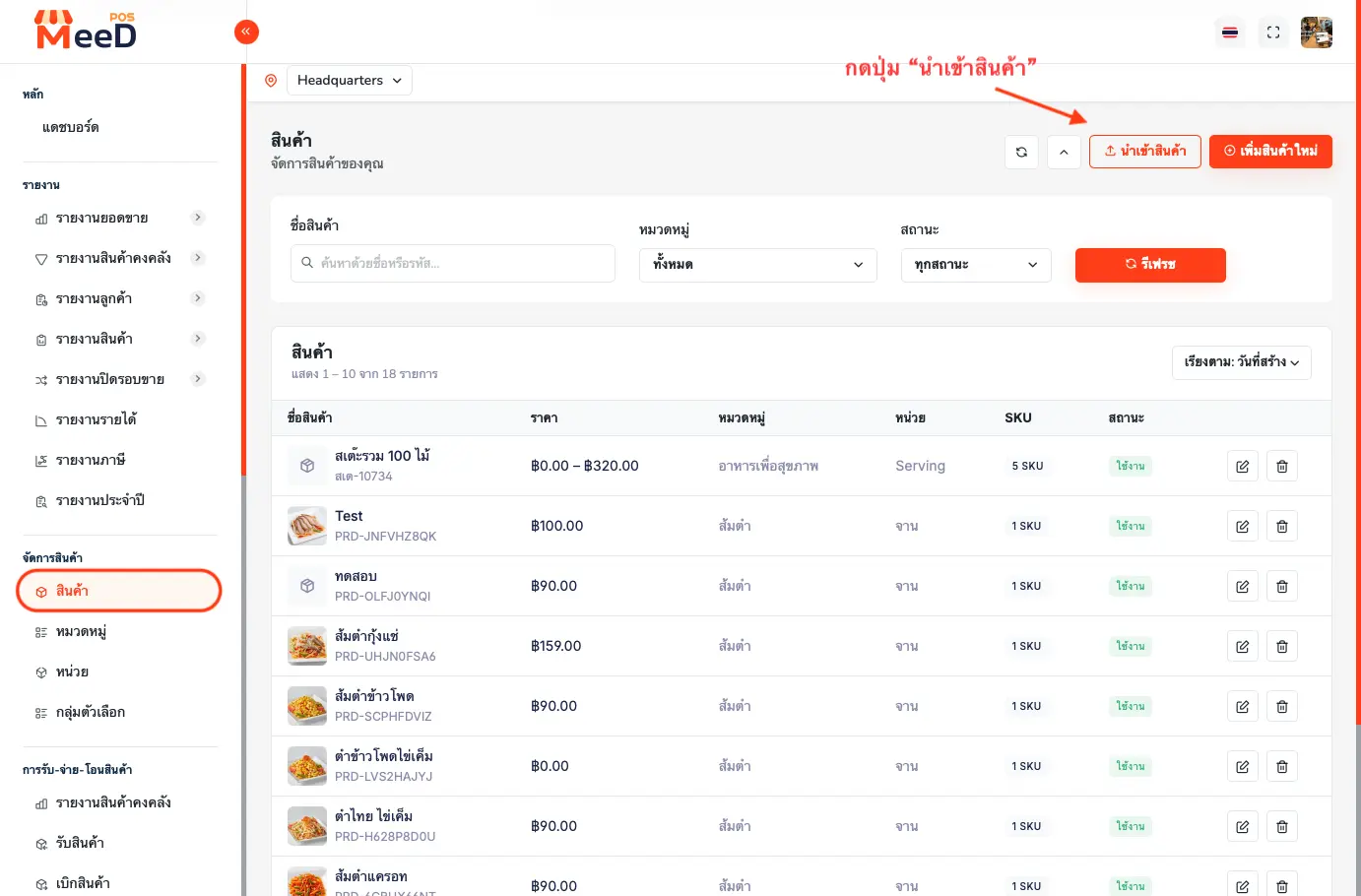
Go to Product Management → Products → tap "Import Products"
Once logged in, in the left menu under "Product Management", tap "Products". In the top-right corner of the page you'll find a dark "Import Products" button — tap it.
Download the template and fill in your product data in Excel
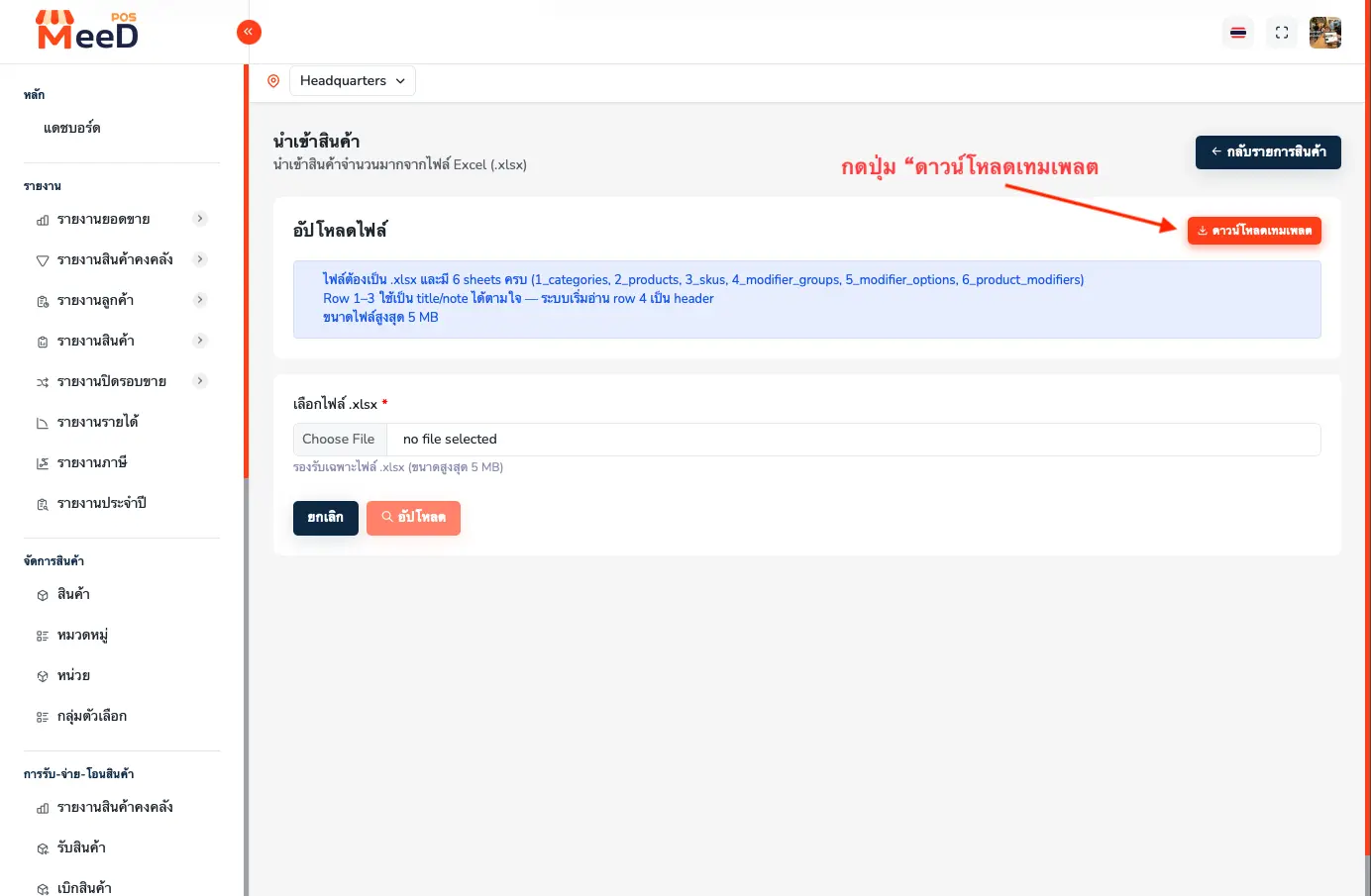
The system shows the "Import Products" page with the file requirements. Tap "Download Template" in the top-right corner to download meedpos_import_template.xlsx.
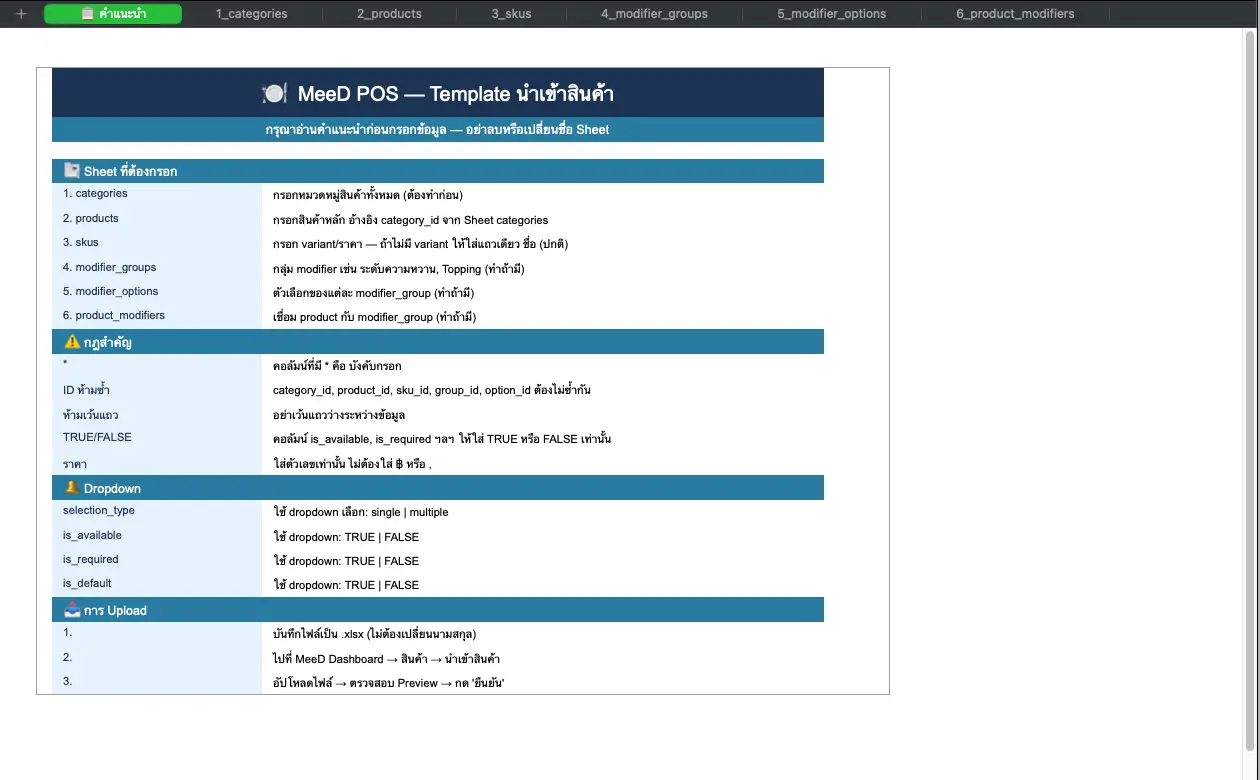
Open the file in Microsoft Excel or Google Sheets — you'll find an "Instructions" sheet explaining how to fill in each field. Then fill in the 6 sheets in order, always starting with 1_categories.
Select your .xlsx file and tap "Upload"
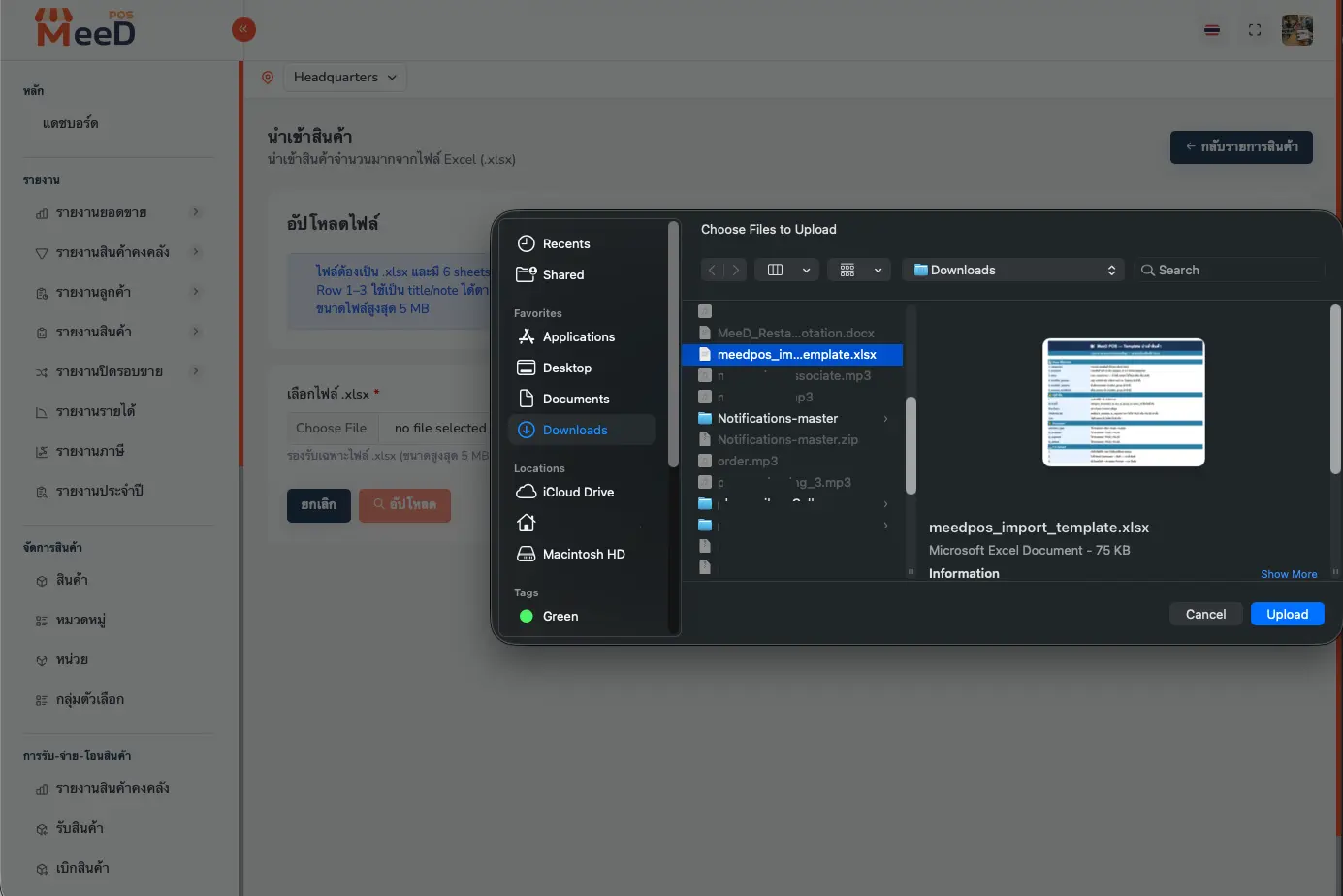
Back on the "Import Products" page, tap "Choose File" and select the completed .xlsx file from your device.
Once selected, the file name and size appear below the file picker. Then tap the orange "Upload" button.

Review the preview before confirming
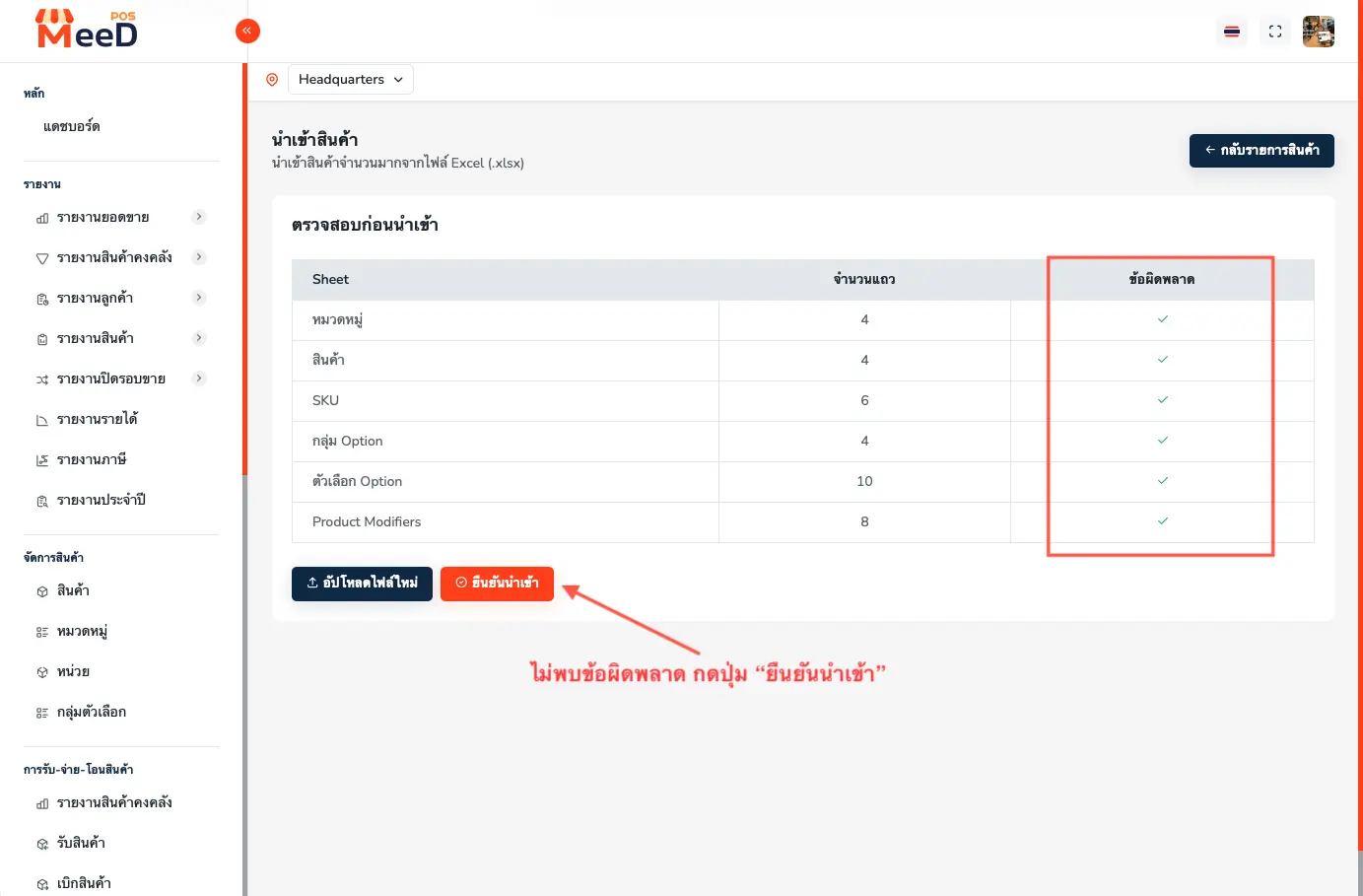
The system analyzes the file and shows a "Pre-Import Check" table with the row count found in each sheet and its error status. If every sheet shows a ✓, the data is valid — tap "Confirm Import".
Import complete — verify your products
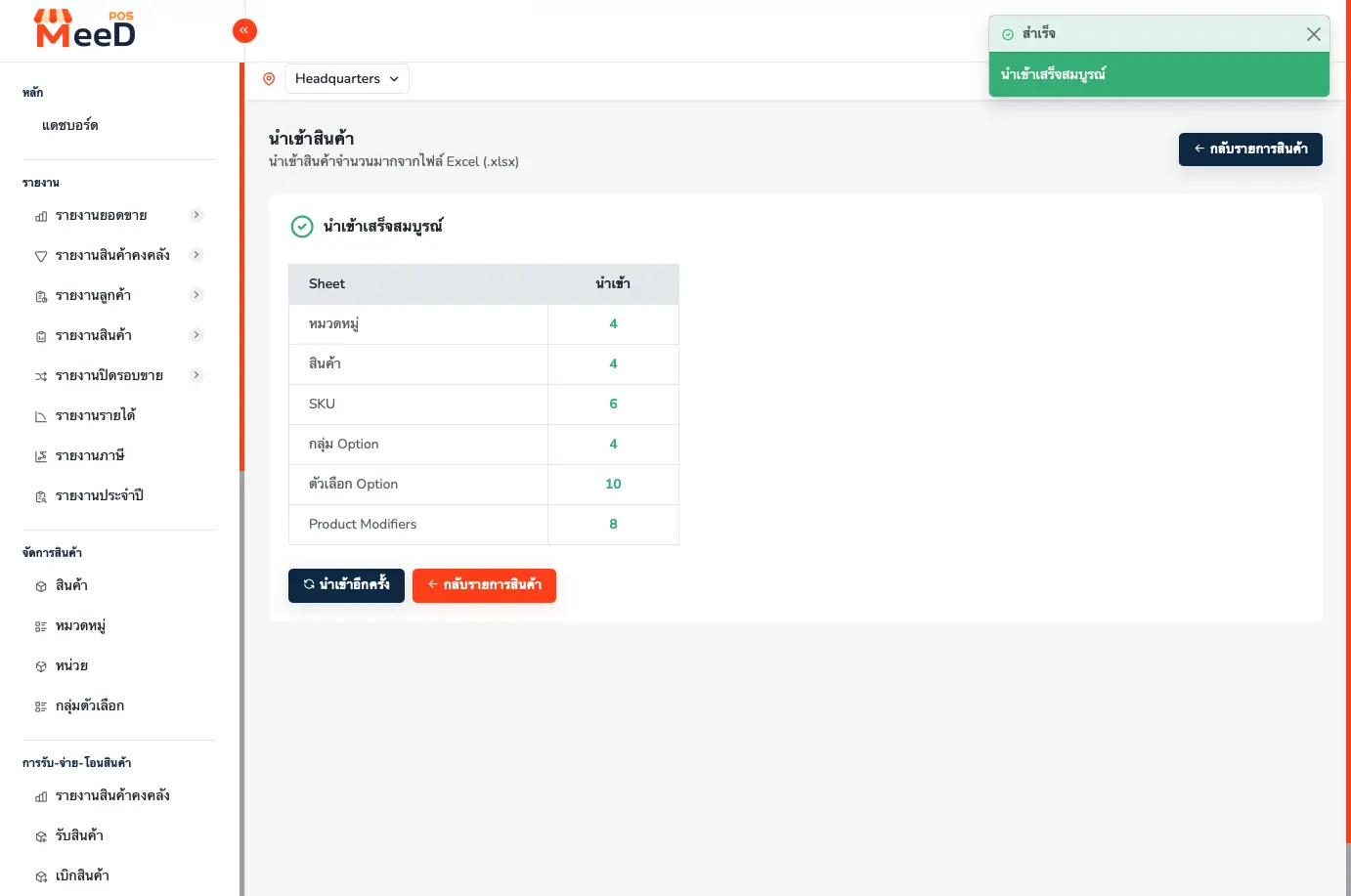
Once confirmed, the system processes the file and shows an "Import Complete" page with a summary table of how many records were imported successfully per sheet (shown in green).
Tips for Filling In the Excel Template
Always fill in 1_categories first
Every other sheet references category_id — filling sheets out of order can cause errors.
Products without variants
Still need a row in 3_skus using the same product name — the system creates a single SKU automatically.
Modifiers are optional
If your store has no add-on options (like toppings or sweetness levels), leave sheets 4–6 blank.
IDs must be unique
category_id, product_id, and sku_id must all be unique within the same file — sequential IDs like CAT001, CAT002 work well.
Prices as plain numbers
Don't include ฿ or commas — enter 150, not ฿150 or 1,500.
Frequently Asked Questions
What happens if a sheet is missing or misnamed in the Excel file?
The system shows an error during the Preview step and doesn't proceed with the import. Fix the file so it has all 6 sheets with the correct names, then tap "Upload New File".
Can I import the same products again? Will it delete existing data?
Importing only adds new products — it never deletes or overwrites existing ones. Check your product list after importing to avoid duplicate entries.
My file is larger than 5 MB — what do I do?
Split your products across multiple files and import them one at a time, e.g. by category. Also confirm there are no embedded images in the Excel file, since the system only reads text and numbers.
Can I edit products after importing them?
Yes. After a successful import, all products appear under Product Management → Products, where you can edit each one normally — change prices, update images, or adjust status.
Related Articles
Need More Help?
Stuck filling in the Excel file, or want our team to walk you through an import? Get in touch anytime.