How to Apply a Bill Discount in MeeD POS
Bill Discount reduces the whole order total in one go — ideal for special promotions, VIP customer discounts, or a per-order retail price adjustment. MeeD POS supports 2 forms: a percentage discount (e.g. 10% of the total) and a fixed-amount discount (e.g. a flat ฿50 off). The system calculates the post-discount total automatically, with a preview before confirming.
How to Use It
Add Items to the Cart and Tap 'Discount'
Add the items you want to the cart as usual. When ready to charge, look at the bottom-right bar — you'll see a "Discount" button next to "Hold Bill". Tap it to start applying a bill discount.
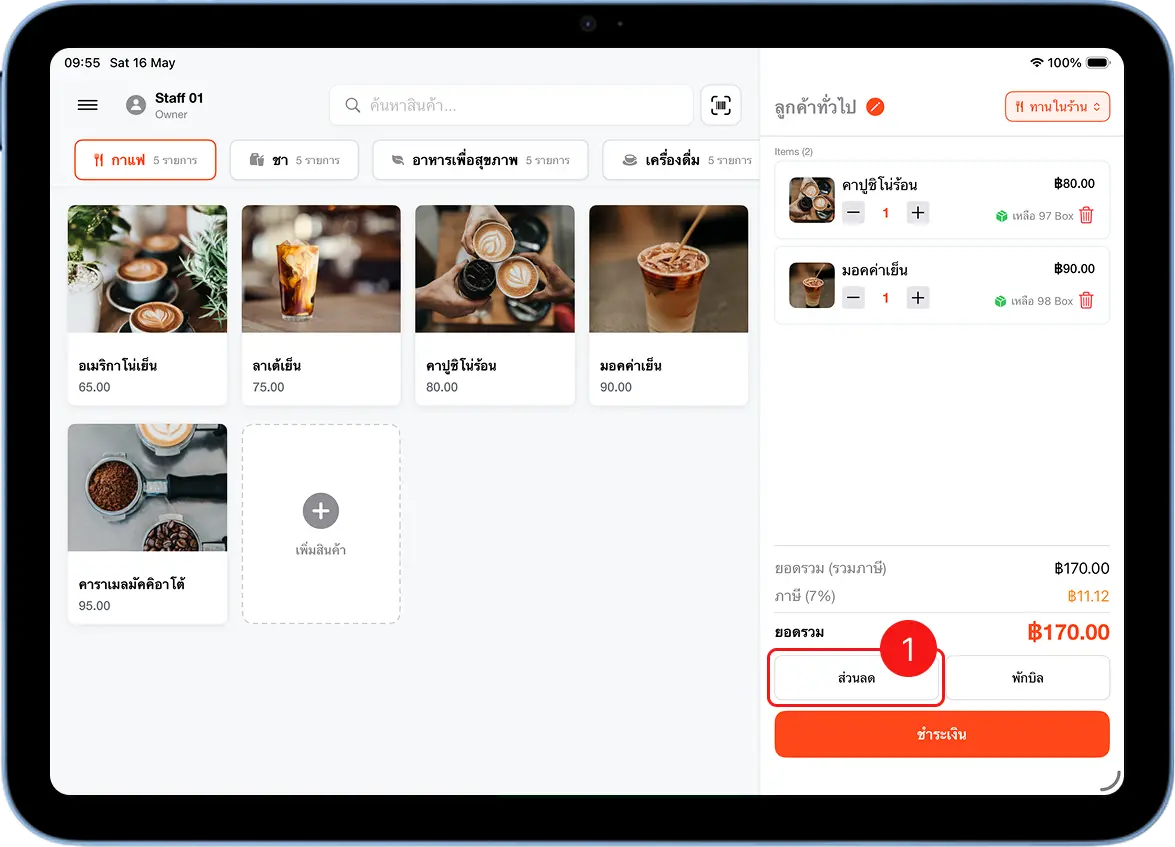
Choose a Discount Type and Enter the Value
The system shows a "Special Discount" popup with 2 options: Percentage — enter a percentage number, e.g. 10 means 10% off; and Fixed Amount — enter the baht amount to deduct, e.g. 50 means ฿50 off.
Tap the type you want, then use the number pad to enter the discount value. The system shows a live preview at the bottom of the popup, with the total before and after the discount.
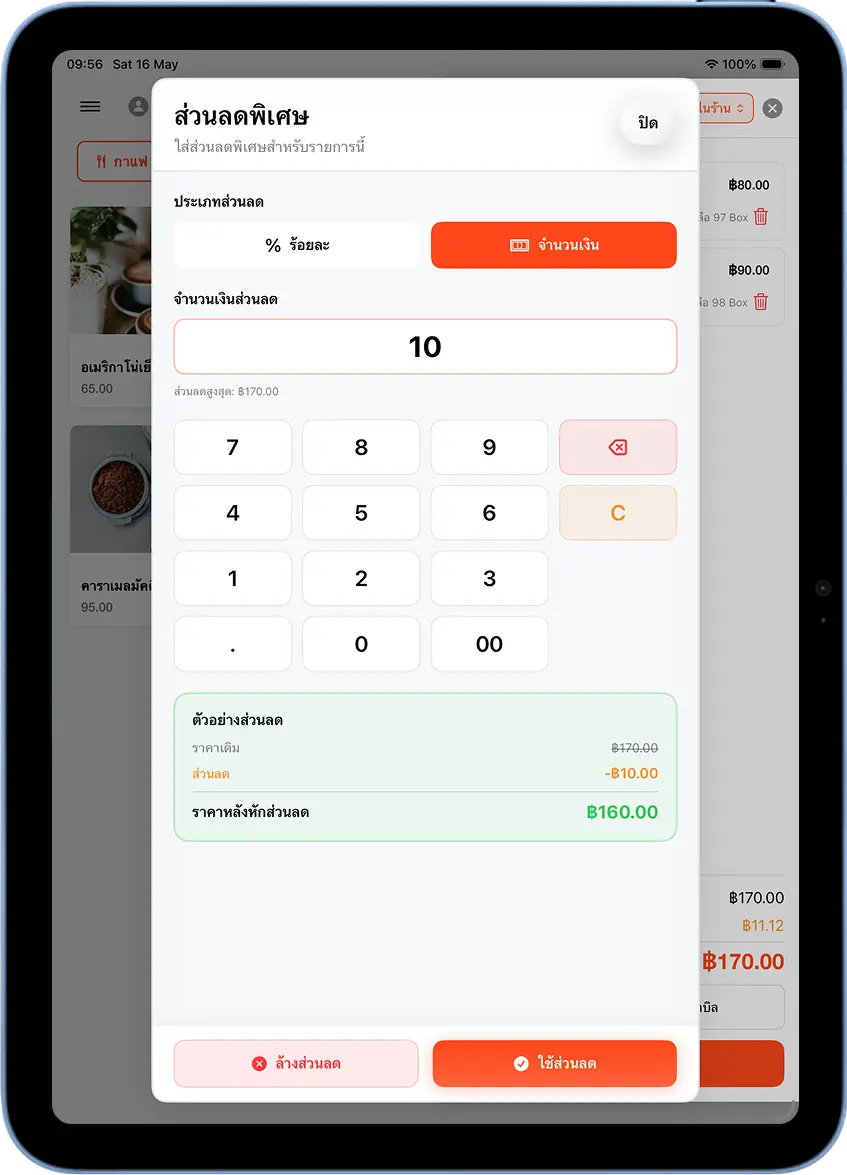
Review the Preview and Tap 'Apply Discount'
Check the discount preview shown at the bottom of the popup: Original Price (the total before the discount), Discount (the amount to deduct, always shown as a number), and Price After Discount (the amount the customer actually pays).
Once verified, tap the orange "Apply Discount" button at the bottom of the popup.
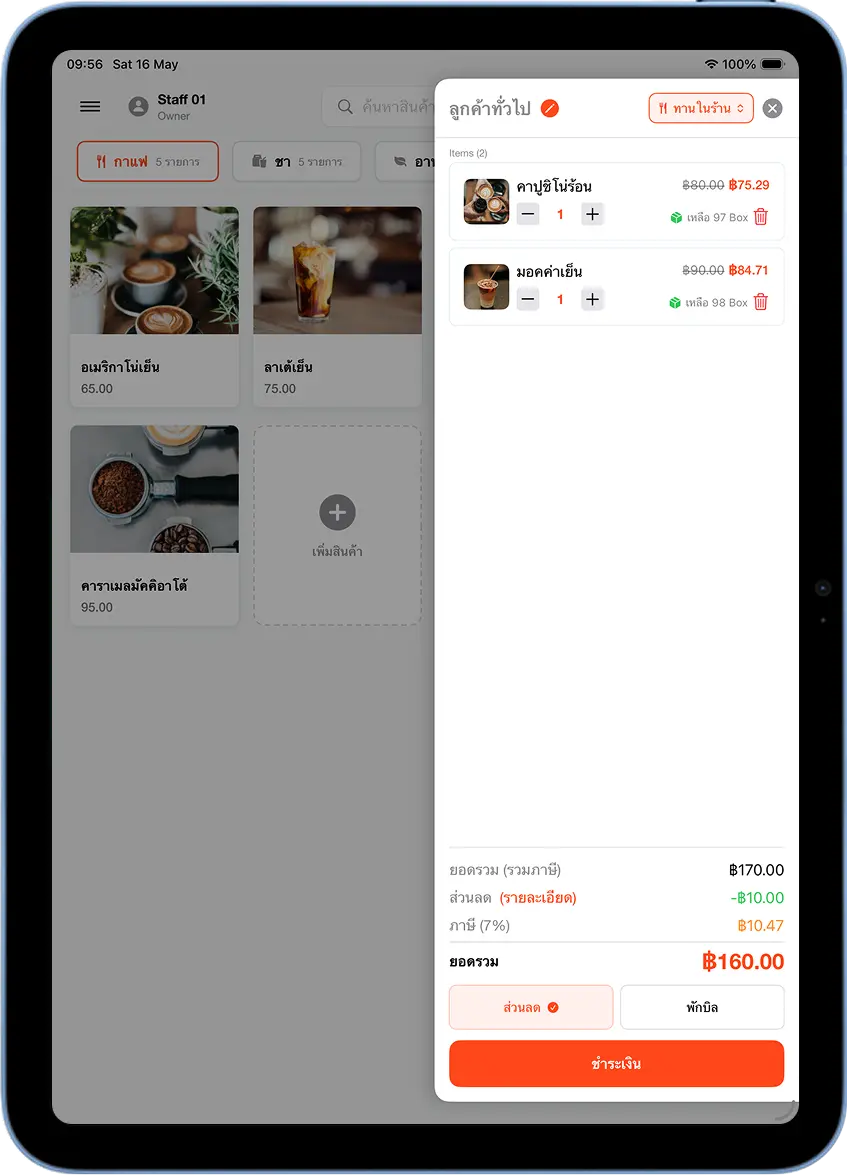
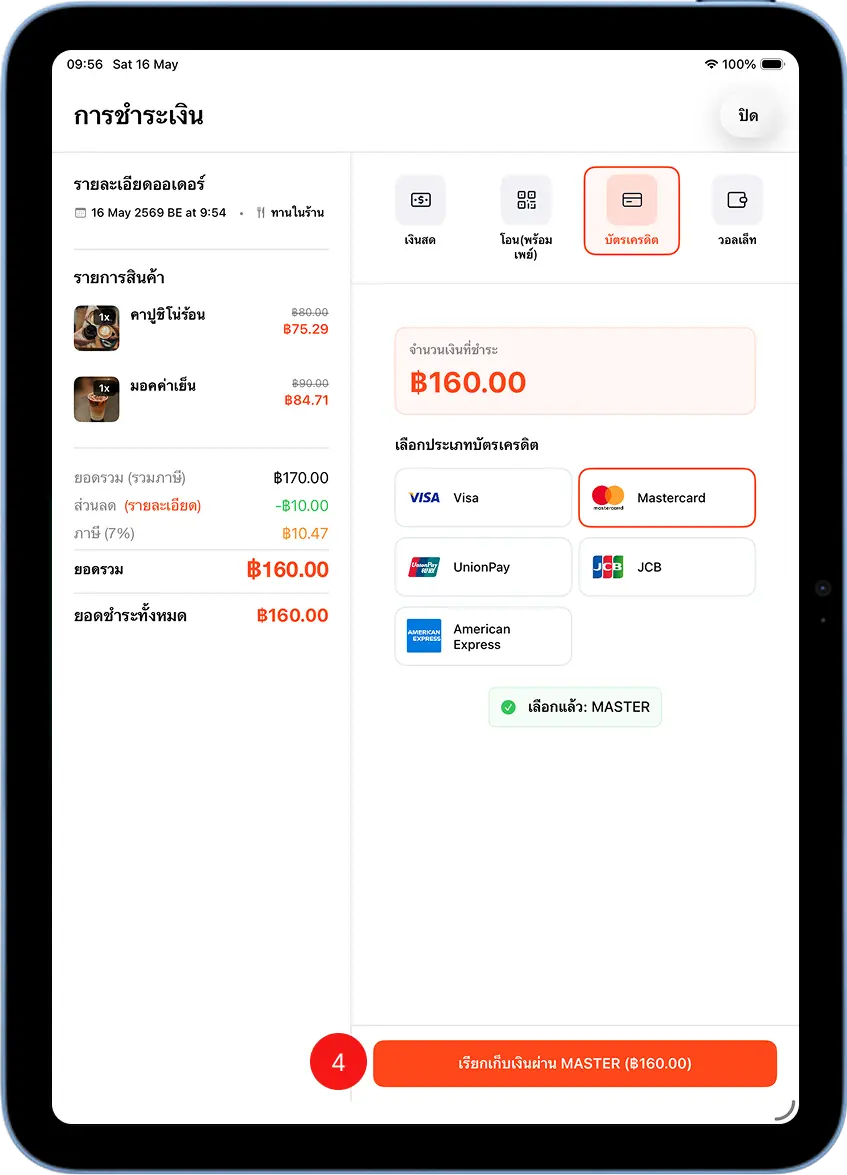
Choose a Payment Method and Charge
Tap "Pay" to go to the payment screen — it shows the order total after the discount, with a clear "Discount (details)" line. Choose the payment method: Cash, Transfer (PromptPay), Credit Card, or Wallet.
Payment Complete — Print the Receipt
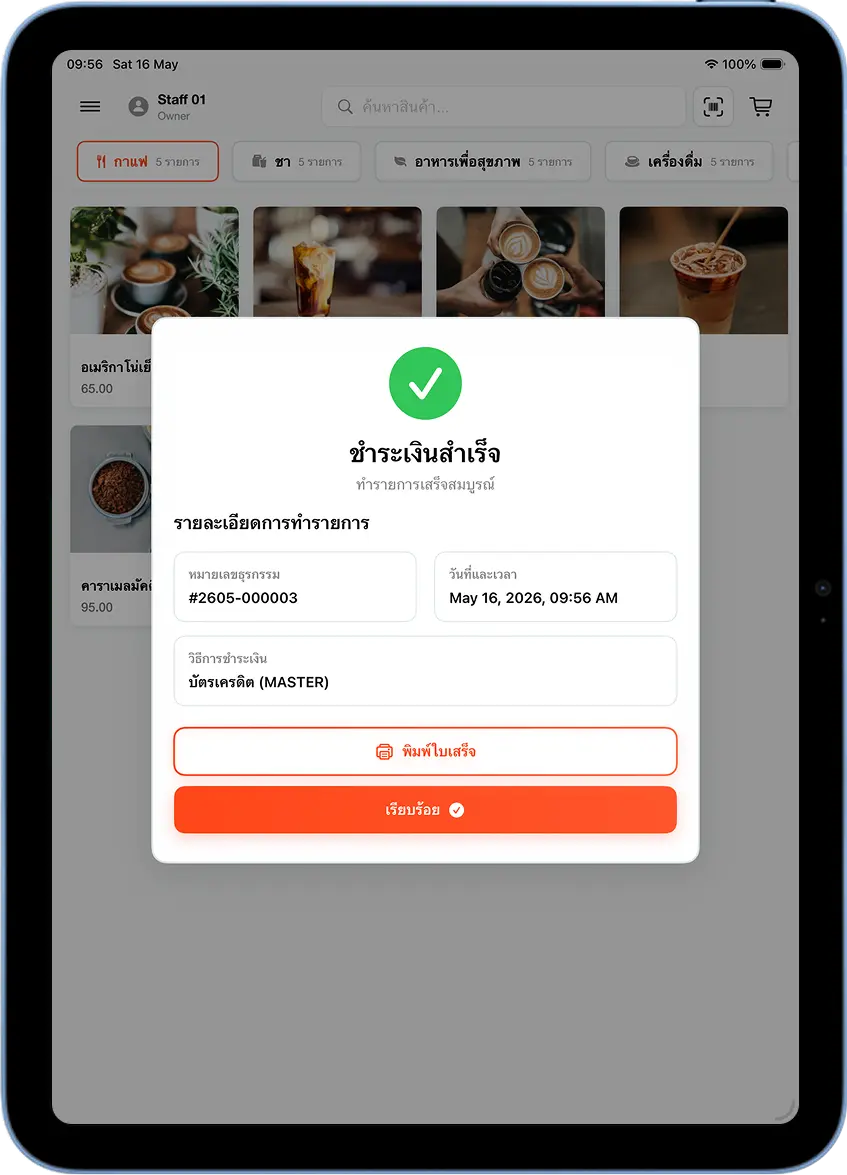
Once payment is complete, the system shows a "Payment Successful" screen with the transaction number and payment method. Tap "Print Receipt" to print for the customer, or "Done" to start a new bill. The receipt shows the discount amount on its own line, clearly visible to the customer.
Supported Bill Discount Types
| Type | How It's Calculated | Example | Best For |
|---|---|---|---|
| Percentage | Total × percentage | ฿170 × 10% = ฿17 off | Promotions offering a % off based on order size |
| Fixed Amount | A fixed amount subtracted from the total | ฿170 − ฿10 = ฿160 | Coupons with a clearly stated discount amount |
Percentage Discount
The system calculates the discount amount automatically from the percentage entered — the higher the total, the bigger the discount. Ideal for "10% off" promotions.
Fixed-Amount Discount
Enter the exact baht amount to deduct, e.g. ฿50 off — the discount stays fixed no matter the total.
Usage Tips
A bill discount affects the whole order total
VAT is automatically recalculated from the post-discount total.
Want to clear the discount?
Tap the pink "Clear Discount" button in the Special Discount popup, or tap "Discount" again and clear the value.
Bill discounts and item discounts can be combined
You can discount specific items first, then apply a bill discount on top.
Discount history shows up in reports
View total discounts per day or month on MeeD POS's sales report page.
Frequently Asked Questions
How is a bill discount different from an item discount?
A bill discount reduces the entire order total at once, ideal for whole-bill promotions. An item discount reduces the price of specific selected items only, without affecting others — ideal for running a separate promotion on certain products.
I don't see the 'Discount' button on the sales screen
The discount button appears on the bottom bar of the sales screen, next to "Hold Bill". If you don't see it, check that you've added items to the cart. If it's still missing, contact the MeeD POS team to check your account permissions.
Is the percentage discount calculated before or after VAT?
The percentage discount is calculated from the total shown in the cart (tax included). The system automatically recalculates tax from the post-discount total.
Can I edit a discount after applying it?
Yes — tap "Discount" again on the POS screen; the popup reopens with the existing value. Edit it and tap "Apply Discount" again, or tap "Clear Discount" to remove it entirely.
Related Articles
Need More Help?
Running into an issue, or want the team to walk you through setting up discounts? Get in touch.