How to Use Quick Discount in MeeD POS
Quick Discount is a ready-made discount button set up in advance — a staff discount, VIP discount, or a recurring shop promotion. Once created, cashiers can apply it to the whole bill instantly on the sales screen, without typing a percentage or amount every time like a manually entered bill discount. Ideal for restaurants and coffee shops with a promotion or recurring discount that gets used every day.
How to Use It
Part 1 — Set Up Quick Discount (Admin)
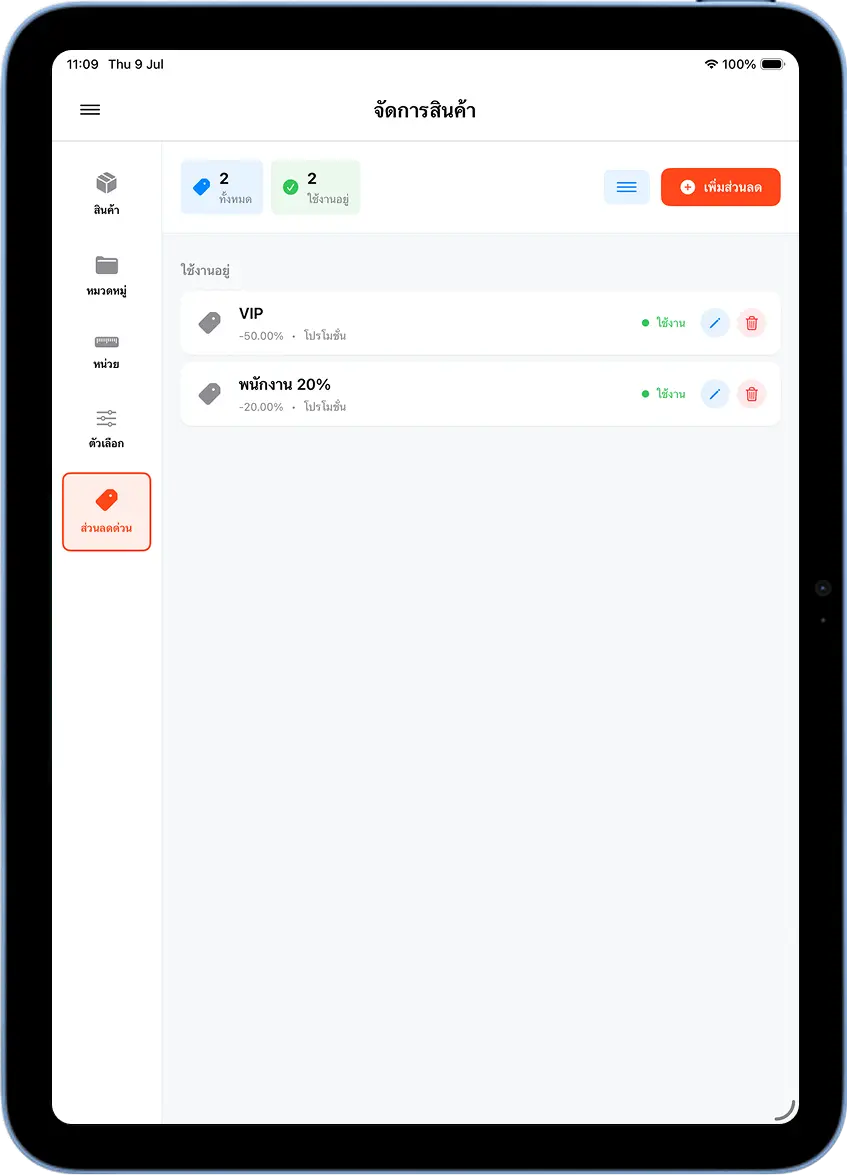
Open Product Management, the 'Quick Discount' Tab, and Tap 'Add Discount'
Go to "Products" → "Manage Products", then select the "Quick Discount" tab on the left. You'll see the list of existing quick-discount buttons, if any. Tap the orange "Add Discount" button in the top-right corner to create a new one.
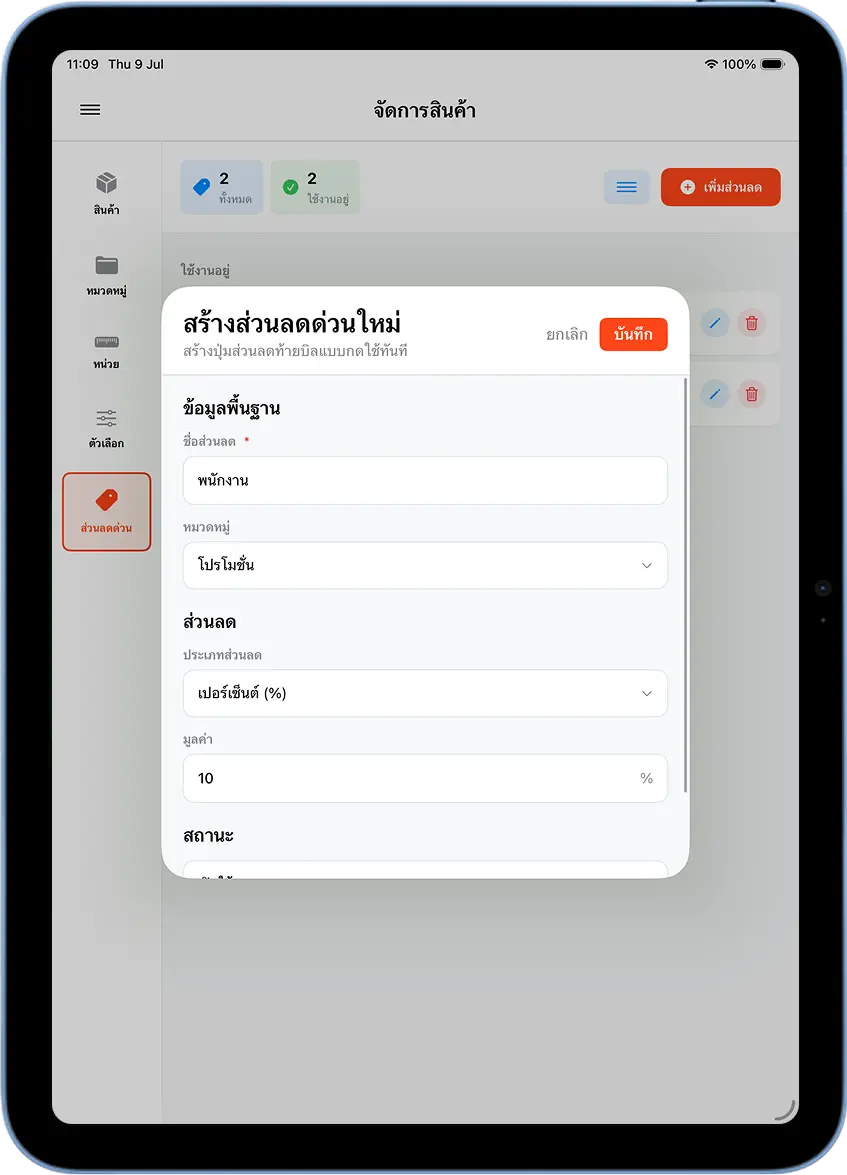
Enter a Name, Category, Type, and Discount Value, Then Save
In the "Create New Quick Discount" window, fill in: Discount Name — something descriptive, e.g. "Staff", "VIP"; Category — a grouping category, e.g. "Promotion"; Discount Type — choose "Percentage (%)" or "Fixed Amount"; and Value — the discount number, e.g. 10 (meaning 10% off).
Scroll down to enable the status toggle, then tap "Save" in the top-right corner.
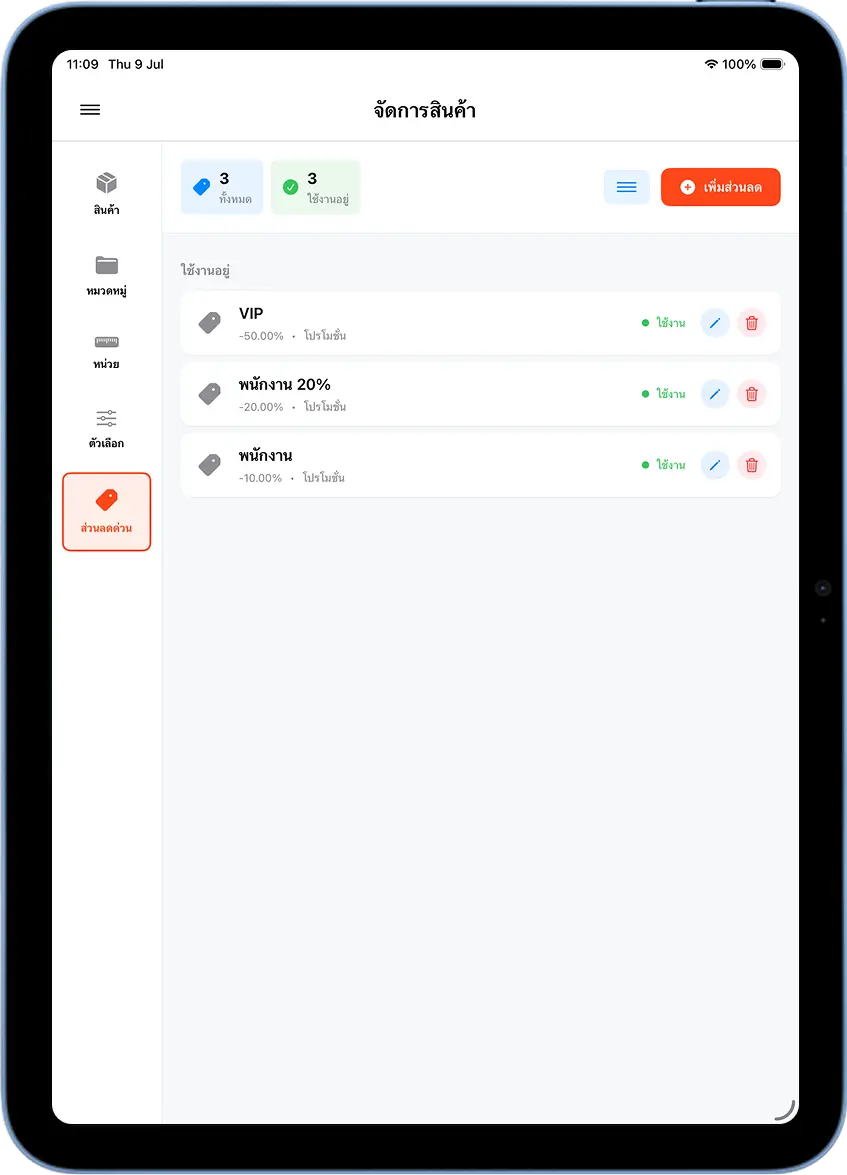
The New Quick Discount Button Appears in the List — Create as Many as You Need
Once saved, the new quick-discount button appears in the list instantly. Repeat steps 1–2 to create more buttons as your shop needs — VIP discount, staff discount, or seasonal promotions.
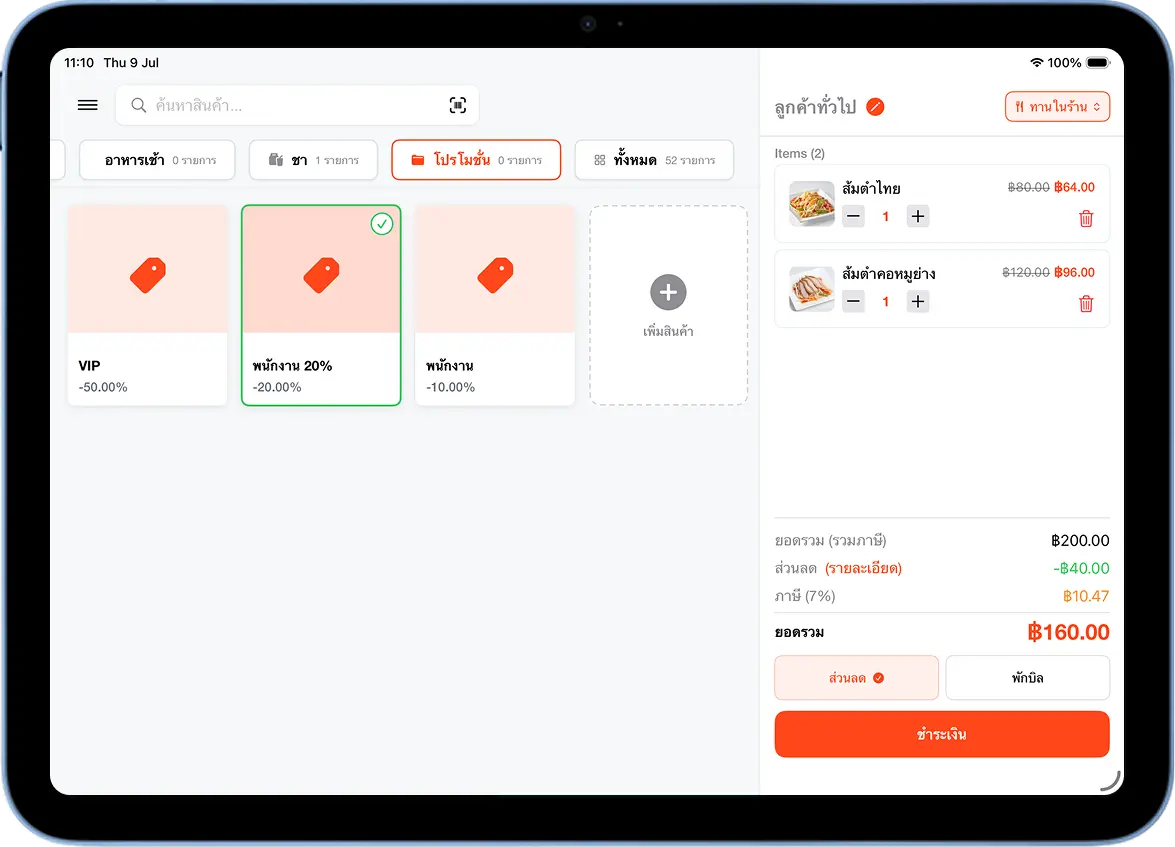
Part 2 — Using It on the Sales Screen (Cashier)
On the Sales Screen, Go to the 'Promotion' Tab and Tap the Discount You Want
Add items to the cart as usual, then go to the "Promotion" category tab at the top of the sales screen. All the quick-discount buttons you created show up as cards. Tap the one you want (e.g. "Staff 20%") — the system applies the discount to the whole bill total instantly, with a green checkmark confirming it's active.
Tap 'Pay' and Choose a Payment Method
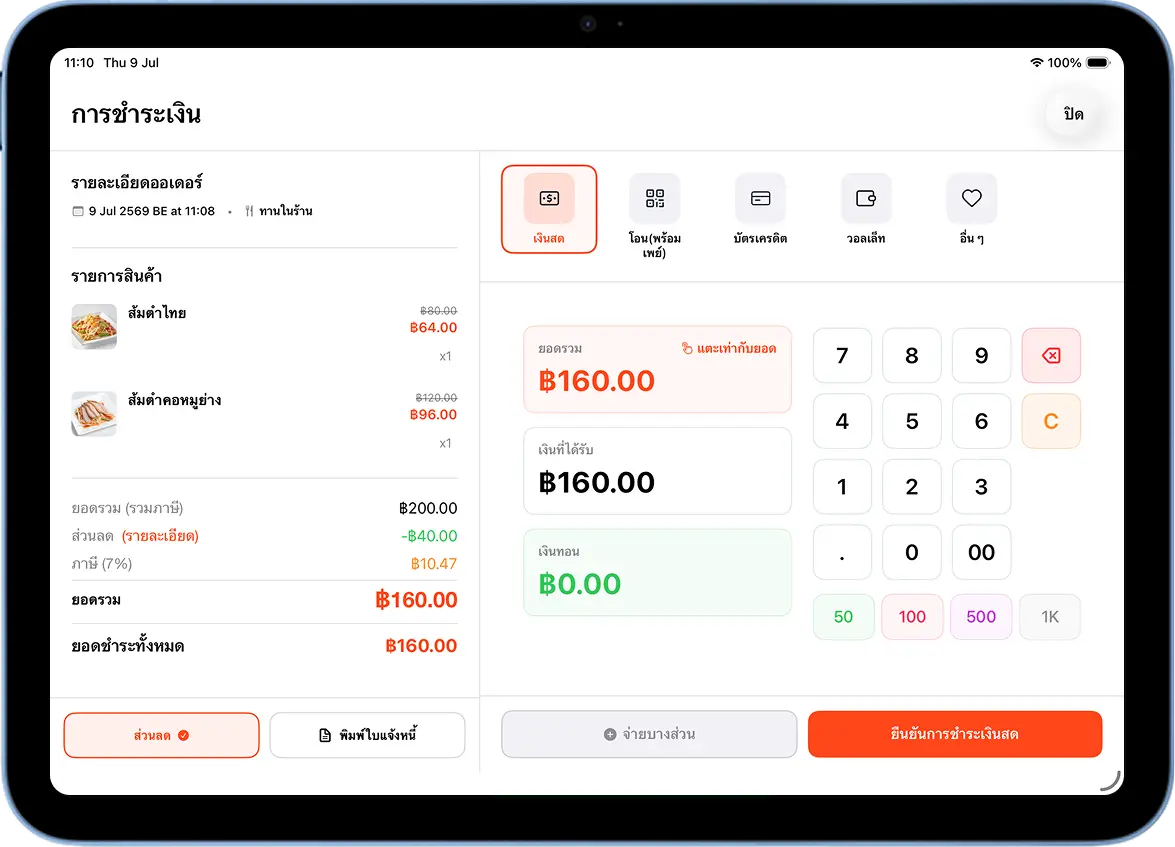
Tap "Pay" to go to the payment screen — the amount shown already reflects the quick discount, with a "Discount ✓" button in the bottom-left corner confirming it's active. Choose a payment method: Cash, Transfer (PromptPay), Credit Card, or Wallet.
Payment Complete
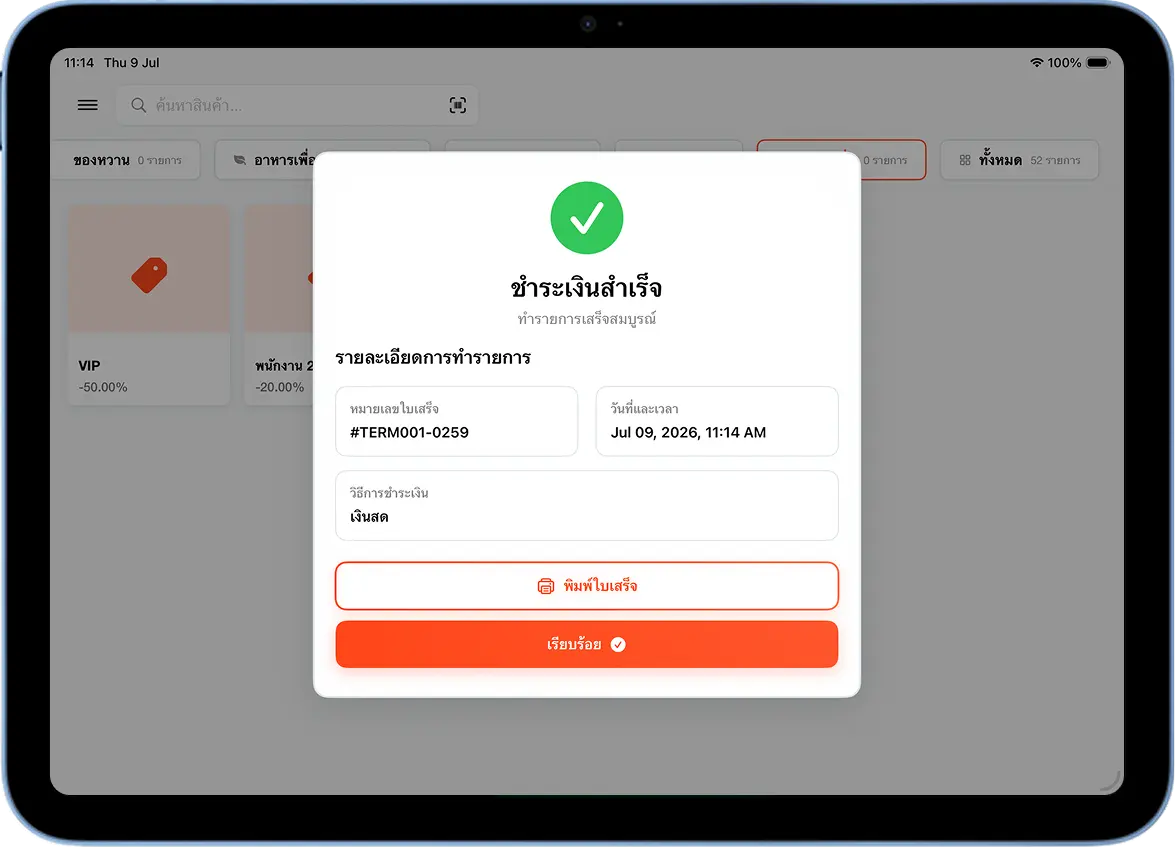
Once payment is complete, the system shows a "Payment Successful" screen with the receipt number and payment method. Tap "Print Receipt" to print one showing the discount amount clearly on its own line, or "Done" to start a new bill.
Quick Discount vs. Manually Entered Bill Discount
| Aspect | Quick Discount | Bill Discount |
|---|---|---|
| Setup | Created once in advance, reused anytime | Value entered fresh each time |
| How it's applied | One tap | Type in a value every time |
| Can be named | Yes, e.g. "VIP", "Staff 20%" | No name, just a % or amount |
| Best for | A promotion or discount used regularly | A one-off discount, not repeated |
Quick Discount — Apply Instantly
Name and value set up in advance — cashiers tap one button to apply the discount to the total, cutting steps at the counter.
Bill Discount — Entered Manually
Enter a percentage or amount fresh each time — ideal for a one-off discount that isn't reused often.
Usage Tips
Create as many buttons as you need
Ideal for shops with several discount types — staff, VIP, or seasonal promotions.
Name buttons descriptively
A clear name helps cashiers pick the right one quickly during a busy rush.
Disable instead of delete
To pause a discount temporarily, turn off its status instead of deleting it — you can re-enable it instantly with no need to set it up again.
Ideal for restaurants and coffee shops
with a recurring staff or member discount used every day — it cuts real time off every bill.
Frequently Asked Questions
How is Quick Discount different from a manually entered bill discount?
Quick Discount is set up in advance as a ready-made button — one tap and it's done. A bill discount needs a fresh % or amount entered every time it's used, ideal for one-off discounts that aren't repeated.
Can I edit or delete a quick-discount button I created?
Yes — on the product management screen, the "Quick Discount" tab has an edit button (pencil icon) and delete button (trash icon) at the end of each row.
Can I use a quick discount together with an item discount?
Yes — a quick discount is calculated from the whole bill total, so it can be combined with an item discount on specific products. The system calculates both together.
Does a quick discount affect VAT?
Yes — the system automatically recalculates VAT from the post-discount total, the same as a manually entered bill discount.
Related Articles
Need More Help?
Running into an issue, or want the team to walk you through setting up quick discounts? Get in touch.