What Is Split Bill (Split Payment)?
Split Bill, or Split Payment, divides a single order's total so multiple customers can each pay their own share. MeeD POS supports 3 modes: Split Evenly (an equal share for everyone), Pay by Item (each person pays only for their own items), and Custom Amount (set a different amount for each person freely). Each person can choose their own payment method — cash, PromptPay, or credit card.
What You'll Need
- An iPad with the MeeD POS app installed
- Admin access to enable it in settings
- The payment methods you want enabled (PromptPay / credit card)
How to Use It
Step 1 — Enable Split Payment
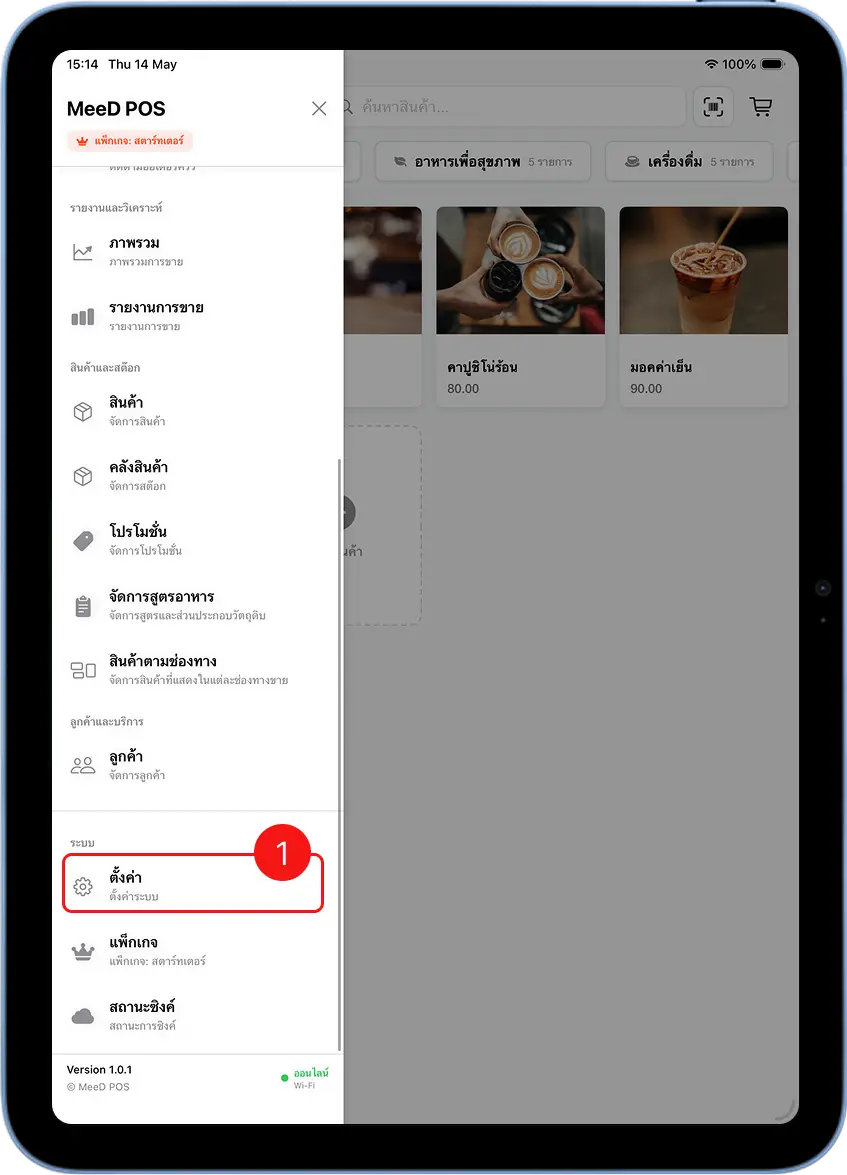
Open the Left Menu, Tap 'Settings'
Open the MeeD POS app on iPad, tap the ☰ icon in the top-left corner, scroll down to "System", and select "Settings".
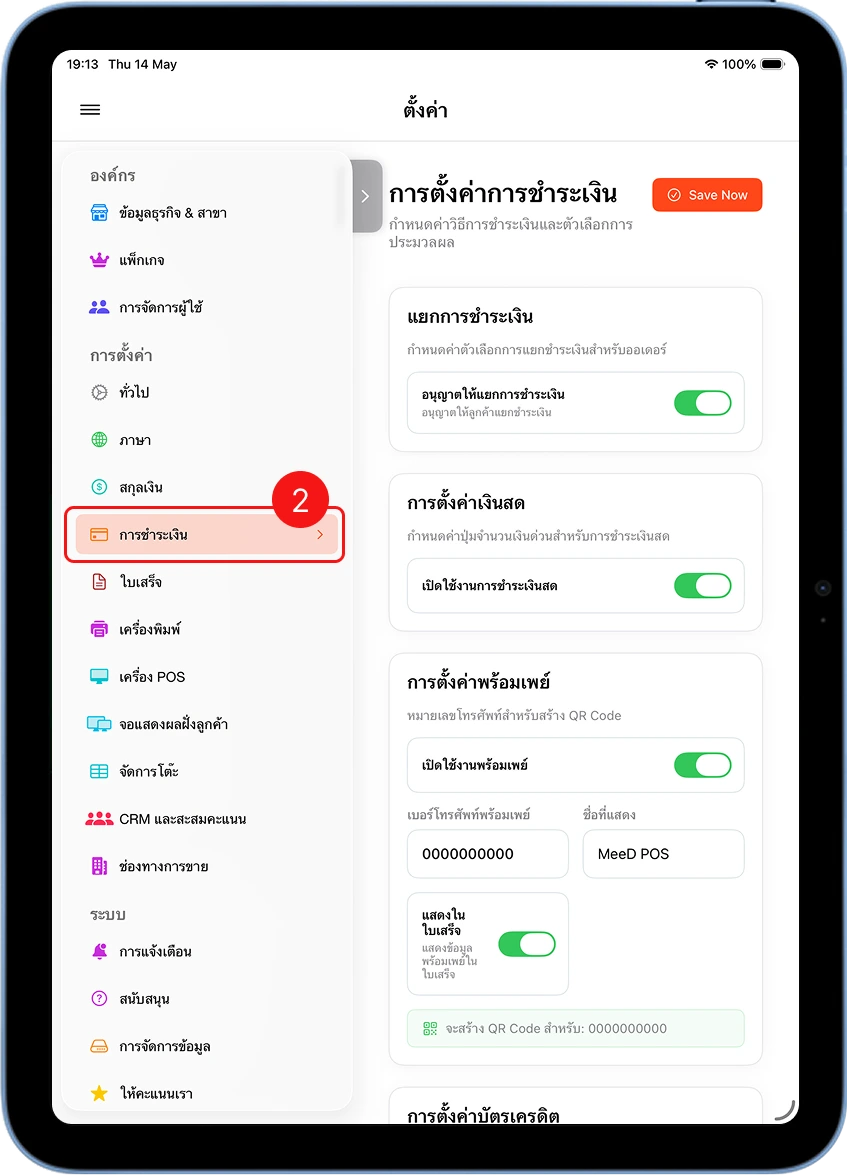
Select 'Payments' and Turn On 'Split Payment'
On the settings screen, tap "Payments" in the left menu bar, then under "Split Payment", turn the "Allow Split Payment" toggle to green and tap "Save Now".
Step 2 — Start Splitting a Payment
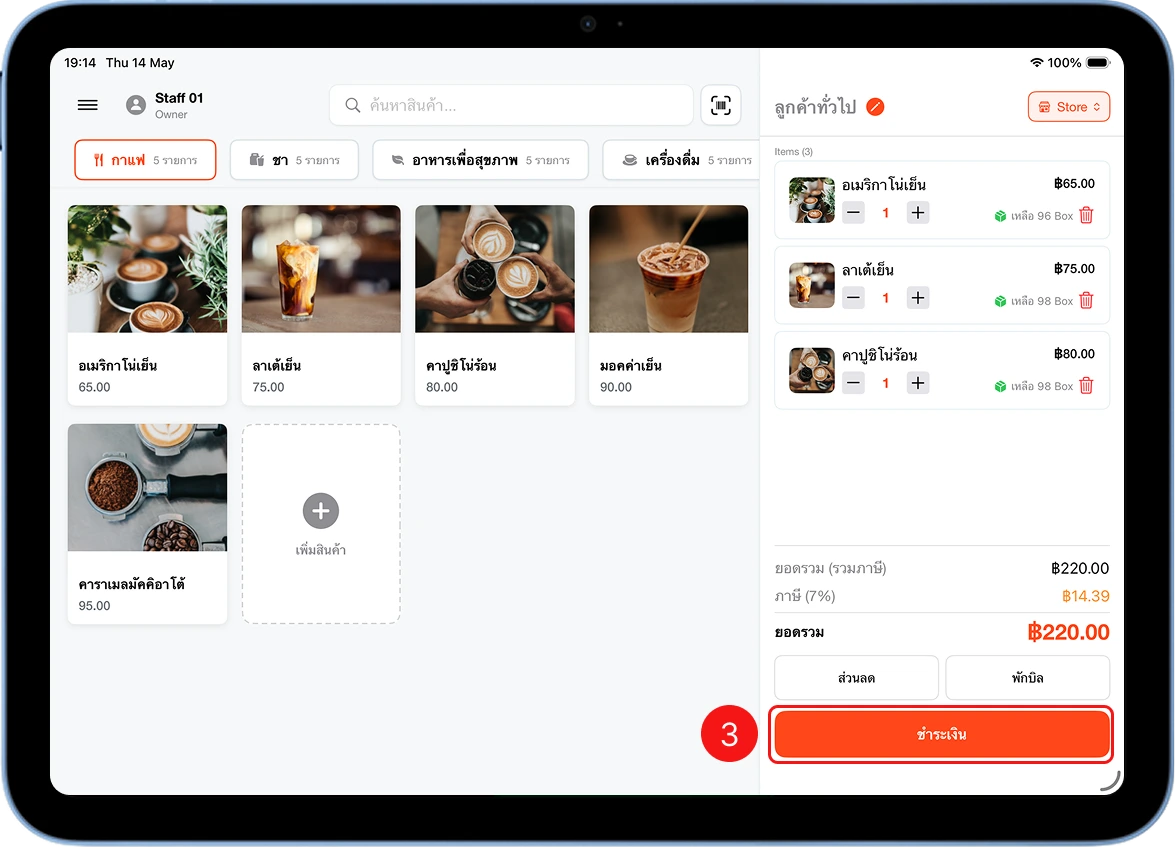
Select Items and Tap 'Pay' → 'Split Payment'
Add items to the cart as usual, then tap "Pay" in the bottom right.
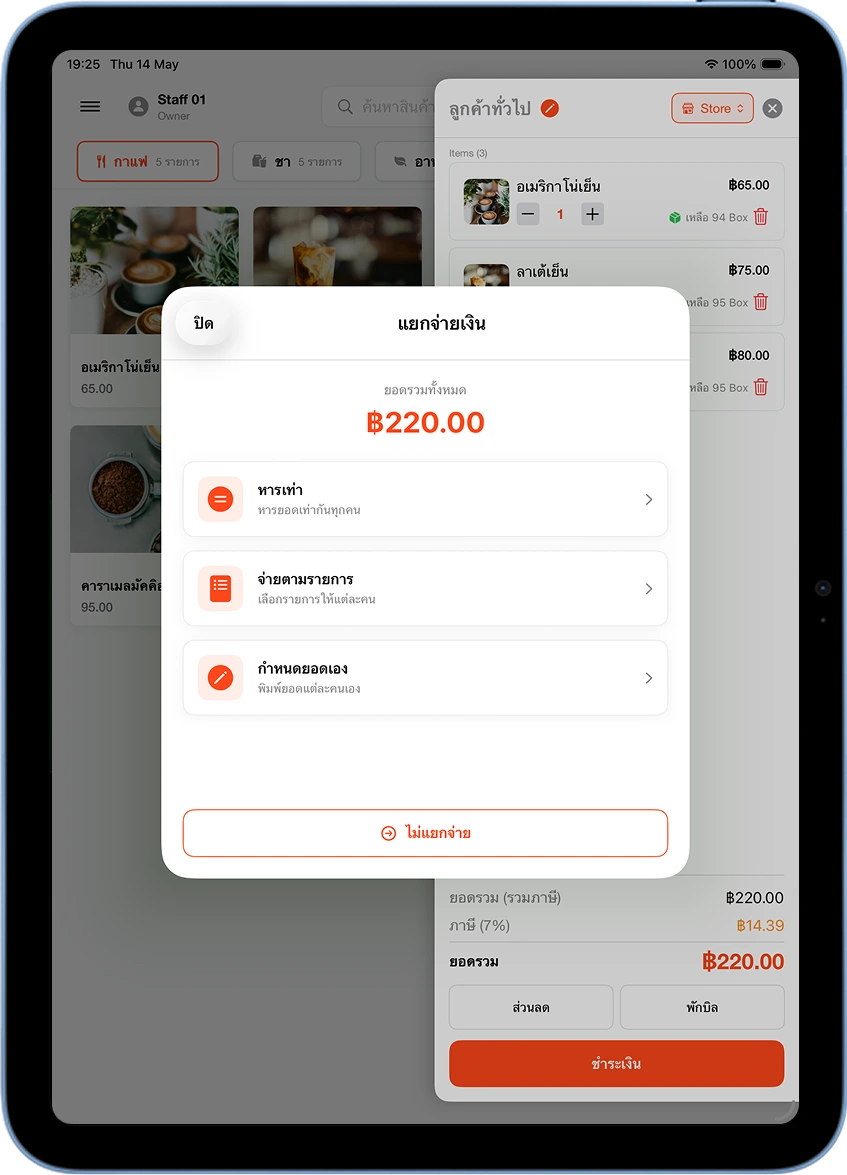
Choose a Split Mode
The system shows a "Split Payment" popup with the total amount. Choose one of 3 modes: Split Evenly (an equal share for everyone), Pay by Item (each person selects their own items), or Custom Amount (type in each person's amount freely).
Mode 1 — Split Evenly
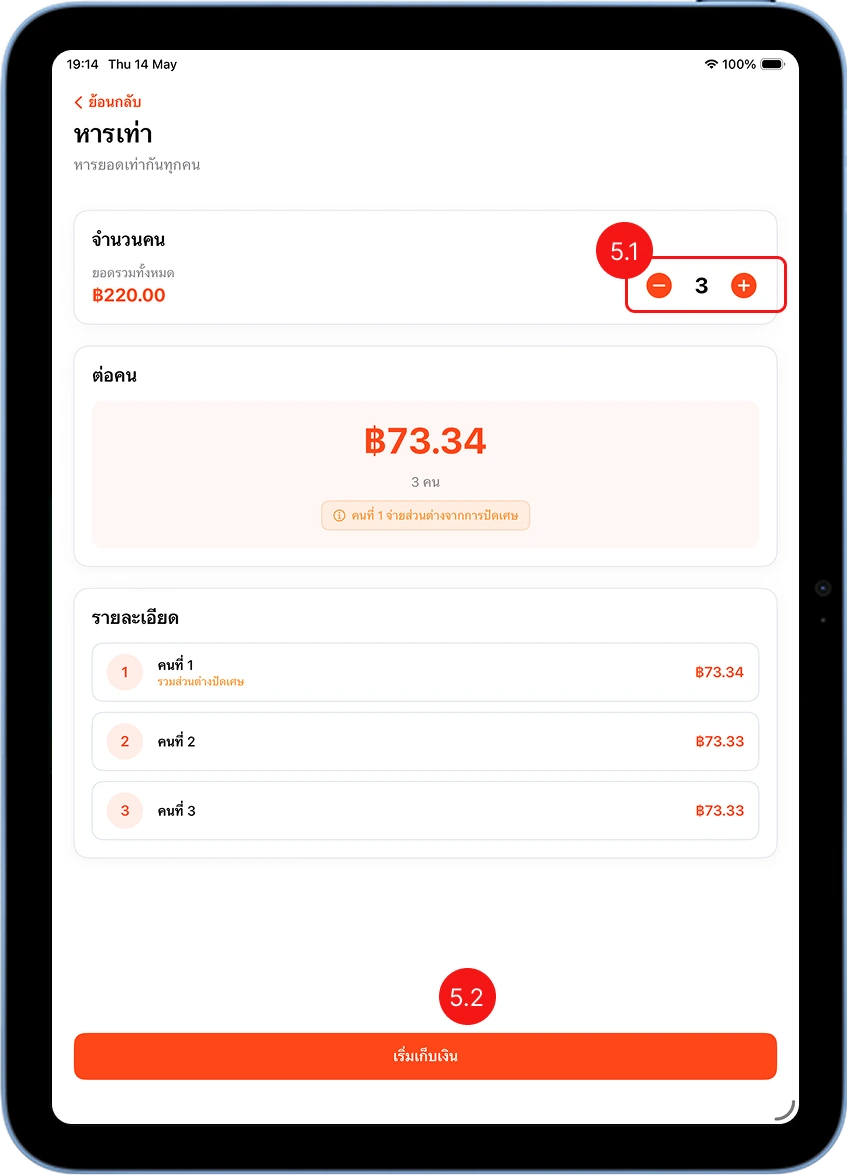
Enter the Number of People and Tap 'Start Collecting'
Tap + or − to set how many people are splitting the bill. The system calculates each person's share automatically (rounding differences go to person 1), then tap "Start Collecting".
Collect Payment from Each Person
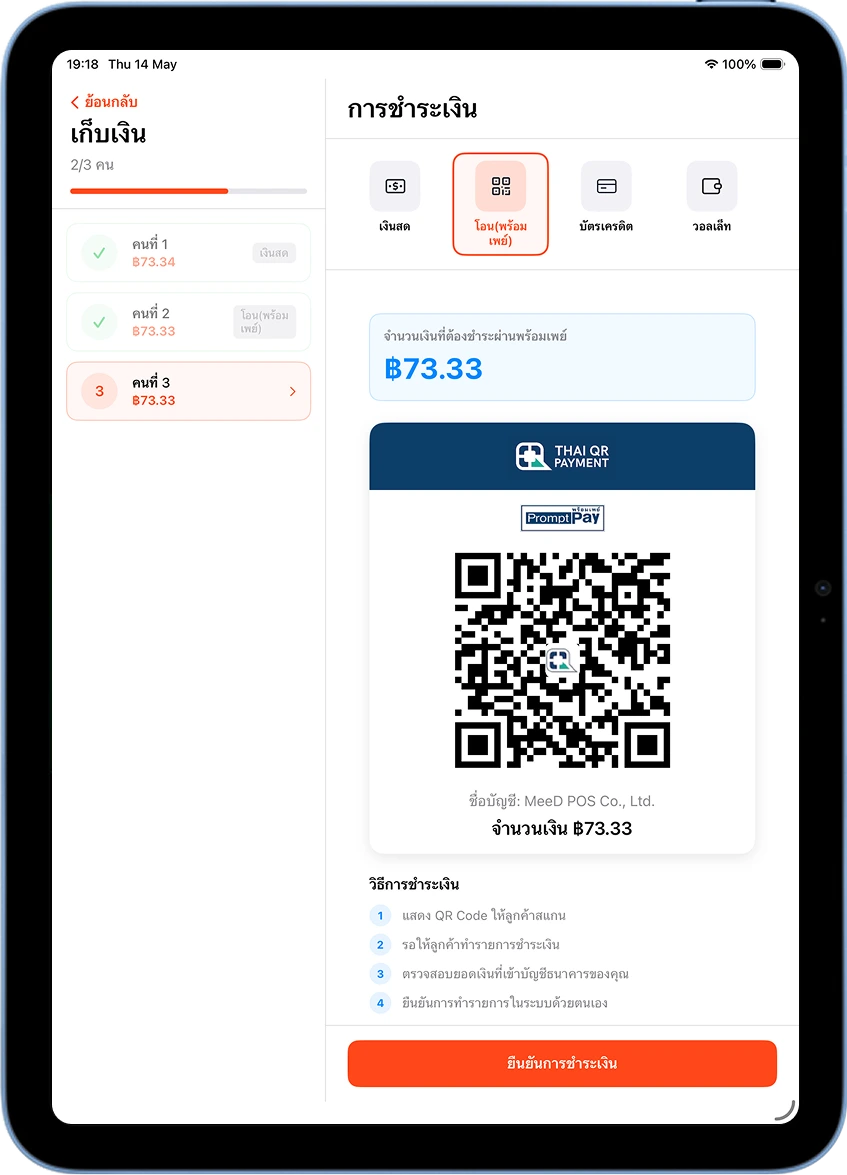
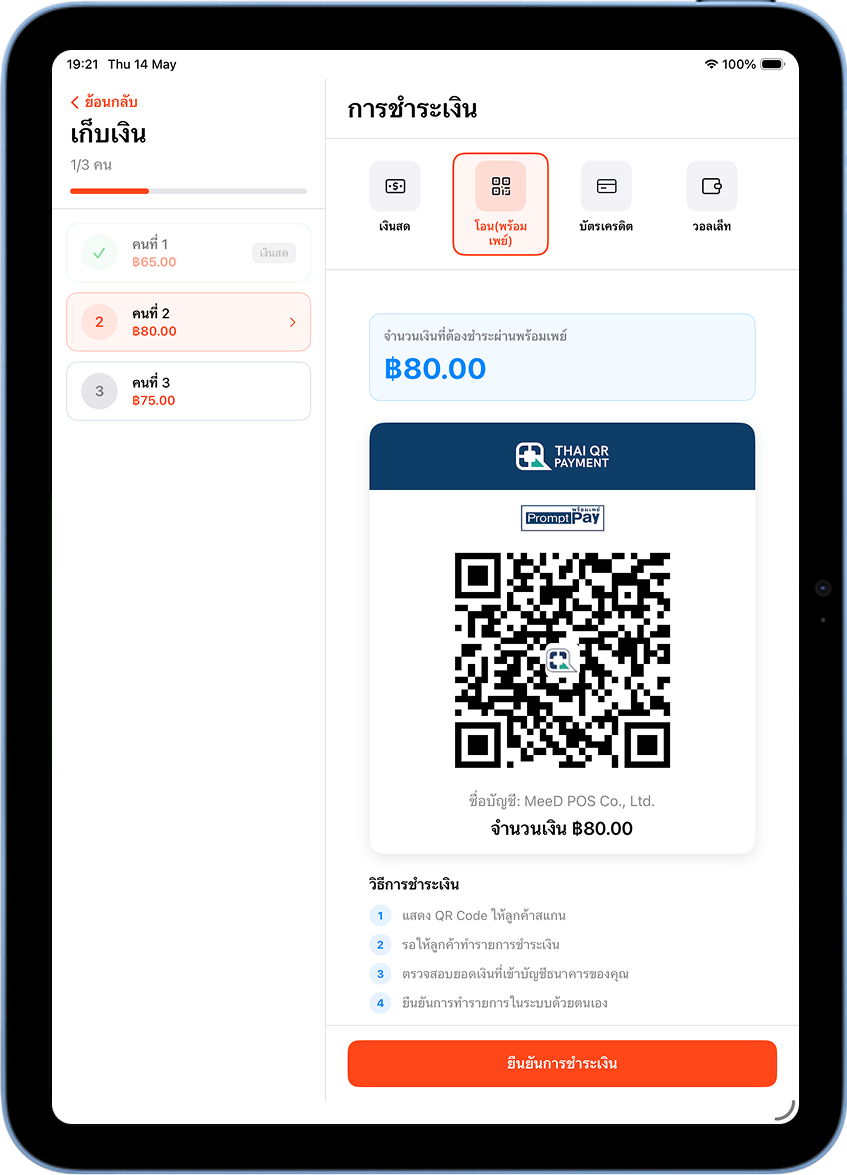
The system lists Person 1, 2, 3... with each person's amount. Tap into each person to choose a payment method: Cash, Transfer (PromptPay), Credit Card, or Wallet.
Confirm Once Everyone Has Paid
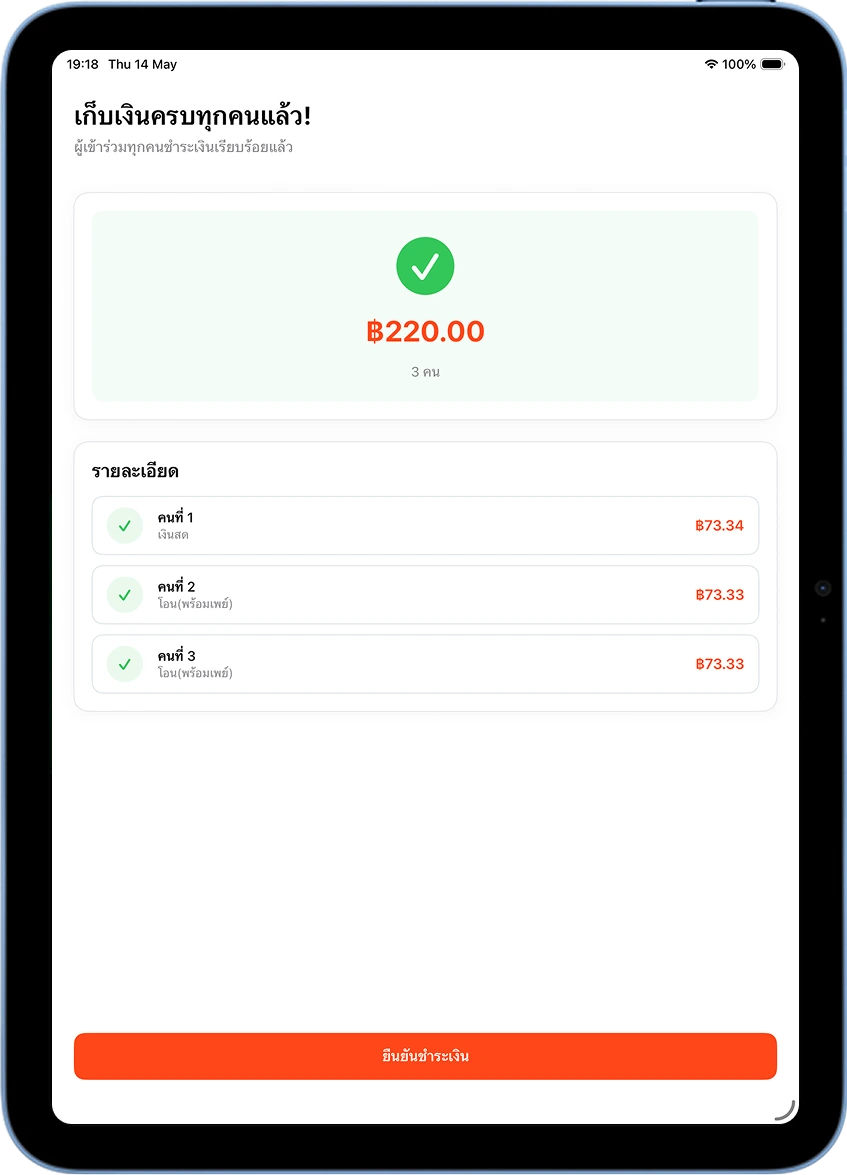
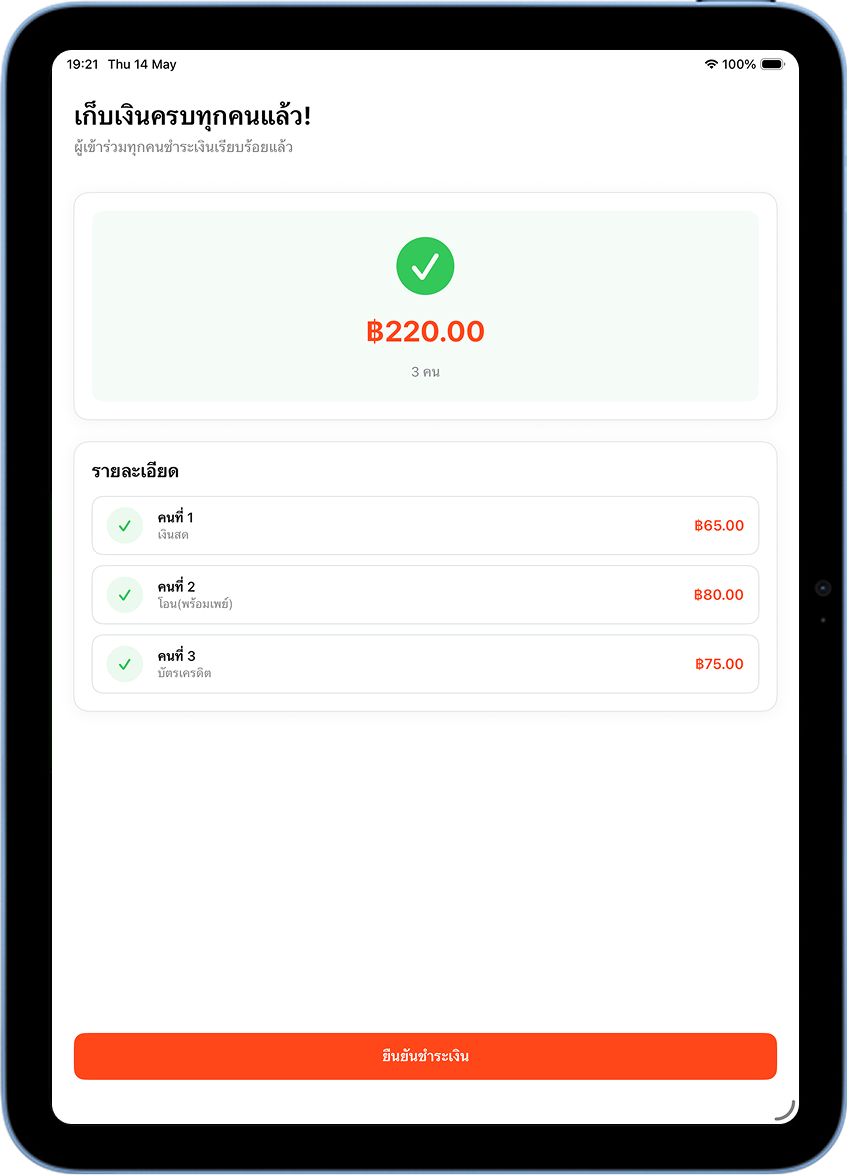
Once everyone has paid, the system shows "Everyone's Paid!" with a summary of each person's amount and payment method. Tap "Confirm Payment".
Payment Complete — Print the Receipt
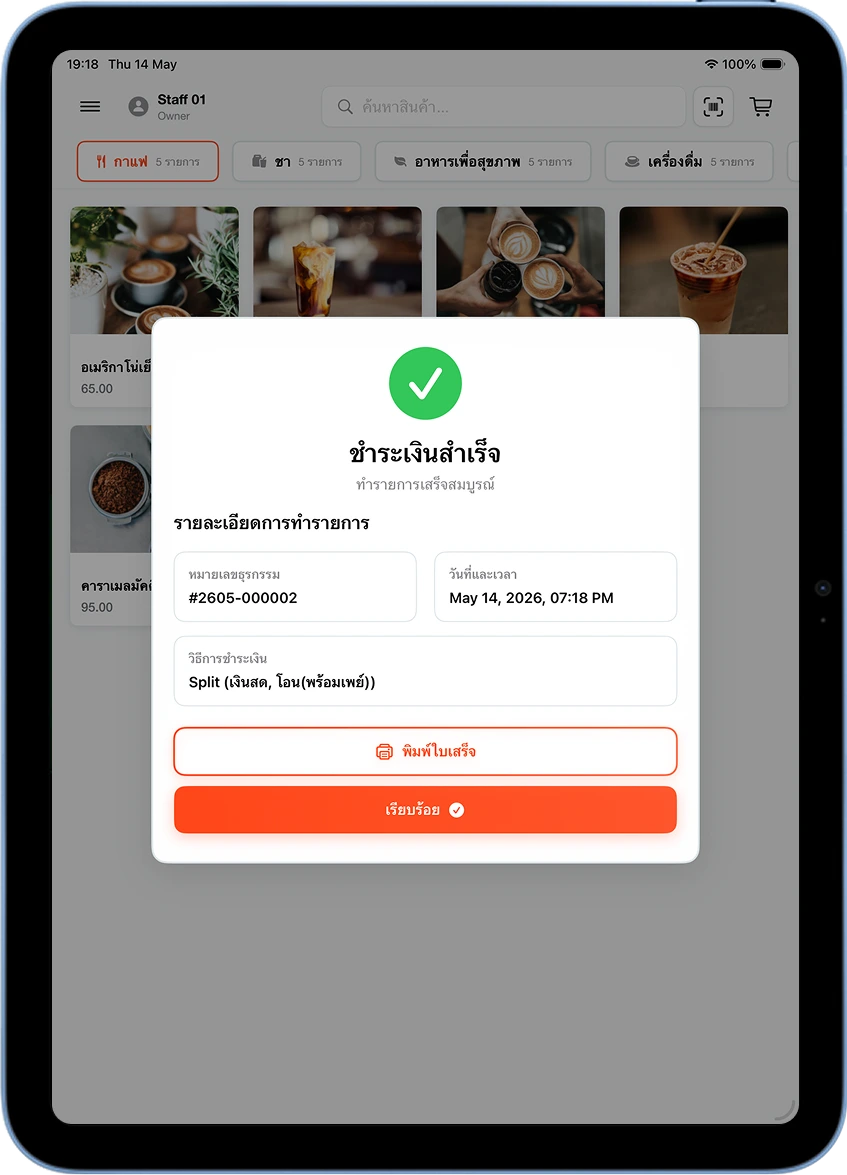
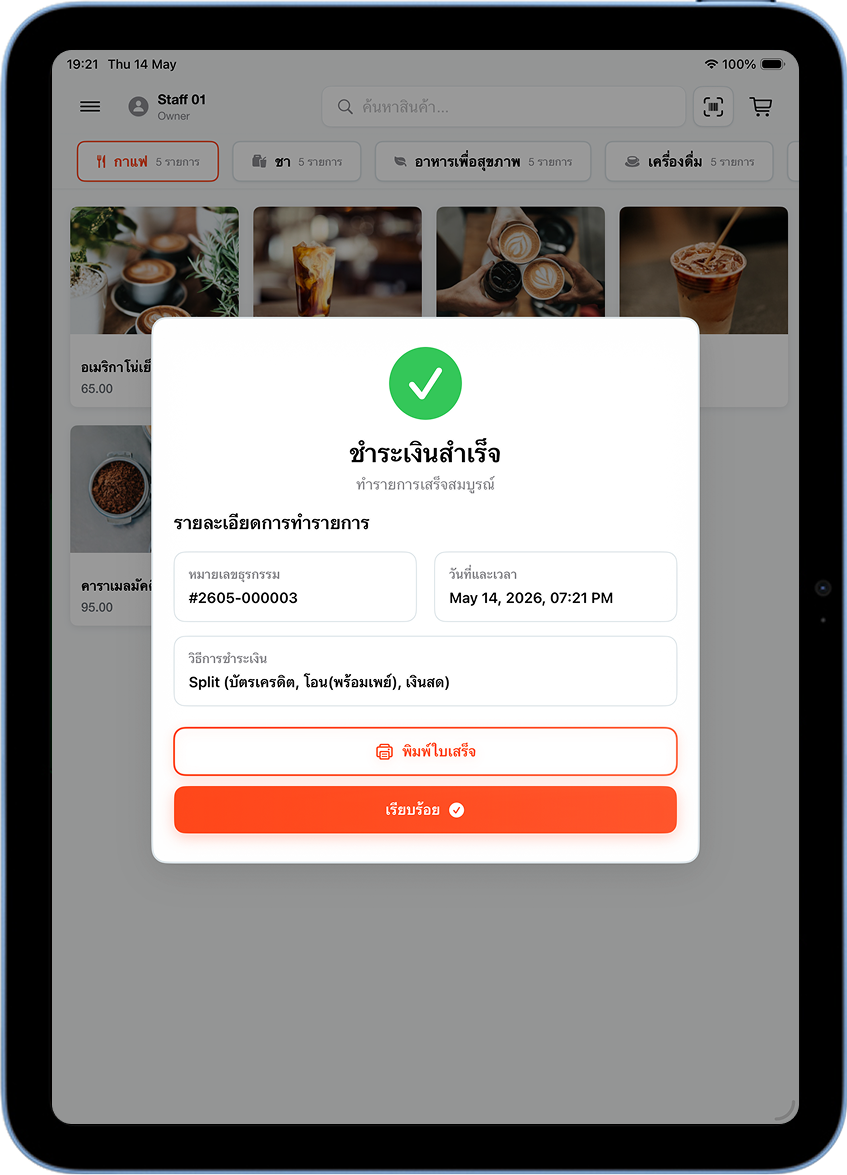
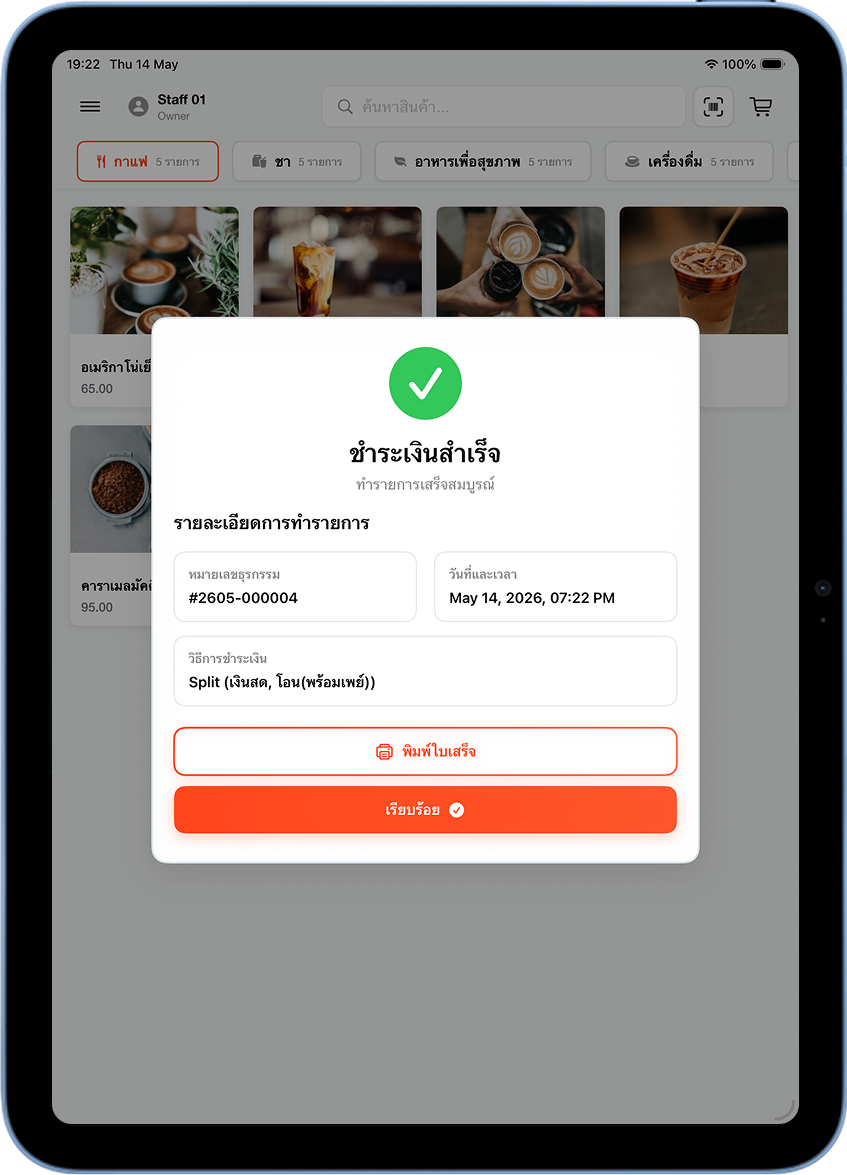
The system shows "Payment Successful" with the transaction number and payment method. Tap "Print Receipt" or "Done" to continue selling.
Mode 2 — Pay by Item
Enter the Number of People and Assign Items
The system shows the full item list on the left and a tab for each person on the right. Tap an item and drag it to the person you want, or tap the + button next to an item to add it to whoever's tab is currently active.
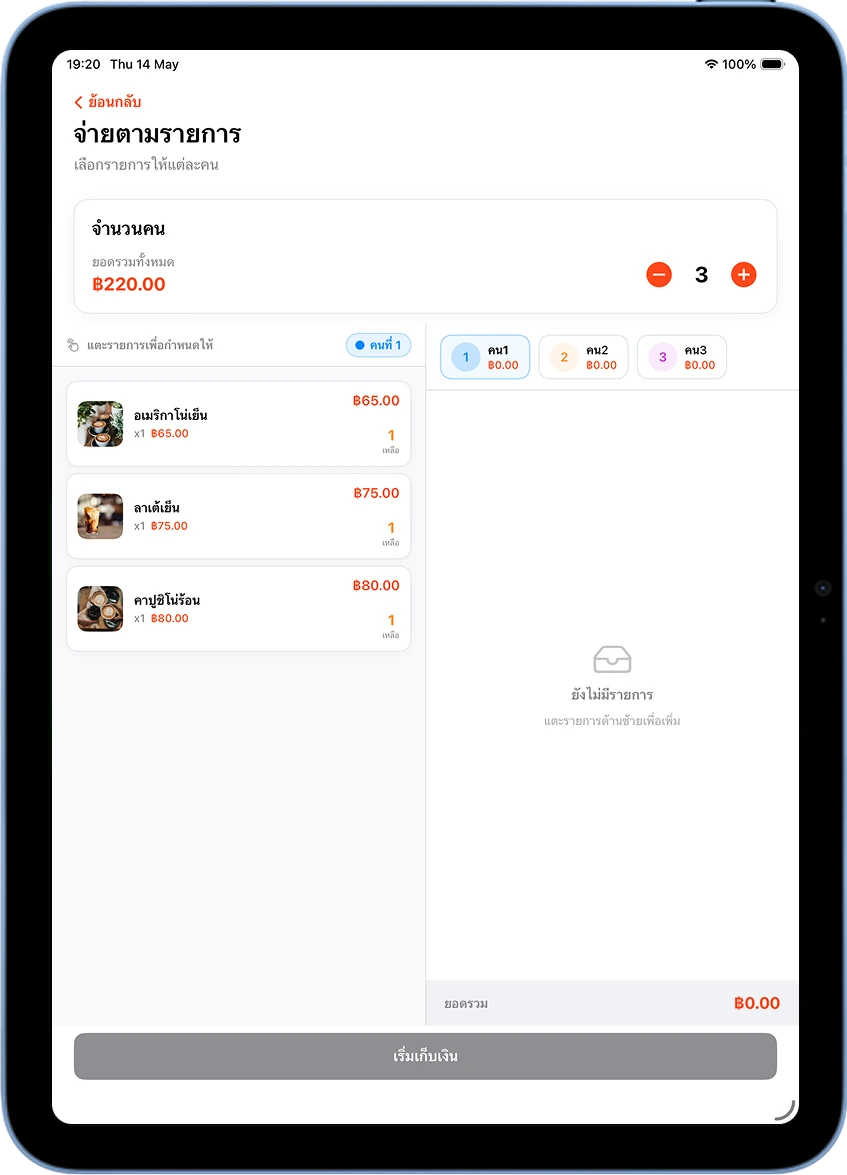
Assign Items to Everyone, Then Tap 'Start Collecting'
Switch tabs to assign items to Person 2, 3, and so on — each person's total shows on their tab. Once every item is assigned, tap "Start Collecting".
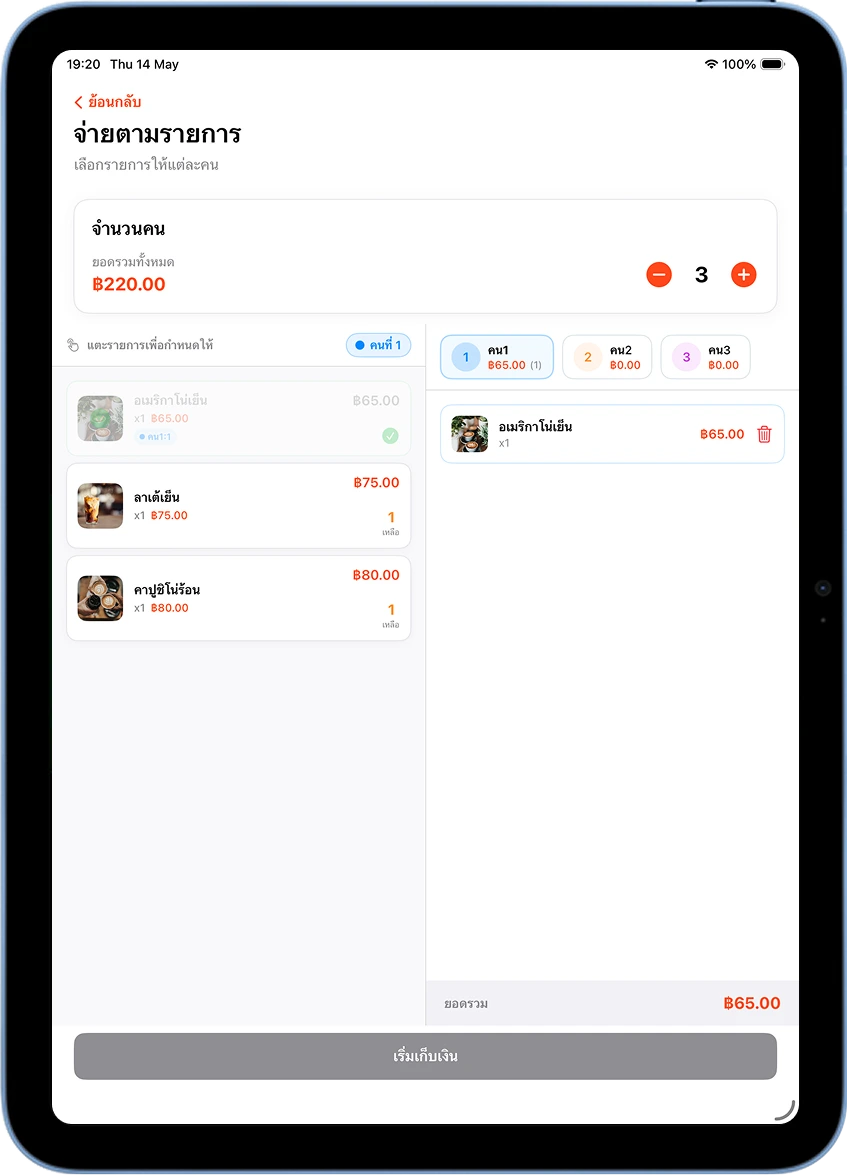
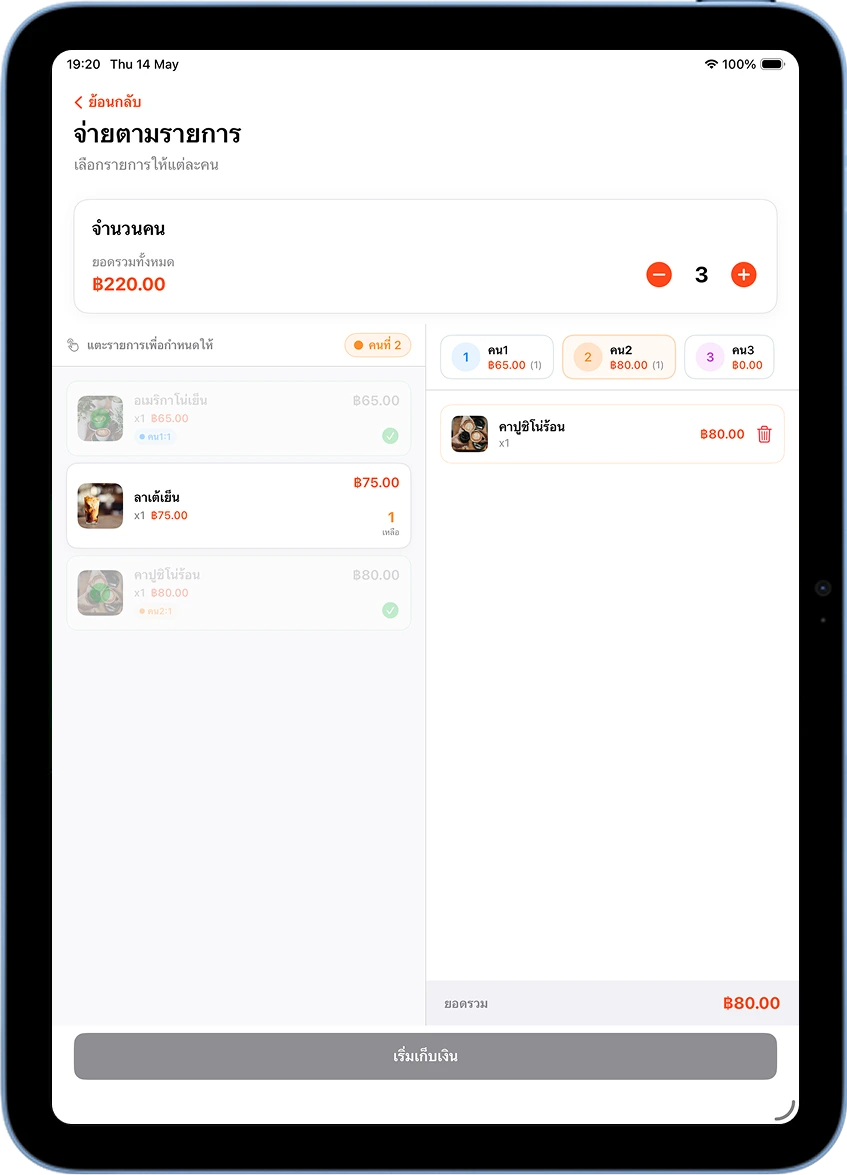
Collect Payment from Each Person
The system takes you to Person 1's payment screen first. Choose a method (cash / transfer / card), enter the amount, and tap "Confirm Payment" — the system automatically moves to the next person.
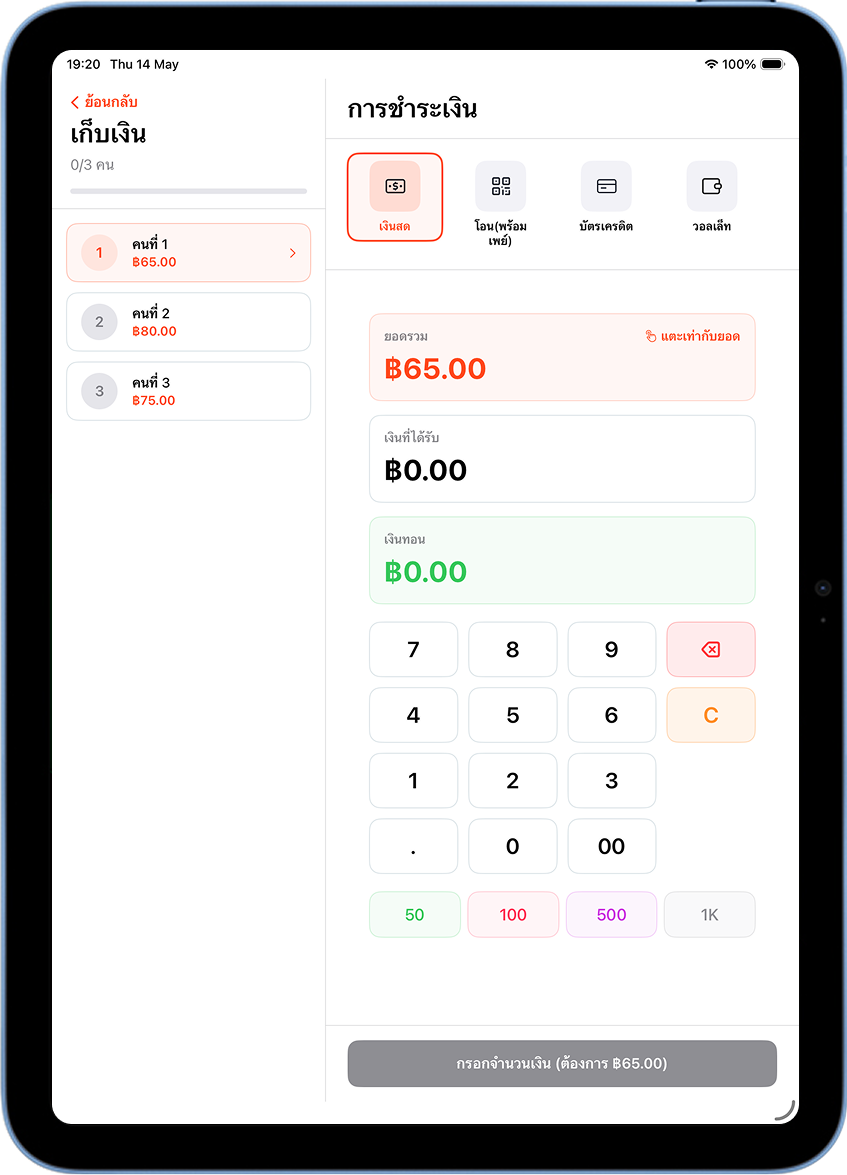
Confirm Once Everyone Has Paid and Print the Receipt
Once everyone's paid, the system shows "Everyone's Paid!" — tap "Confirm Payment". The "Payment Successful" screen then shows every person's payment method in full.
Mode 3 — Custom Amount
Enter the Number of People and Type Each Amount
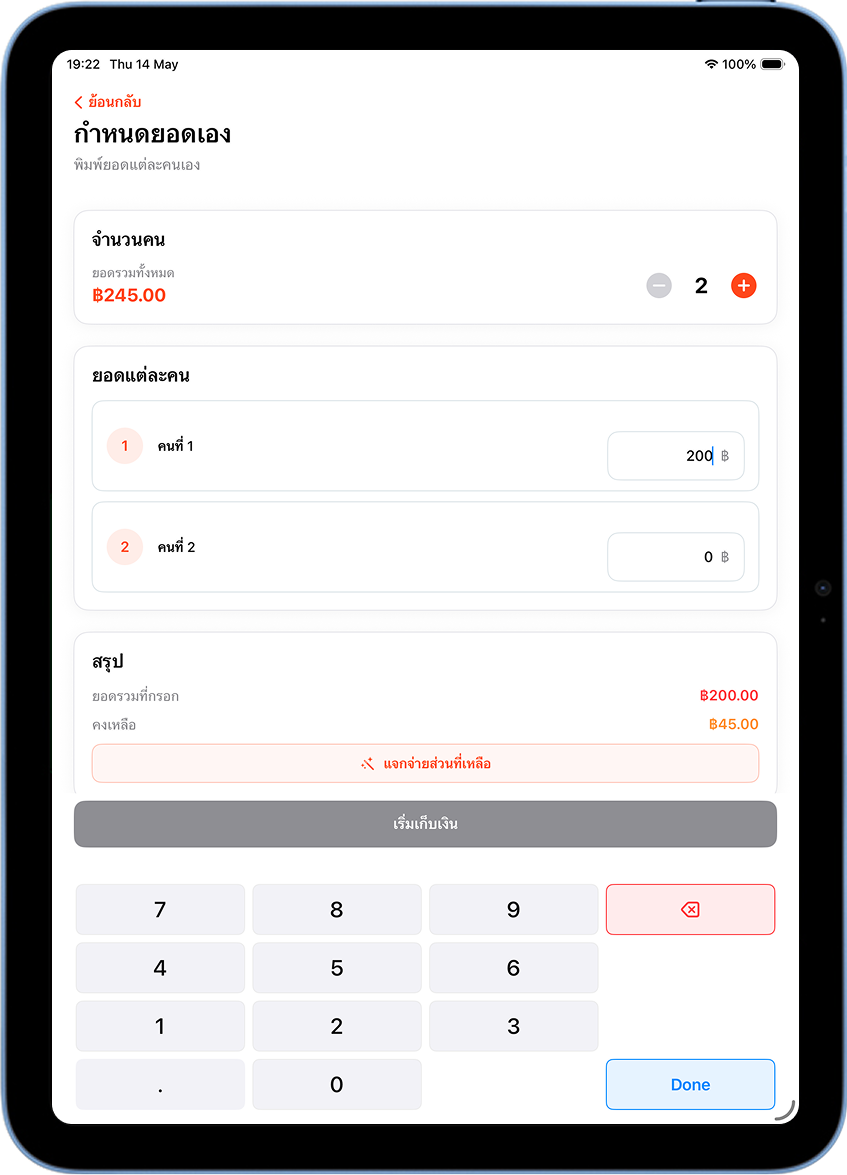
Set the number of people, then type Person 1's and Person 2's amounts into the fields provided. For the rest, tap "Distribute Remaining" to have the system fill in the last amount automatically.
Verify the Total and Tap 'Start Collecting'
The system shows "Total Matches the Order" once amounts add up correctly. Tap "Start Collecting" to proceed with each person's payment.
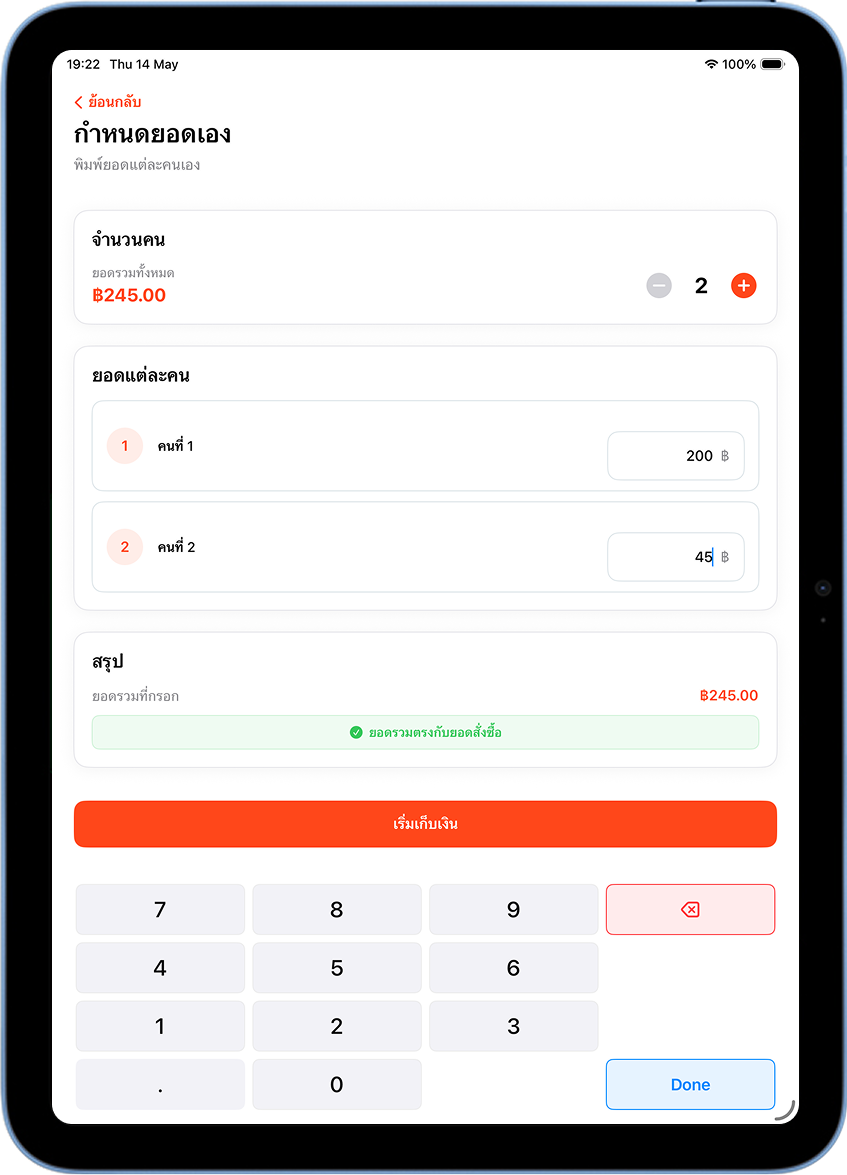
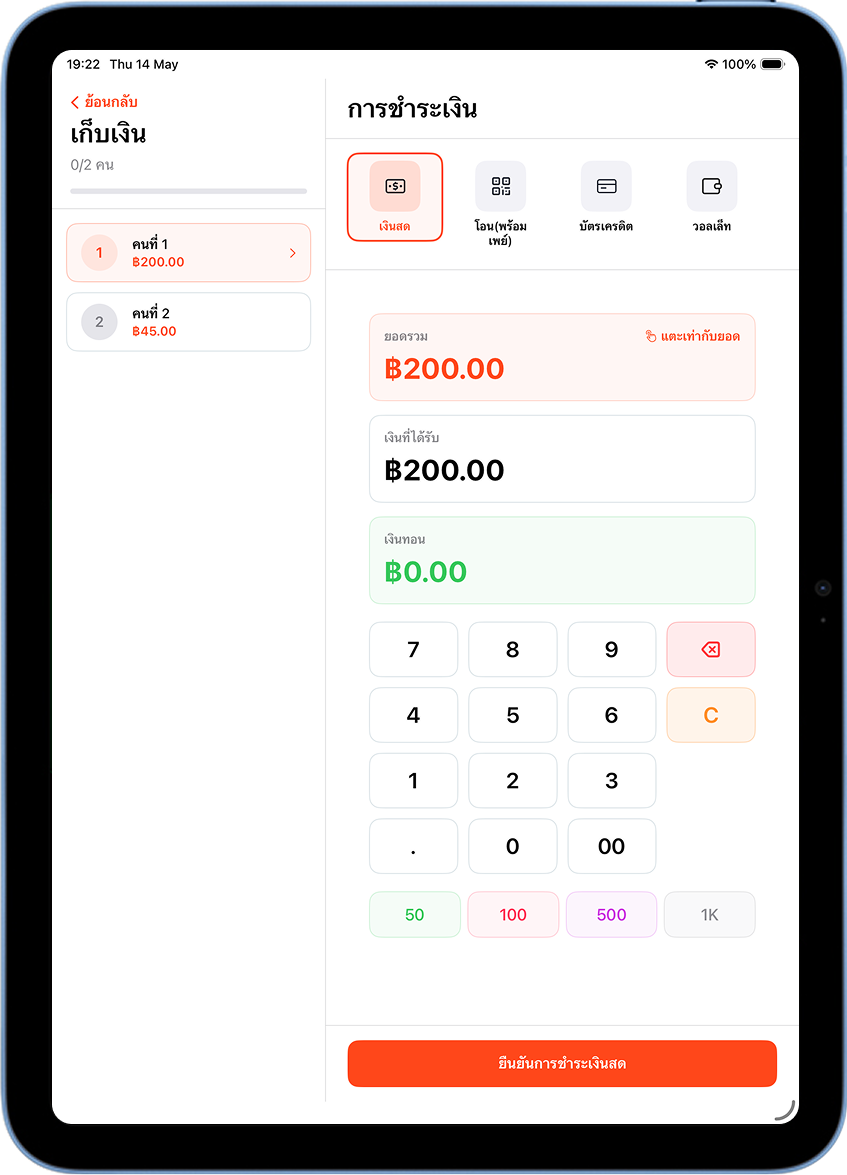
Collect Payment from Each Person
The system takes you through each person's payment screen in order — choose a method, enter the amount, and confirm.
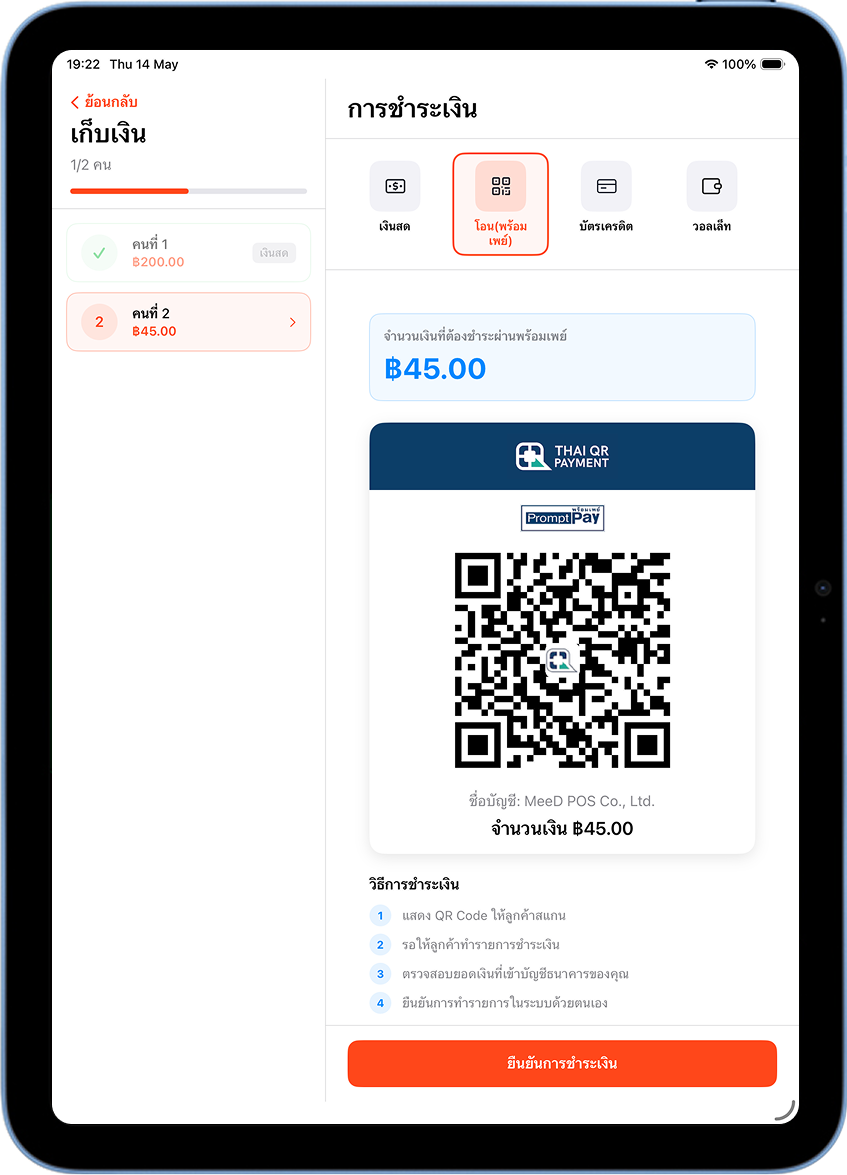
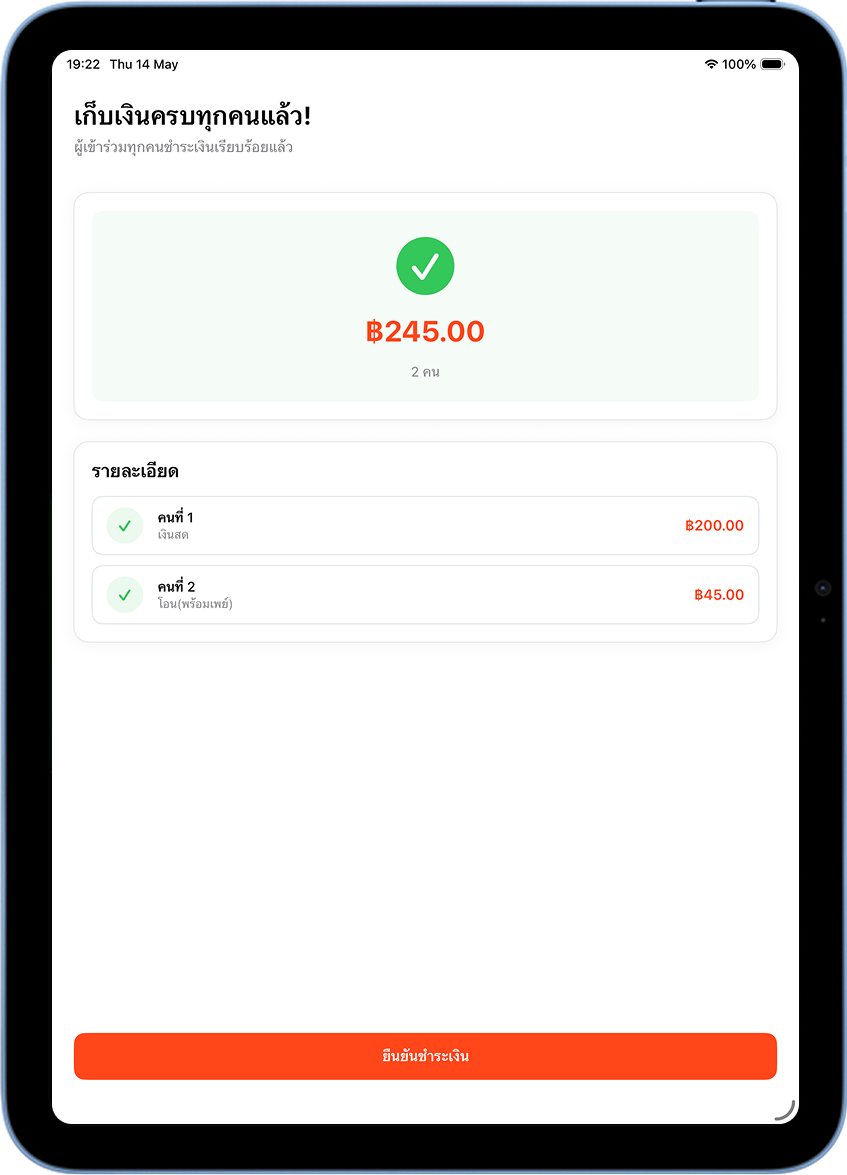
Confirm Once Everyone Has Paid and Print the Receipt
Once everyone's paid, tap "Confirm Payment" — the system shows "Payment Successful". Tap "Print Receipt" or "Start New Bill".
The 3 Split Payment Modes
| Mode | Best For | How the Amount Is Set | Time |
|---|---|---|---|
| Split Evenly | A table of friends splitting the bill equally | Calculated automatically by the system | ~1 minute |
| Pay by Item | Everyone ordered differently and pays for their own items | Items assigned manually | ~2–3 minutes |
| Custom Amount | Amounts are already known, or a special split is needed | Each amount typed in manually | ~1–2 minutes |
Split Evenly
Splits the total equally among everyone — just specify the number of people and the system calculates the rest.
Pay by Item
Assign items to each person — everyone pays only for what they ordered.
Custom Amount
Type in each person's amount freely — ideal when the split isn't equal.
Common Issues
I don't see a 'Split Payment' option on the payment screen
Check that the "Allow Split Payment" toggle is on under Settings → Payments, and that you tapped Save Now. If it's still missing, close and reopen the app.
The 'Start Collecting' button is grayed out
In Custom Amount mode, everyone's amounts must add up to exactly the order total. Make sure the system shows "Total Matches the Order" in green before tapping.
I started splitting payment but want to cancel — can I?
Tap "Don't Split" in the split payment popup, or tap back — the system returns to the normal payment screen without saving anything.
In 'Pay by Item' mode, I assigned an item to the wrong person — can I fix it?
Tap the item on the right side (that person's section), then tap the trash icon to remove it, and reassign it to the correct person.
Can each person use a different payment method?
Yes — when collecting from each person, you can choose any method freely, e.g. Person 1 pays cash, Person 2 pays PromptPay, Person 3 pays by credit card.
Related Articles
Need More Help?
Running into an issue, or want the team to walk you through split payments remotely? Get in touch.