Membership — Earning and Redeeming Points
MeeD POS's membership system makes it easy to build relationships with regular customers. Customers earn points on every purchase and can redeem them for a discount right at checkout.
MeeD POS Team · Tested on real iPad ·
How to Use It
Part 1 — Set Up the Membership System
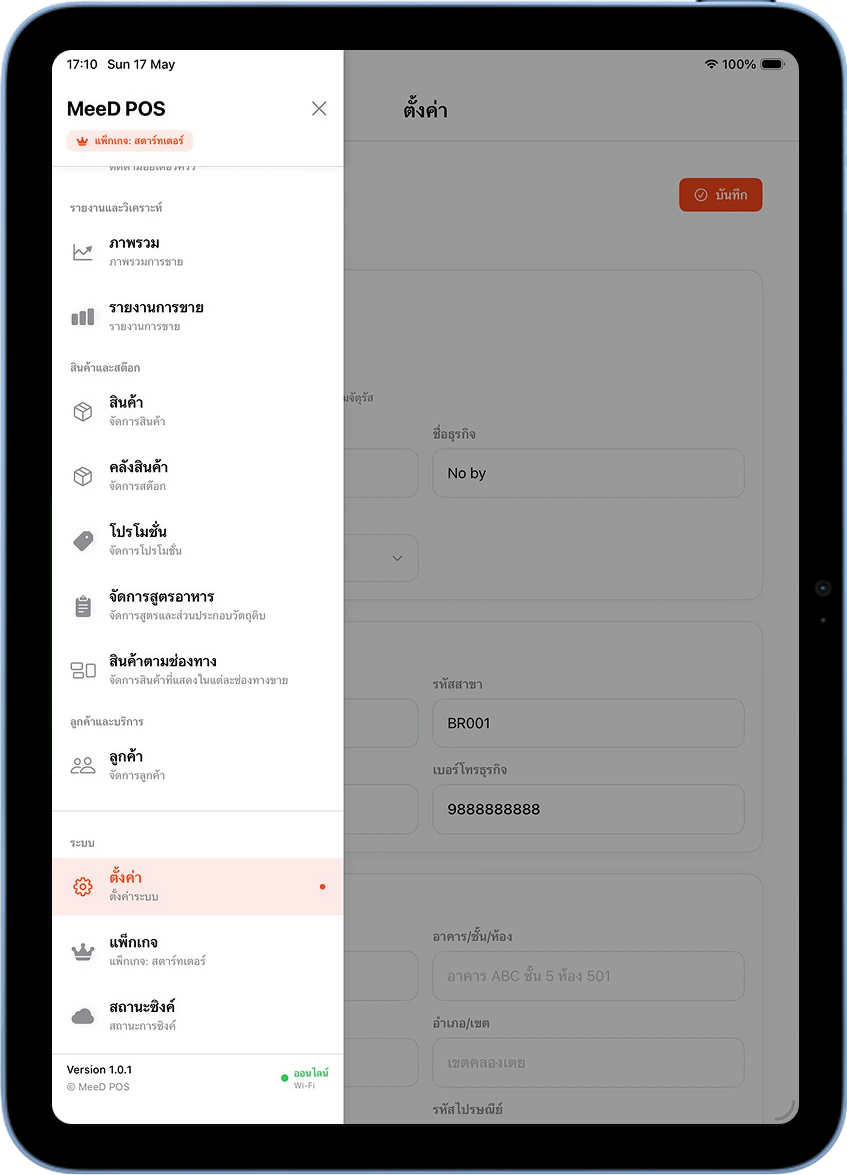
Open the Left Menu → Tap 'Settings'
Tap the ☰ icon in the top-left corner to open the menu, scroll down to "System", and tap "Settings".
Enable the Membership System and Set Point Earn/Redeem Rates
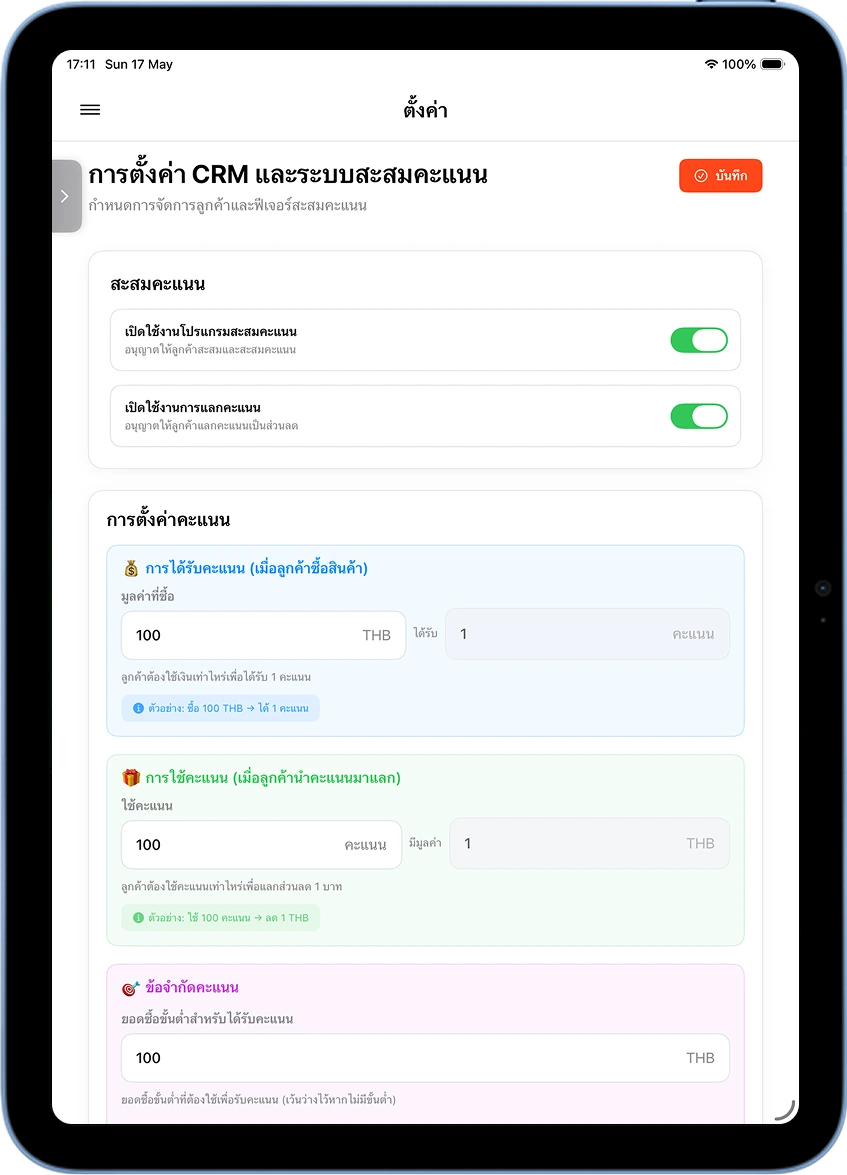
On the settings screen, tap "CRM & Loyalty Points Settings", then turn the "Enable Points Program" and "Enable Points Redemption" toggles to green.
Set the rates per your shop's policy — e.g. every ฿100 = 1 point, and every 100 points = ฿1 — along with a minimum purchase amount to earn points. Then tap "Save".
Part 2 — Add a New Member
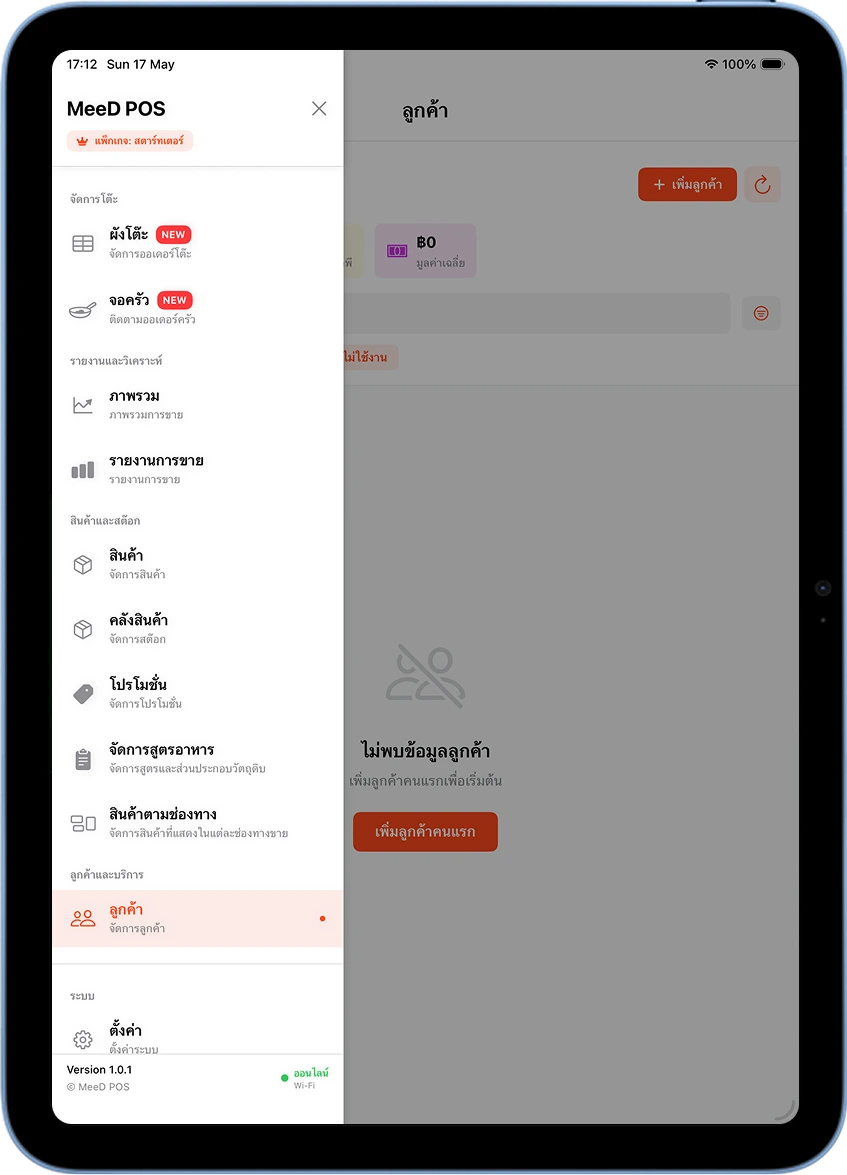
Open 'Customers' → Tap '+ Add Customer'
Tap ☰ and select "Customers" under "Customers & Services". If there are no customers yet, the system shows "No customer data found". Tap "+ Add Customer" in the top-right corner, or "Add Your First Customer" in the center of the screen.
Fill In Member Details and Tap 'Save'
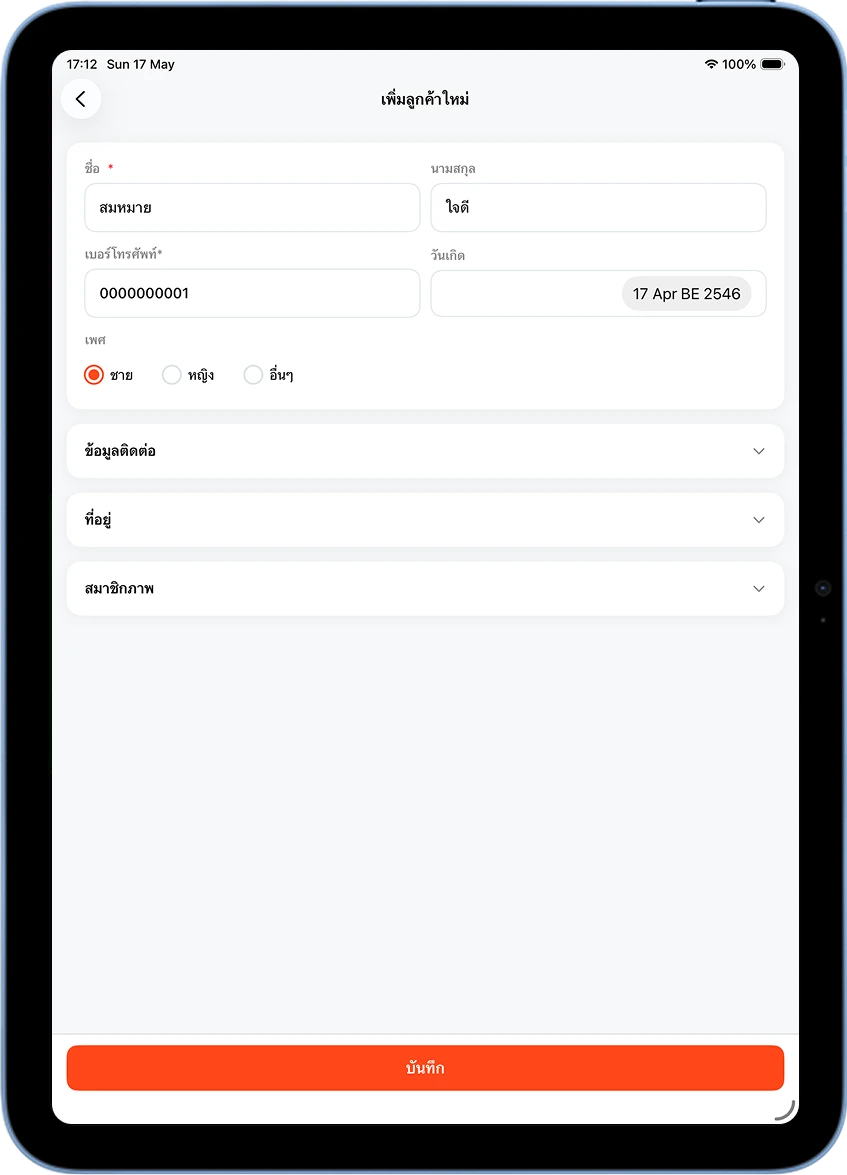
Enter the Name and Phone Number (required) — last name, birthday, and gender are optional extras. Once complete, tap the orange "Save" button at the bottom.
Confirm the Member Appears in the List
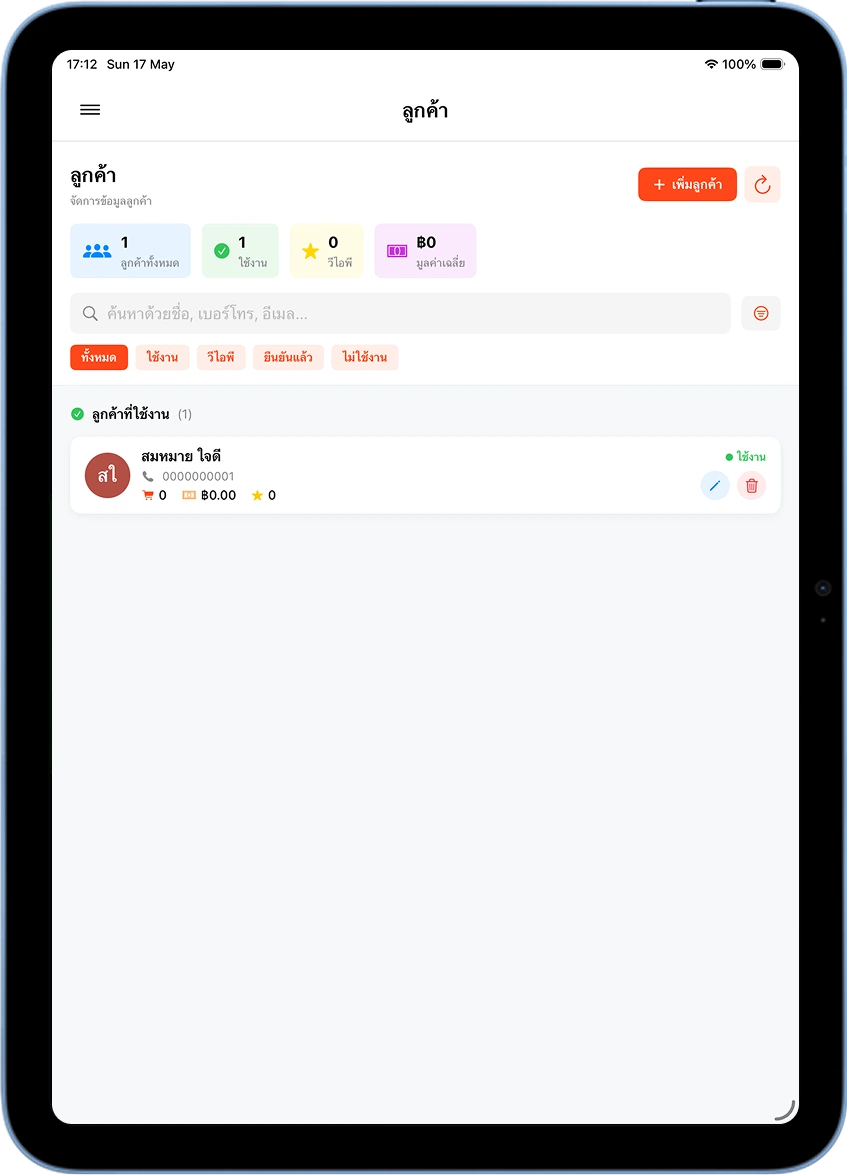
The system returns to the "Customers" screen automatically and shows the new entry with a green "Active" status, a starting balance of ★ 0, and a spend total of ฿0.00.
Part 3 — Link a Member to an Order to Earn Points
On the Sales Screen, Tap 'Walk-In Customer' in the Top-Right Corner
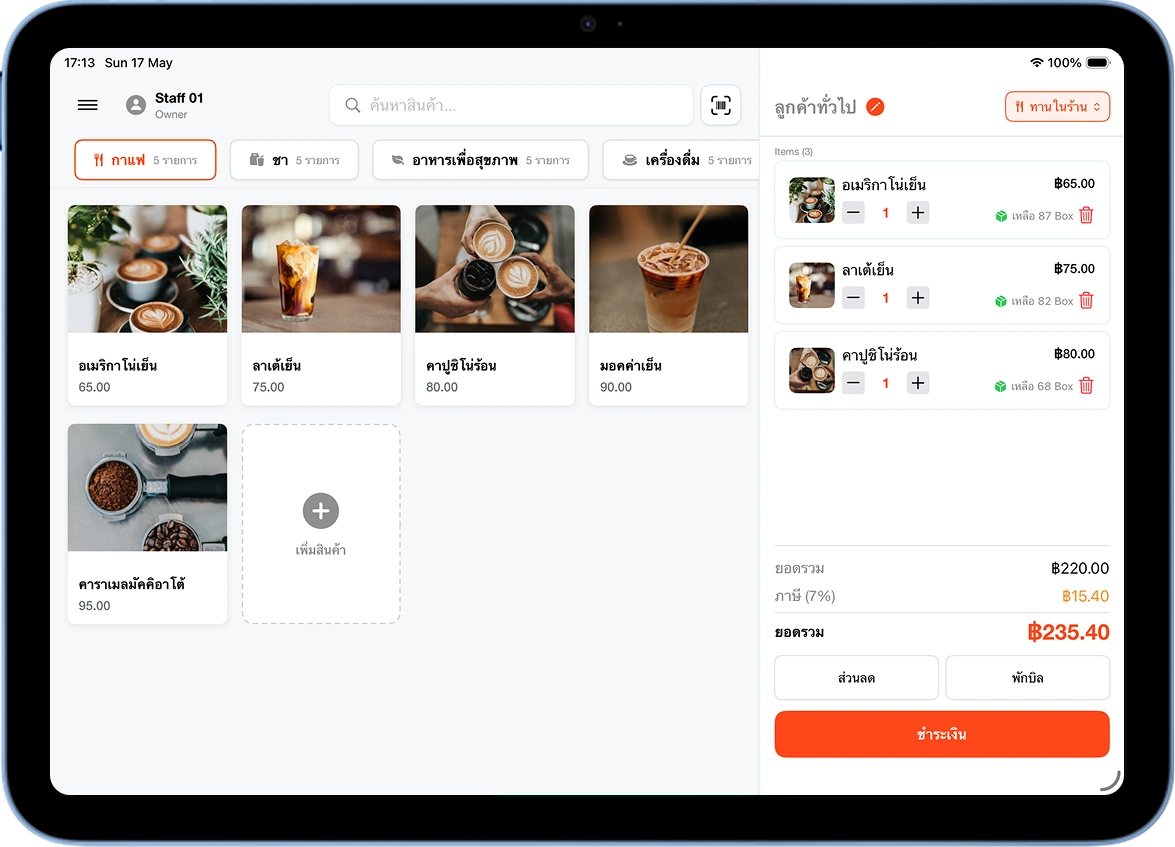
Add items to the order as usual, then tap the "Walk-In Customer" button with a person icon in the top-right corner of the order, to open the member search popup.
Search for and Select a Member from the Popup
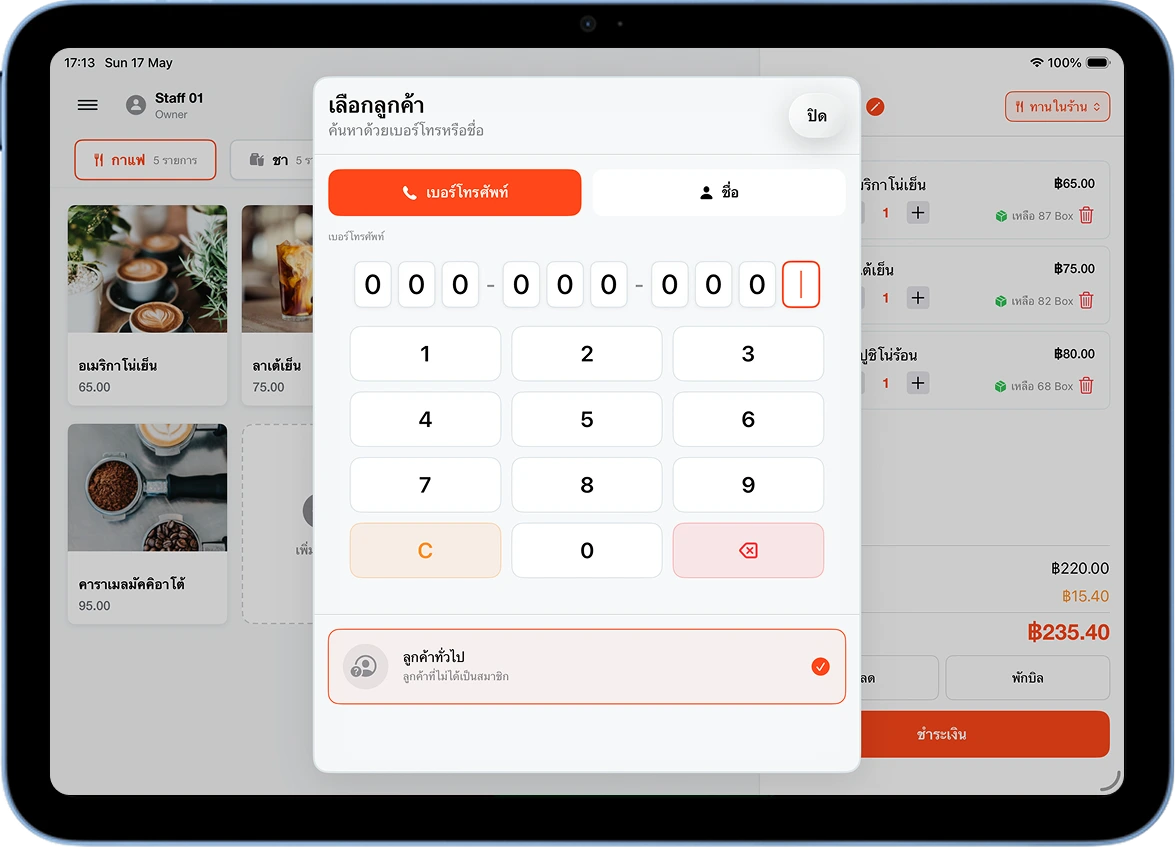
The "Select Customer" popup opens — enter the phone number with the keypad, or tap the "Name" tab to type a name instead. The system shows matching results — tap the customer's name to select.
The Member's Name Appears on the Order — Ready to Earn Points
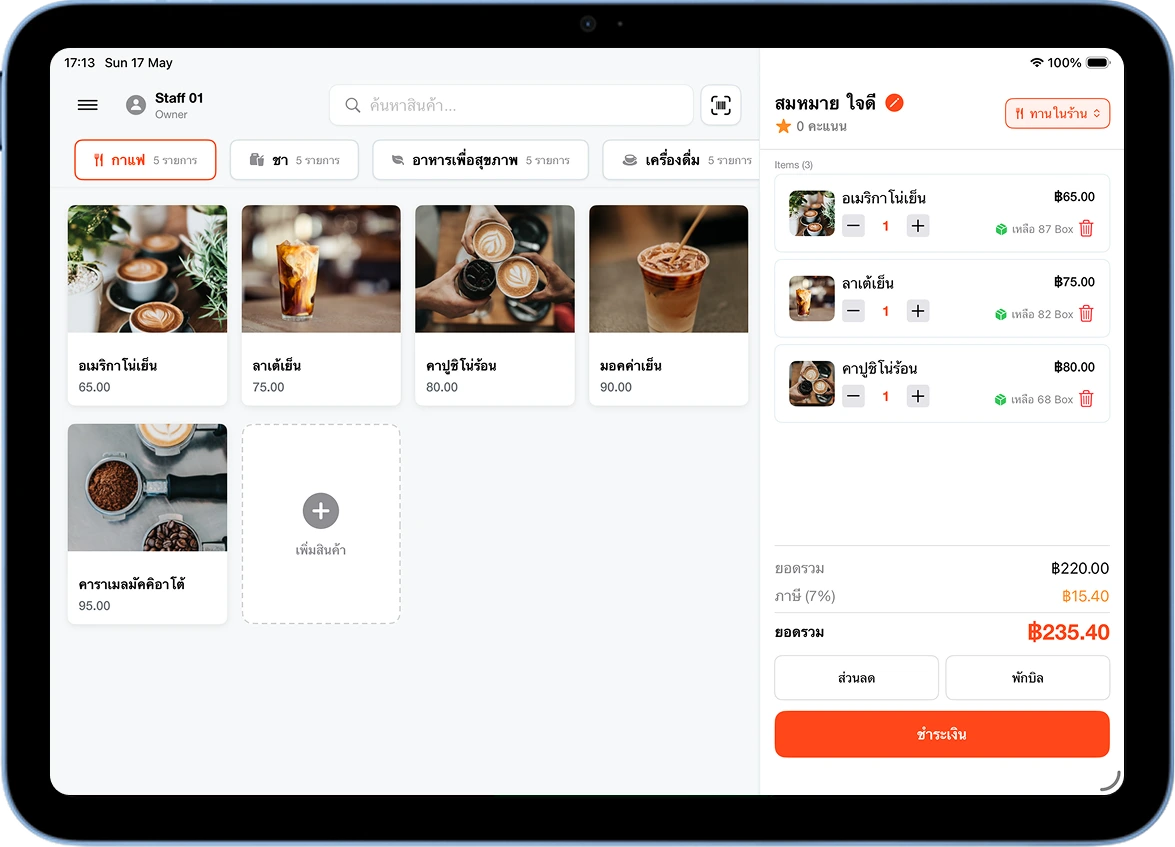
The top-right button switches from "Walk-In Customer" to the member's name, with an orange dot indicating the order is now linked to a member. Continue the sale as usual.
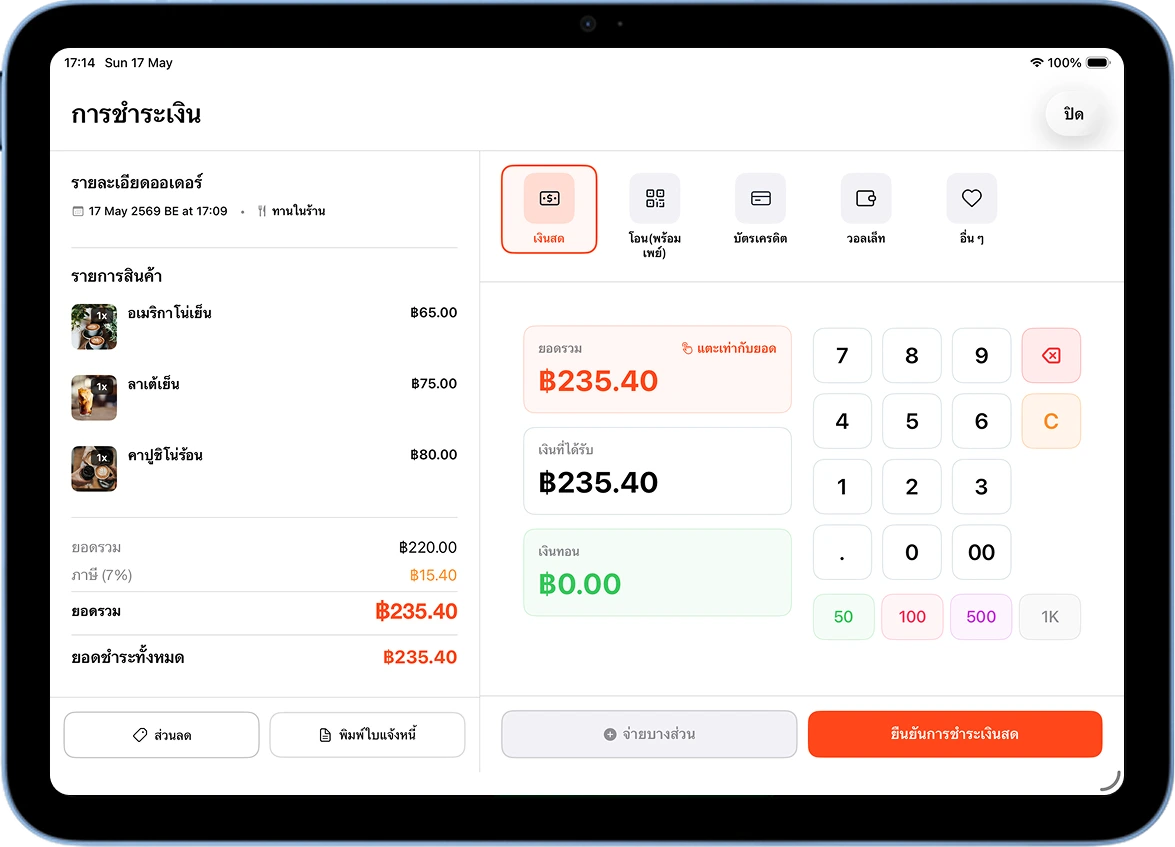
Tap 'Pay' and Choose a Payment Method as Usual
Tap the orange "Pay" button at the bottom — the payment screen shows the order details along with the linked customer's name. Choose a payment method and proceed as usual.
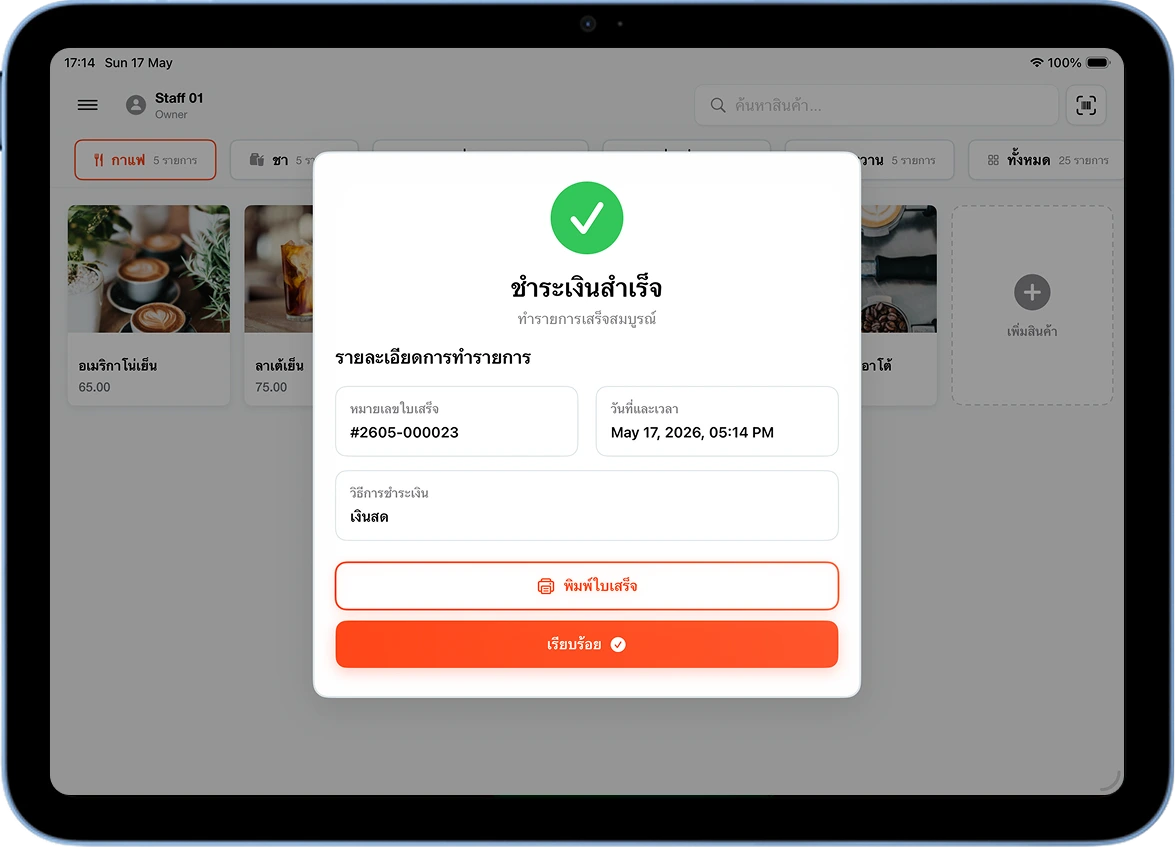
Payment Complete — Points Recorded Automatically
Once payment completes, the system shows a "Payment Successful" popup with the receipt number and timestamp. Loyalty points are recorded for the customer automatically and instantly — no extra confirmation needed.
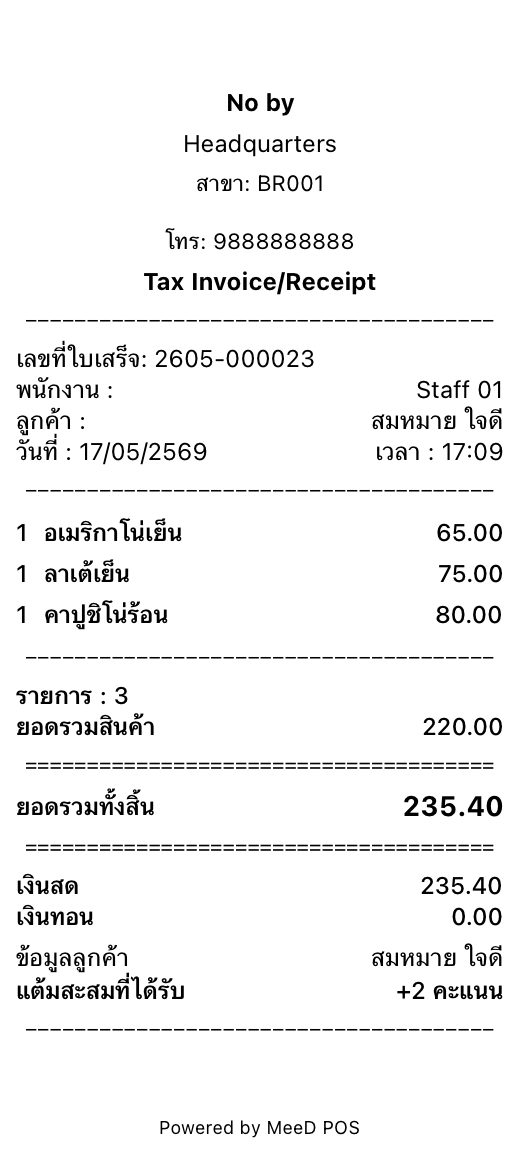
The Receipt Shows the Customer's Name and Points Earned
The receipt shows "Customer Info" and "Points Earned: +2 points" — the customer can keep the receipt as a record.
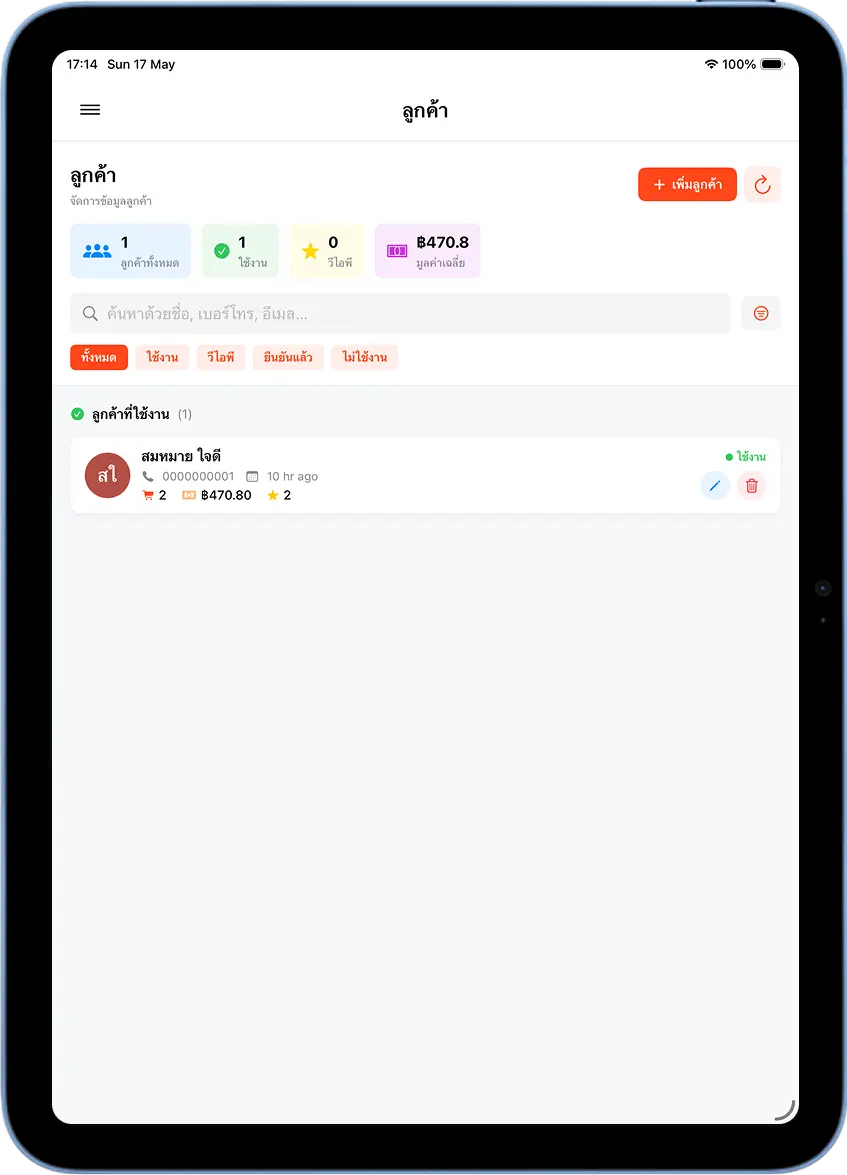
Check the Points Balance on the Customer List
Open the "Customers" menu — the points balance now shows ★ 2, along with total spend and purchase count. This data updates in real time with every purchase.
Part 4 — Redeem Points for a Discount
Select Items → Tap 'Walk-In Customer' → Select the Member
Add items to the order, then tap "Walk-In Customer" and search for and select a customer with a points balance. Their name shows with the remaining points, e.g. "★ 2 points".
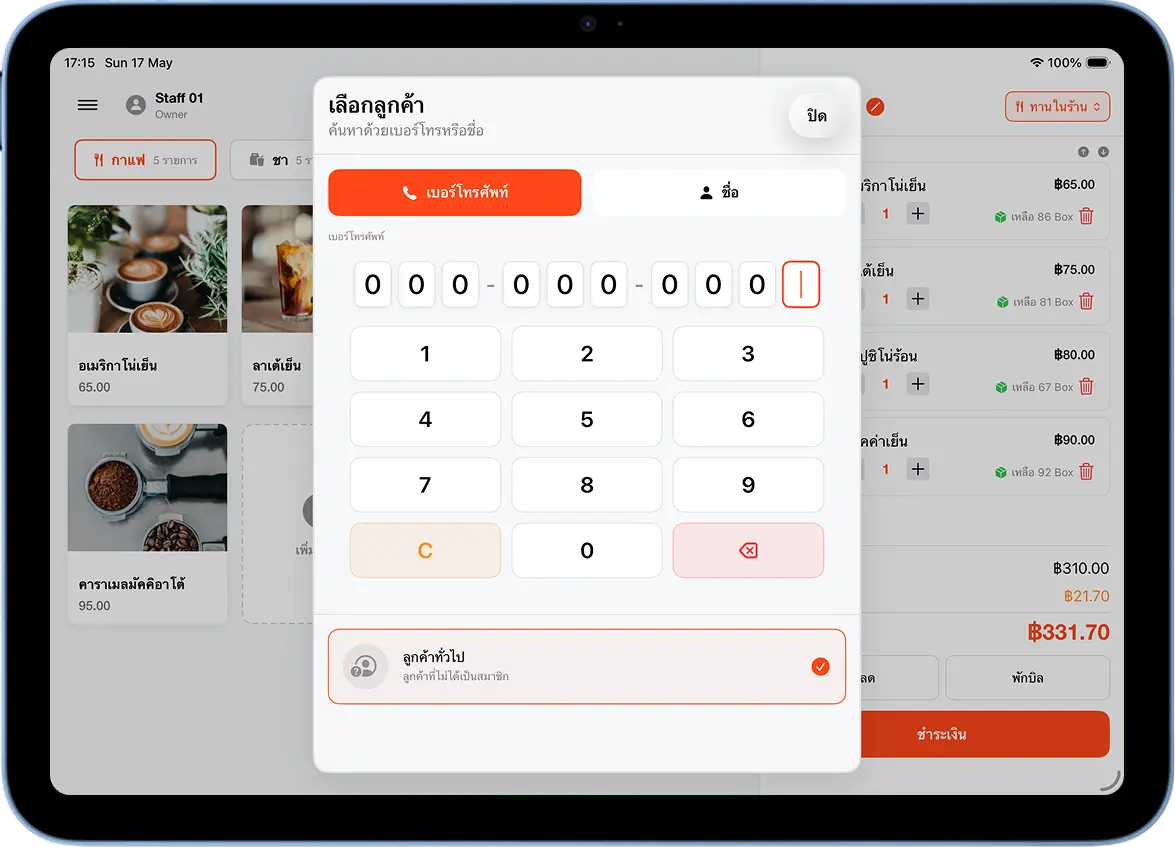
Tap the '★ Redeem Points' Button on the Order
Once a customer is selected, a "★ Redeem Points" button appears on the order's bottom bar. Tap it to open the redeem-points popup.
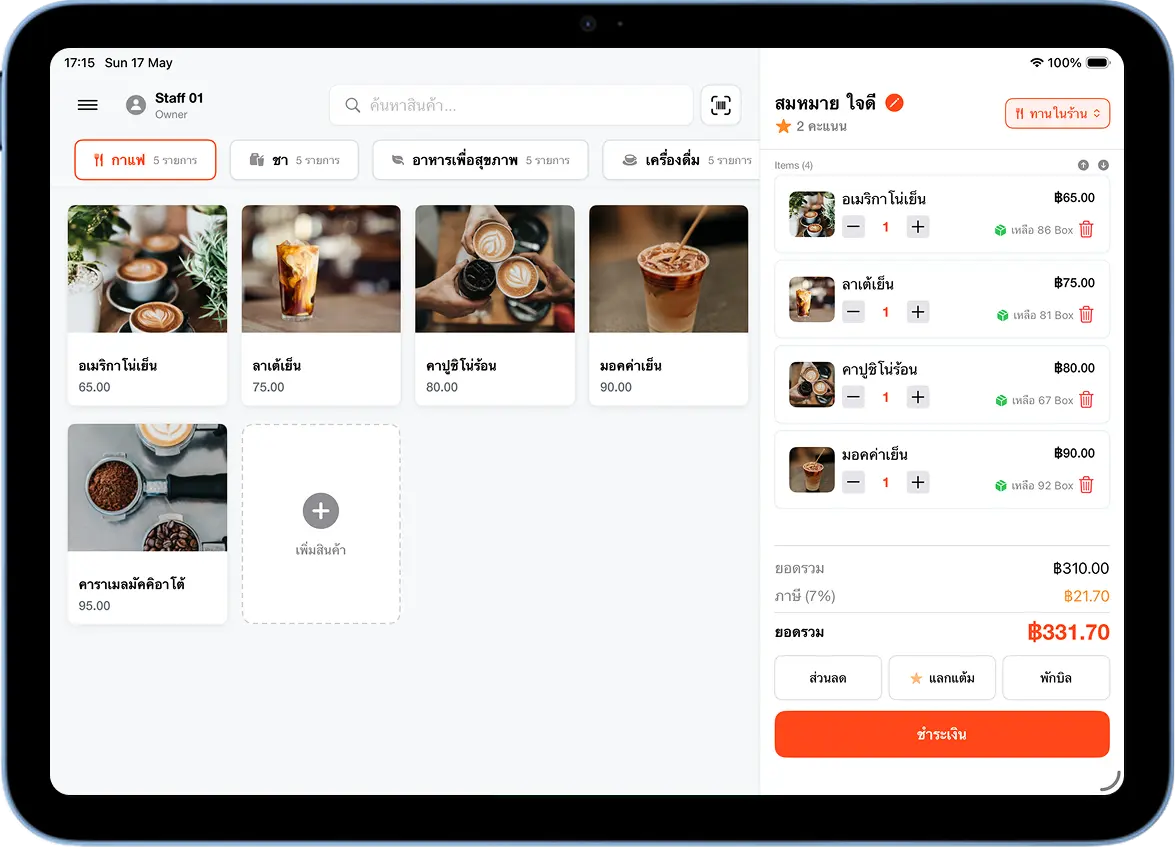
Choose How Many Points to Use → Tap 'Confirm Redemption'
The "Redeem Points" popup shows the remaining balance and exchange rate, e.g. 1 point = ฿0.01. Enter the number of points to use, or tap a shortcut — "25%", "50%", "Use All" — and the system calculates the discount instantly. Then tap "Confirm Redemption".
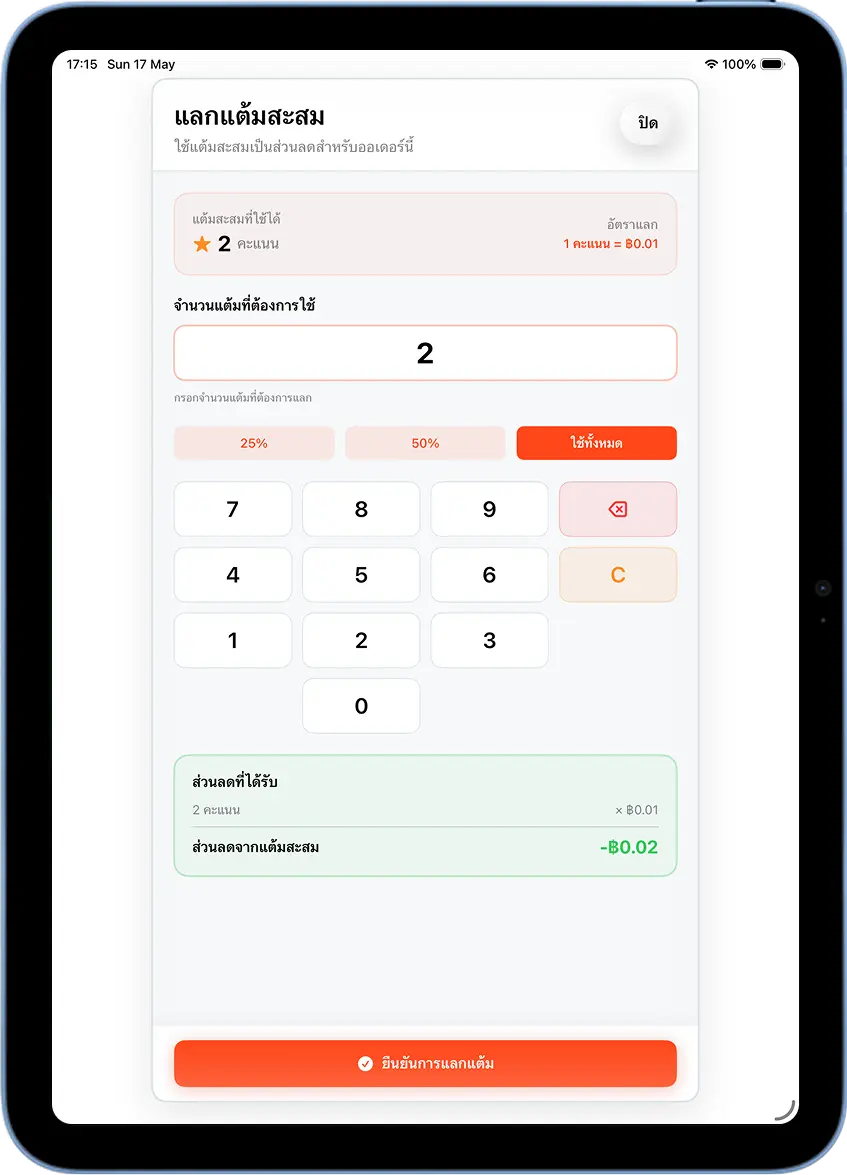
The Order Shows a Discount from Redeemed Points
Back on the order screen, a "★ Points Discount -฿0.02" line is added to the total. The "Redeem Points" button highlights orange to show it's active.
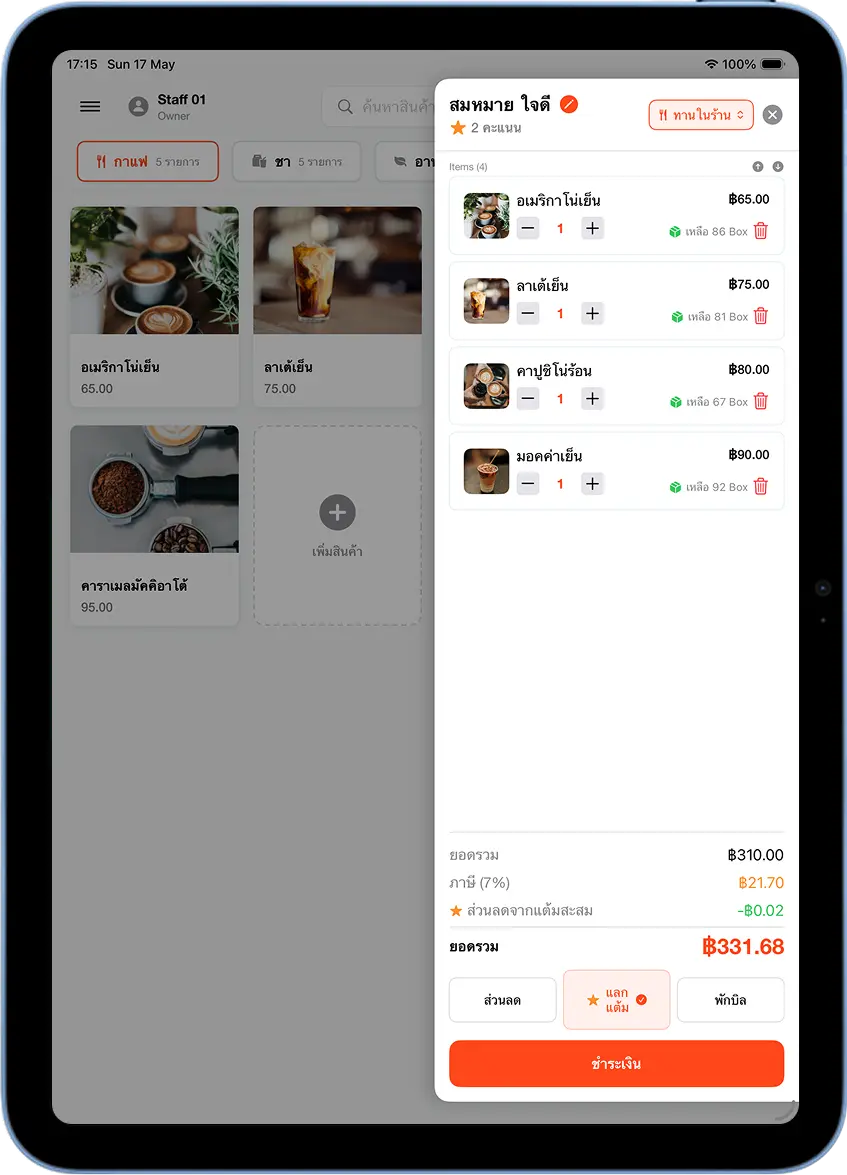
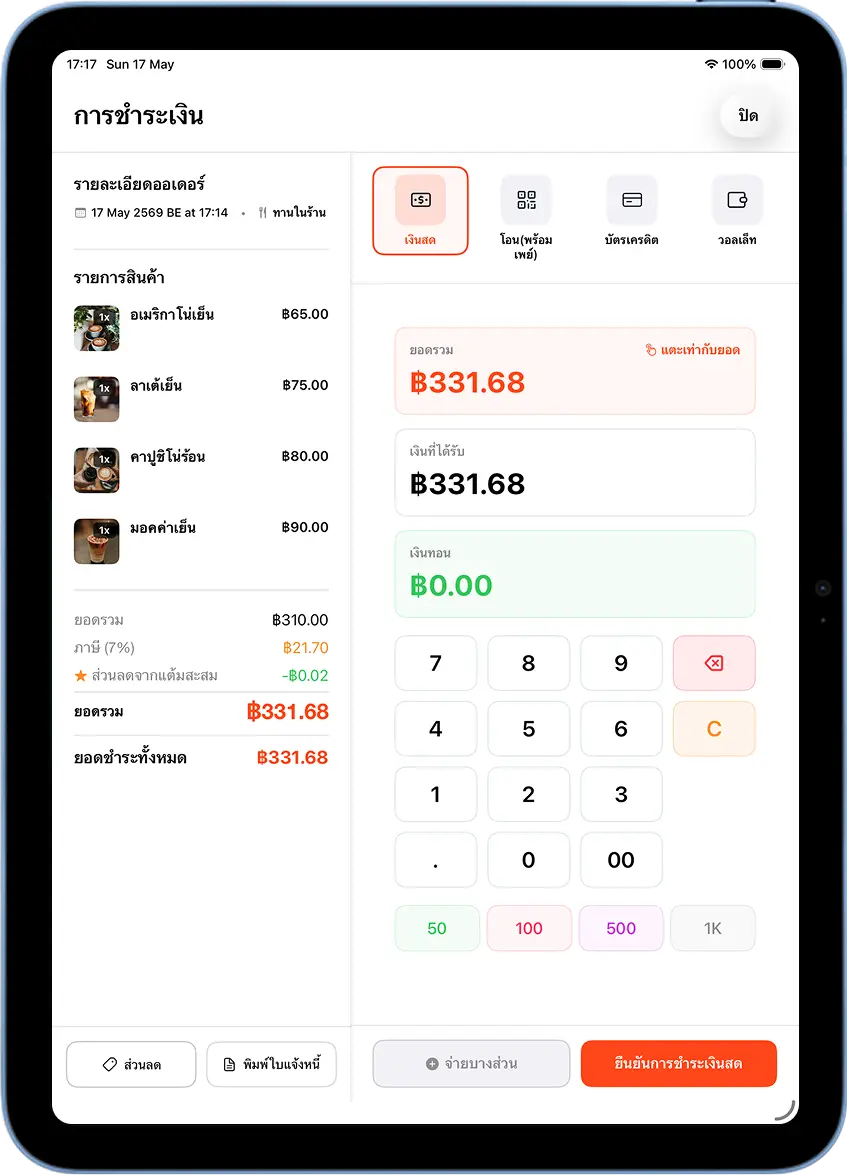
Tap Pay — the Amount Already Reflects the Points Discount
Tap "Pay" — the payment screen shows "★ Points Discount -฿0.02" and the correct net amount due. Proceed with the customer's chosen payment method.
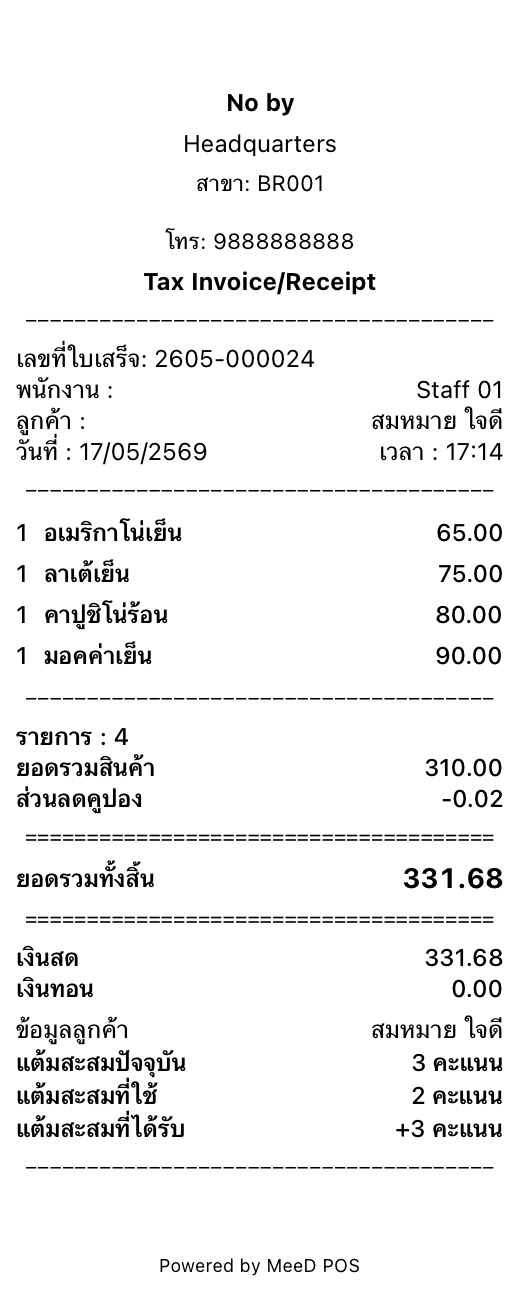
The Receipt Shows Points Used + New Points Earned from This Bill
The receipt shows full points detail: Current Points Balance, Points Redeemed, and New Points Earned from this bill.
Cautions
Select the customer before tapping Pay
If forgotten, it can still be fixed later via "Customers" → tap the customer's name → adjust points with a reason — but this must be done manually, with no automatic link to the bill.
Points are calculated from the amount actually paid
The amount used to calculate points is the total after all discounts and promotions, not the pre-discount total.
The purchase must meet the set minimum
If a bill is below the minimum amount (e.g. under ฿100), the customer won't earn points on that bill.
Tips for Cashiers
Ask every customer before tapping Pay
Make it a habit to ask "Collecting points today?" before charging every bill — it prevents forgetting to select the customer.
Searching by phone number is fastest
Typing a phone number in the "Select Customer" popup finds results faster than a name, since phone numbers have no spelling ambiguity.
Tell the customer their points after closing the bill
Let them know how many points they earned and their total balance — it leaves a good impression and encourages repeat visits.
Frequently Asked Questions
I forgot to select a customer before paying — can I add points after the fact?
Yes — go to "Customers", tap the customer's name, and the system opens a screen to adjust points with a reason.
Do loyalty points expire?
It depends on your shop's settings. If no expiry date is set, points never expire — check and adjust this under "Settings → CRM".
Can a customer earn points across all branches?
Yes — member data and points balances are shared across every branch under the same account, so customers can earn and redeem at any branch.
Where can I see a customer's points history?
Open "Customers" and tap the customer's name — you'll see their purchase history, total spend, points balance, and every redemption.
Related Articles
Need More Help?
Have a question about setting up the membership system, or want the team to walk you through it? Get in touch.