Auto-Locked PromptPay QR Amounts
Instead of having customers enter the amount themselves when scanning, MeeD POS generates a PromptPay QR code with the amount already locked in, pulled directly from the order. Customers scan and transfer instantly with no typing needed, cutting down on errors, preventing wrong-amount transfers, and making fake slips easier to spot.
MeeD POS Team · Tested on real iPad ·
What Is an Auto-Locked PromptPay QR Code?
With a standard PromptPay QR code posted at the counter, customers have to type in the amount themselves when transferring — a common source of errors, from wrong-amount transfers to mistyped numbers to fake slips sent instead.
MeeD POS's auto-locked PromptPay QR code solves all of this by pulling the amount from the order and embedding it directly in the QR code. Customers scan it and their banking app shows the amount instantly — they just tap confirm, with no chance to enter it wrong.
🚫
Old Problem
Customers enter the amount — frequent wrong-amount transfers
📄
Old Problem
Hard to spot fake slips, wastes time
✅
Solved By
A QR code locked to the order amount — accurate every time
How to Use It
How to Use It
Add Items and Tap 'Pay'
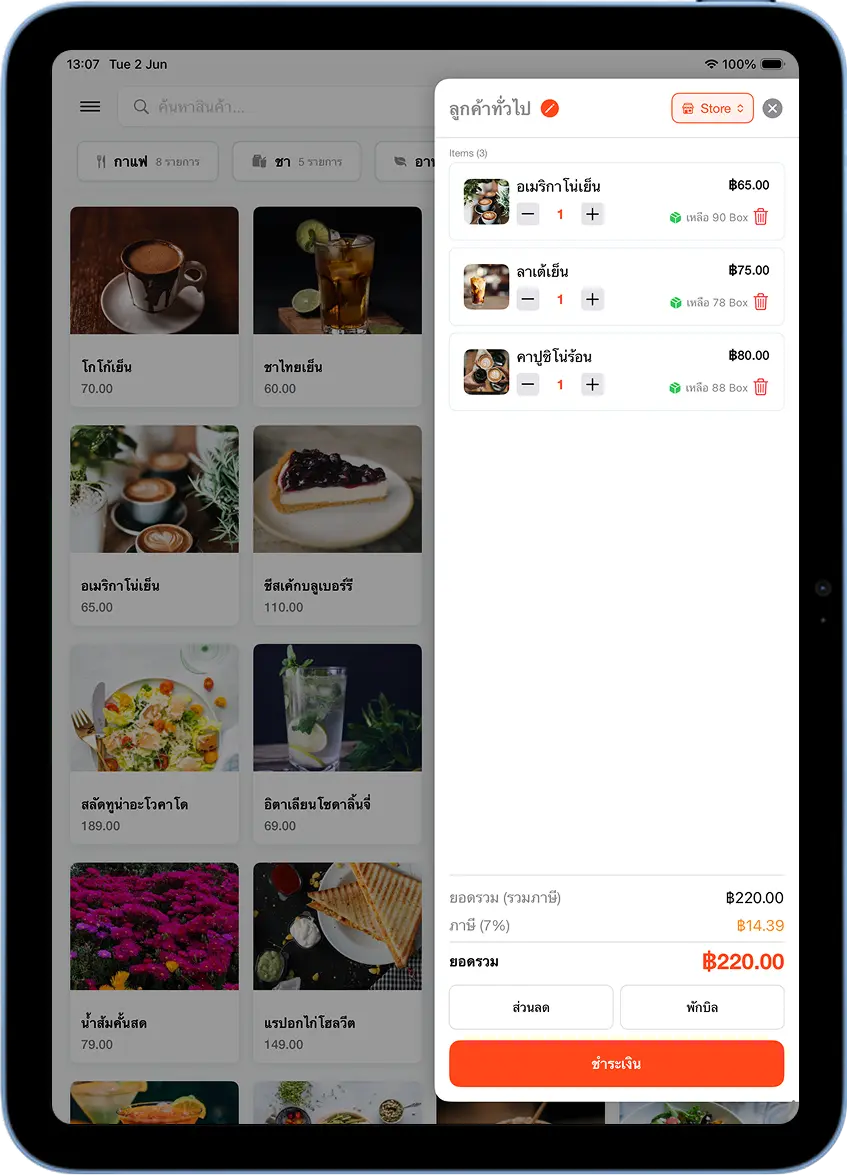
Add items to the cart as usual — the right side of the screen shows the list and total. When ready to charge, tap the orange "Pay" button in the bottom right.
Select the 'PromptPay QR' Tab and Tap 'Generate Payment QR'
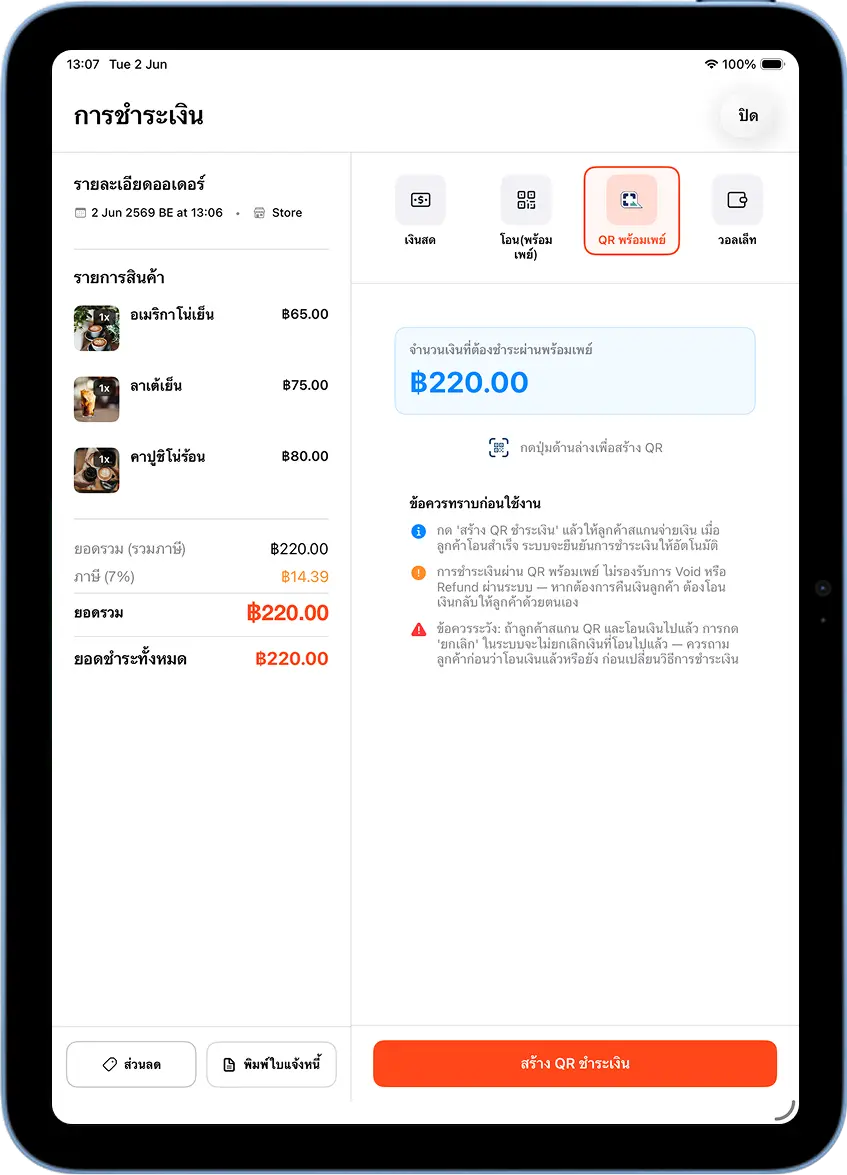
On the "Payment" screen, tap the "PromptPay QR" tab at the top (next to "Cash" and "Transfer (PromptPay)"). The system shows the amount due, e.g. ฿220.00, with usage guidance.
Tap the orange "Generate Payment QR" button below to issue a QR code.
Show the Locked-Amount QR Code — Have the Customer Scan
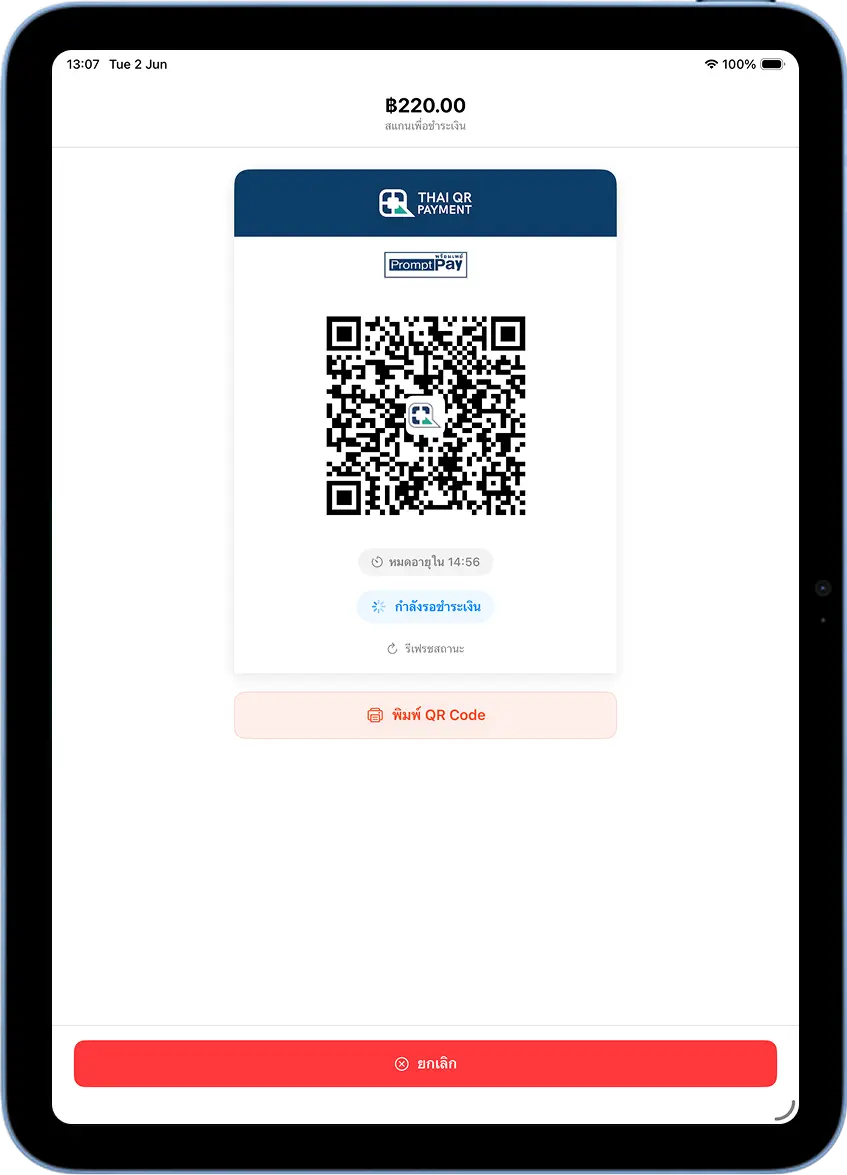
The system shows a large standard Thai QR Payment / PromptPay code, with the locked amount at the top, e.g. ฿220.00, and a countdown for the QR's validity below.
Turn the screen to the customer so they can scan with their banking app or any PromptPay-compatible app. Their app shows the ฿220.00 amount instantly with no typing needed — they tap "Confirm" in their own app to transfer.
The System Detects the Transfer Automatically
Once the customer's transfer completes, the system detects it and updates the status on the QR screen automatically. If the status hasn't changed yet, tap "Refresh Status" below the QR code and wait a moment.
Payment Complete — Print the Receipt or Start a New Bill
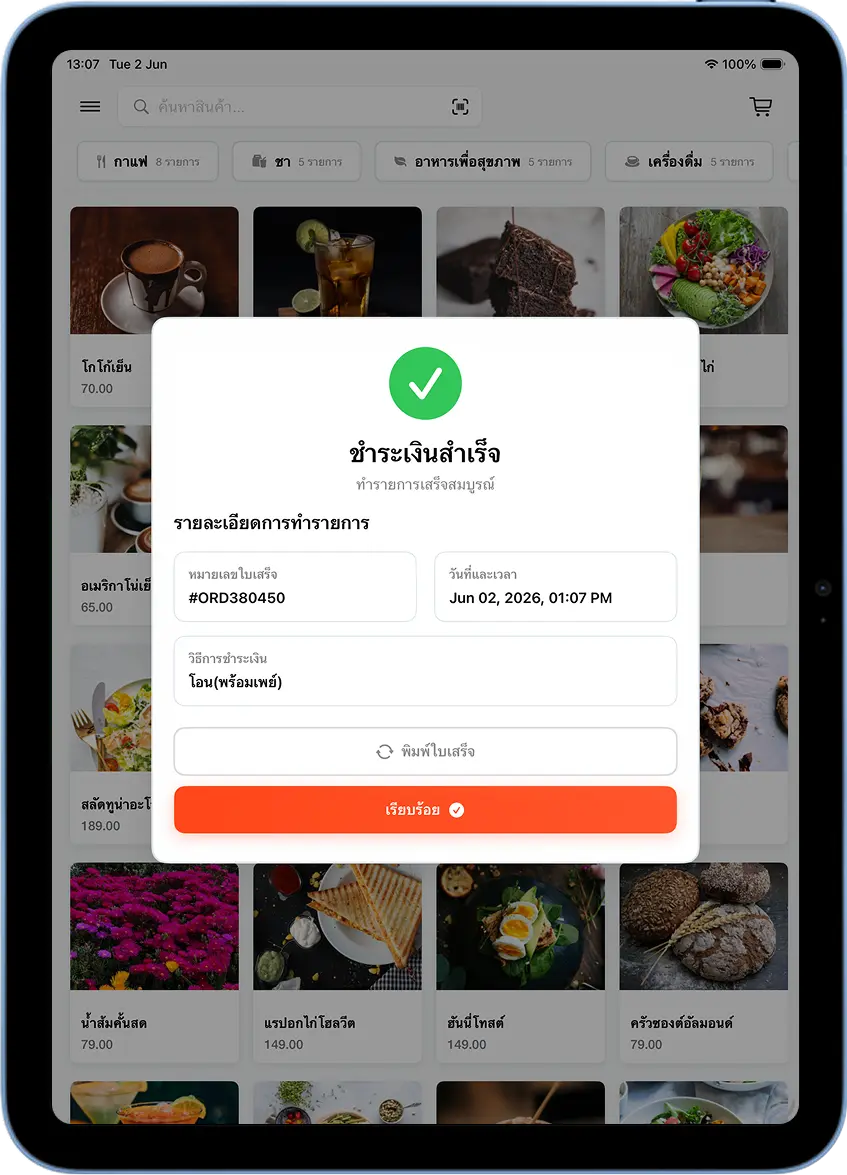
Once the system confirms the transfer, it shows a "Payment Successful" popup with details: the receipt number (e.g. #ORD380450), date and time, and payment method "PromptPay QR".
Tap "Print Receipt" to print, or "Done" to start the next bill.
How to Fix It: The App Closed While Waiting for QR Payment
If a QR code was already issued but the app closed unexpectedly, there's no need to generate a new one right away — open "Current Bills" to check the pending bill's status directly.
Open the Left Menu → Select 'Current Bills'
Tap the ☰ icon in the top-left corner, then select "Current Bills" under "Active Sales" to open the "Open Bills" screen.
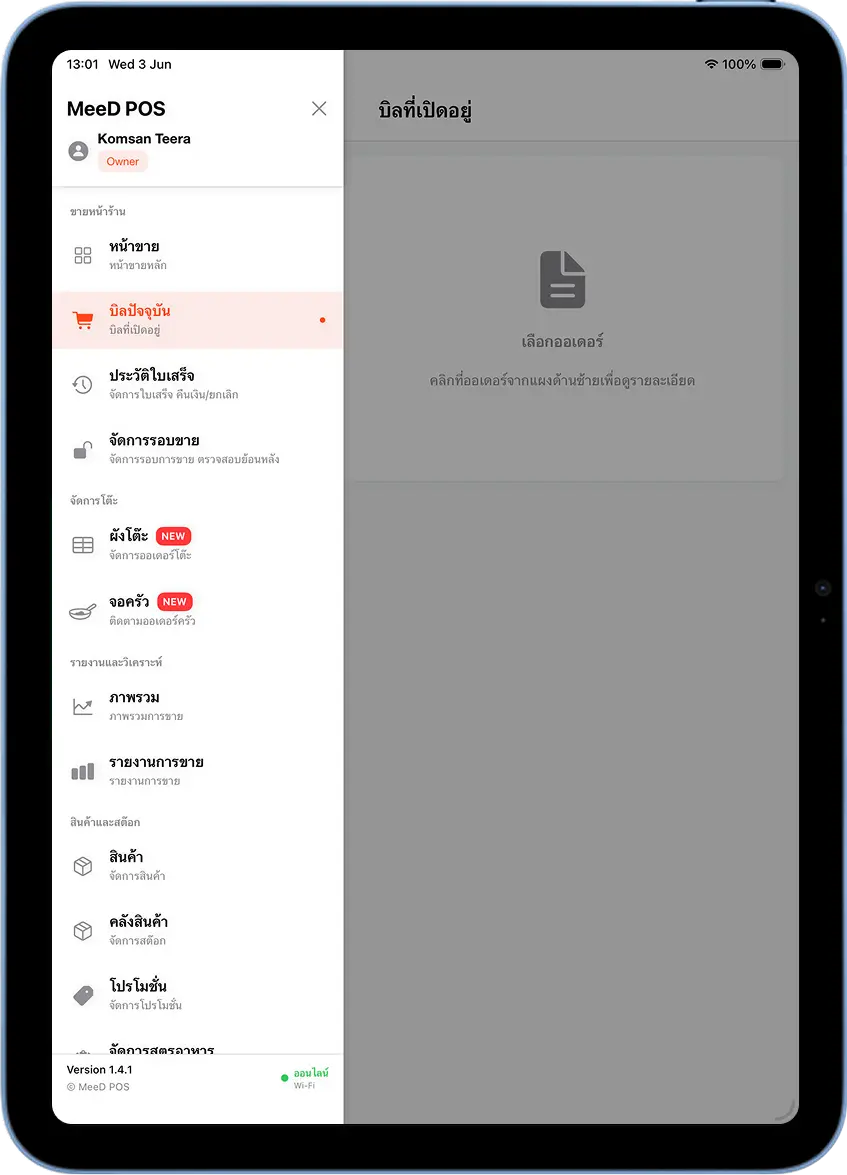
Select the Bill with the 'PromptPay QR Awaiting Transfer' Banner
In the list of open bills, look for the one with a blue "PromptPay QR Awaiting Transfer" banner. Tap it to open the details.
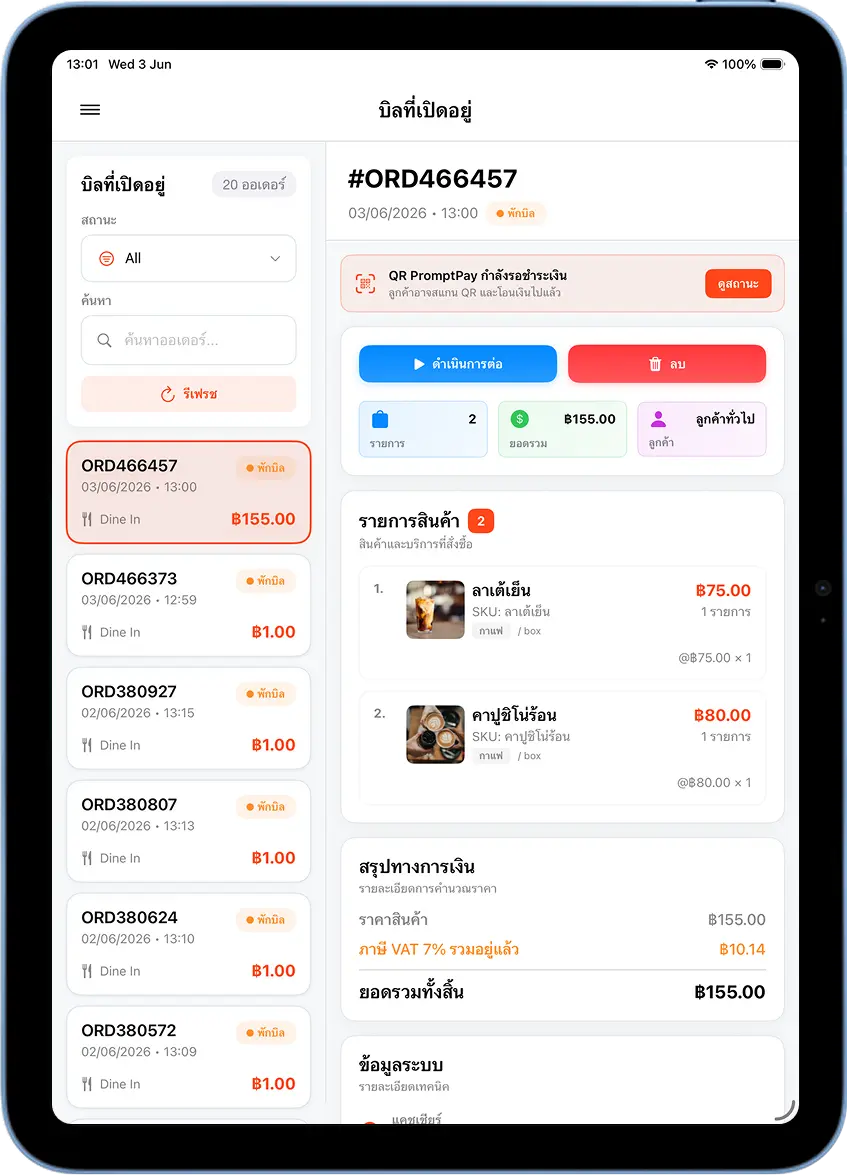
Return to the QR Screen and Refresh the Status
The system takes you directly back to that bill's original PromptPay QR screen, with the remaining validity countdown. If the QR code hasn't expired, turn the screen to the customer to scan, or tap "Refresh Status" to check whether they've already transferred.
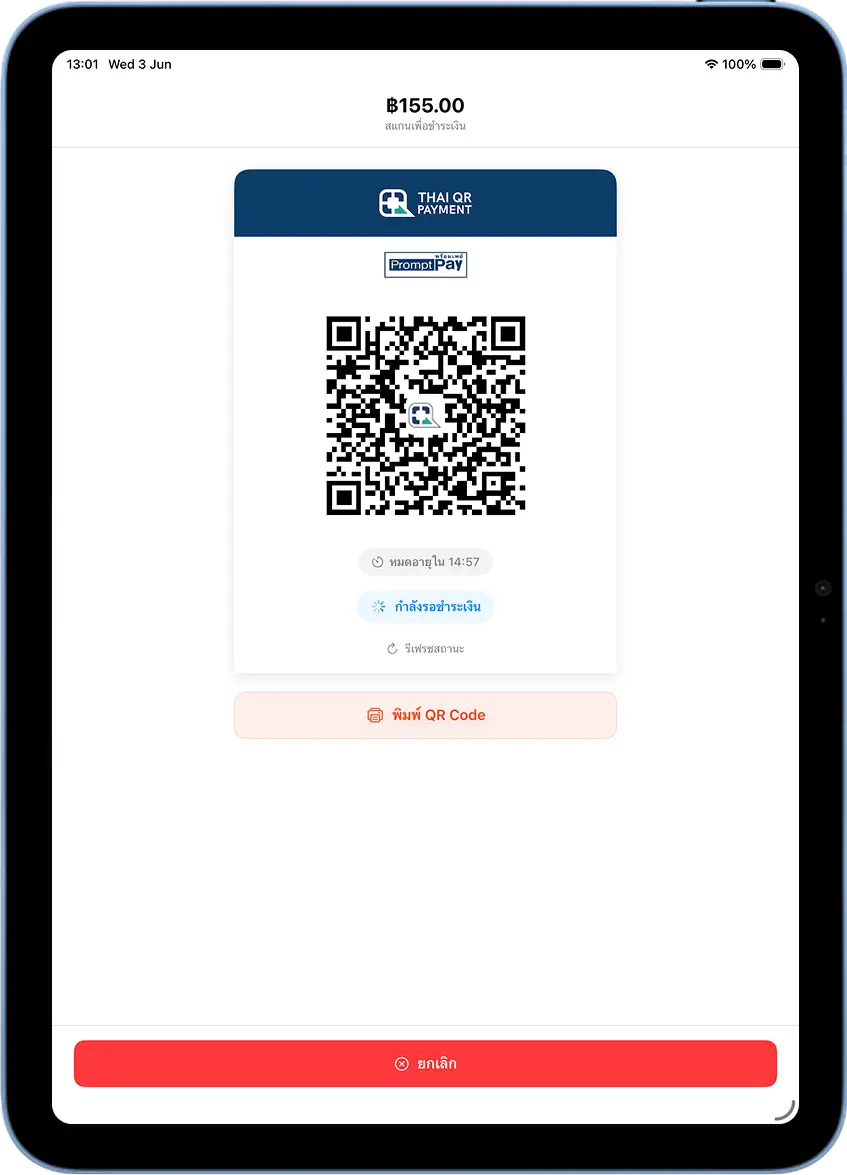
Cautions
QR codes have a limited validity
Each QR code is valid for about 15 minutes from creation. If a customer scans too late or it expires, tap "Generate New QR" to issue a fresh one.
Always confirm the transfer before closing a bill
Always check for a notification from your own banking app first — never rely solely on a customer's slip, since slips can be forged.
If a customer transfers the wrong amount
If the customer used a different QR code or a regular transfer instead of the locked-amount one and the amount is off, contact them to transfer the difference, or refund the excess and ask them to transfer again using the correct QR code.
Don't reuse a QR code across bills
Each QR code is tied to that specific order — never let a new customer scan a QR code from an old bill, since the amount won't match.
Tips for Cashiers
Turn up screen brightness before the customer scans
A brighter screen helps the customer's camera read the QR code faster and more accurately, especially in dimly lit shops.
Keep bank app notifications on at all times
Keep your shop's banking app set to show notifications on the iPad screen, so you can confirm payment instantly without opening another app.
Recommend a PromptPay-compatible banking app
Every major Thai banking app and popular payment apps like TrueMoney Wallet support scanning locked-amount PromptPay QR codes. If a customer can't scan, ask what app they're using.
Frequently Asked Questions
What do I do if the QR code expires?
Tap "Generate New QR" on the payment screen — the system issues a new code with the same amount instantly. The order isn't lost, and the customer can scan the new code.
Which banking apps does this work with?
All major Thai banking apps that support PromptPay — SCB Easy, Krungthai NEXT, K PLUS, Bangkok Bank Mobile, KMA, ttb touch, UOB TMRW — plus TrueMoney Wallet and any app with PromptPay QR scanning.
The customer transferred, but the system hasn't updated — what do I do?
Tap "Refresh Status" below the QR code and wait a moment — the system pulls fresh data from PromptPay. If it's still not updating, check your shop's banking app to confirm the money actually arrived before proceeding.
How is this different from a regular transfer?
A locked-amount PromptPay QR code embeds the payment amount directly, so customers see it instantly with no typing. With a regular transfer, customers enter the amount themselves, risking errors, and you have to check and verify the slip every time.
Related Articles
Need More Help?
Have a question about setting up PromptPay QR codes, or want the team to walk you through it? Get in touch.