How to Issue Stock Out of Inventory
A Stock Issue in MeeD POS records stock or ingredients leaving inventory for reasons other than a sale — write-offs, internal use, damaged goods, or expired items. Every issue has a clear reason attached, and can be reviewed later to trace exactly why stock left the shelf.The main flow is: create an issue → select a reason → add items and quantities → Save Draft to confirm later, or Confirm Issue immediately. Once confirmed, the system deducts stock instantly, and the quantities can no longer be edited — void it and create a new one if something was entered wrong. Issues can be downloaded as a PDF for record-keeping at any status.
MeeD POS Team · Tested on Web Dashboard ·
Why Issue Stock Through the System Every Time
If staff pull items from inventory without recording it, system stock numbers drift further from reality over time, and when something goes missing there's no way to trace where it happened. Issuing through the system every time provides:
- Stock always matches reality — Every item leaving inventory is deducted the moment it's confirmed, keeping inventory reports trustworthy.
- Real monthly waste value — "Damaged" and "Expired" reasons are tracked separately, surfacing numbers that need fixing.
- Every entry is traceable — Each issue records the reason, date/time, and unit cost, and can be downloaded as a PDF for evidence.
- Save as Draft first — If the count isn't finished yet, save it as a draft and confirm later — stock stays untouched until confirmed.
How to Issue Stock
Log In to the MeeD POS Dashboard
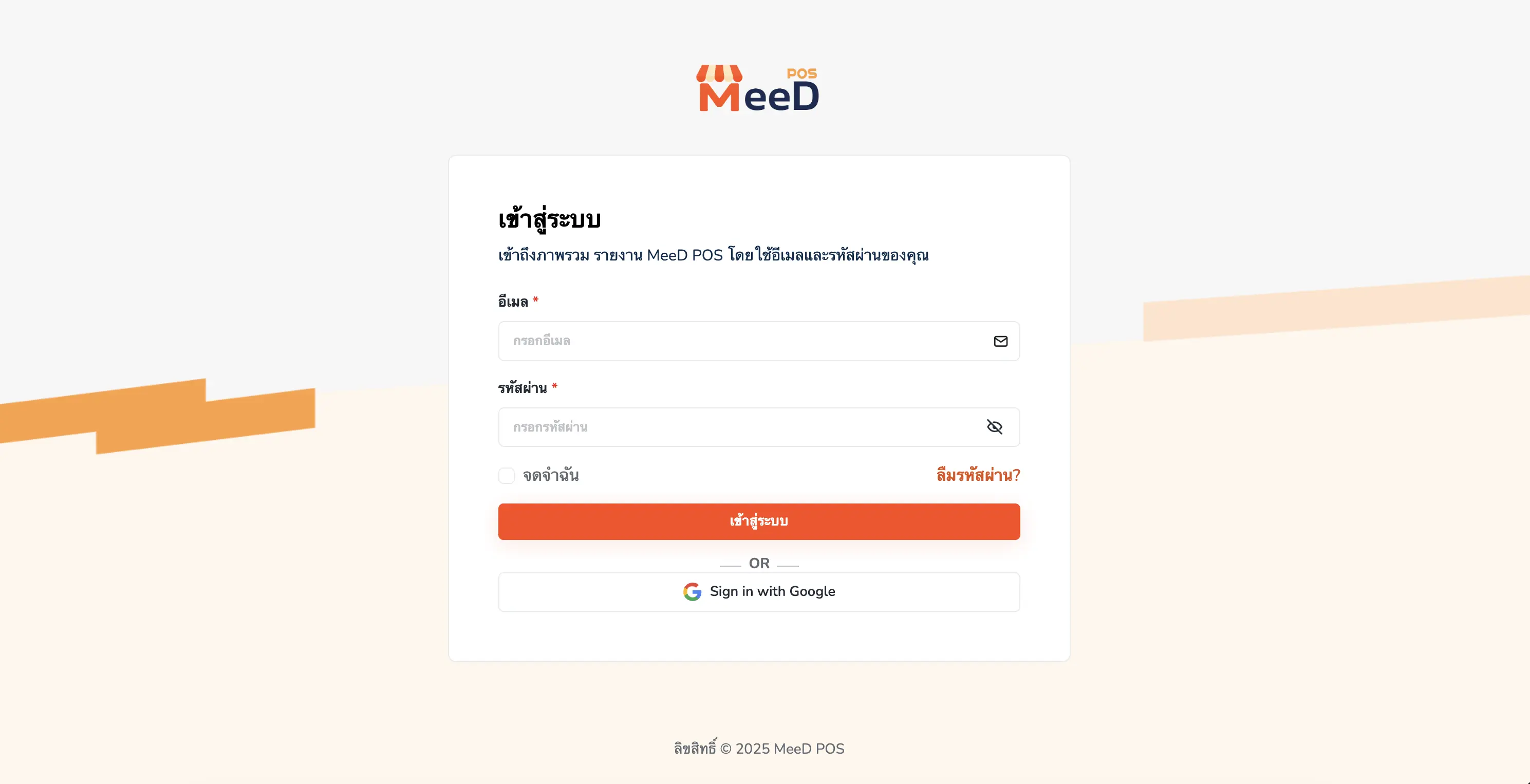
Open a browser and go to the MeeD POS Dashboard. Enter your email and password, then tap "Log In", or choose "Sign in with Google".
Go to 'Stock Issue' and Tap 'Create Issue'
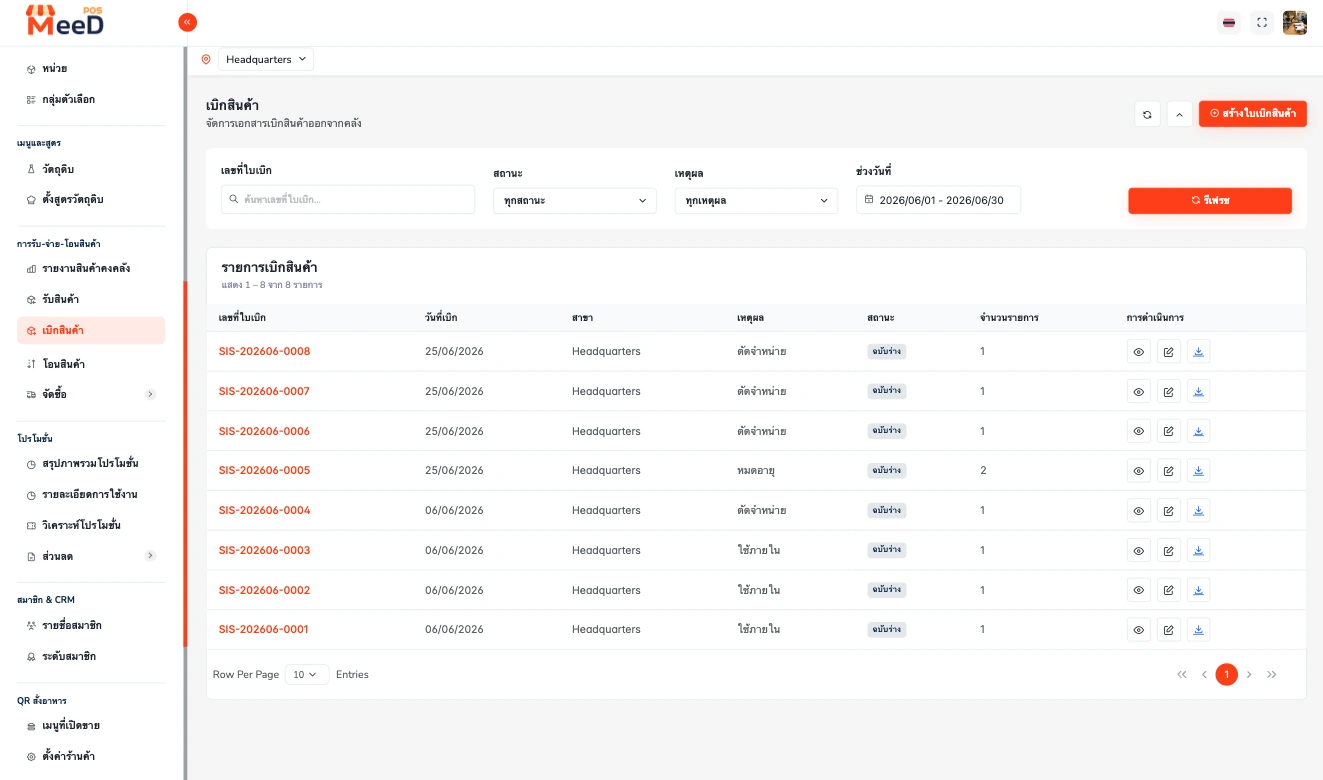
Select the branch (Headquarters) from the selector at the top, then go to the left menu: "Receiving/Issuing/Transfers" → "Stock Issue". This page lists every issue, with filters for issue number, status, reason, and date range.
The table shows columns for Issue Number (e.g. SIS-202606-0008), issue date, branch, reason, status, item count, and view/edit/download PDF buttons at the end of each row. Tap the orange "Create Issue" button in the top-right corner to start a new one.
Select a Reason and Fill In the Header Info
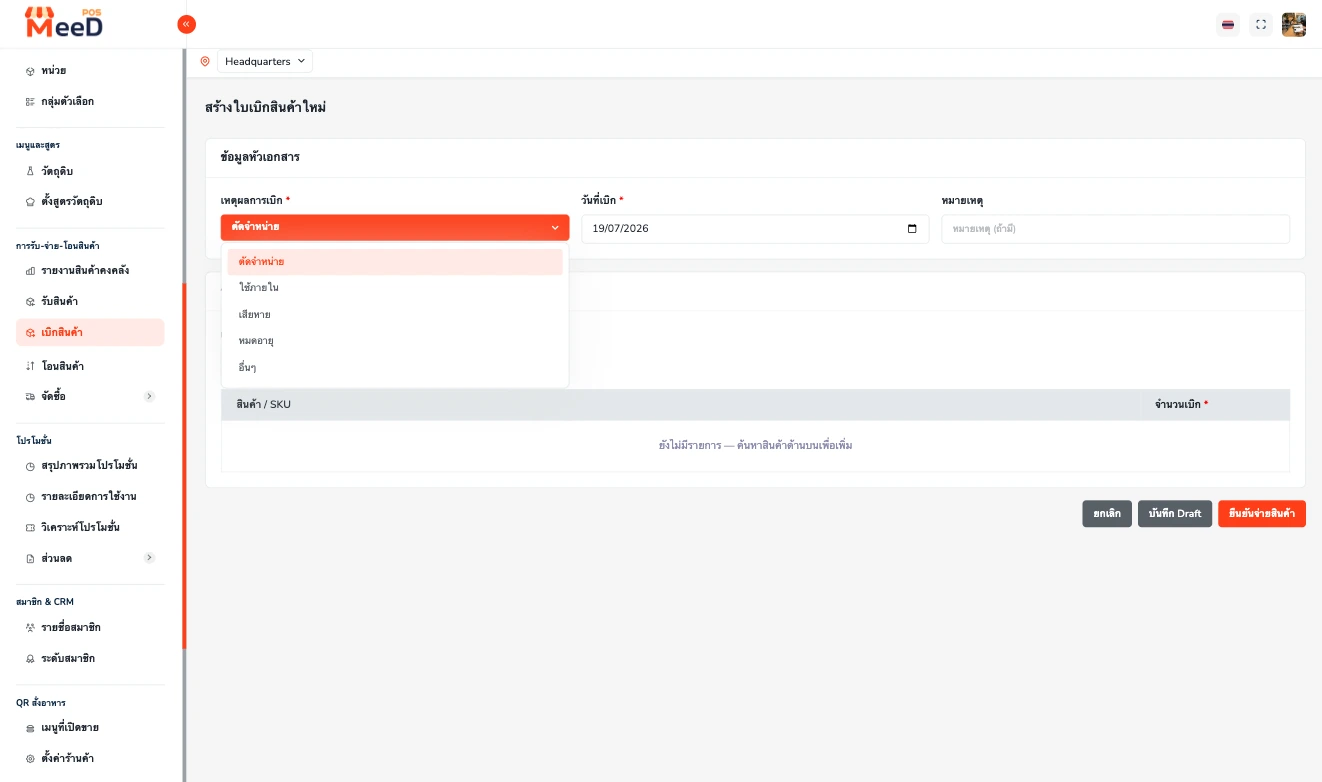
The system opens the "Create New Issue" screen. In the "Header Info" section, fill in: Reason — required, choose from Write-Off, Internal Use, Damaged, Expired, or Other; Issue Date — required, defaults to today's date; and Note — optional, extra details, e.g. what caused the damage.
Add Items and the Quantity to Issue
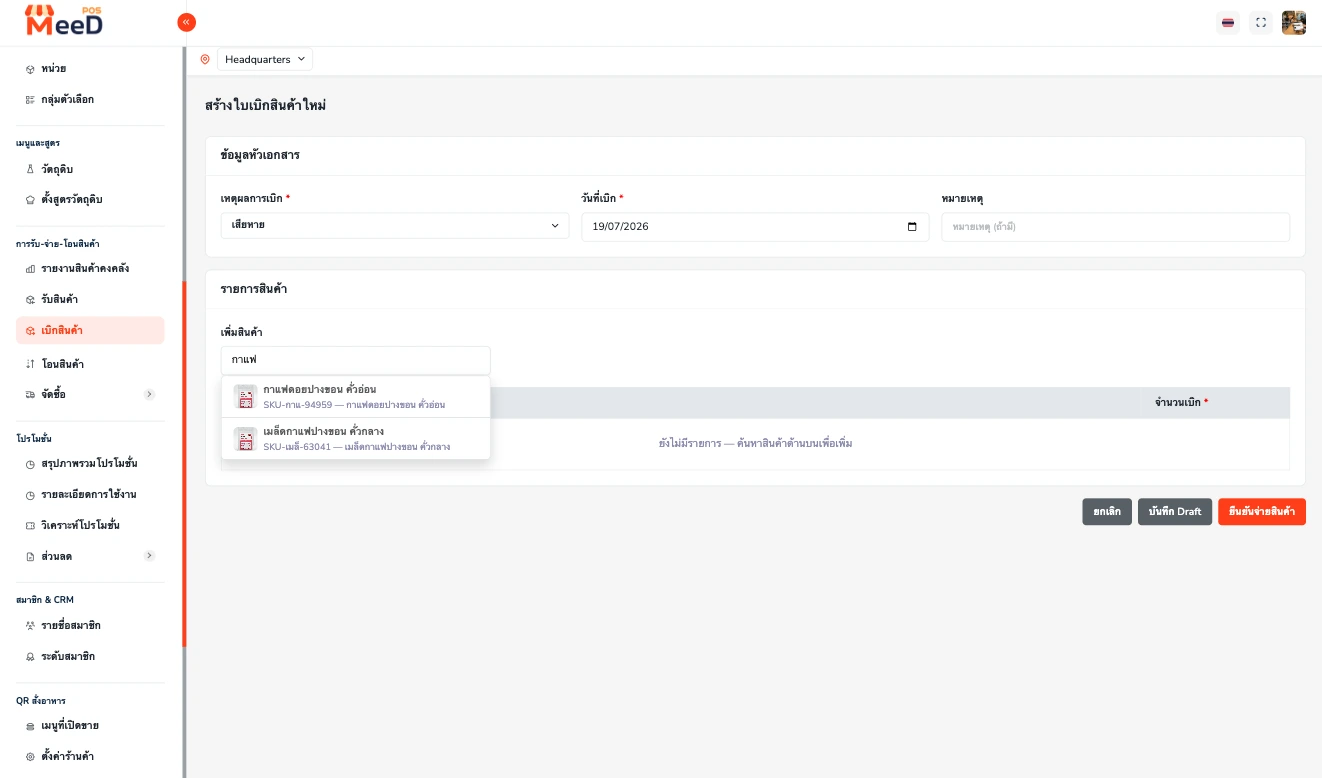
In the "Add Product" field under "Items", search for and add products or ingredients. Enter the Quantity to Issue for each item (required) — add as many items as needed to one issue.
Save as Draft or Confirm Immediately
Verify the items and quantities are correct, then choose one of two paths: "Save Draft" — keeps the issue without affecting stock yet, status DRAFT, with quantities still editable and confirmable later; or "Confirm Issue" — deducts stock instantly, status changes to CONFIRMED.
Once confirmed, the system deducts stock instantly and logs an OUT movement with a snapshot of the unit cost and remaining balance. The detail page then only shows "Download PDF" and "Void" buttons (the edit button disappears).
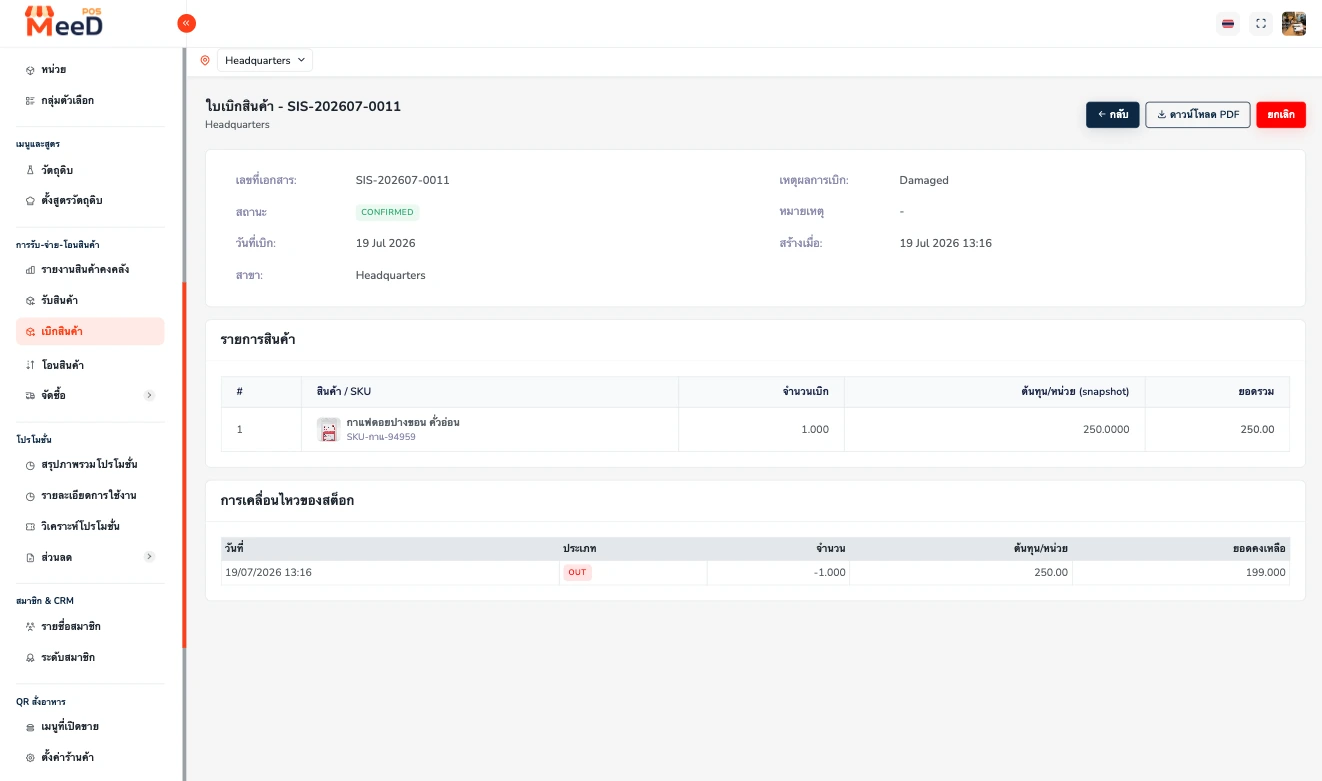
Good to Know About Stock Issues
Issuing stock ≠ deducting from a sale
In-store sales already deduct stock automatically per the recipe (BOM). Stock issues are only for items leaving inventory outside of a sale.
Draft is editable, confirmed is not
A Draft issue's quantities can be edited freely, but once confirmed, quantities are locked instantly — void the whole issue and create a new one if something was wrong.
Set the rule: "No issue record = nothing leaves inventory"
The single rule that makes the system actually work.
Log waste every day before closing
It only takes a few minutes, and it's better than letting the numbers drift over time.
Frequently Asked Questions
Do I need to create a stock issue for in-store sales?
No — in-store sales already deduct stock automatically per the recipe (BOM). Stock issues are only for items leaving inventory outside of a sale — write-offs, internal use, damage, or expiry.
Can I save a draft and confirm it later?
Yes — tap "Save Draft" to keep the issue without affecting stock yet. Useful when the count isn't finished. When ready, open the draft, adjust quantities, and confirm the issue.
I already confirmed an issue — can I edit the quantities?
No — a confirmed issue (CONFIRMED status) locks quantities instantly and stock has already been deducted. If something was entered wrong, void the whole issue to pull stock back, then create a corrected one.
Can I see how much waste was logged this month?
Yes — issues with a Damaged or Expired reason are tracked separately in the system. Filter by "Reason" on the issue list page, and view total value from each issue's totals.
Related Articles
Need More Help?
Running into an issue with stock issuing or a stock mismatch? Want the team to take a look? Get in touch.