How to Adjust Member Loyalty Points
Use this when you need to manually add or deduct points for a member — for example, forgetting to select the customer before checkout, awarding bonus points, or correcting a mistaken entry. Every adjustment is logged in the history with a timestamp.
MeeD POS Team · Tested on real iPad ·
How to Adjust Points
How to Adjust Points
Open the 'Customers' Menu and Tap the Name to Adjust
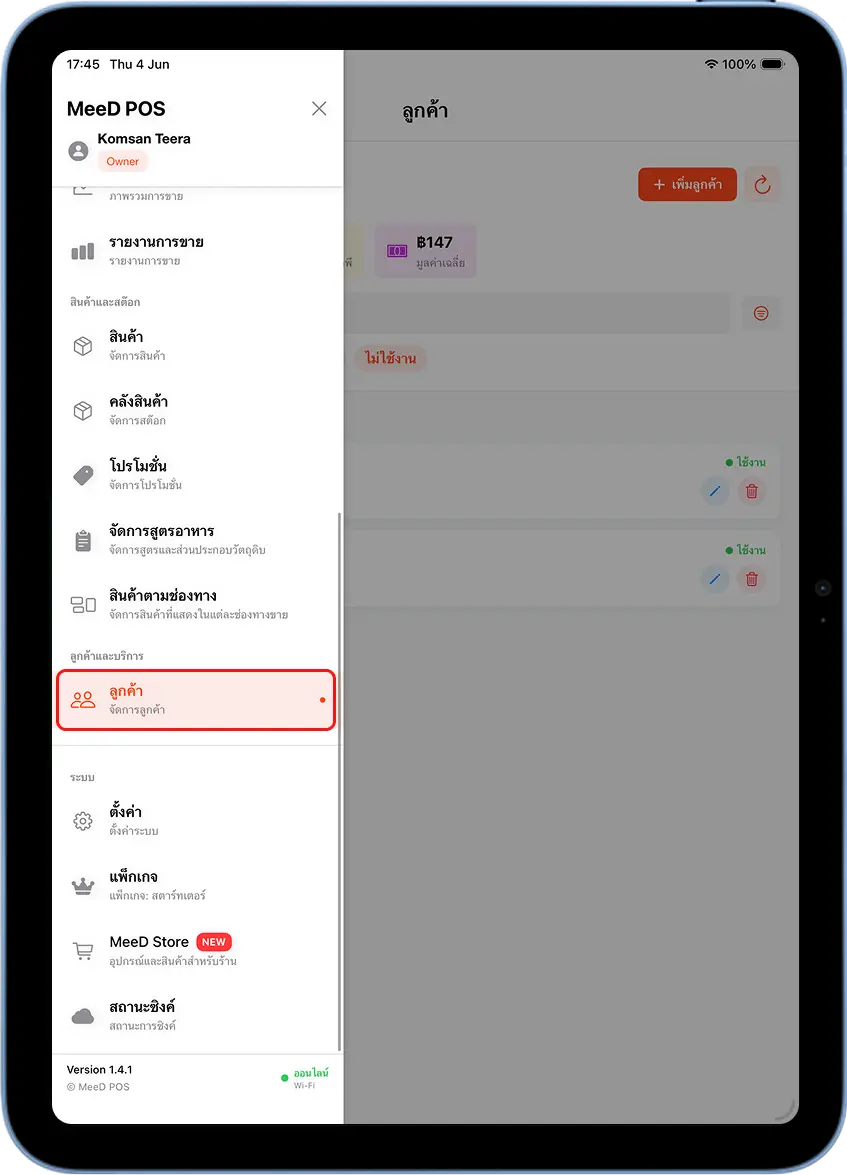
Tap ☰ in the top-left corner, scroll down to "Customers & Services", and tap "Customers".
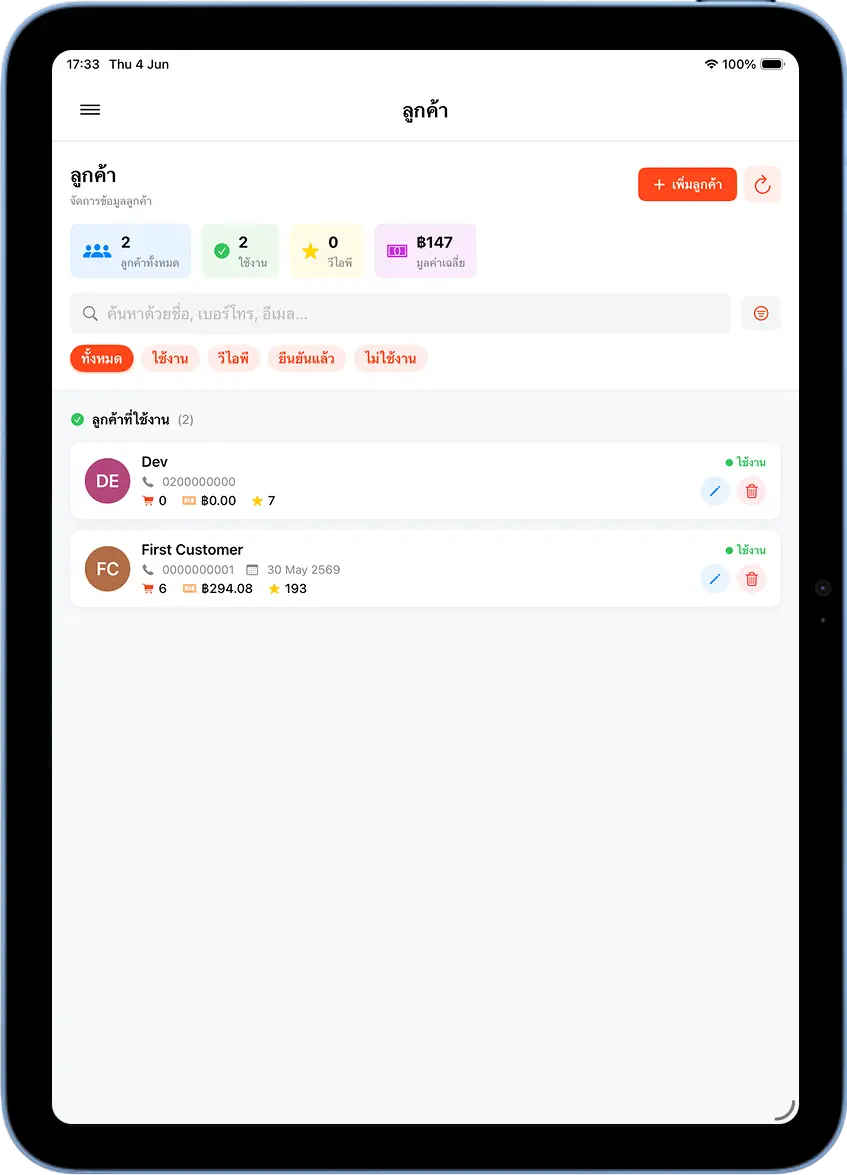
On the "Customers" screen, tap the customer's name to open their details.
View Customer Info and Current Points
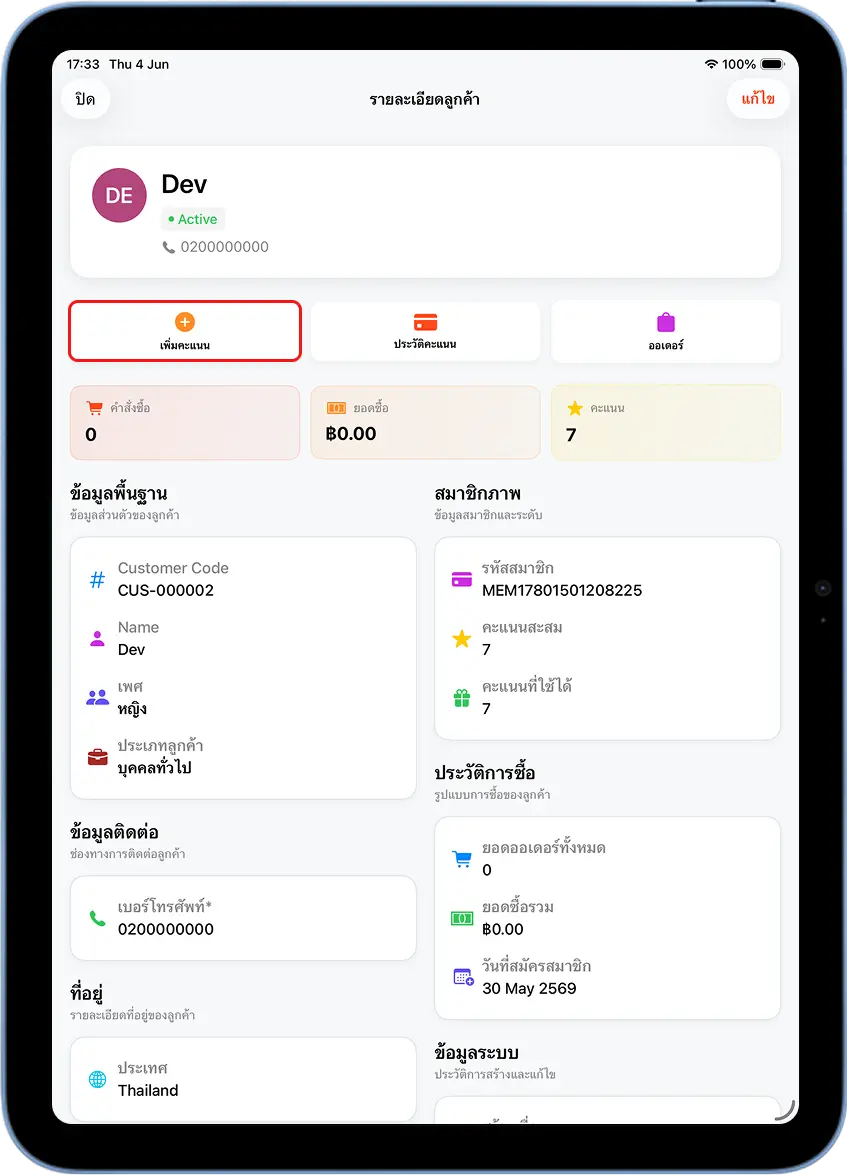
The "Customer Details" screen shows all their info, including Points Balance and Usable Points under "Membership". Above it are "Add Points" and "Points History" tabs for management.
Tap 'Add Points' — Enter an Amount and Confirm
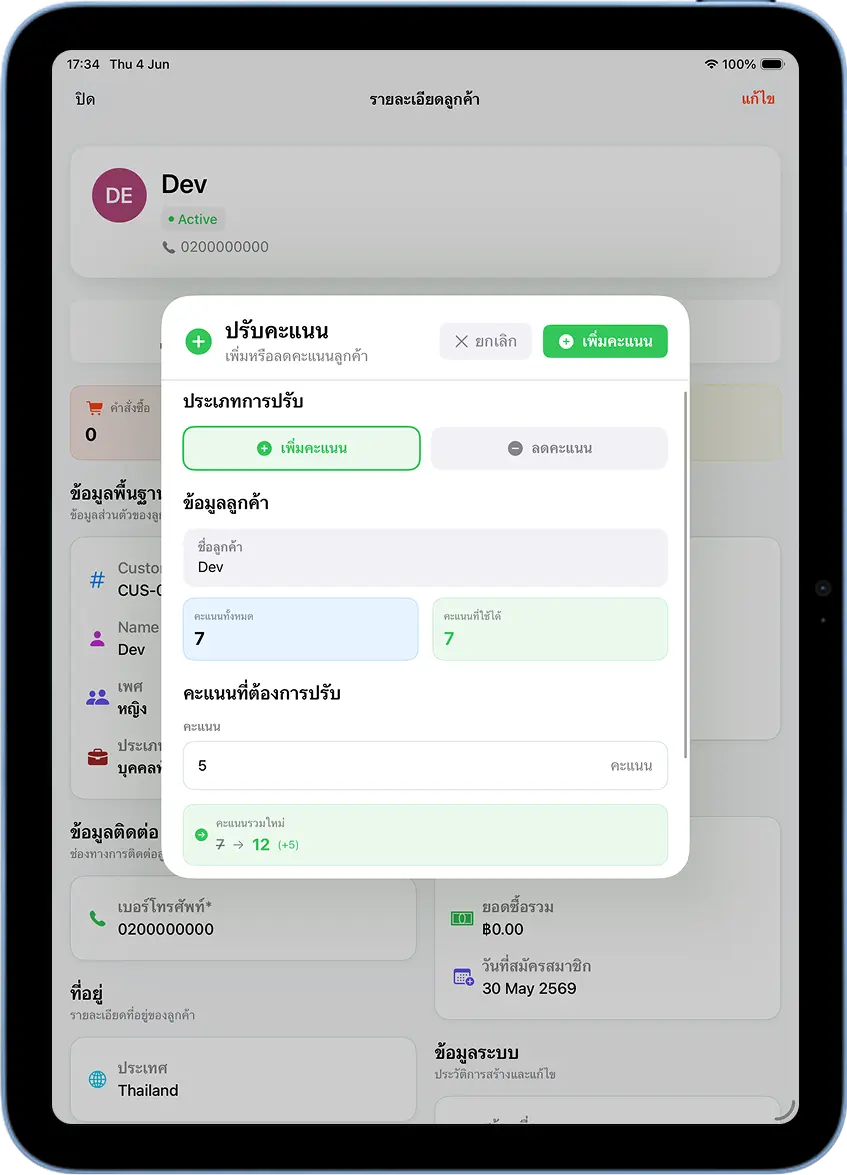
Tap the "Add Points" tab — the "Adjust Points" popup opens, defaulting to "Add Points" mode (green button). Enter the number of points to add in the "Points to Adjust" field — the system shows a preview, e.g. 7 → 12 (+5), before confirming.
Double-check the number, then tap the green "+ Add Points" button.
Tap 'Deduct Points' — Enter an Amount, a Note, and Confirm
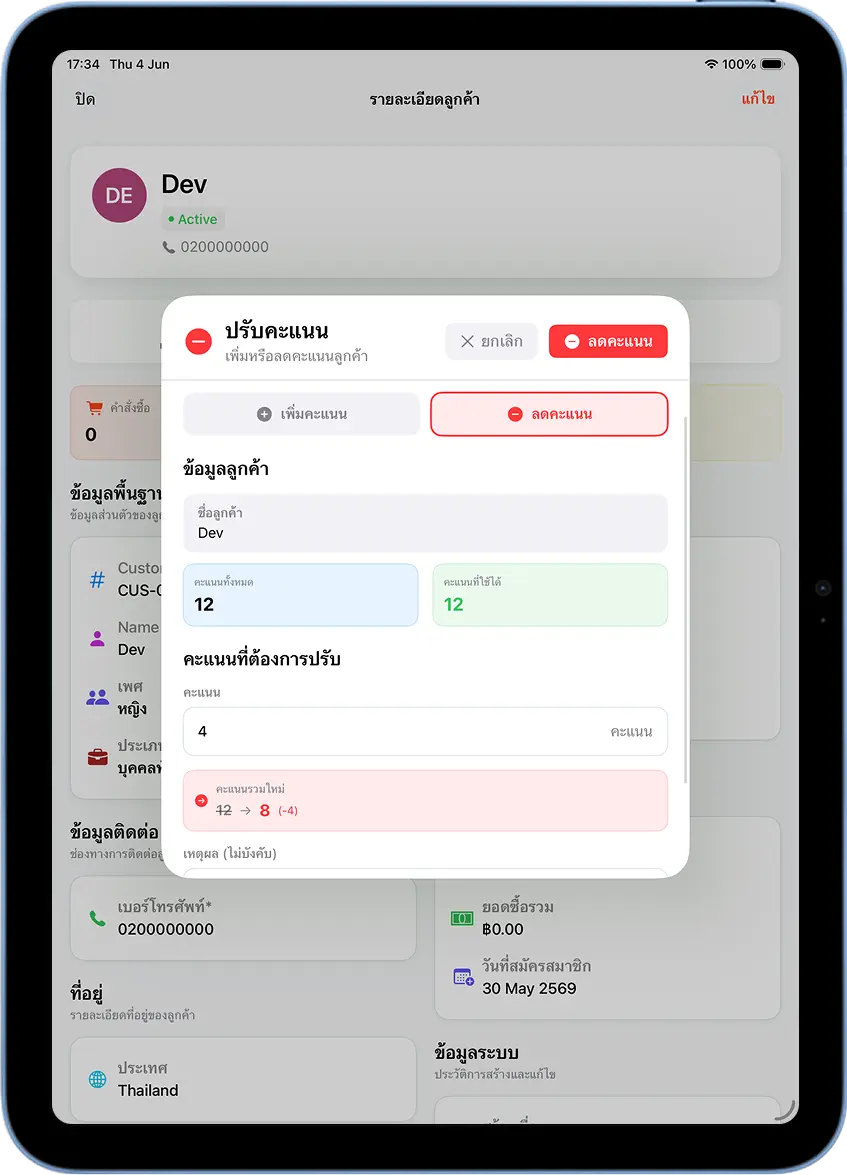
On the same screen, tap the "Deduct Points" tab (top right) — the popup switches to deduct mode. Enter the number of points to remove — the system shows a preview, e.g. 12 → 8 (-4), with an optional "Note" field for the reason.
Enter a note if you'd like, then tap the red "Deduct Points" button.
Check the Points Adjustment History
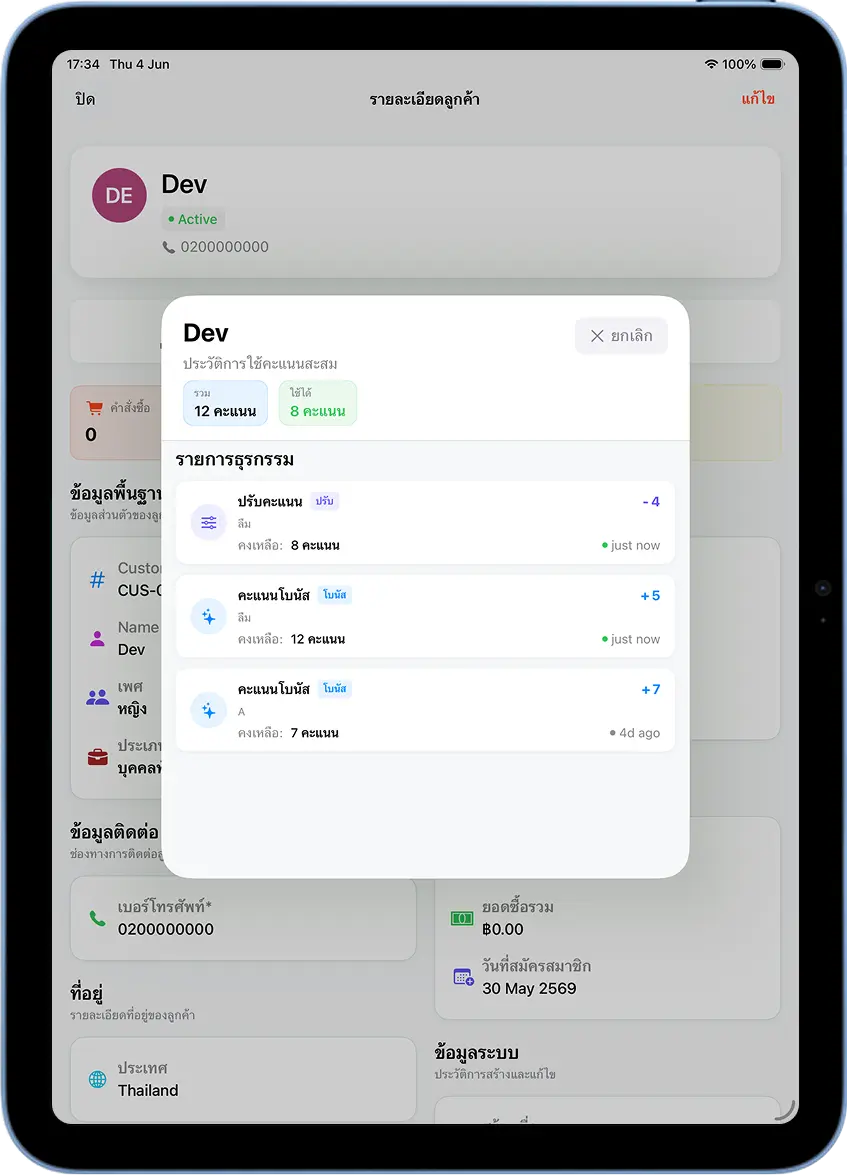
Tap the "Points History" tab on the customer detail screen — the popup shows a full timeline of point movements, with timestamps and notes, e.g. "Adjusted -4", "Bonus points +5".
Cautions
Requires Owner or Admin access
Regular staff accounts can't access the points adjustment menu. If the option isn't visible, check the permission level of the account in use.
Adjustments aren't tied to a bill automatically
Manually backdating points is logged as a separate entry, not linked to any bill or order — the history shows it as a "Points Adjustment", not a purchase.
Adjustment history can't be deleted
Every points adjustment is recorded permanently — always double-check the number before confirming.
Tips for Managers
Always add a note when deducting points
Even though the note field is optional, stating a reason makes it much easier to review later — e.g. 'correcting a mistaken entry' or 'year-end points reduction policy'.
Use it to award bonus points
This feature works directly for giving loyal customers bonus points — a birthday, the 100th customer, or a special shop promotion.
Check history before every adjustment
Tap "Points History" to see how many points a customer has earned or used before, helping you adjust the number more accurately.
Frequently Asked Questions
I forgot to select a customer before checkout — can I add points after the fact?
Yes — go to "Customers", tap the customer's name, then tap "Add Points", enter the amount, and tap "Confirm". The system records it and marks it in the history as a manual adjustment.
What permissions are needed to adjust points?
Only an account with Owner or Admin access — regular staff accounts can't adjust points.
Can I see who made a points adjustment?
Yes — tap "Points History" on the customer detail screen to see a timeline of every adjustment, with timestamps and any notes entered.
Can points go below 0?
No — the system won't allow points to drop below 0. If you enter more than the customer has, it prompts you to re-enter.
Related Articles
Need More Help?
Have a question about membership or points adjustments? Get in touch with the team.