How to Set Up Cup Sticker Printing (Per Unit)
A Cup Sticker is a small printout showing the menu item, options (sweetness/ice/toppings), and order number, meant to be stuck onto each drink cup. It helps baristas and serving staff know which cup is which item, reducing mix-ups when an order has multiple cups, especially during busy rushes.MeeD POS supports a "Sticker (Per Unit)" printing mode that prints one sticker per cup, with a sequence number like [1/4], making it easy to check that an order is complete. This guide covers the full setup — opening printer settings, choosing 58mm paper, setting the printer type, selecting which product categories get stickers, all the way to testing a real order and checking the printout. Ideal for bubble tea shops, coffee shops, and any beverage business that wants fewer serving mistakes.
MeeD POS Team · Tested on real iPad · Reviewed by the technical support team ·
Which cup-sticker printing method should you use?
This guide is for a 58mm receipt printer loaded with continuous sticker paper. If your store needs pre-cut labels that are ready to peel and apply, use the related Xprinter XP-420B guide instead.
- Use this method — When you already have a 58mm receipt printer and want to print on continuous sticker paper
- Use the XP-420B method — When you need individual cup labels that the printer detects and advances one at a time
- Same printing result — Both methods use Sticker (Per Unit) mode to print one sticker for every drink
What You'll Need Before Starting
- A sticker printer — Already connected to the iPad
- 58mm sticker paper — Loaded into the printer
- The MeeD POS app — Open and logged in with admin access
- A product category — A beverage category already set up
How to Set It Up
Step 1 — Load the Continuous Sticker Roll
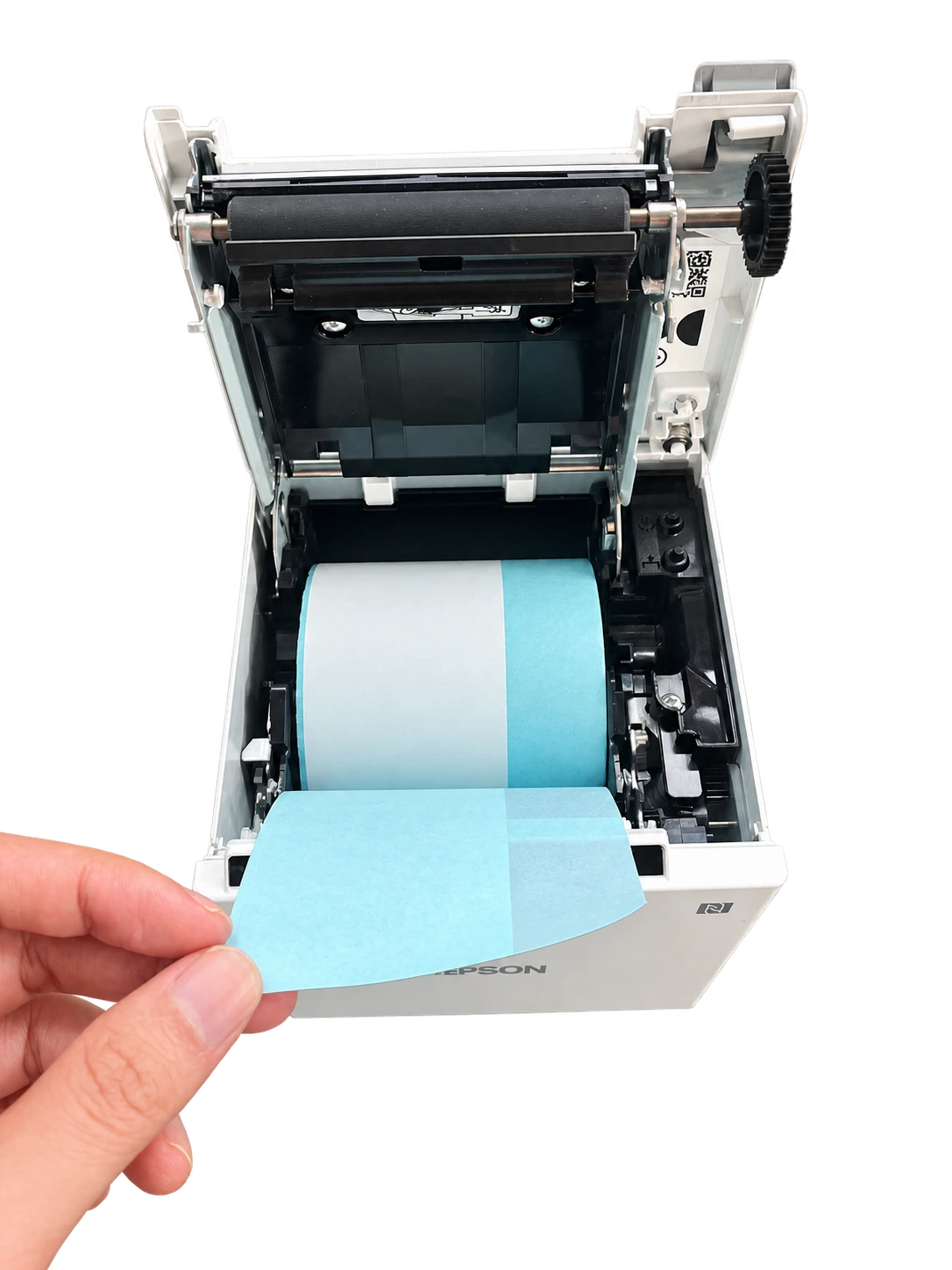
Open the Printer and Load the Sticker Roll
Open the printer cover and place the 58mm continuous sticker roll in the paper compartment. Feed the paper toward the front opening with the printable side facing the print head.
Pull a short length past the front edge, center the roll and paper guides, then close and latch the cover. Press Feed once to confirm that the paper advances straight without binding.
Step 2 — Open the Printer Settings Menu
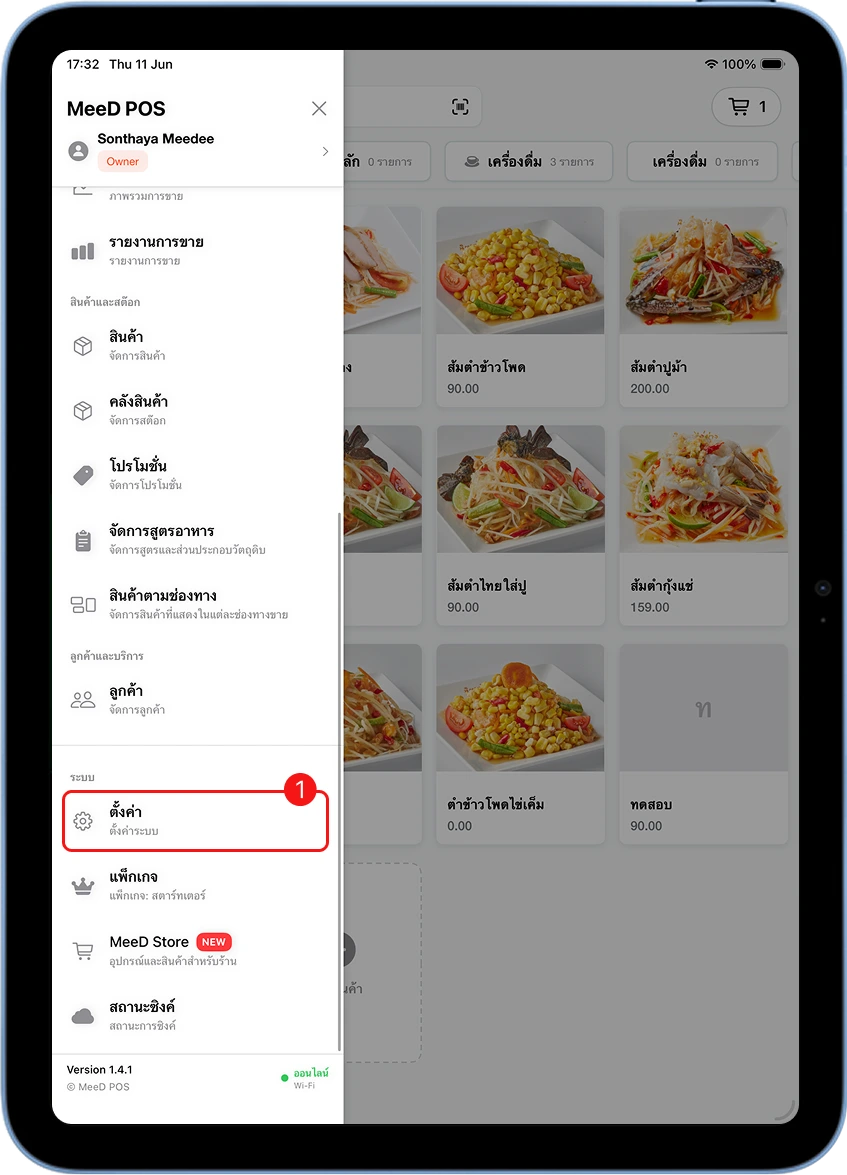
Open the MeeD POS Menu → Tap 'Settings'
Open the MeeD POS app on iPad, tap the ☰ icon in the top-left corner, then select "Settings".
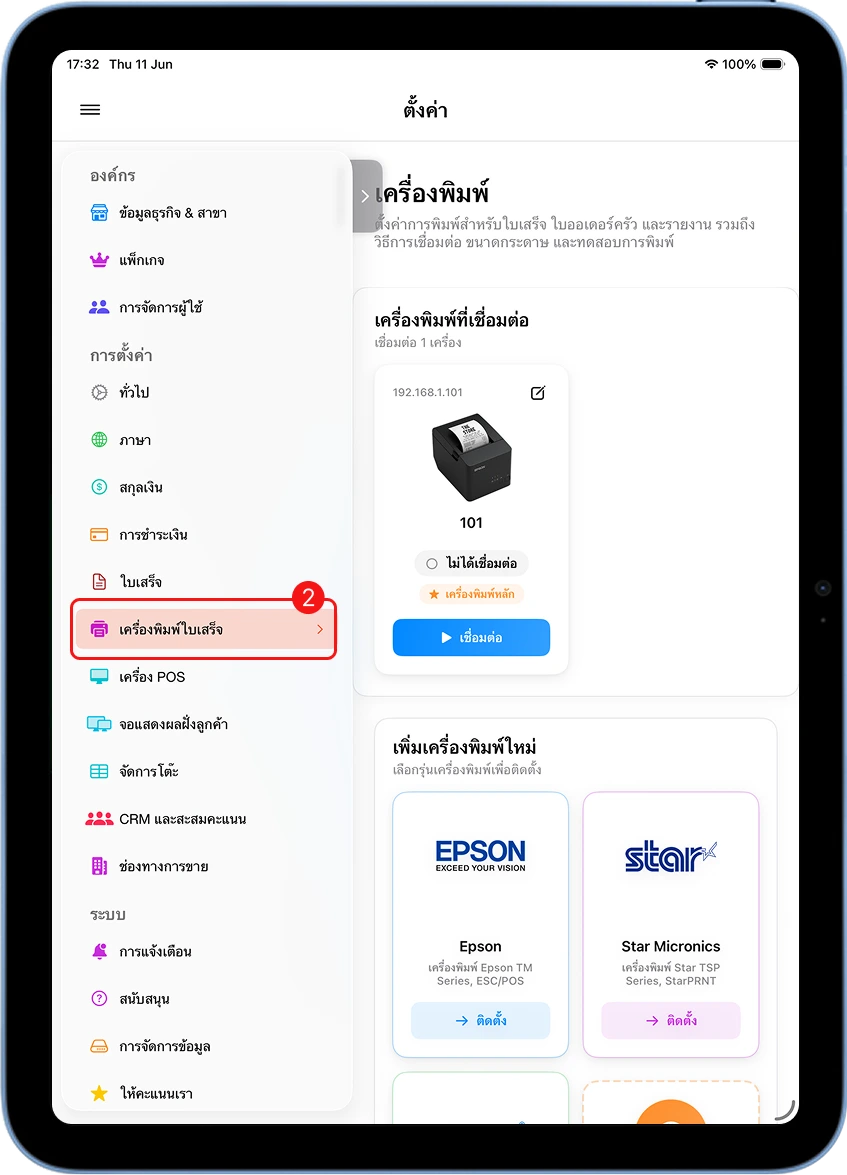
Select 'Printer Settings'
On the settings screen, select "Printer Settings" to see the list of printers connected to the system.
Step 3 — Set the Printer Type to Sticker
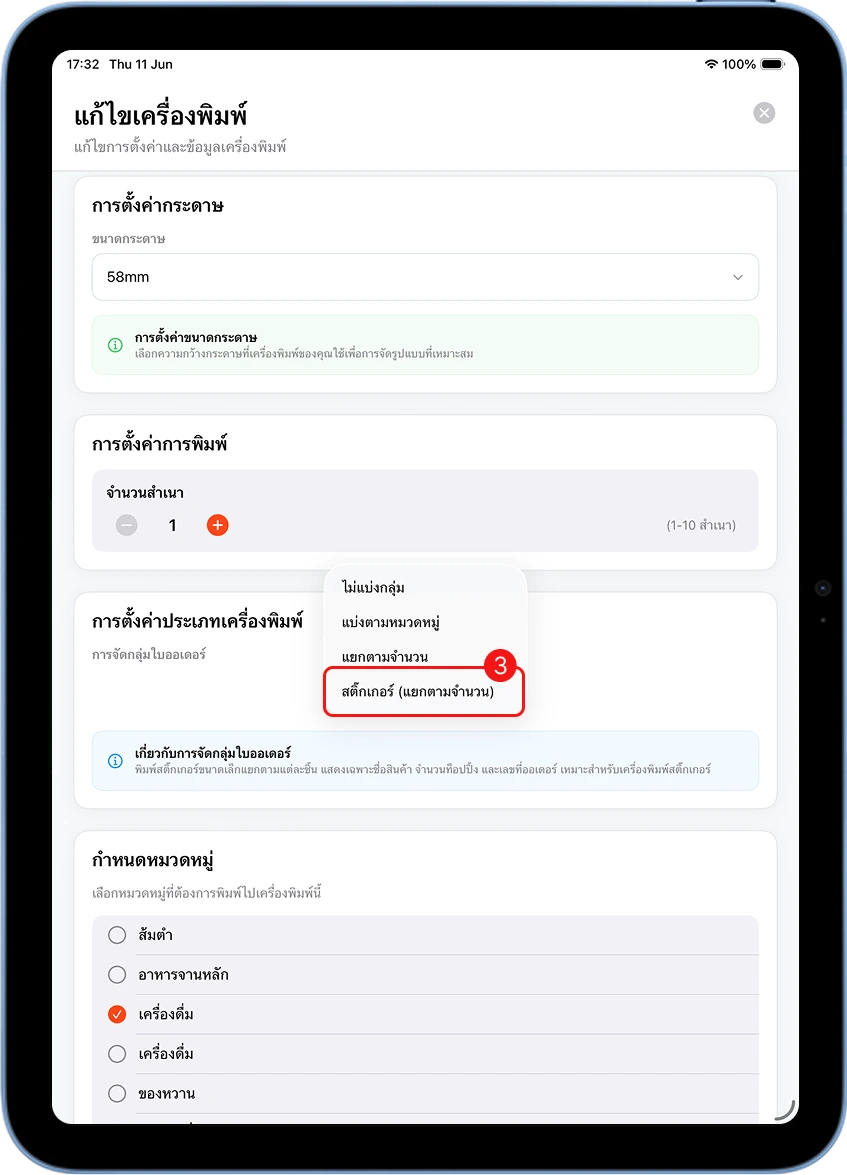
Edit the Printer → Select 'Sticker (Per Unit)' Type
Tap the printer you want to edit, set the Paper Size to 58mm, and set the Copy Count. Then open the "Printer Type" dropdown and select "Sticker (Per Unit)".
| Printer Type | How It Prints | Best For |
|---|---|---|
| Ungrouped | Prints all items together on one ticket | A general order-summary receipt |
| By Category | Prints separate tickets per product category | Sending orders to separate kitchen/bar stations |
| By Quantity | Prints a separate ticket per unit | Kitchens that need one ticket per item to prepare |
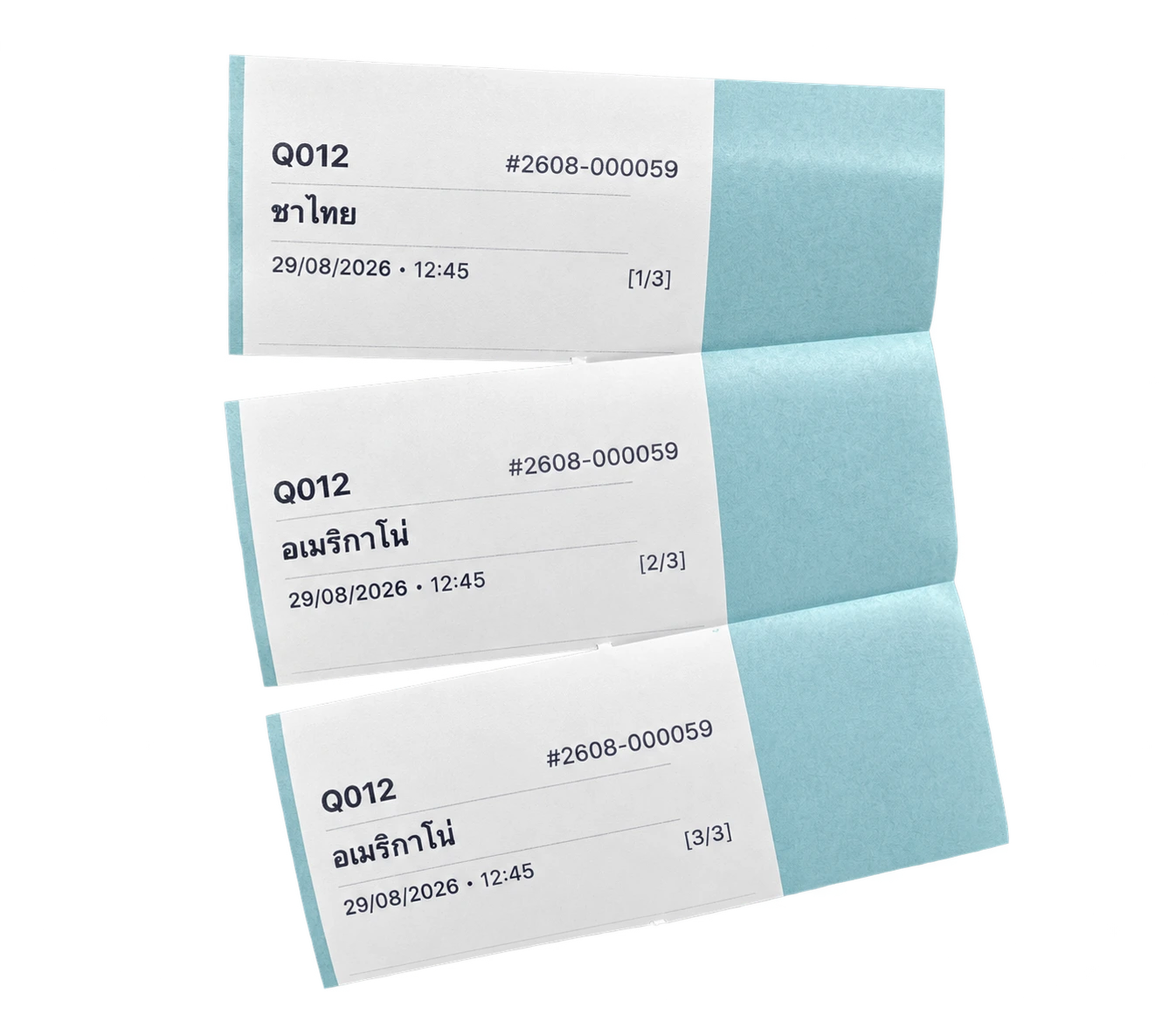
| Sticker (Per Unit) | Prints a separate sticker per unit, with a sequence number like [1/4] | Sticking onto each drink cup |
Step 4 — Select Which Categories Get Stickers
Check Off a Category, e.g. 'Beverages' → Save
Scroll down on the printer settings screen and check off the product category you want stickers for. For bubble tea and coffee shops, select "Beverages", then tap "Save".
Step 5 — Test an Order and Check the Printout
Create a Test Order and Pay
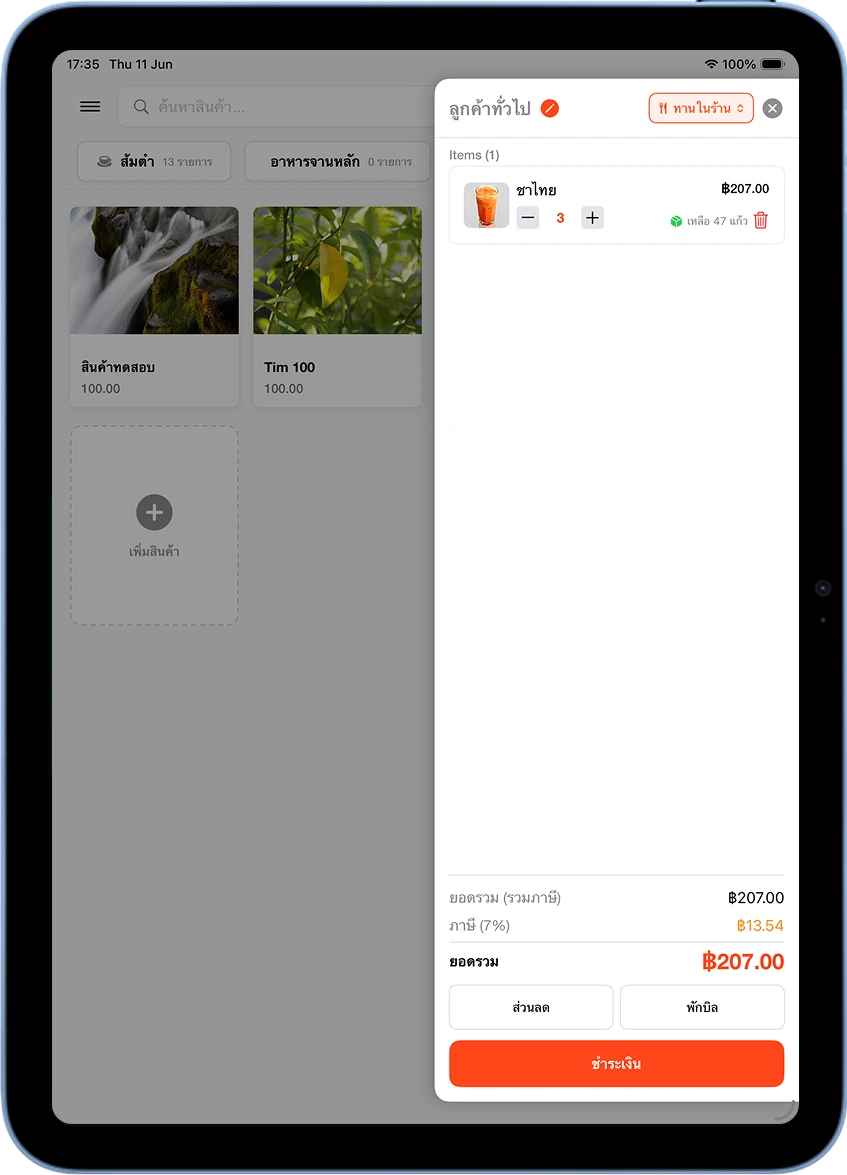
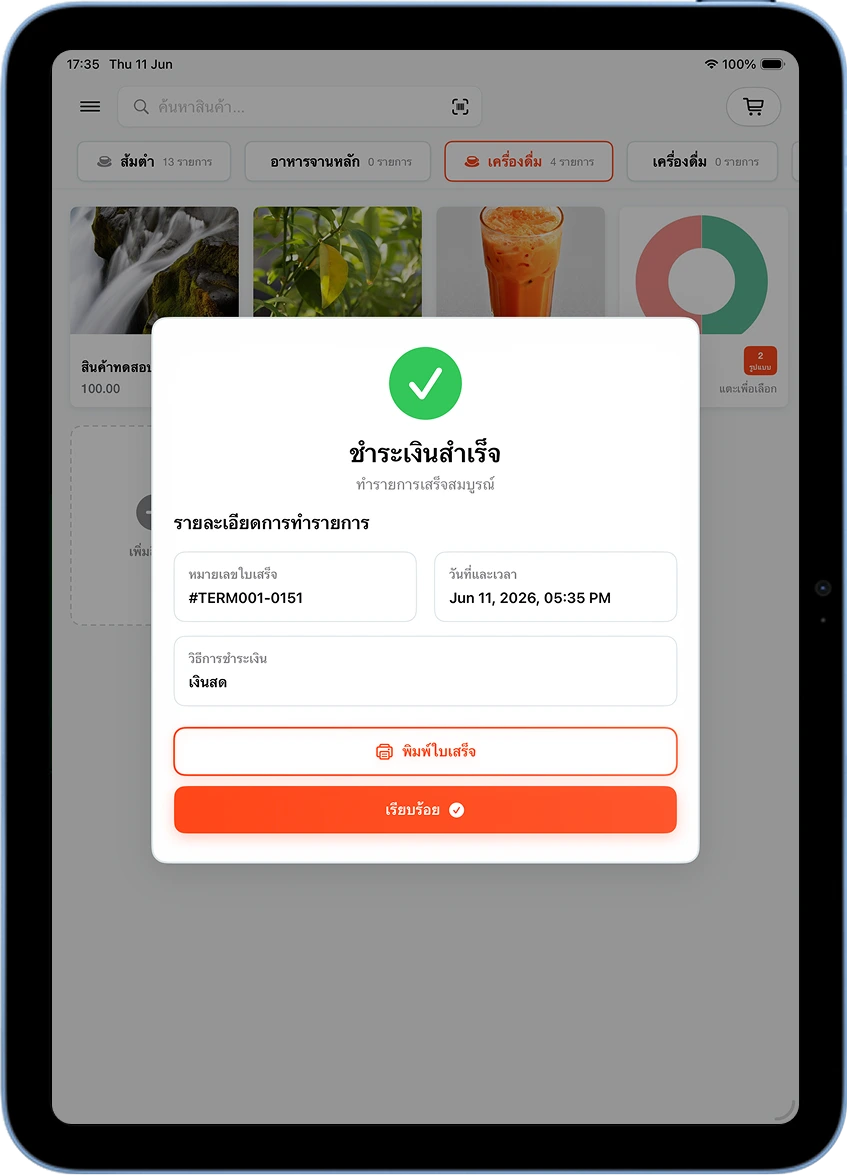
Go back to the main sales screen and order a test drink, e.g. 3 Thai teas totaling ฿207, then tap Pay. Once payment completes, the system shows a bill number, e.g. #TERM001-0151.
Check the Printout — Receipt and Per-Cup Stickers
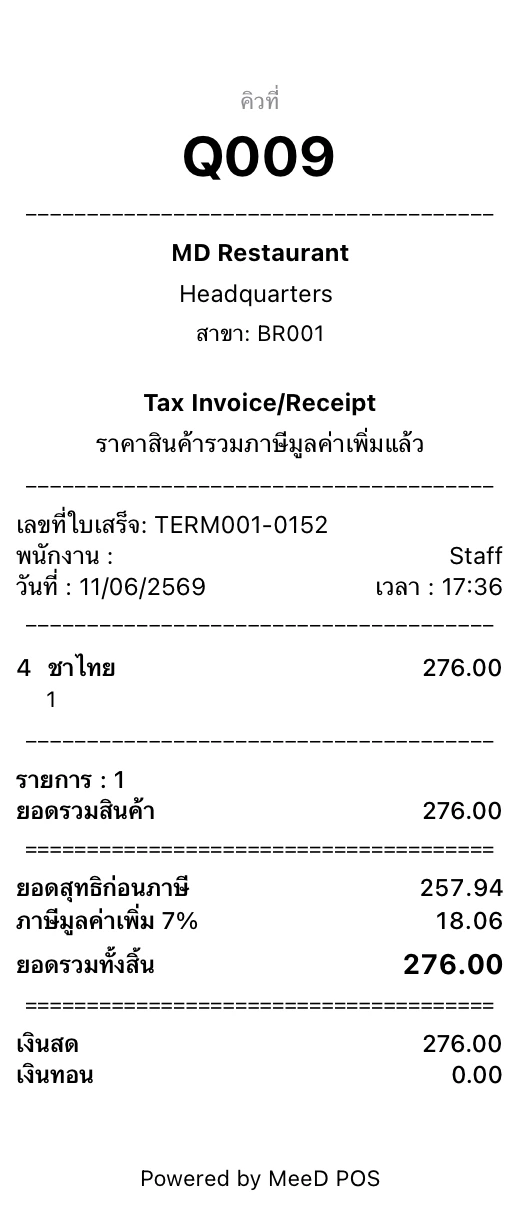
The printer prints a normal receipt (1 copy) and cup stickers matching the number of cups. Each sticker shows the item name, queue number, and sequence, e.g. "Thai Tea", "TERM001-0152", [1/4].
Cautions
Paper size must match the physical printer
If the paper size set in MeeD POS doesn't match the sticker roll actually loaded, text on the sticker may run off the edge or print incompletely.
Selecting the wrong category prints extra stickers
Checking off an unwanted category, like desserts or bakery items, makes the system print stickers for that category too, wasting paper.
The printer must be connected before configuring
Check that the sticker printer is connected to the iPad and shows "Connected" status before editing the printer type — otherwise the setting won't take effect.
Usage Tips
Fewer mistakes with multi-cup orders
An order with several drinks in one bill, e.g. 3 Thai teas, becomes easy to track — per-unit stickers tell staff exactly which cup is which item, reducing serving mistakes.
Special options show up on the sticker
If menu options like less sweet, no ice, or a milk substitution are set up in the system, they show automatically on the sticker, helping baristas make each drink correctly.
Great for shops with heavy pre-orders
Shops handling many advance or delivery orders find cup stickers make it much easier to sort and verify completeness before handing orders off.
Frequently Asked Questions
Which printer brands support cup sticker printing?
MeeD POS supports any 58mm sticker printer connected to the iPad via Bluetooth, WiFi, LAN, or USB, e.g. Xprinter W500. Just connect the printer to the system before setting the printer type.
Can I customize the sticker's size or content?
The standard sticker paper size is 58mm. The printed content — item name, options, and order number — is pulled automatically from the product data configured in MeeD POS.
Can a coffee shop use cup stickers too?
Yes — coffee shops can set up Sticker (Per Unit) mode for the beverage category just like bubble tea shops, showing the item name and options like hot/iced, milk type, and sweetness on each cup.
What happens if I don't select a category in step 4?
If no category is checked off, the system won't print stickers for that category's products. It's best to select only the categories you want stickers for, e.g. Beverages, to avoid printing unnecessary stickers.
Stickers print short, or the [n/total] number is wrong — what do I do?
Check that the copy count set in step 3 matches the number of cups in the order, and that every item is in the category selected in step 4. If it's still wrong, try logging out and back in to resync the settings with the printer.
Related Articles
Need More Help?
Have a question about setting up a sticker printer, or want the team to help configure it? Get in touch.