Connect a Customer Display Screen (CDS)
MeeD CDS (Customer Display Screen) is a free app that turns any phone or tablet into a customer-facing display, showing order items and totals in real time over Wi-Fi. Connecting it to MeeD POS takes just 3 steps — from checking your IP address to testing a real sale.
MeeD POS Team · Tested on real iPad and iPhone ·
What You'll Need
- An iPad with MeeD POS installed — v1.2 or later
- A phone or tablet for the customer side — iOS 17+ or Android 8+
- Both devices on the same Wi-Fi — They must be on the same network
- The MeeD CDS app — Free download from the App Store / Google Play
Step 1 — Check the iPad's IP Address
Open Settings on the iPad → tap Wi-Fi
Briefly exit the MeeD POS app and open Settings on the iPad, then tap Wi-Fi in the left sidebar. Confirm it's connected to the same network as the phone you'll use as the CDS.
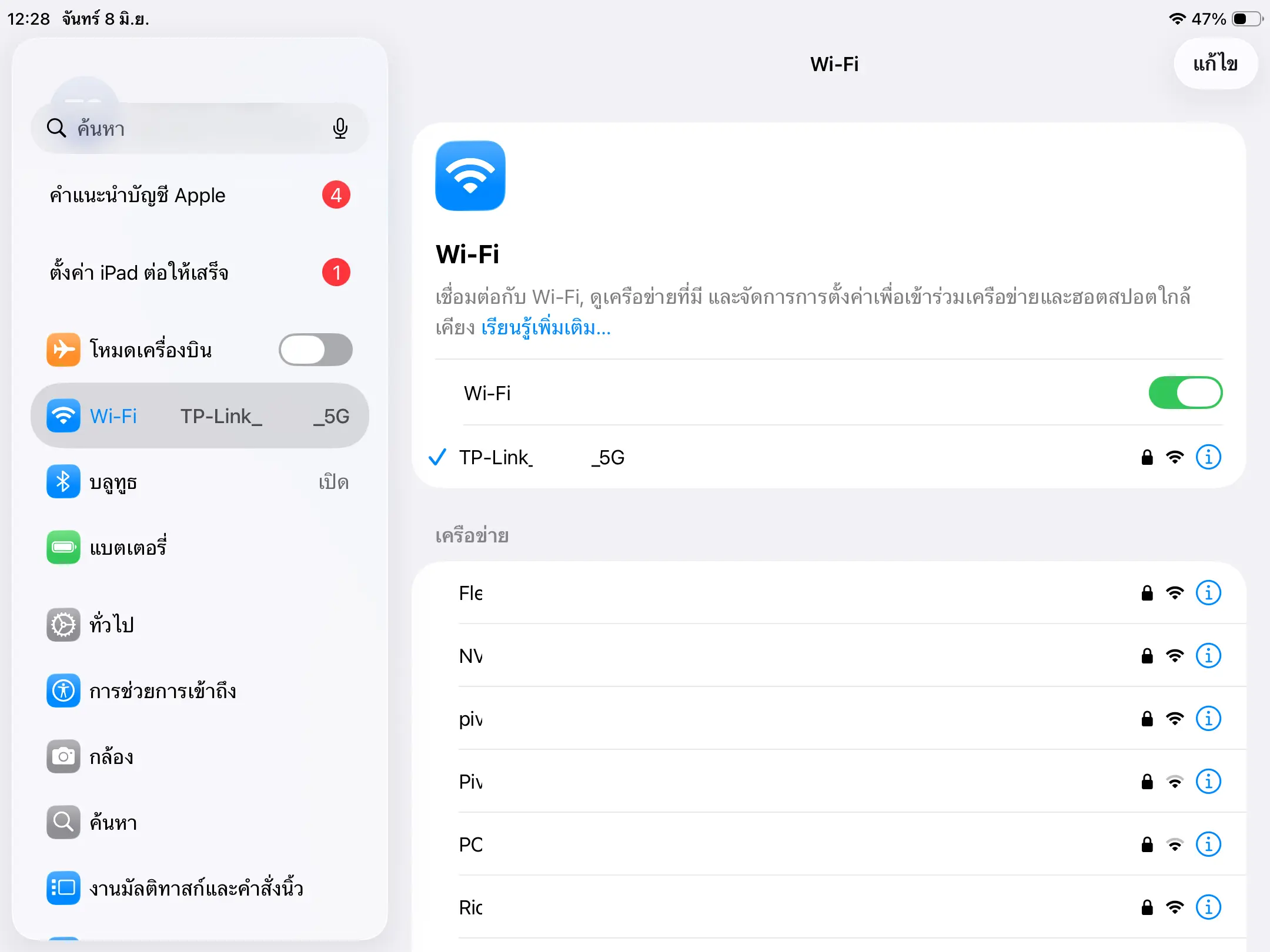
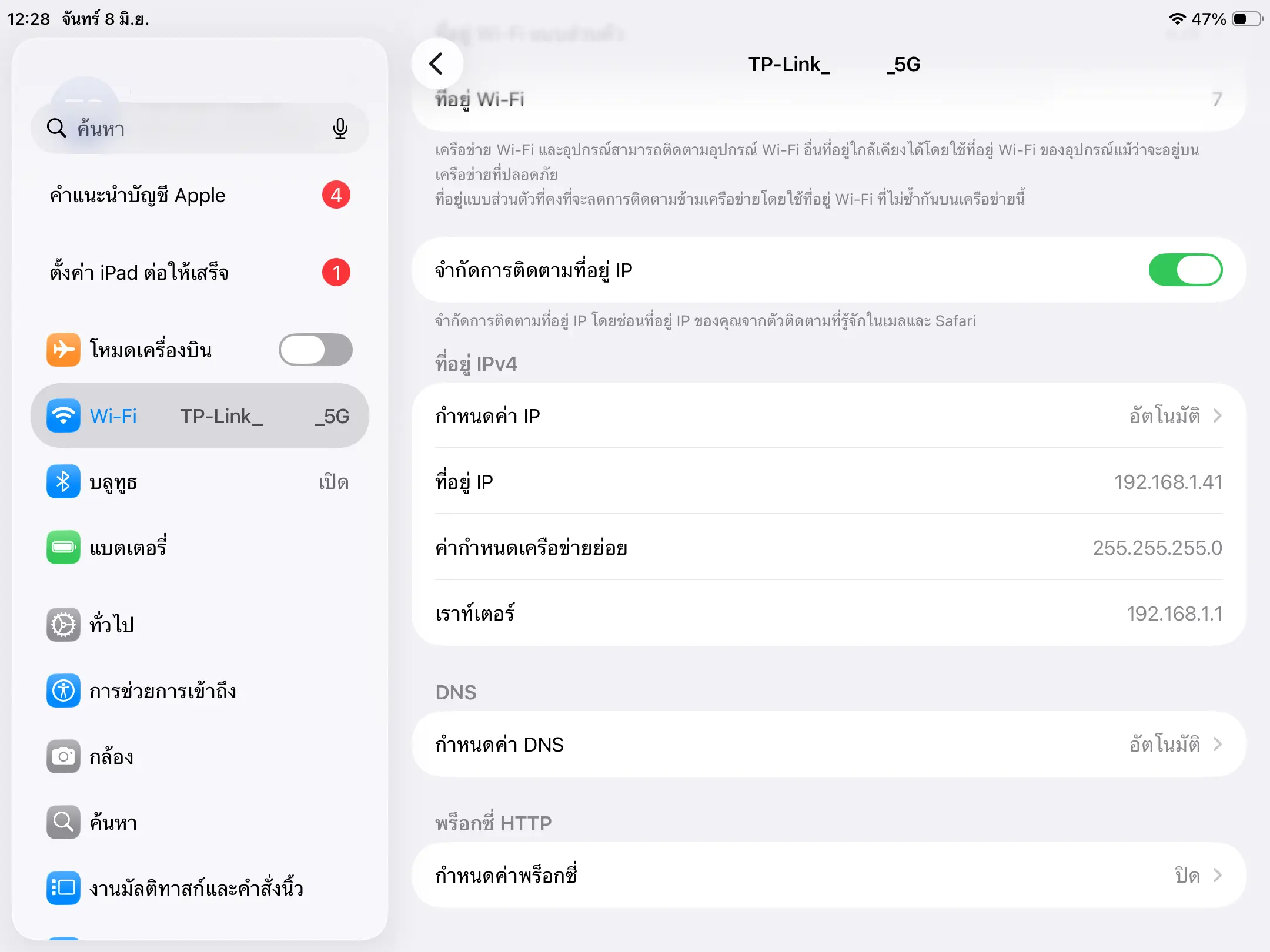
Tap the (i) icon next to the network name → note the "IPv4 Address"
Tap the (i) icon next to the connected Wi-Fi network's name. Look for "IPv4 Address" and write down the IP, e.g. 192.168.1.41 — you'll need it in step 6.
Step 2 — Enable CDS Settings in MeeD POS
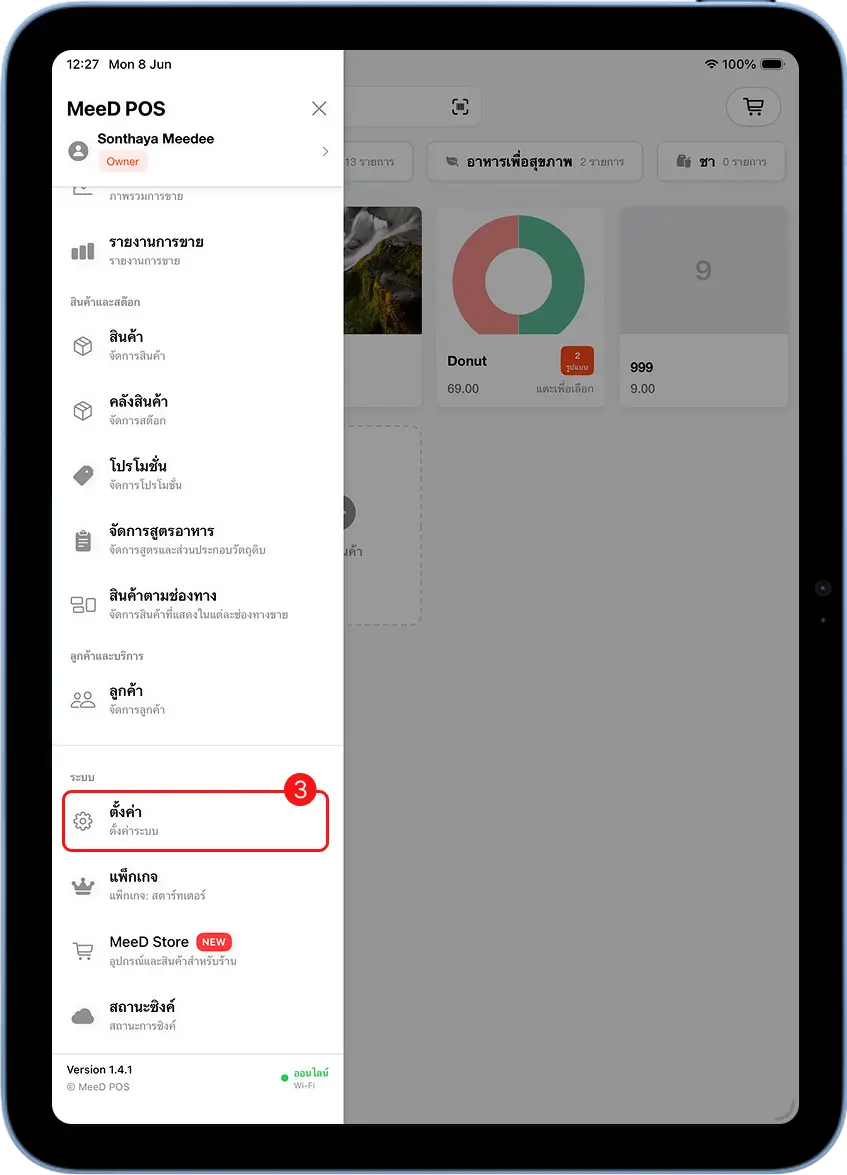
Open MeeD POS → tap the left menu → select "Settings"
Go back to the MeeD POS app, tap the ☰ icon in the top-left corner, scroll to the "System" section, then tap "Settings".
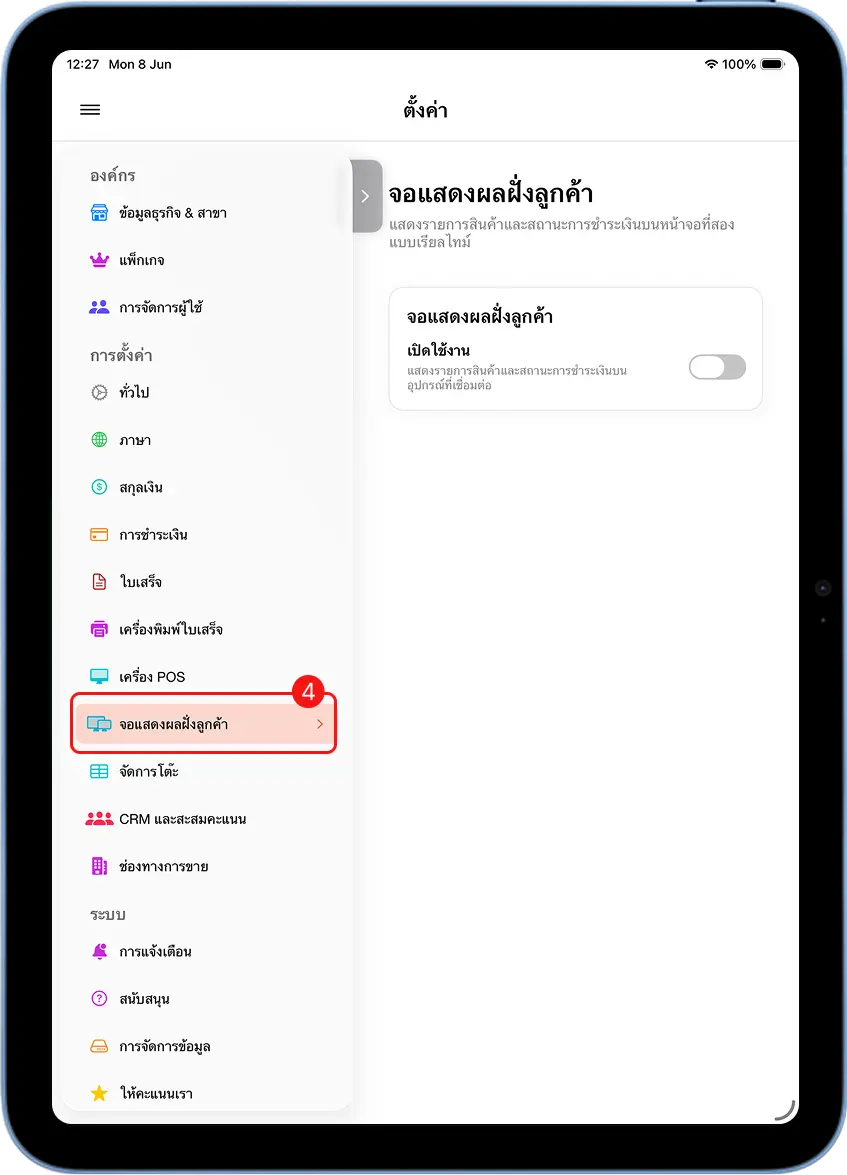
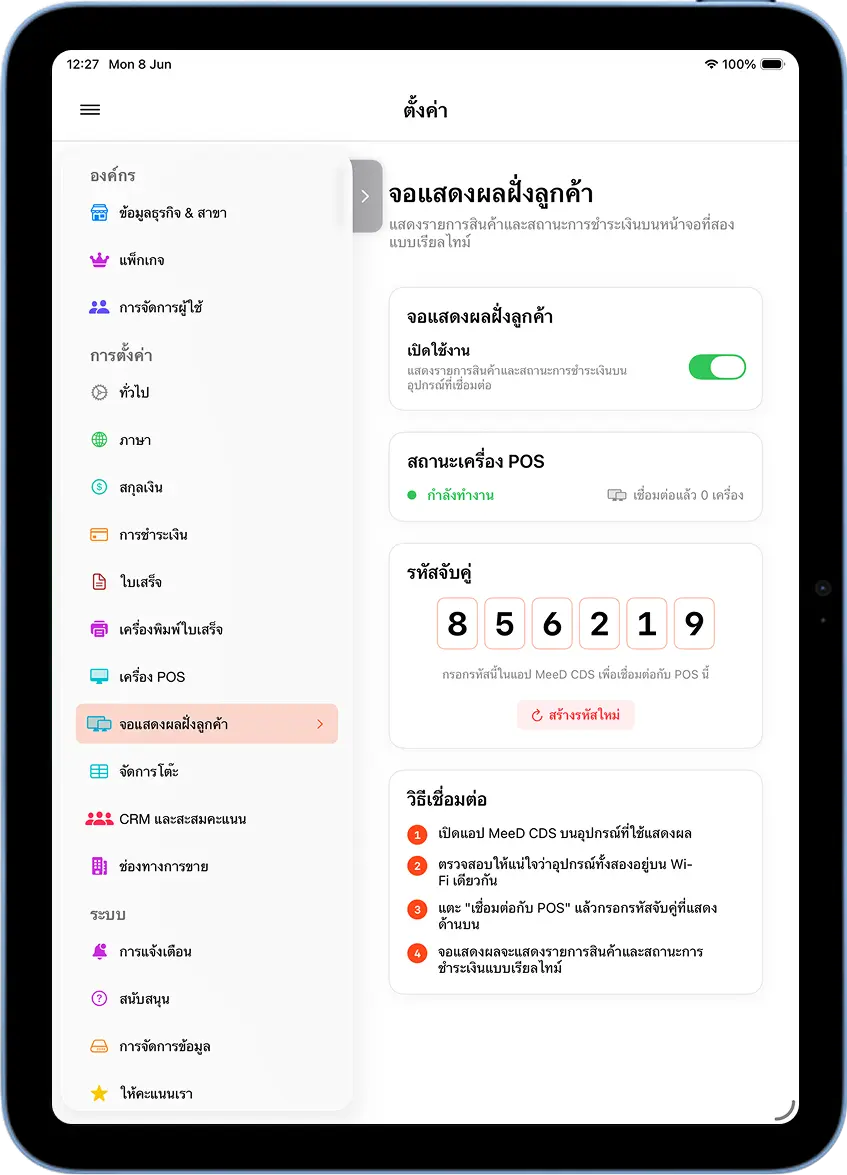
Tap "Customer Display Screen" in the left sidebar
On the settings page, scroll the left sidebar down until you find "Customer Display Screen" (with a monitor icon), then tap it to open the CDS settings page.
Turn on the "Enable" toggle → note the 6-digit pairing code
Tap the "Enable" toggle so it turns green. The system shows a 6-digit "Pairing Code" along with 4 connection steps. Write this code down — you'll need it in the next step.
Step 3 — Connect the MeeD CDS App
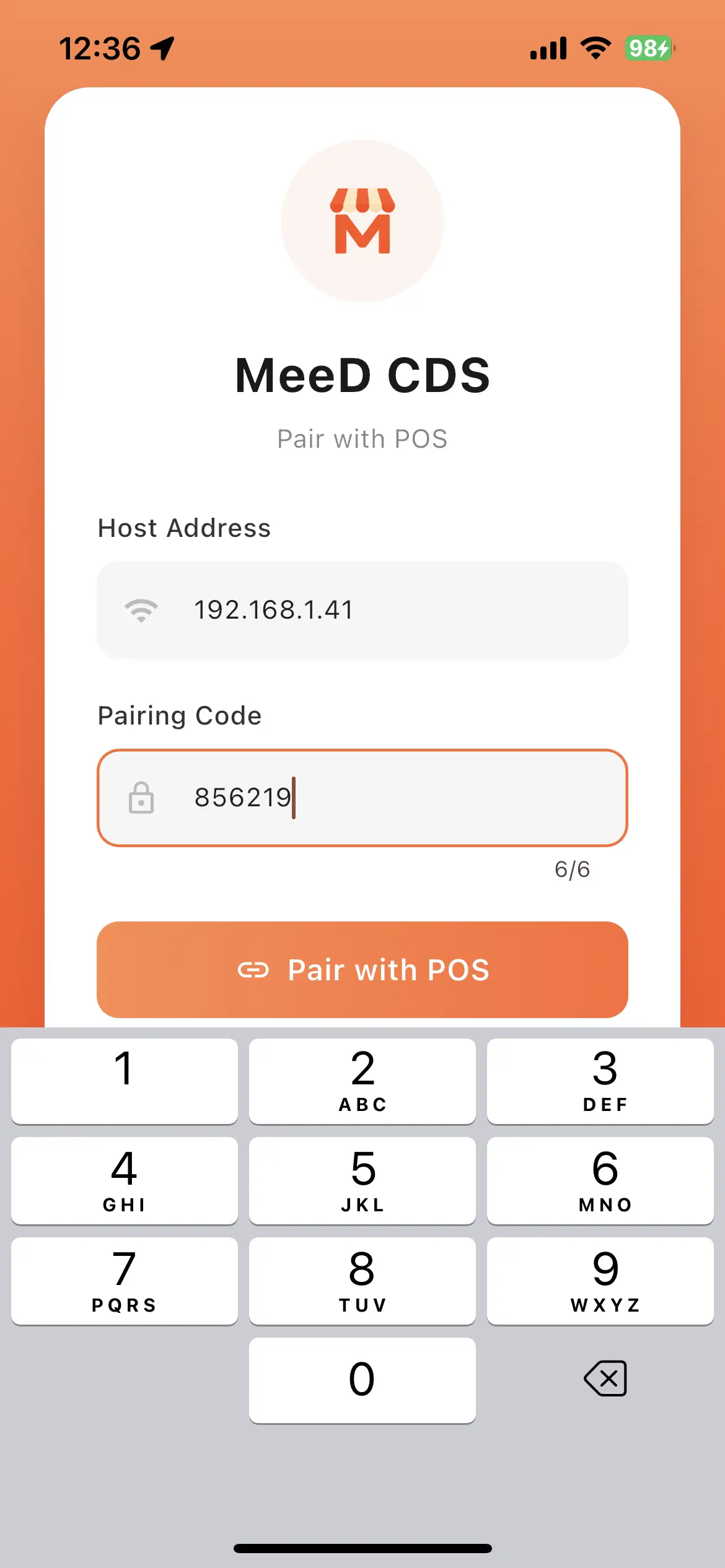
Open MeeD CDS on the phone → enter the IP and pairing code → tap "Pair with POS"
Download and open the MeeD CDS app on the customer-facing phone or tablet. Fill in two fields: Host Address — the iPad's IP address noted in step 2, e.g. 192.168.1.41, and Pairing Code — the 6-digit code from the CDS settings page, e.g. 856219.
Then tap the orange "Pair with POS" button.
Confirm the connection in MeeD POS
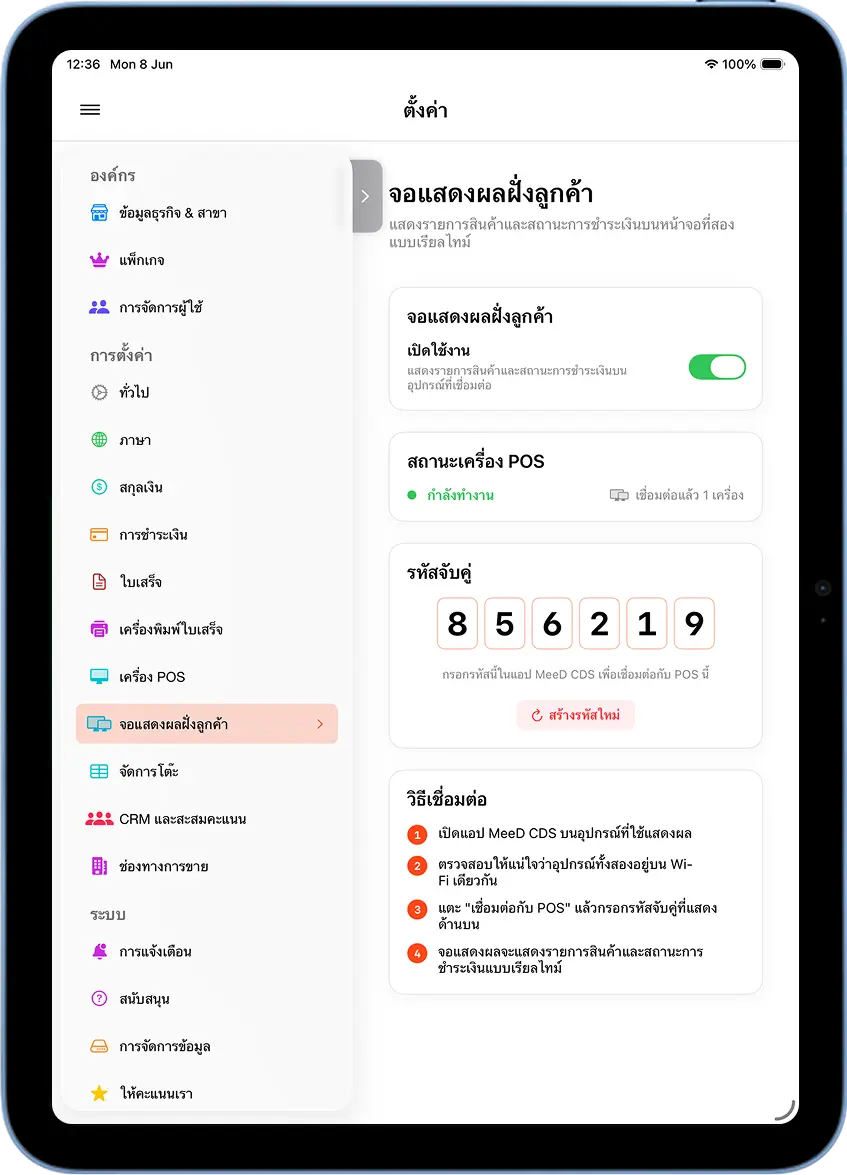
Back in the MeeD POS app, on the "Customer Display Screen" page, confirm the status changed to "1 device connected" with a green status light — that means the connection succeeded.
Step 4 — Test It Out
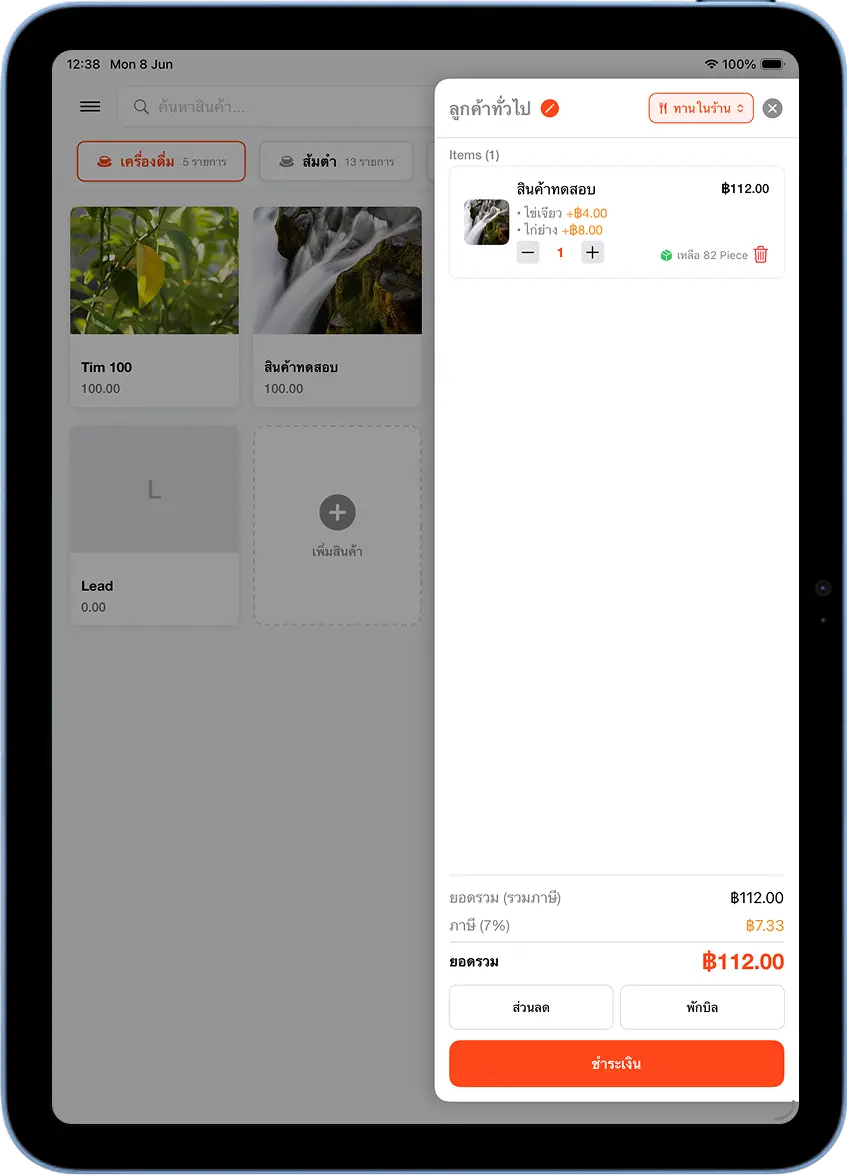
Create a test order → confirm MeeD CDS updates in real time
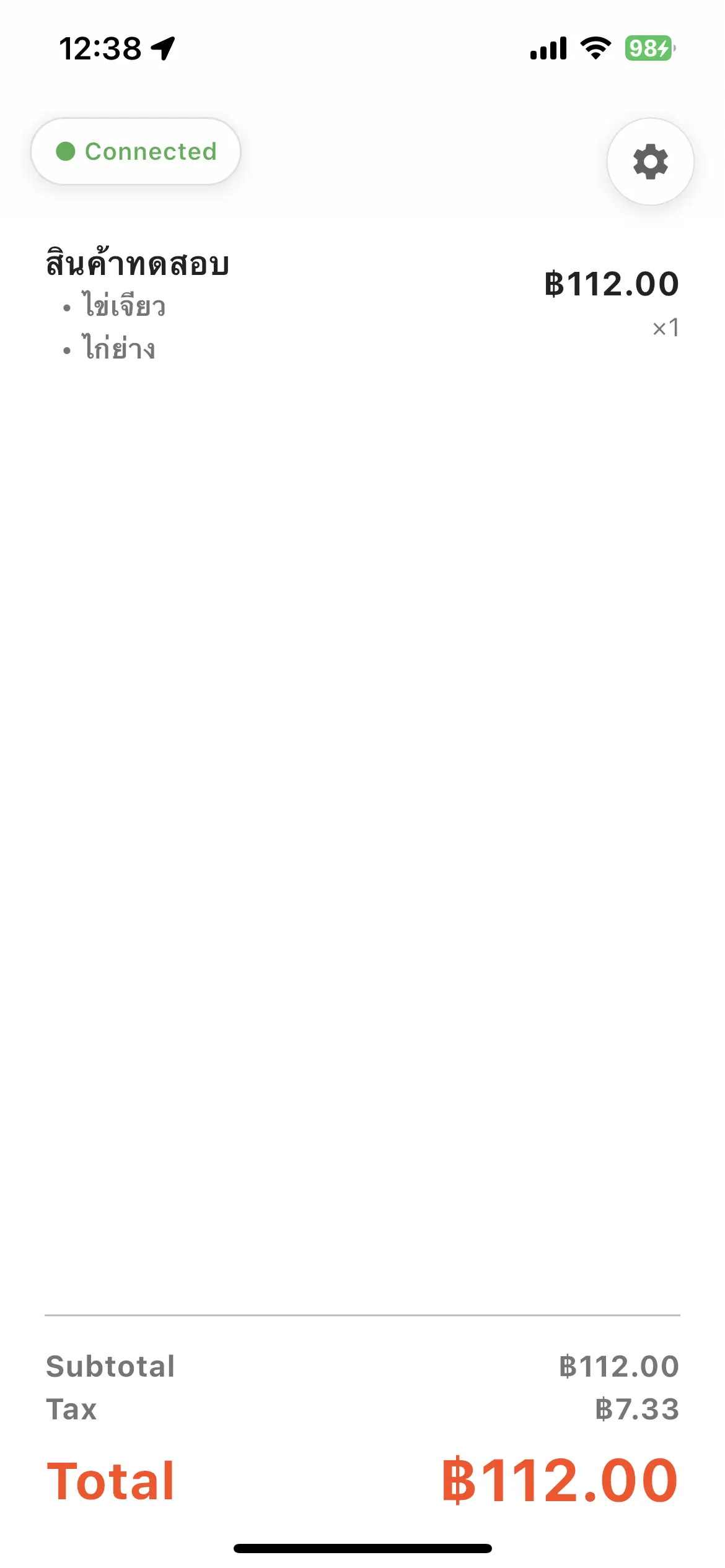
Go back to the main sales screen in MeeD POS and add a test item to the order. Check the MeeD CDS screen on the phone — it should immediately show the item and running total in real time.
Pay → confirm MeeD CDS shows Payment Successful
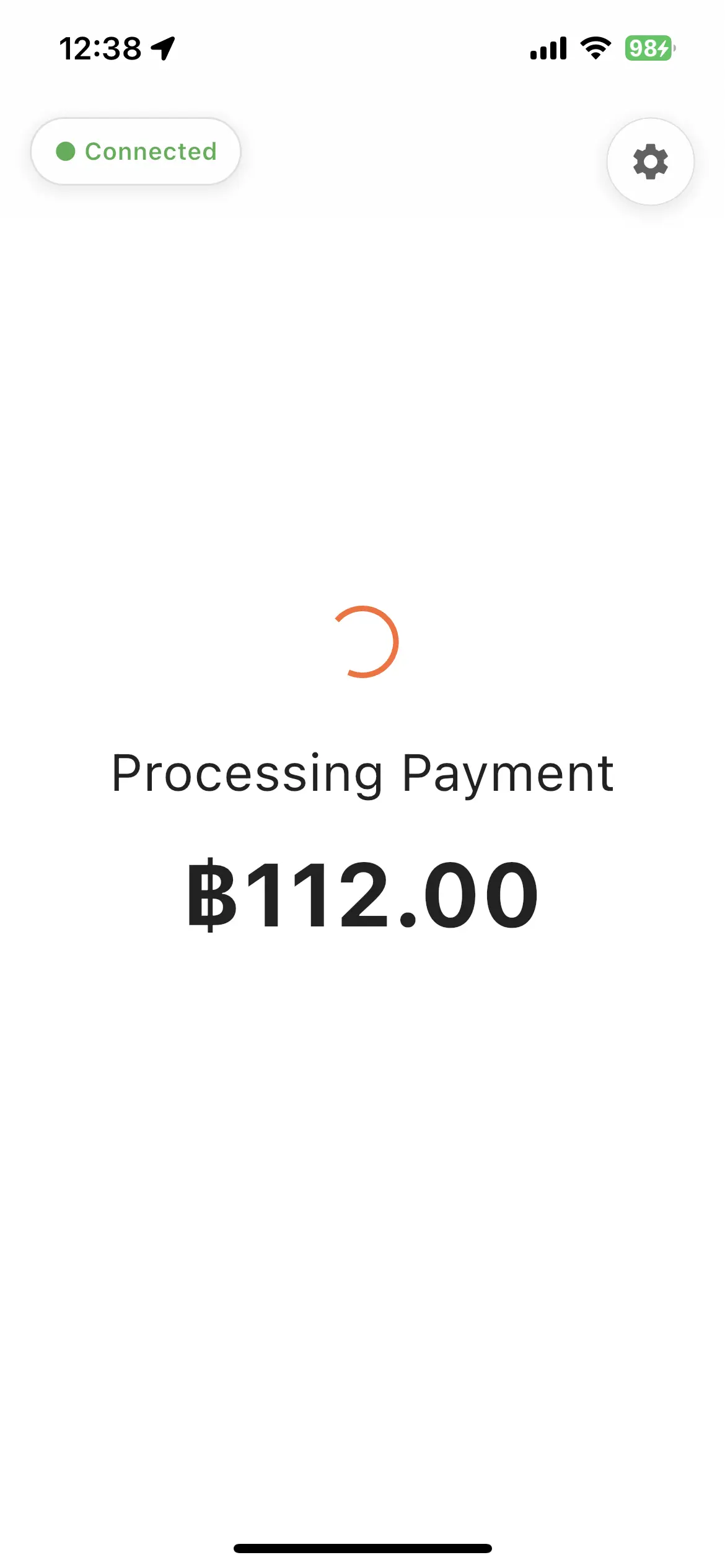
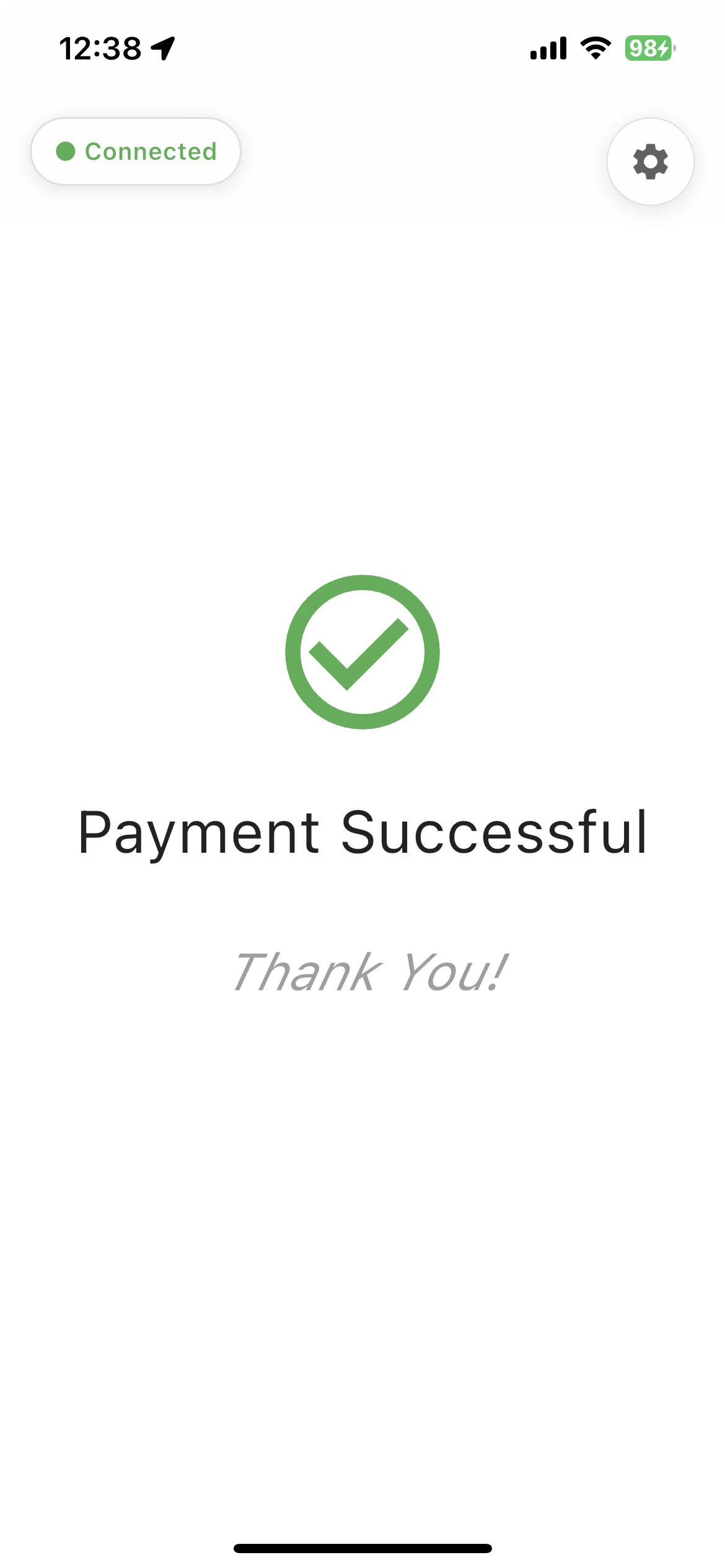
Tap Checkout in MeeD POS. While processing, MeeD CDS shows "Processing Payment", and once it succeeds, it shows "Payment Successful / Thank You!" while MeeD POS shows its own "Payment Successful" screen.
Things to Watch Out For
Wi-Fi must be on the same network
The iPad (POS) and phone (CDS) must be connected to the same Wi-Fi network. Using a mobile hotspot or cellular data instead of Wi-Fi will prevent the connection from working.
The iPad's IP can change after reconnecting to Wi-Fi
If the iPad reconnects to Wi-Fi, its IP address may change. You'll need to check the new IP and re-pair. Setting a Static IP on your router is a permanent fix for this.
Keep the CDS toggle switched on
If you turn off the "Enable" toggle in MeeD POS, the MeeD CDS app immediately shows Disconnected and stops receiving data. Leave this toggle on during normal operation.
Tips for Managers
Reuse an old phone as a CDS
No new hardware needed — an unused old Android or iPhone can download MeeD CDS and become a customer display right away, saving on costs.
Set a Static IP on the iPad for stability
Go to Settings → Wi-Fi → tap (i) → turn off 'Limit IP Address Tracking', then set the IP manually so it never changes — no need to re-pair after every restart.
Position the CDS where customers can see it
Use a phone stand angled directly toward the customer. They'll clearly see the items, prices, and total — improving transparency and reducing order mistakes.
Frequently Asked Questions
MeeD CDS won't connect to MeeD POS — what do I do?
Confirm the iPad (POS) and phone (CDS) are on the same Wi-Fi network, and that the IP entered in MeeD CDS matches the iPad's actual IPv4 address. If it still fails, try tapping 'Generate New Code' in MeeD POS and pairing again.
How many MeeD CDS devices can connect at once?
You can connect multiple devices at the same time. The number of connected devices is shown at the top of the "Customer Display Screen" page in MeeD POS.
Do the iPad (POS) and phone (CDS) need to be on the same Wi-Fi?
Yes — both devices must be on the same Wi-Fi network, since the connection works over local (LAN) IP addresses. If they're on different networks, they can't connect.
Does the pairing code expire?
The pairing code doesn't expire, but it changes every time you tap 'Generate New Code'. If you've paired before and want to reconnect, you can reuse the same code or generate a new one.
Related Articles
Need More Help?
Have questions about connecting CDS, or want our team to walk you through it? Get in touch anytime.