LINE Notifications
Connect a LINE Official Account to MeeD POS to receive shift open/close alerts and real-time sales summaries in a LINE chat the moment they happen — no need to keep the app open to stay on top of your store. Setup takes about 5 minutes across 3 main steps.
MeeD POS Team · Tested with a real iPad and LINE connection ·
What You'll Need
- An iPad or MeeD POS device, already logged in — Owner or Admin permissions
- The LINE app on a phone — Logged into the LINE account you want alerts on
- Internet access — On both the iPad and the phone
- Camera access on the phone — To scan the QR code
Step 1 — Open the Notification Settings Page
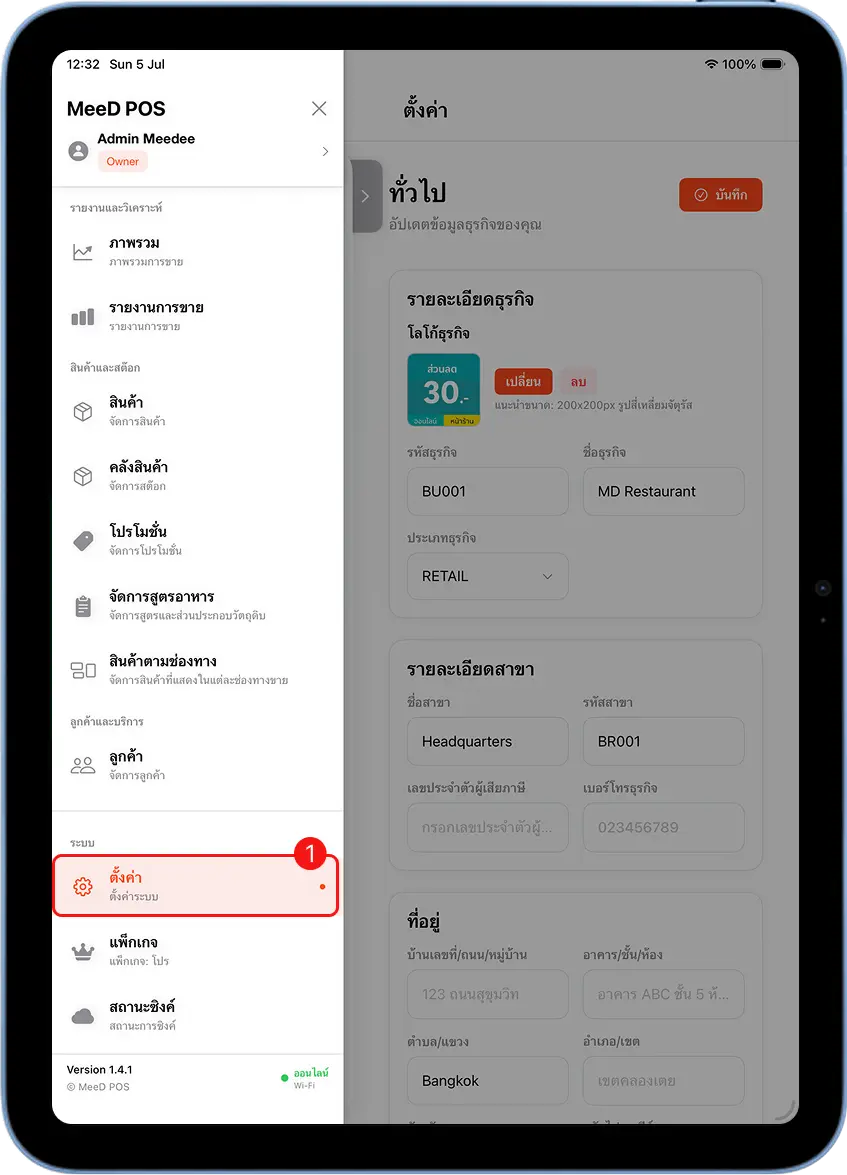
Open MeeD POS → tap the left menu → select "Settings"
Tap the ☰ icon in the top-left corner, scroll to the "System" section, tap "Settings", then select "Notifications" from the left sidebar.
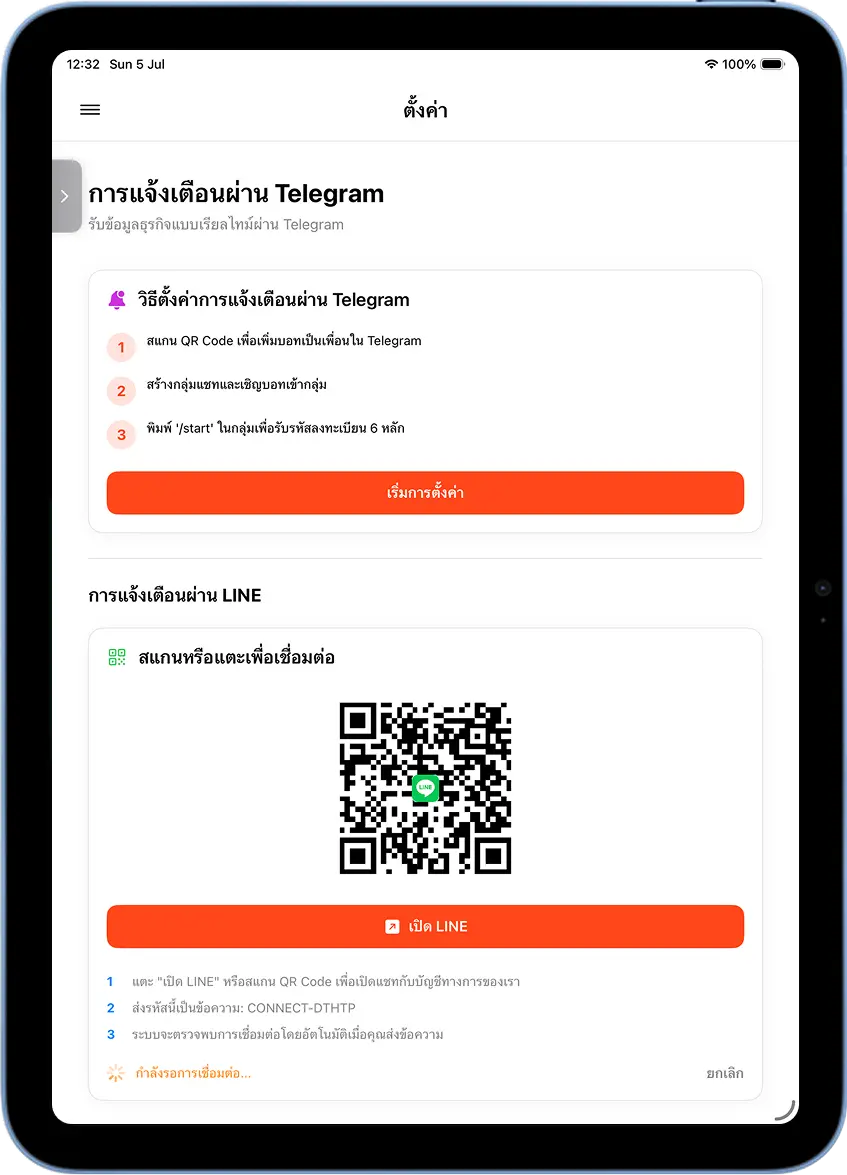
On the "Notifications" page, you'll see two channels: Telegram and LINE
The notifications page shows two sections: "Telegram Notifications" and "LINE Notifications". Each has 3 short instructions and a "Start Setup" button to begin connecting.
Step 2 — Generate the QR Code and Connection Code
Tap "Start Setup" under LINE Notifications
The system generates a QR code along with an "Open LINE" button and 3 instructions. Scan or tap it to open a chat with MeeD POS's official account. Below, a "Waiting for connection..." status stays shown until you confirm successfully.
Step 3 — Connect via the LINE App
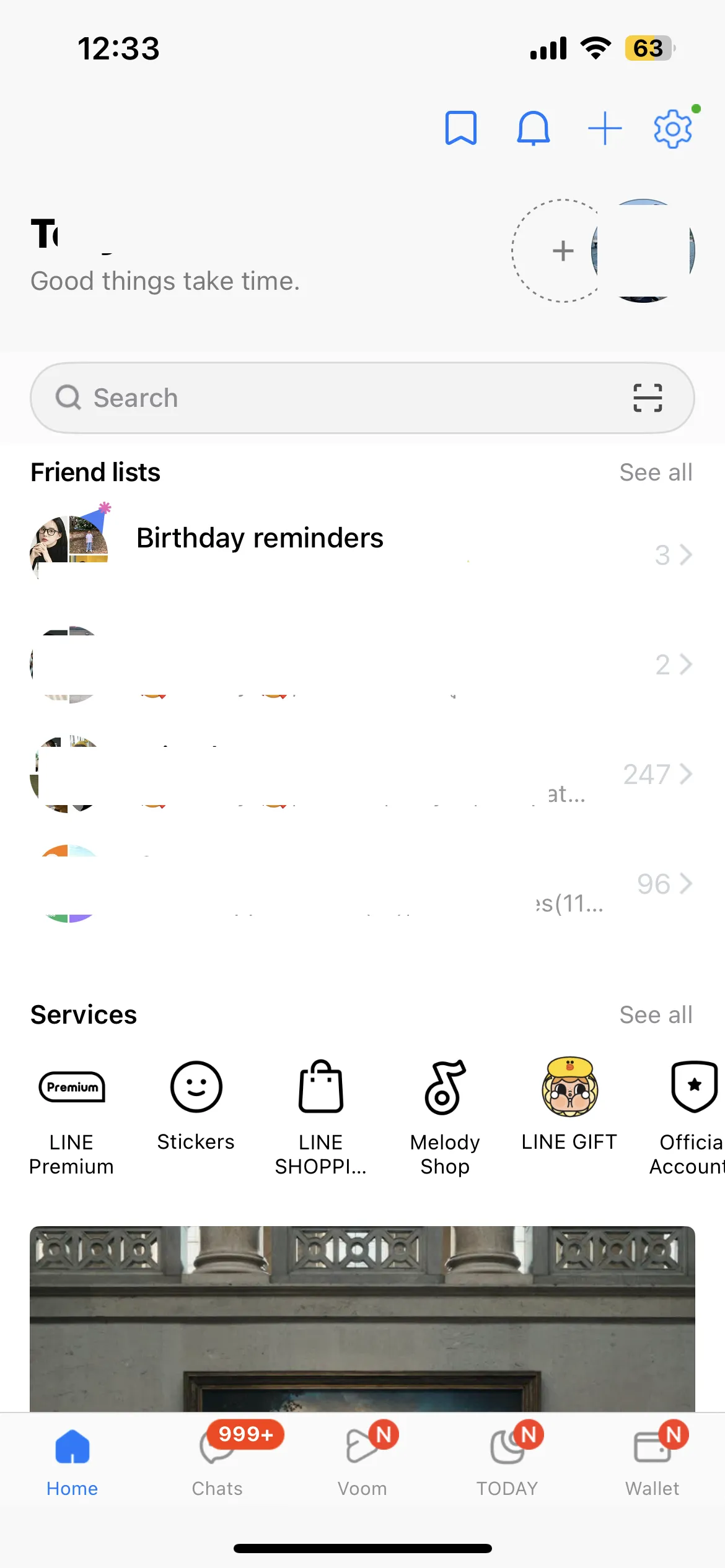
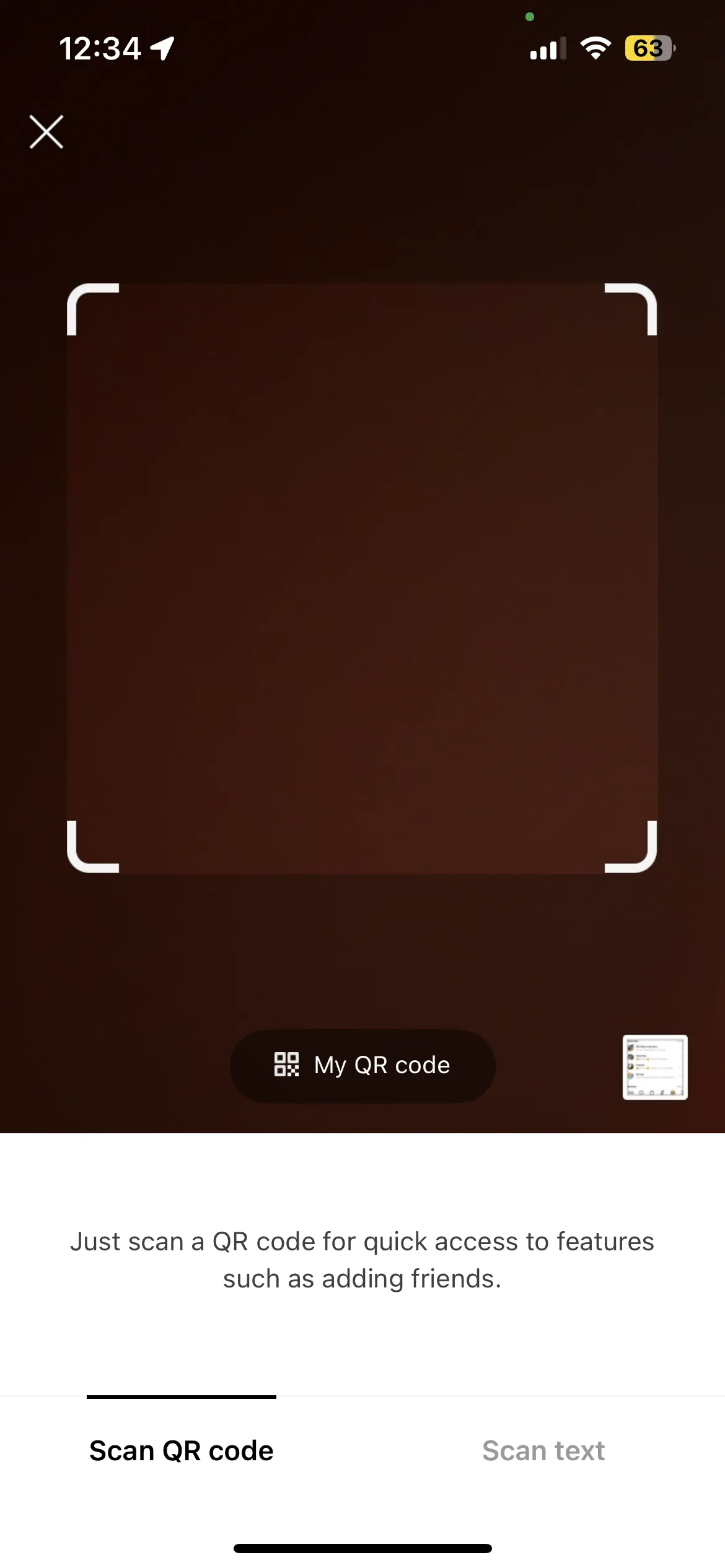
Open LINE on your phone → scan the QR code or tap "Open LINE"
Open the LINE app on your phone, tap the scan icon (top-right corner) to open the camera, then point it at the QR code on the MeeD POS screen. It automatically opens a chat with the official "MeeD Connect" account.
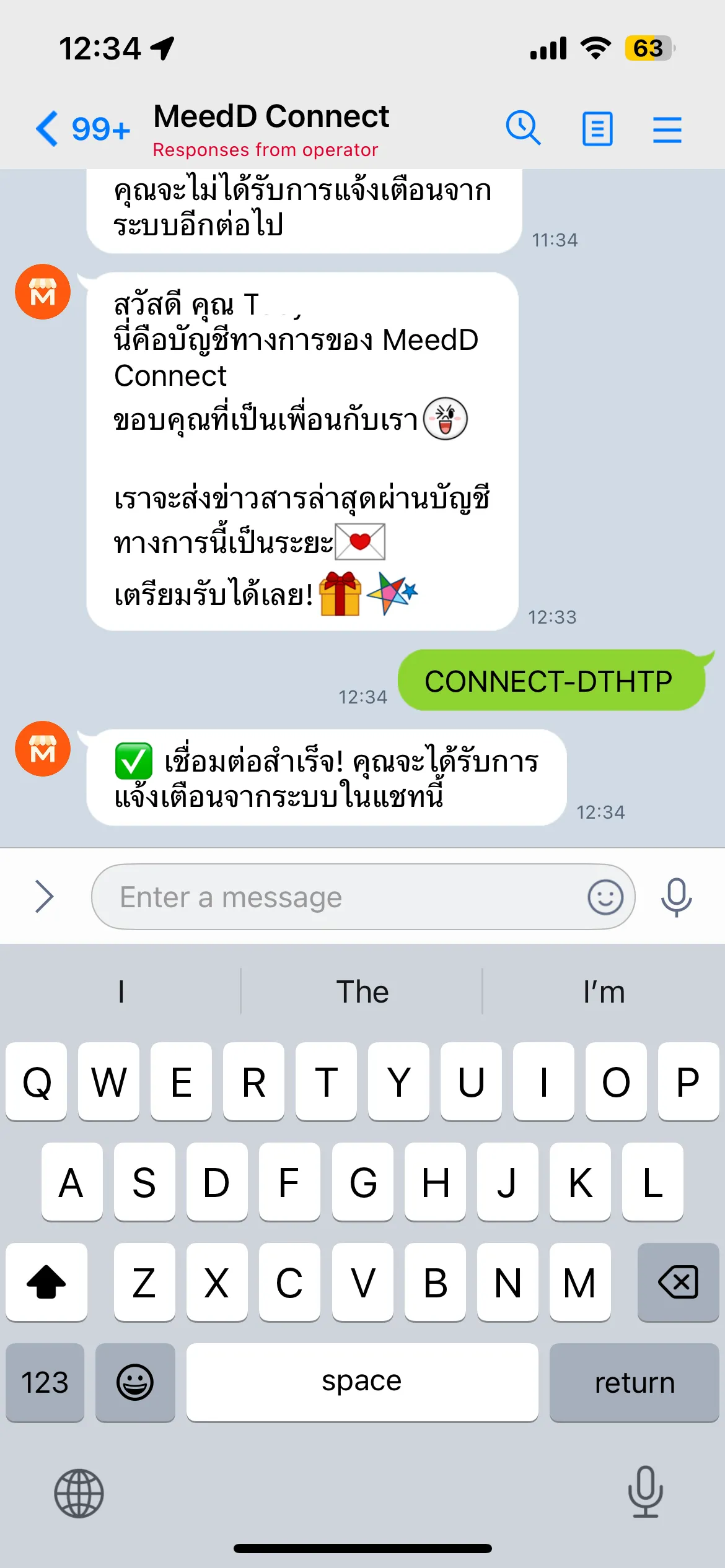
Send the connection code, e.g. CONNECT-DTHTP, as a chat message
In the chat with MeeD Connect, type the connection code shown on the MeeD POS settings page (format: CONNECT-XXXXX) and send it.
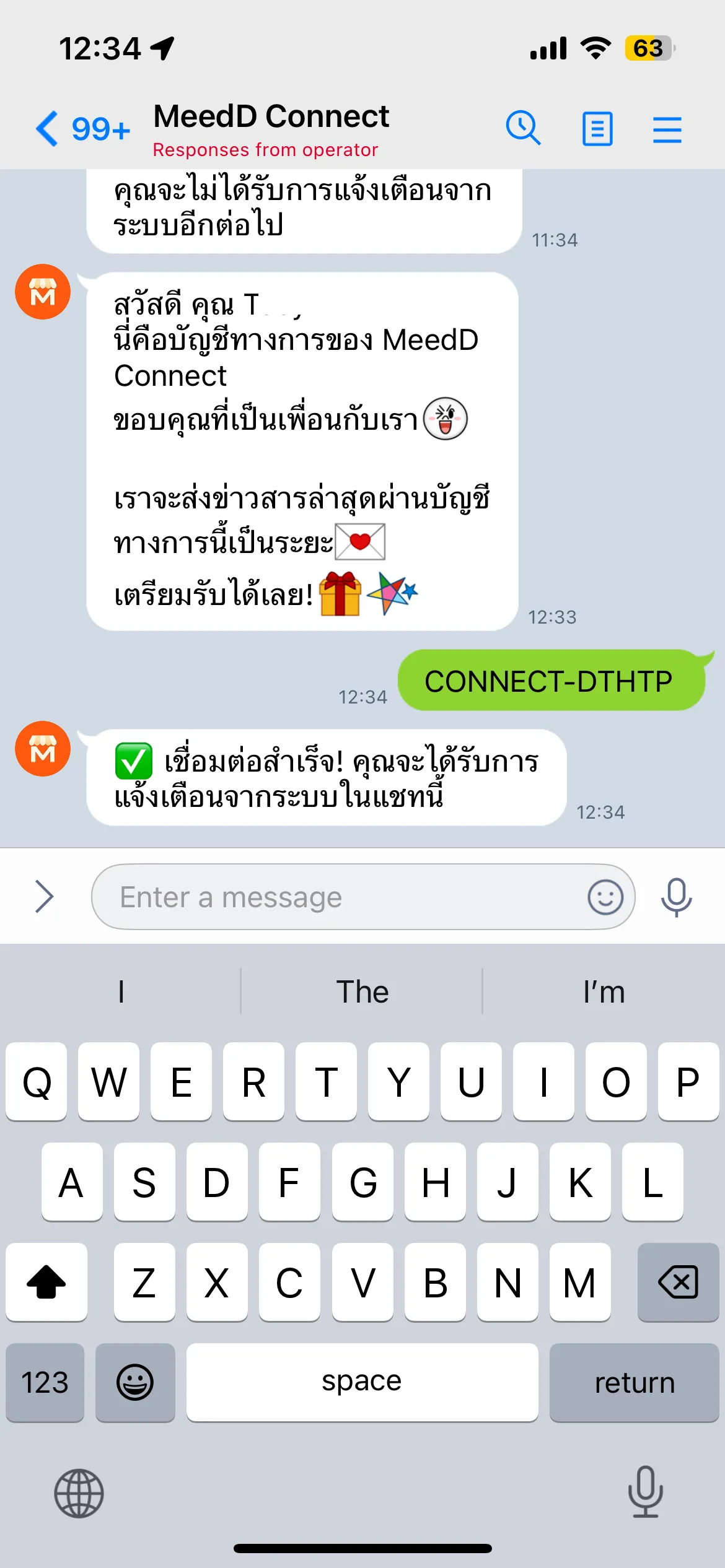
Wait for the chat to confirm "Connected Successfully"
As soon as the correct code is sent, the bot replies "✅ Connected successfully! You'll receive system notifications in this chat." No need to go back and confirm anything in the MeeD POS app — the system detects the connection automatically.
Step 4 — Choose Which Notifications to Receive
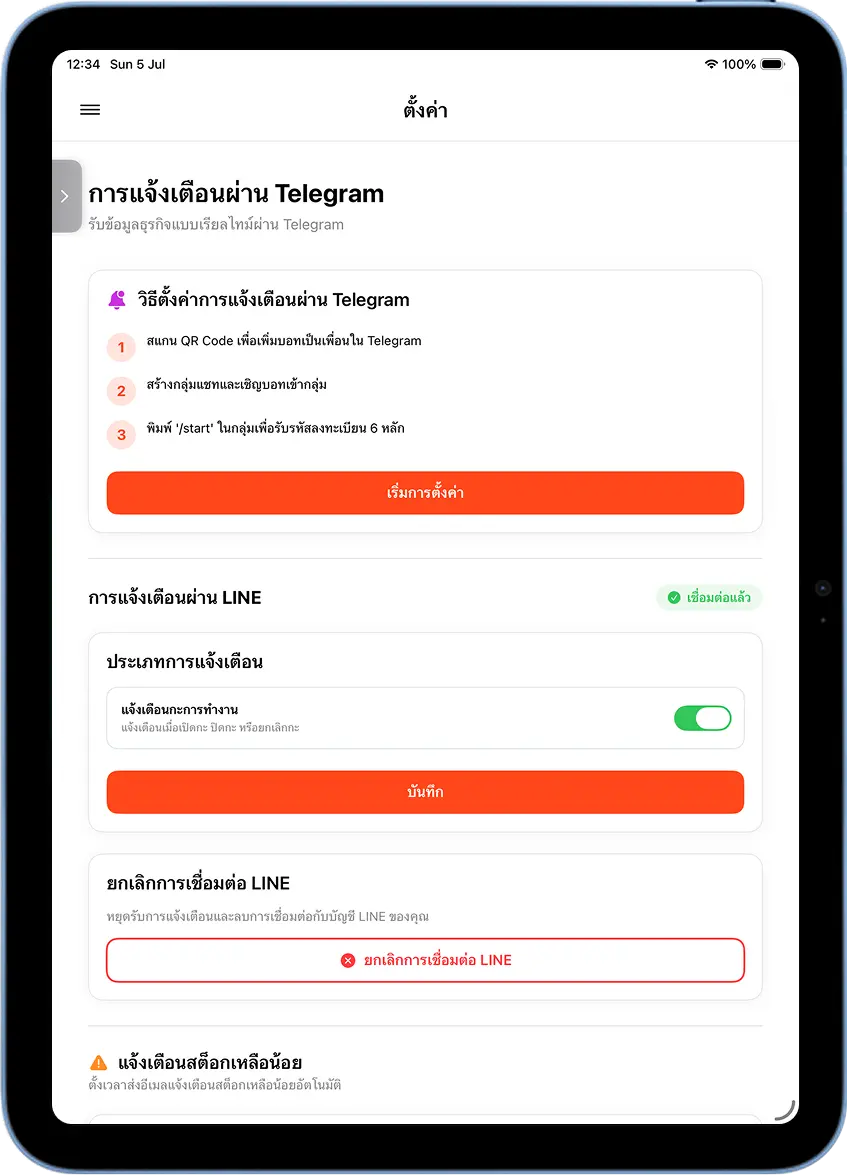
Turn on the notification types you want → tap "Save"
The LINE notifications page shows a "Connected" status along with a list of notification types, e.g. "Shift Alerts" (notifies on shift open, close, or cancellation). Turn on the ones you want, then tap "Save".
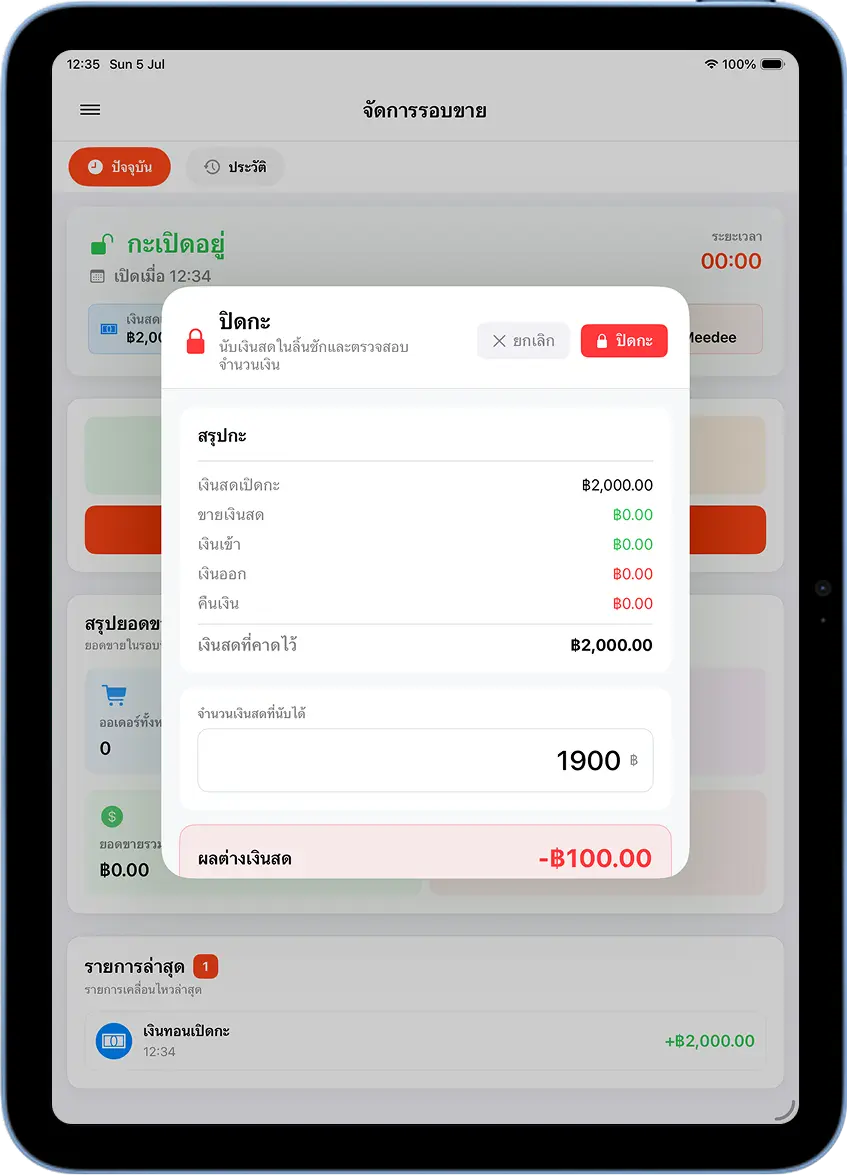
Test it by closing a shift
Test the system by closing a shift on the "Shift Management" page in MeeD POS. Enter the counted cash amount and tap "Close Shift" to have the system summarize sales and send the alert to LINE.
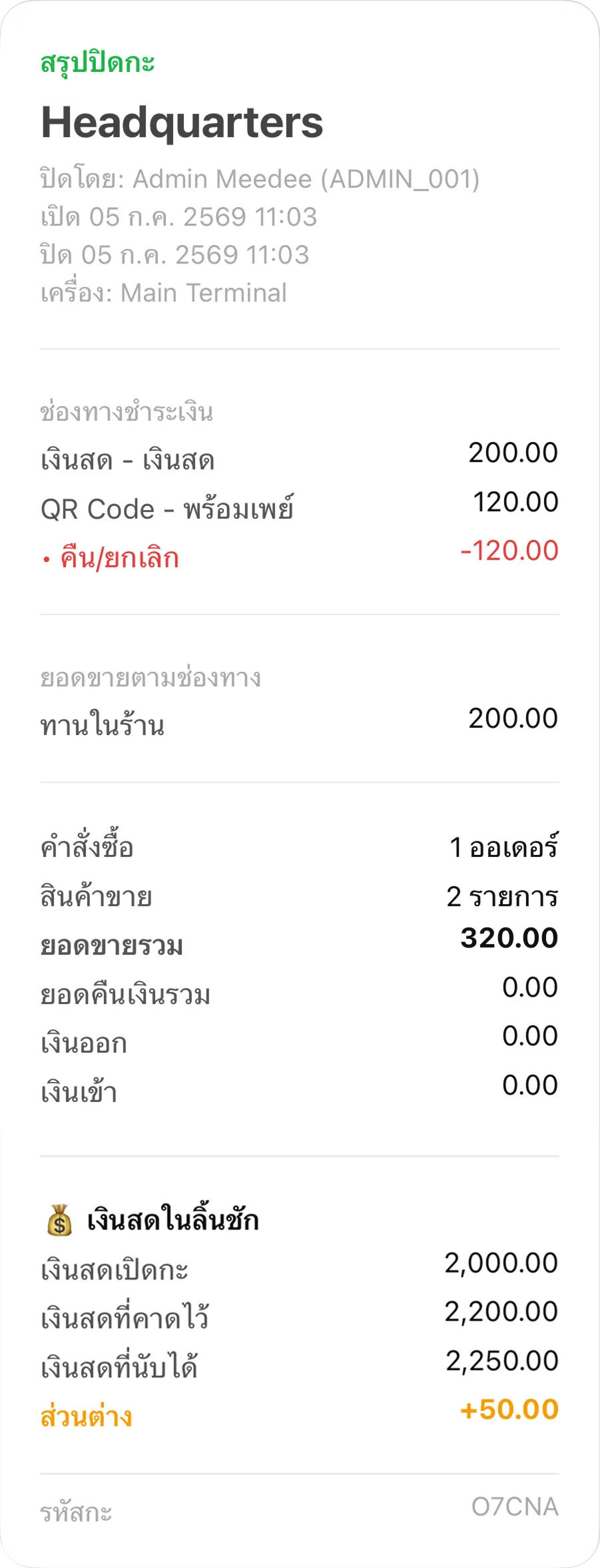
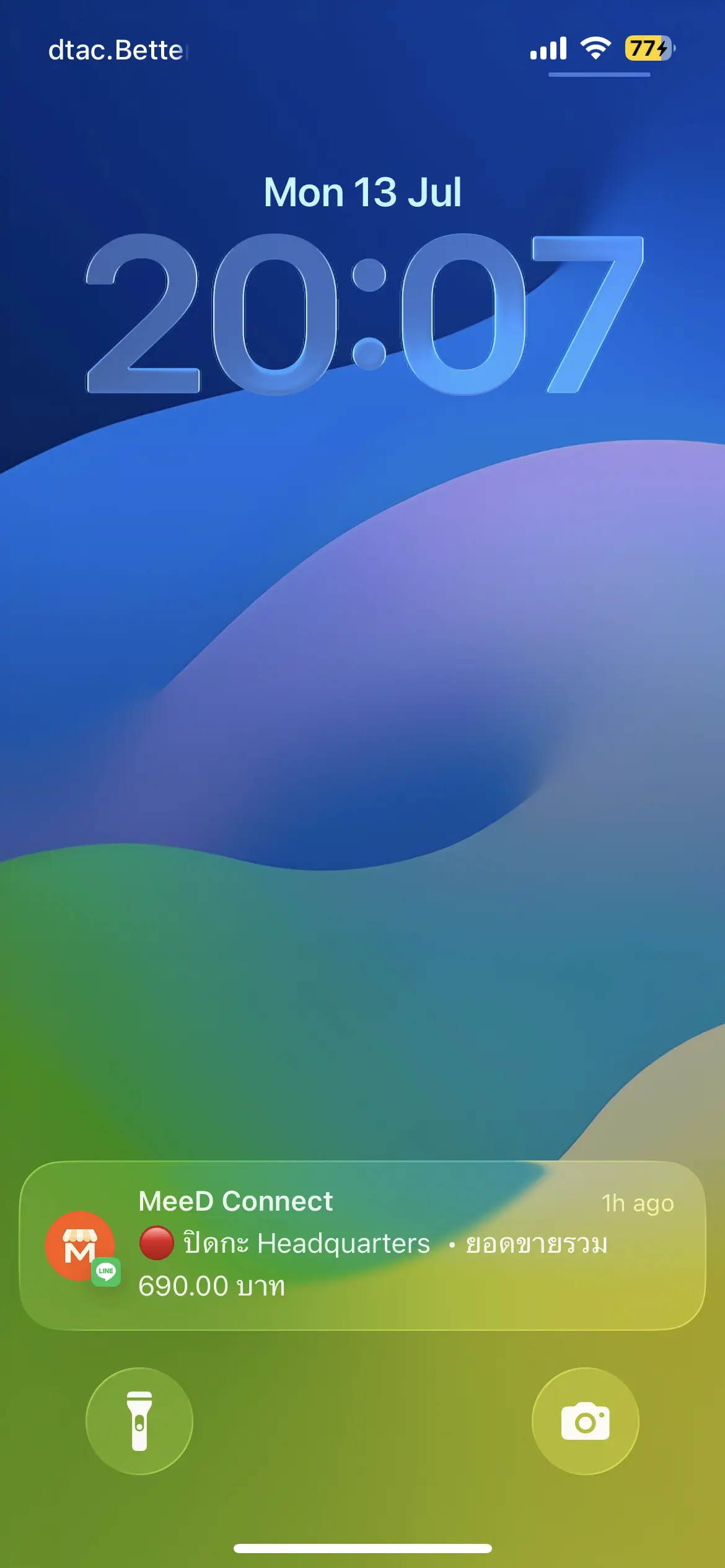
A real example of the notification received in LINE
Once the shift closes, the system immediately sends a summary message to the LINE chat, including sales by payment method, order count, expected vs. counted cash drawer amounts, and the cash difference — letting store owners track shift closings in real time even when they're not on-site.
How to Disconnect LINE
Disconnect
To stop receiving notifications, go back to Settings → Notifications and tap "Disconnect LINE" at the red-bordered bottom of the card. The system immediately stops sending messages and removes the LINE connection. Disconnecting affects every chat that was connected — to receive notifications again, you'll need to go through the full connection process from scratch.
Frequently Asked Questions
Does the connection code expire?
Each connection code works once per generation. If you wait too long or the connection fails, go back to the notifications page and tap 'Start Setup' to generate a new one instantly.
How many LINE accounts or chats can I connect at once?
You can send the connection code from a personal LINE account or a group chat that has already added the MeeD Connect official account. Every successfully connected chat receives notifications simultaneously — useful for letting both the owner and manager see the same updates.
What if I'm not receiving LINE notifications?
First confirm the notifications page in MeeD POS shows a 'Connected' status and that the notification types you want are toggled on and saved. If you still don't receive them, try disconnecting and going through the connection steps again.
How is LINE different from Telegram notifications?
Both channels send the same data (e.g. shift open/close alerts), but LINE suits teams already comfortable with LINE, while Telegram suits stores that want to keep alerts separate from everyday work chats. You can use either channel, or both at once.
Related Articles
Need More Help?
Have questions about connecting LINE, or want our team to help set it up? Get in touch anytime.